When you’ve spent a decade navigating the quirks of Windows, every click feels like a conversation with an old friend who occasionally throws a curveball. In 2026, Microsoft’s ecosystem still rewards the curious, the impatient, and the meticulous. I’ve watched countless users wrestle with sluggish startups, mysterious freezes, and those dreaded blue screens that feel like a personal affront. Over the years, I’ve distilled the noise into a playbook that balances raw performance with day‑to‑day reliability. This guide isn’t a laundry list of generic tips; it’s a deep‑dive from my desk, where I juggle code, gaming rigs, and a handful of legacy apps that still matter. By the end, you’ll have a roadmap that lets you extract every ounce of speed, stability, and security from your Windows machine without turning it into a Frankenstein of tweaks.
Trim the Fat: Streamline Your Startup Sequence
One of the quickest wins for any Windows power‑user is to declutter the boot process. Open Task Manager, switch to the Startup tab, and scrutinize each entry. Ask yourself: “Do I really need this app to launch every time I log in?” Disabling non‑essential services can shave off several seconds, especially on systems with SSDs that already boast lightning‑fast read speeds. For those who rely on legacy software that auto‑starts, consider using the built‑in shell:startup folder to create conditional shortcuts that only fire after you’ve logged in. Pair this with the Windows “Fast Startup” feature, but be aware that it can occasionally cause driver conflicts after major updates. If you’re unsure, a quick test—disable a handful of items, reboot, and time the startup—will reveal the impact. This habit, repeated quarterly, keeps your machine lean and prevents the dreaded “boot‑loop” scenarios that plague neglected systems.
Power Plans: Fine‑Tune for Performance or Battery Life
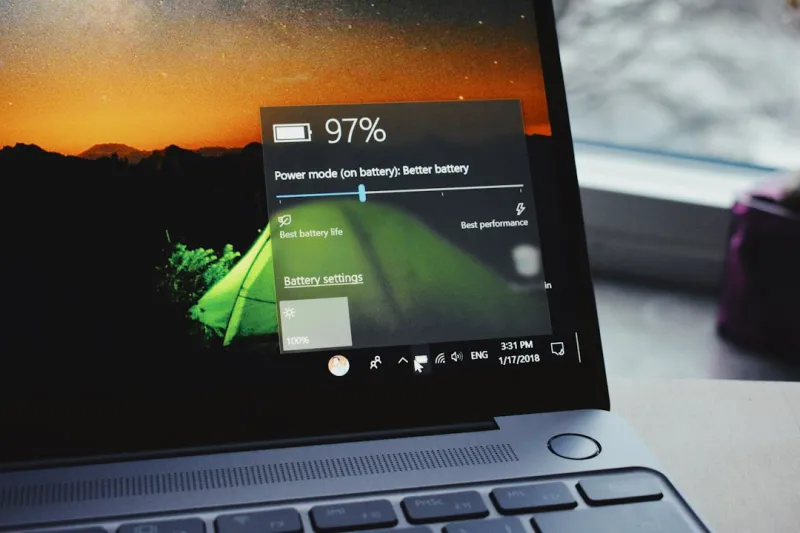
Windows 11’s default “Balanced” power plan is a compromise that often leaves power‑hungry users wishing for more control. Dive into Control Panel → Power Options and create a custom plan tailored to your primary workload. For developers and gamers, crank the minimum processor state to 100% and disable “Processor power throttling” to ensure the CPU never idles at sub‑optimal frequencies. Conversely, if you’re on a laptop and need to stretch every watt, lower the maximum processor state to 85% and enable “Dynamic tick” to reduce unnecessary wake‑ups. Don’t forget the “USB selective suspend” toggle—turn it off for external drives that need constant power. These tweaks not only sharpen responsiveness but also give you a clear picture of how hardware decisions affect real‑world battery endurance, a balance that’s become increasingly relevant as 2026’s ultrabooks push the envelope on power efficiency.
Unlock the Full Potential of Your Storage
Even with a top‑tier NVMe SSD, many users leave performance on the table by neglecting Windows’ storage settings. First, enable TRIM manually if it isn’t already active; open PowerShell as admin and run fsutil behavior query DisableDeleteNotify—a result of “0” means TRIM is on. Next, turn off “System Protection” for drives that don’t host critical data; this frees up space for the SSD’s over‑provisioning algorithm, extending its lifespan. Consider the “Storage Sense” feature, but customize it to run weekly instead of the default daily, preventing unnecessary write cycles. For those who love tinkering, the Unlocking Maximum Hard Drive Performance for Power Users article outlines advanced registry tweaks that can push sequential read/write speeds a few percent higher—marginal gains that add up during large data transfers or game installations. Finally, regularly defragment (yes, even SSDs benefit from the built‑in Windows optimization) to keep the drive’s internal mapping efficient.
Memory Management: Beyond the Basics
RAM is the unsung hero of multitasking, and in 2026, applications are more memory‑hungry than ever. While adding more physical memory is the obvious solution, Windows offers several software‑level levers you can pull. Start with the “Virtual Memory” settings: set a custom paging file size that’s 1.5× the amount of installed RAM for systems under 16 GB, and 1× for those above. This prevents Windows from constantly resizing the pagefile, which can cause stutters during intensive workloads. Enable “Large System Cache” via the registry if you’re primarily using your PC for video editing or large database queries; this directs more memory to the cache, improving throughput. For developers, the How to Diagnose and Fix RAM Problems Like a Power‑User guide provides a step‑by‑step stress test using MemTest86, allowing you to catch flaky modules before they cause crashes. Lastly, keep an eye on background services that hoard memory—tools like Process Explorer can reveal hidden memory hogs that the standard Task Manager glosses over.
Security Hygiene: Updates, Defender, and Beyond
Staying secure in 2026 isn’t just about installing the latest patches; it’s about crafting a layered defense that works with Windows’ built‑in tools. Turn on “Automatic Updates” for both Windows and driver packages, but schedule active hours to avoid mid‑work interruptions. Windows Defender’s “Controlled folder access” can block ransomware from encrypting critical directories, though you’ll need to whitelist trusted applications to prevent false positives. For power‑users who run custom scripts, consider deploying the “Windows Sandbox” for testing—this isolated environment runs a lightweight virtual machine that resets after each use, safeguarding your primary system. Additionally, enable “Exploit protection” for high‑risk apps like browsers and PDF readers; this adds mitigations such as Address Space Layout Randomization (ASLR) on a per‑application basis. Finally, periodically audit your firewall rules; the default “Block all inbound connections” for public networks is a good starting point, but you may need to carve out exceptions for remote development tools or VPN clients.
When the Blue Screen Returns: Diagnose Like a Pro
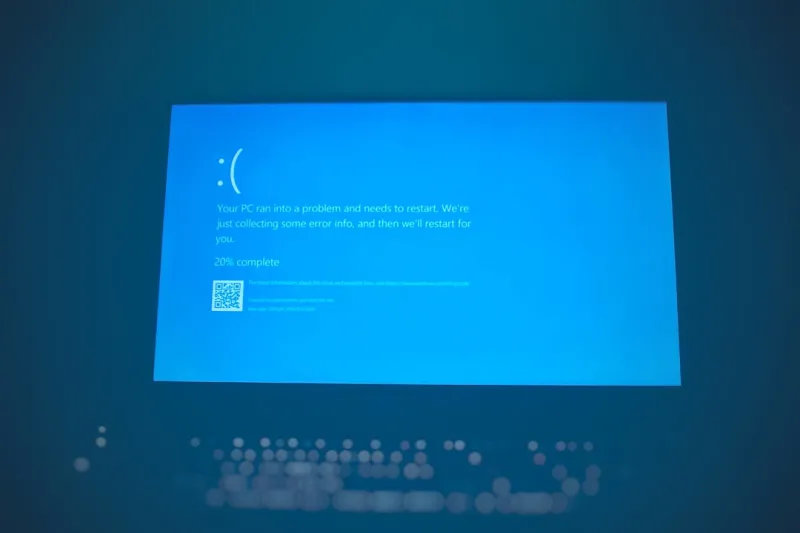
Despite all precautions, the infamous Blue Screen of Death (BSOD) can still rear its ugly head, especially after a major driver update or a hardware change. The first step is to capture the STOP code—press Win + Pause, then click “View reliability history” to see recent critical events. From there, you can pull the dump file using the “Windows Debugger” (WinDbg) and run the !analyze -v command to pinpoint the offending driver or kernel module. For many power‑users, the culprit ends up being a third‑party GPU driver or an outdated storage controller. The article Why the Blue Screen Still Haunts Power‑Users and How to Defeat It walks through a systematic approach: verify BIOS firmware, roll back recent driver versions, and run the built‑in “Hardware and Devices” troubleshooter. If the dump points to a specific memory address, cross‑reference it with the “Driver Verifier” tool, which can stress test drivers until they fail, revealing hidden bugs that only surface under heavy load.
Advanced Power‑User Strategies: Automation and Scripting
At the end of the day, the most efficient Windows setups are those that automate repetitive tasks. PowerShell isn’t just a shell; it’s a full‑fledged scripting environment that can tweak registry values, manage services, and even orchestrate Windows Update policies across multiple machines. For example, a one‑liner like Get-Service | Where-Object {$_.StartType -eq 'Manual'} | Stop-Service -Force can clean up lingering services after a fresh OS install. Combine this with Task Scheduler to run maintenance scripts—disk cleanup, defragmentation, or a nightly memory dump analysis—without lifting a finger. If you crave deeper optimization, dive into the Unlocking Windows Power: Advanced Strategies for 2026 Power‑Users guide, which covers CPU affinity pinning, priority boosting for latency‑sensitive apps, and the use of the bcdedit utility to enable experimental features like “Hyper‑Threading Optimization.” These techniques, while requiring a cautious approach, empower you to shape Windows exactly to your workflow, turning the OS into a responsive partner rather than a passive platform.
Future‑Proofing: Backup, Recovery, and the Long Game
No matter how finely tuned your system becomes, data loss remains the ultimate nightmare. In 2026, Microsoft’s “File History” has matured into a cloud‑aware service that can sync versioned copies of your most critical folders to OneDrive, but it’s still wise to maintain a local backup strategy. Use the built‑in “Backup and Restore (Windows 7)” tool to create a system image on an external USB‑3.2 drive, scheduling it quarterly to capture a snapshot of your entire OS state. Pair this with a “shadow copy” schedule for the drive that hosts your development projects—this provides point‑in‑time restores for individual files. For those who run virtual machines, the “Hyper‑V Export” feature lets you archive complete VM states, ensuring that even complex test environments can be resurrected with a single click. By combining cloud sync, local images, and periodic exports, you build a multi‑layered safety net that safeguards both your productivity and the painstakingly honed performance tweaks you’ve invested in.