
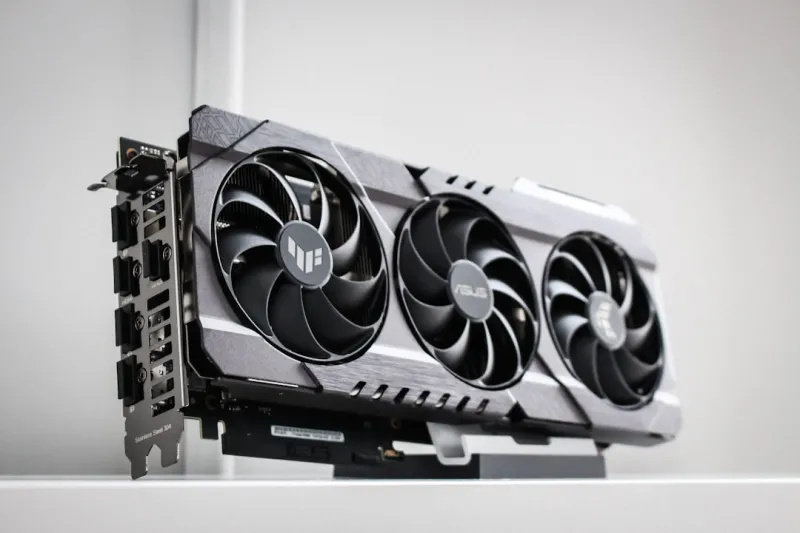
When you’re a power user in 2026, a misbehaving video card feels like a broken heart—unexpected, confusing, and it throws everything else off balance. I’ve spent countless nights coaxing RTX 5090s, RTX A800s, and the newer AI‑accelerated GPUs back into life, and I’ve learned that troubleshooting isn’t just about swapping parts; it’s about a systematic mindset that blends hardware intuition with up‑to‑date software knowledge. In this post, I’ll walk you through the exact steps I take, from the moment the screen flickers to the final validation with modern benchmarks. Expect a blend of practical checks, BIOS tweaks, and a few pro‑tips that most forums overlook. By the end, you’ll have a repeatable process that lets you diagnose, fix, and even future‑proof your GPU setup without having to call tech support for every little hiccup.
Why Video Card Issues Still Matter for Power Users
Even as CPUs become smarter and cloud‑rendered workloads grow, the GPU remains the heart of any high‑performance workstation or gaming rig. In 2026, titles like “Starfield II” and AI‑driven creative apps demand raw rasterization power, while deep‑learning frameworks lean heavily on tensor cores. A glitchy card can cripple rendering pipelines, stall large data sets, and turn a productive day into a series of error dialogs. Moreover, GPU failures often masquerade as software bugs, leading you down rabbit holes of driver updates while the real culprit is a loose power connector or a thermal throttling event. Understanding the unique stress points of modern graphics cards—such as their high‑density power phases, multi‑fan cooling loops, and PCIe 5.0 bandwidth—helps you target the right symptoms before you waste time on irrelevant fixes.
Common Symptoms and First‑Line Checks
The first sign that something’s wrong usually appears on the screen: artifacting, random black frames, or a dreaded “Display driver stopped responding and has recovered.” My habit is to start with a visual inspection—check that the GPU is seated firmly, that all power cables click into place, and that the fans spin freely. Next, I open the Windows Event Viewer to see if any WDDM errors have logged. A quick Mastering GPU Troubleshooting checklist reminds me to verify that the monitor cable isn’t the weak link; a frayed DisplayPort can mimic GPU failures. If the system boots into Safe Mode without a hitch, the issue is likely driver or software related, but if the crash persists, you know you’re dealing with hardware or power delivery.
Power Delivery and BIOS Settings
Modern GPUs demand a stable, high‑current supply, often pulling 300 watts or more under load. A mis‑configured BIOS can limit the voltage rail, causing intermittent throttling that looks like driver crashes. I always start by updating the motherboard firmware—many manufacturers released 2026 BIOS patches that refine PCIe 5.0 link training and improve power phase timing. While you’re there, enable the “Above 4 G support” option and ensure the PCIe slot runs at x16 Gen 5 speed. If you’re on a board that supports adaptive voltage, set it to “Auto” rather than a fixed low value; this gives the GPU room to draw what it needs during intense AI workloads. For deeper insight, my recent read Motherboard Mastery walks through each BIOS knob that can affect GPU stability.
Driver Drama in 2026
Driver ecosystems have evolved dramatically. NVIDIA’s “Studio” drivers now bundle AI‑accelerated codecs, while AMD’s “Game Ready” line includes hardware‑accelerated ray tracing updates every month. The key is not just installing the latest version, but matching the driver to your workload. I keep two driver branches on hand: the “Game Ready” for gaming sessions and the “Studio” for content creation. Before installing, I always clean the previous driver with DDU (Display Driver Uninstaller) in safe mode to avoid lingering files that can corrupt the stack. After the install, I verify the driver version via dxdiag and run a quick glmark2 test; if scores drop dramatically, roll back to the previous stable release. Remember, a driver that works today might break tomorrow after a Windows update, so keep a snapshot of the driver package you know works.
Heat, Noise, and the Art of Cooling
Thermal management is where many power users trip up, especially when stacking multiple GPUs in a single chassis. The newer 2026 GPUs employ dual‑fan or even vapor‑chamber cooling, but they still need clean airflow. I start by checking fan curves in MSI Afterburner, ensuring the fans ramp up before the GPU hits 70 °C. A common mistake is to set a “quiet” curve that keeps fans at low RPM, causing the card to linger in the 80‑90 °C sweet spot where performance throttles. Dust filters should be cleared weekly; a clogged filter can reduce airflow by up to 30 %. If you notice coil‑whine, it’s often a sign of power inconsistencies—try adjusting the Power Limit in the overclocking utility by a few percent to smooth out the waveform. Proper cable management also helps keep the internal temperature gradient even.
When the GPU Won’t Talk: PCIe and Firmware
If the system doesn’t even recognize the GPU, you’re looking at a PCIe communication breakdown. First, confirm that the slot’s LEDs (if present) illuminate—many modern motherboards flash a green light when a device is detected. If the LED stays off, reseat the card and double‑check the power connectors. Next, run a lspci -vv (or the Windows equivalent in Device Manager) to see if the device appears as “Unknown”. A missing device often points to a firmware mismatch; some 2026 GPUs require a separate firmware update that’s not bundled with the driver. You can download the latest firmware from the vendor’s support page and flash it using a USB bootable tool. In rare cases, the PCIe lane itself is defective—testing the GPU in a different slot can quickly rule that out.
Testing with Benchmarks and Stress Tools
Once you’ve cleared the obvious culprits, it’s time to stress the GPU and collect data. I rely on a combination of synthetic benchmarks like 3DMark Time Spy Extreme and real‑world workloads such as Blender’s GPU render test. Run each benchmark three times: once at stock settings, once with a modest overclock (e.g., +50 MHz core, +100 MHz memory), and once with the power limit reduced by 5 % to see how the card behaves under tighter constraints. Monitor temperature, clock boost, and frame times using GPUView or HWInfo. If you notice large variance between runs, it could indicate an unstable power supply or insufficient VRAM bandwidth. Log the results in a spreadsheet; trends over time can reveal intermittent issues that only surface under sustained load.
The Checklist You Can’t Skip
After months of troubleshooting, I distilled everything into a single, printable checklist. It starts with “Power & Seating,” moves through “BIOS & Firmware,” then “Driver & Software,” and finally “Stress Test & Log.” By ticking each box, you avoid the common tunnel‑vision that leads to endless reboot loops. I keep the checklist on my desk and refer to it whenever a new GPU arrives or after a major Windows update. The list also reminds you to cross‑reference related subsystems—like RAM, which can cause similar artifacting. For a deeper dive, see my guide Diagnosing RAM Issues, which pairs nicely with GPU troubleshooting when you suspect memory corruption.
Future‑Proofing Your GPU Setup
Looking ahead, the next generation of GPUs will push even higher power envelopes and integrate more AI accelerators. To stay ahead, choose a power supply that exceeds the card’s rating by at least 20 % and invest in a case with modular airflow—this gives you headroom for larger cooling solutions. Keep your BIOS and firmware tools up to date, and subscribe to vendor newsletters for early driver releases. Finally, consider a dual‑GPU configuration only if your workloads truly benefit; many modern games and apps favor a single, powerful GPU over two weaker ones. By treating your GPU as a living component—regularly cleaning, updating, and monitoring—you’ll extend its lifespan and keep your power‑user rig humming through the inevitable tech cycles of 2026 and beyond.




