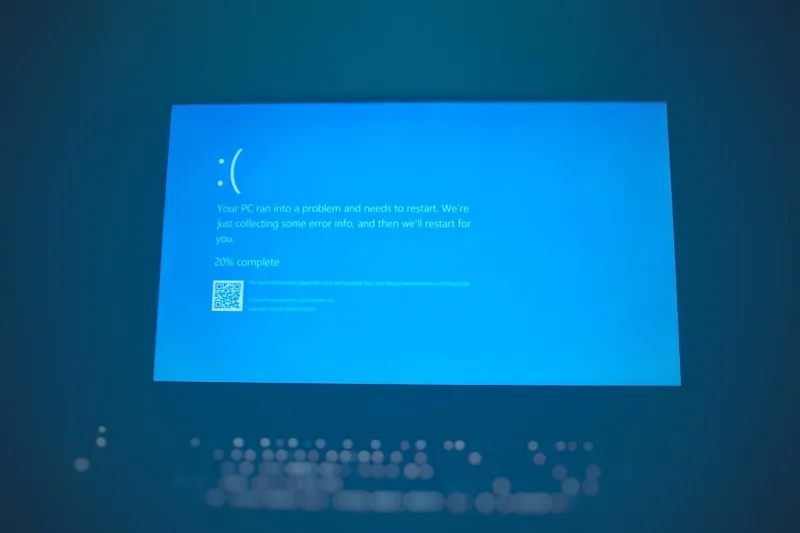
When my PC flickered into that infamous cobalt nightmare last week, I felt a familiar mix of panic and curiosity. As a longtime tinkerer who’s seen every iteration of the dreaded Blue Screen of Death (BSOD) from Windows XP to the current Windows 12, I’ve learned that each crash tells a story—if you know how to read it. In 2026, the BSOD is no longer just a relic of early operating systems; it’s a sophisticated diagnostic tool that can point you to a malfunctioning driver, a rogue piece of firmware, or even a subtle hardware defect. My goal here is to share the exact workflow I use—one that blends classic troubleshooting with the newest utilities—so you can turn that flashing nightmare into a quick, painless reboot rather than an all‑day headache.
Understanding the Modern Blue Screen
The BSOD you see on screen is essentially Windows’ way of saying, “I’ve hit a fatal error I can’t recover from without stopping everything.” Technically, it’s a kernel‑mode crash that forces the OS to halt to protect data integrity. In 2026, these crashes generate detailed stop codes and a mini‑dump file stored in C:\Windows\Minidump. The stop code—often a cryptic string like CRITICAL_PROCESS_DIED or DRIVER_IRQL_NOT_LESS_OR_EQUAL—is the first clue in a chain of forensic data. What used to be a bland “STOP: 0x0000001E” is now a richer log that includes the driver name, memory address, and even the process ID. Knowing how to read this information is half the battle; the rest is about systematic elimination of suspects, which we’ll walk through step by step.
Why Blue Screens Still Happen in 2026
Despite years of driver signing and stricter kernel validation, BSODs persist because modern PCs are more complex than ever. The most common culprits today are outdated or mismatched drivers, especially those tied to high‑performance video cards that push the limits of GPU architectures. Firmware incompatibilities between BIOS/UEFI and new hardware can also trigger low‑level faults. Memory errors—whether from faulty DDR5 modules or subtle timing issues—remain a silent menace, as do SSD controller glitches that confuse the storage stack. Even power delivery anomalies from aggressive overclocking can cause voltage spikes that the CPU’s built‑in protections interpret as a crash condition. If you’re building a machine with the latest components, you’ll find the Why the Blue Screen Still Haunts Modern PCs—and How to Defeat It article a perfect companion for deeper context.
First‑Line Diagnostics: Reading the Crash Dump
The quickest way to demystify a BSOD is to examine the dump file with the built‑in Windows Debugger (WinDbg) or the more user‑friendly BlueScreenView utility. Open the minidump, locate the “Bug Check Code,” and note the “Caused By Driver” line. If you see a third‑party graphics driver like nvlddmkm.sys or amdkmdap.sys, you’re likely dealing with a video‑card issue. From there, cross‑reference the driver version against the manufacturer’s release notes; a known bug may have already been patched. For hardware‑related codes, the dump often lists a memory address that can be traced back to a specific RAM module or SSD firmware version. In my experience, creating a system restore point before each major driver update saves countless hours of back‑and‑forth, because you can roll back to a known good state without a full reinstall.
Keeping Drivers and Firmware in Sync
One of the most effective ways to avoid a repeat crash is to stay on the latest, stable driver releases. In 2026, GPU manufacturers push updates weekly to accommodate new DirectX 13 features and AI‑accelerated workloads. When a new driver lands, I first check the changelog for any mentions of “stability” or “crash fixes” that pertain to my use case. If you’re not comfortable manually downloading each update, tools like Driver Booster or the built‑in Windows Update can automate the process, but always verify the source to avoid counterfeit drivers. For a deeper dive into video‑card troubleshooting, see my guide Troubleshooting Modern Video Cards. Remember, the same principle applies to BIOS/UEFI firmware—check your motherboard vendor’s website for the latest version that supports your CPU and RAM configuration, especially if you’ve recently upgraded any component.
Testing the Core: Memory, Storage, and Power
Hardware health checks are non‑negotiable in a BSOD prevention plan. Run a full memory diagnostic using Windows Memory Diagnostic or the more thorough MemTest86+; let it cycle through at least three passes to catch intermittent errors. For storage, tools like CrystalDiskInfo reveal SMART attributes that can predict impending SSD failures—look for reallocated sectors or uncorrectable read errors. If your system uses an NVMe drive, ensure the firmware is up‑to‑date, as older firmware can conflict with newer OS storage stacks. Power delivery is often overlooked, but a cheap or aging PSU can cause voltage fluctuations that manifest as sudden kernel panics. In my latest build, I consulted Unlock the Power of Your PC to choose a reputable 80+ Gold unit, which eliminated several mysterious crashes that were previously traced back to the power rails.
Security Threats That Trigger BSODs
Modern malware has grown sophisticated enough to corrupt kernel memory, deliberately causing a BSOD as a denial‑of‑service tactic. Ransomware families often inject malicious drivers that bypass user‑mode defenses, forcing the OS to halt to protect system integrity. That’s why a robust encryption strategy—like the one detailed in Why Strong Encryption Is Your Best Defense in a Hyper‑Connected World—is critical not just for data privacy but also for system stability. Running regular scans with a reputable anti‑malware suite, keeping Windows Defender signatures up‑to‑date, and employing secure boot can mitigate the risk of a driver‑level infection that would otherwise culminate in a blue screen.
Proactive Maintenance: Tools and Practices
Prevention beats cure every time, especially when it comes to system crashes. Schedule weekly disk clean‑ups and monthly driver audits, and enable Windows’ built‑in “Automatic Memory Dump” to ensure you always have the latest crash data at hand. Third‑party monitoring tools like HWInfo64 let you set alerts for temperature spikes, voltage anomalies, and fan speed irregularities—early warnings that can spare you a catastrophic shutdown. For professionals who rely on productivity suites, the rise of AI‑powered Office tools in 2026 means more background processing, which can increase system load. Keeping an eye on CPU and GPU utilization during peak office hours helps you spot abnormal resource hogs before they force a crash.
Decoding Common Stop Codes and Fix Strategies
Let’s break down a few of the most frequent stop codes you’ll encounter. DRIVER_IRQL_NOT_LESS_OR_EQUAL typically points to a faulty driver accessing memory it shouldn’t. Updating or rolling back the driver usually resolves the issue. PAGE_FAULT_IN_NONPAGED_AREA often indicates bad RAM or a corrupt system file; a memory test combined with an SFC /scannow can pinpoint the problem. CRITICAL_PROCESS_DIED suggests that a core Windows process like csrss.exe terminated unexpectedly, which can be caused by malware or a corrupted system file—running DISM /Online /Cleanup‑Image /RestoreHealth is the recommended fix. For each of these, the key is to isolate the variable: driver, hardware, or software, then apply the targeted remedy. Documenting each change in a simple spreadsheet can save you from retracing steps during future incidents.
Final Thoughts: Turning the Blue Screen into a Learning Opportunity
Encountering a BSOD is never fun, but with the right mindset it becomes a valuable learning moment. By systematically collecting dump data, keeping drivers and firmware current, testing core hardware components, and securing your system against malicious drivers, you can dramatically reduce the frequency of these crashes. Remember, the community is a powerful ally—forums, official vendor support, and internal guides like Why the Blue Screen Still Happens and How to Tame It in 2026 offer real‑world solutions that complement your own troubleshooting. Keep a log of every BSOD, note the conditions leading up to it, and you’ll soon recognize patterns before they manifest as full‑blown system failures. Happy building, and may your screens stay green for all the right reasons.