
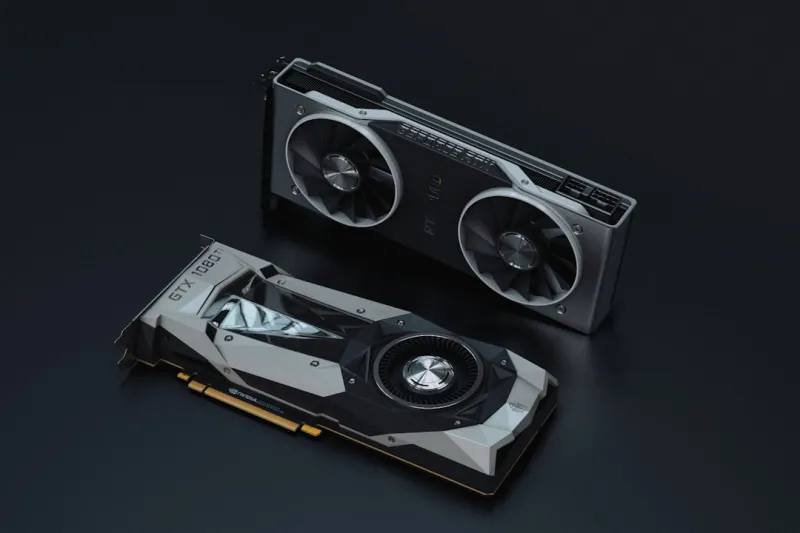
When I first cracked open a busted RTX‑4090 in the summer of 2024, the smell of burnt plastic still haunts my memory. Fast‑forward to 2026, and video cards have become the beating heart of AI‑infused workflows, high‑refresh gaming rigs, and even everyday productivity tools. This surge in demand means we’re seeing a new breed of issues—software‑driven driver conflicts, AI‑optimised power profiles, and firmware quirks that didn’t exist a few years ago. In this post I’ll walk you through a practical, battle‑tested methodology for diagnosing and fixing those stubborn GPU problems, while sprinkling in a few AI‑powered tricks that have saved me countless hours. Whether you’re a seasoned builder or a first‑time upgrader, the steps below will help you keep your graphics pipeline humming, and your sanity intact.
Understanding the 2026 GPU Landscape
Modern graphics cards are no longer just silicon slabs; they’re integrated AI co‑processors, dynamic power managers, and even miniature data centers on a PCB. Manufacturers now ship GPUs with on‑board machine‑learning models that tweak clock speeds on the fly, adapt fan curves, and balance workloads across tensor cores. While these advances boost performance, they also introduce new failure vectors. For instance, a firmware‑level AI model might misinterpret a power surge and throttle the card into a permanent low‑performance state, or a driver update could clash with legacy software that still expects a pre‑AI driver architecture. Add to that the rise of PCIe 5.0 and HDMI 2.1b, and you’ve got a moving target for troubleshooting. Recognising that today’s GPU is both a graphics engine and an AI assistant is the first step in untangling the web of potential problems.
Physical Inspection: The Foundation of Any Fix
The old adage “clean your PC, keep it cool, and check the cables” has never been more relevant. Start by powering down, unplugging, and grounding yourself before you touch the card. Remove the GPU and look for any visible signs of distress: bulging capacitors, discolored VRM heatsinks, or a layer of dust that resembles a snowstorm. Dust isn’t just a nuisance; it insulates heat and can cause the AI‑driven thermal controller to misread temperatures, leading to premature throttling. Re‑seat the card firmly in its PCIe slot, ensuring the retention clip clicks into place. Double‑check that the 8‑pin and 12‑pin power connectors are fully seated—loose pins are a common cause of flickering or black‑screen symptoms. If you’re building a new rig, consider referencing the AI‑Ready PC playbook for best‑practice mounting techniques that minimise stress on the PCB.
BIOS/UEFI Settings and Firmware Updates
Once the card is physically sound, it’s time to dive into the motherboard’s firmware. Modern UEFI interfaces now expose GPU‑specific settings such as “Resizable BAR,” “PCIe Link Speed,” and AI‑assisted power profiles. Enabling Resizable BAR can dramatically improve bandwidth, but an incompatible setting may cause the system to freeze during boot. Make sure your BIOS is updated to the latest version—manufacturers are releasing micro‑code patches that address AI‑related power‑state bugs. If you’re unsure which version you need, the AI hardware evolution article outlines the critical firmware updates released this year. After flashing the BIOS, reboot and verify that the GPU is recognized in the system information panel before moving on to driver-level troubleshooting.
Driver Stack: Clean Install, Not Just an Update
Drivers are the most frequent source of GPU headaches, especially with the rapid rollout of AI‑enhanced features like DLSS 3.5 and real‑time ray tracing optimisations. A simple “latest driver” install often leaves remnants of older files that conflict with the new AI kernels. I always start by using Display Driver Uninstaller (DDU) in safe mode to strip the system clean. After the purge, download the fresh driver package directly from the manufacturer’s website—avoid third‑party mirrors. During installation, opt for a “custom” install and deselect optional components you don’t need, such as legacy OpenGL support, which can occasionally clash with newer Vulkan‑based titles. For an in‑depth walk‑through, check out our detailed driver guide. Once installed, restart the machine and run a baseline benchmark to confirm stability before proceeding.
Monitoring Temperatures and AI‑Assisted Telemetry
Modern GPUs ship with on‑board sensors that feed data to AI algorithms, automatically adjusting fan curves and clock speeds. However, if those sensors report erroneous values, the AI may over‑cool or under‑cool the card, causing crashes or performance loss. Tools like MSI Afterburner now integrate AI telemetry dashboards that display real‑time temperature, power draw, and AI inference load. Keep an eye on the “GPU Core Temp” and “Memory Temp” readings—spikes above 85 °C under load suggest inadequate cooling or a misconfigured fan curve. Use the software’s built‑in “stress test” to push the card to its limits for five minutes; if temperatures stay within the safe range and frame times remain consistent, you’ve likely ruled out thermal throttling. Should you notice sudden drops in performance without a temperature spike, investigate the AI power‑profile settings, as they may be capping the boost clock based on erroneous power‑budget predictions.
Power Delivery and VRM Health Checks
The GPU’s power delivery network—its VRMs, MOSFETs, and power phases—are now tasked with feeding up to 600 W of AI‑heavy workloads. A marginally undersized PSU or a failing VRM can manifest as random driver resets, artifacting, or the dreaded “GPU driver crashed and recovered” message. Verify that your power supply meets the manufacturer’s recommended wattage, and that the 12‑V rail can sustain the required amperage. If you have a multimeter handy, measure the voltage at the GPU’s power connectors while the system is under load; readings below 11.8 V indicate a sag that could trigger AI‑driven power‑limit throttling. Additionally, inspect the VRM heatsinks for dust buildup and ensure they’re securely fastened. Upgrading to a higher‑efficiency PSU or adding supplemental GPU power connectors can often resolve these elusive power‑related glitches.
AI‑Powered Diagnostics: The Future is Here
What truly sets 2026 troubleshooting apart is the integration of AI assistants that can analyze log files, predict failures, and even suggest corrective actions in natural language. Platforms like NVIDIA’s AI Diagnostic Suite scan the system event logs, cross‑reference known error patterns, and output a concise action plan—think of it as a virtual tech support specialist that never sleeps. To leverage this, enable the “Telemetry & Diagnostics” option in the driver control panel and allow the suite to upload anonymized logs. When a crash occurs, the AI will highlight the offending module, whether it’s a shader compiler bug or a power‑budget miscalculation. Combine this with community‑sourced knowledge bases, and you can often resolve a problem with a single command line tweak. Embracing these AI tools not only speeds up repair times but also teaches you the underlying mechanics of modern GPU operation.
Preventive Maintenance and Looking Ahead
Even the most robust GPU will eventually show signs of wear if left unchecked. Establish a quarterly maintenance routine: clean dust filters, reseat the card, update firmware, and run a brief stress test to confirm baseline performance. Keep an eye on driver release notes for AI‑specific changes that might affect your workflow—sometimes a new DLSS version introduces a bug that can be mitigated by rolling back to a previous driver. As AI continues to shape hardware, expect future GPUs to incorporate self‑healing firmware and predictive failure alerts. By staying proactive and leveraging the AI‑driven diagnostics discussed above, you’ll not only extend the life of your graphics card but also keep your entire system ready for the next wave of AI‑intensive applications.




