
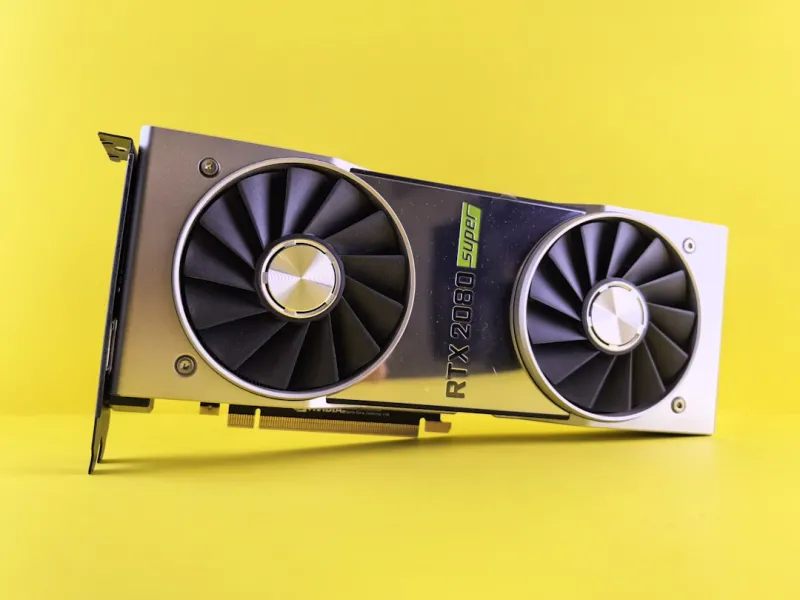
When my RTX 4090 started flickering during a high‑stakes esports stream, I felt the familiar panic that every power‑user knows too well: the line between a smooth frame‑rate and a disastrous crash is razor‑thin. In 2026, video cards have become the beating heart of everything from AI‑accelerated workloads to ultra‑high‑definition gaming, and yet the fundamentals of troubleshooting haven’t changed. First, I always check the basics—power delivery, driver version, and thermal paste integrity—before diving into obscure firmware quirks. A loose 8‑pin connector can masquerade as a driver bug, and a mismatched BIOS can cause the GPU to throttle in ways that even the most advanced monitoring tools miss. By methodically confirming that the PSU is delivering clean, stable voltage and that the card’s firmware matches the manufacturer’s recommendation, you eliminate the 80% of “why does it keep crashing?” questions right off the bat.
Diagnosing Driver Chaos with Real‑World Tools
One of the most common culprits behind intermittent GPU failures is driver incompatibility, especially after a major Windows update. In 2026, Microsoft’s integration of AI‑driven performance tweaks means that a driver that worked flawlessly last month might suddenly cause a blue screen or artifacting under the same load. I rely on a two‑step verification: first, I roll back to the previous stable driver using DDU (Display Driver Uninstaller) in safe mode; second, I test the card with a baseline benchmark like 3DMark Time Spy to confirm stability. If the issue disappears, you know you’re dealing with a driver regression. For power users who demand precision, I also keep an eye on the Windows Event Viewer and the Unlocking Windows 2026: Power‑User Tactics for AI, Security, and Performance guide, which details how to spot subtle error codes that point directly to driver stack failures.
Power Delivery and the PSU: The Unsung Hero
Even the most robust GPU can crumble under insufficient power. Modern high‑end cards often draw 350 watts or more, and with the rise of multi‑GPU rigs for AI inference, the cumulative load can push a PSU past its limits. I always start by confirming that the PSU’s rating exceeds the total system draw by at least 20%, and that the rails are clean—no sagging voltage under load. A simple tool like a USB‑C power meter can reveal if the 12 V rail dips during a stress test. If you notice a dip, it’s time to upgrade to a higher‑efficiency unit, preferably 80+ Gold or Platinum. Remember, a PSU that’s marginally undersized not only causes crashes but also shortens the lifespan of every component, GPU included. This is why many power users reference the Future‑Proofing Your Rig: The 2026 Power‑User Hardware Playbook when planning their power budget.
Thermal Management: From Paste to Airflow
Heat is the enemy of silicon, and a GPU running above its thermal design power (TDP) will throttle, artifact, or shut down abruptly. In my own rig, I discovered that the stock thermal paste had dried out after just two years of heavy rendering, causing hotspot spikes of 15 °C above safe limits. Reapplying a high‑performance paste like Thermal Grizzly Kryonaut and ensuring the cooler’s contact pressure is even can drop temperatures by 10–12 °C. Equally important is case airflow: I position the intake fans to bring cool air directly to the GPU’s side vents, and I use a dedicated exhaust fan to pull hot air out of the rear. Dust filters, cleaned monthly, prevent the buildup that chokes airflow. If you still see temperatures creeping into the high 80s Celsius under load, consider upgrading to a liquid‑cooling solution designed for your specific GPU model.
BIOS and Firmware: When the Chip Itself Needs a Reset
Sometimes the problem lies deeper than drivers or power—it’s the GPU’s own BIOS. Manufacturers release BIOS updates to improve stability, fix memory compatibility issues, or unlock higher boost clocks. However, flashing the wrong BIOS can brick the card. I always download the official BIOS from the vendor’s website, verify the checksum, and use a reliable flashing utility like NVFlash. Before flashing, I create a backup of the current BIOS so I can revert if needed. In 2026, many GPUs also support dual‑BIOS switches, allowing you to test a new firmware without risking your primary setup. If after a BIOS update the card still exhibits crashes, I run a memory test with tools such as MemTestG80 to rule out VRAM errors. For those who suspect a deeper hardware flaw, the Why Your GPU Keeps Crashing and How to Fix It Like a Pro article offers a step‑by‑step guide to diagnosing VRAM defects.
Software Conflicts: The Hidden Interlopers
Even with perfect hardware, software can sabotage your GPU. Background processes like cryptocurrency miners, AI model training scripts, or even misbehaving screen recorders can hog GPU resources, leading to driver timeouts. I make a habit of using Windows Task Manager’s “GPU Engine” column to spot any rogue applications consuming more than 5% of the GPU when the system should be idle. Additionally, third‑party overlays (Discord, GeForce Experience, MSI Afterburner) sometimes conflict after an OS update. Disabling or updating these utilities often resolves unexplained stutters. For power users who demand a clean environment, the Guarding Your Rig: Advanced Security Strategies for Power Users post outlines how to sandbox GPU‑intensive applications to prevent them from corrupting driver state.
Testing Under Load: Benchmarks vs. Real‑World Scenarios
After you’ve addressed power, thermals, BIOS, and software, the final step is stress‑testing the GPU in a controlled manner. Benchmarks like Unigine Heaven or 3DMark provide synthetic loads that push the card to its limits, but they don’t always mimic real‑world usage. I complement these with actual game sessions—e.g., running Cyberpunk 2077 at max settings with ray tracing enabled—while monitoring frame times, temperature, and power draw with MSI Afterburner. If the card holds steady for an hour without artifacting, you can be confident the issue is resolved. However, if crashes reappear only during specific workloads, such as AI inference in TensorFlow, you may need to adjust the GPU’s power limit or allocate dedicated VRAM resources. Recording these tests in a log helps you spot patterns and provides valuable data if you need to contact manufacturer support.
When All Else Fails: RMA Strategies and Warranty Tips
Even the most diligent troubleshooting can hit a wall when the GPU suffers from a latent hardware defect. In 2026, most manufacturers still honor a three‑year warranty, but the RMA process can be a maze. I always document every test, include screenshots of error logs, and keep a copy of the purchase receipt. When contacting support, I reference the specific driver version, BIOS revision, and the exact conditions under which the failure occurs. This level of detail accelerates the approval process and often leads to a replacement rather than a simple “please try again.” If you’re still under warranty, consider shipping the card with the original packaging to avoid damage. For out‑of‑warranty units, reputable third‑party repair shops can re‑ball the GPU or replace faulty VRAM chips, but weigh the cost against the performance gains of a newer model.
Future‑Proofing Your GPU Troubleshooting Toolbox
Looking ahead, the GPU landscape in 2026 is moving toward integrated AI accelerators and hybrid architectures, meaning tomorrow’s troubleshooting will blend traditional graphics diagnostics with AI workload profiling. To stay ahead, I keep my toolkit updated: the latest version of GPU-Z for detailed sensor data, a fresh copy of the vendor’s diagnostic suite, and a subscription to forums where early adopters share firmware quirks. I also maintain a habit of reading power‑user‑focused content—like the Why Power Users Must Rethink Their Hardware Strategy in 2026 guide—to anticipate shifts in hardware design that could affect stability. By combining disciplined, methodical testing with an eye on emerging trends, you can turn every GPU hiccup into an opportunity to sharpen your skills and keep your rig performing at its peak.




