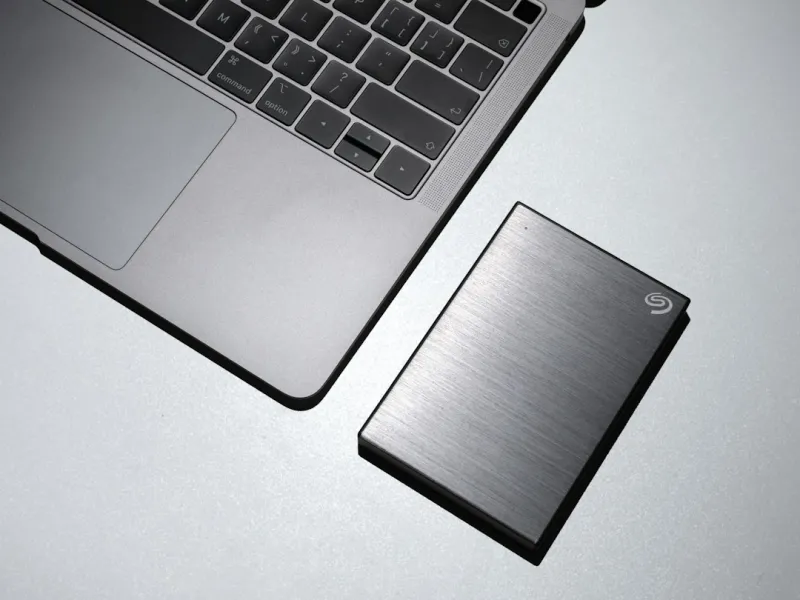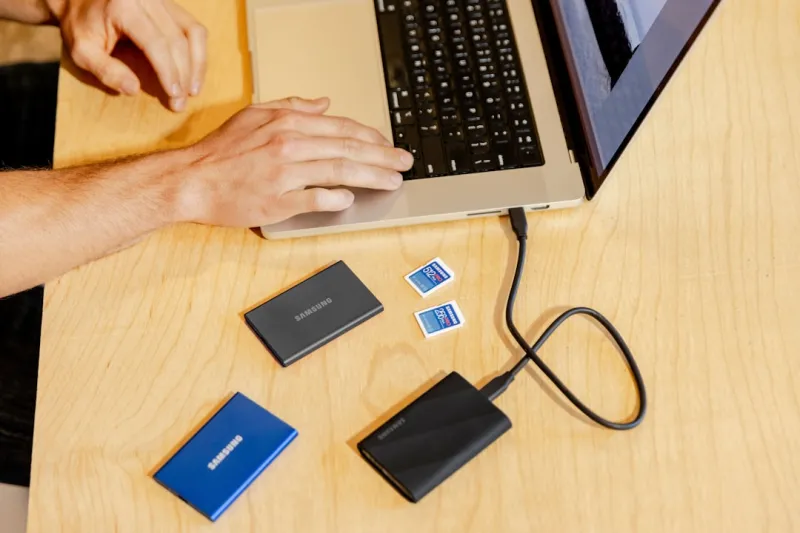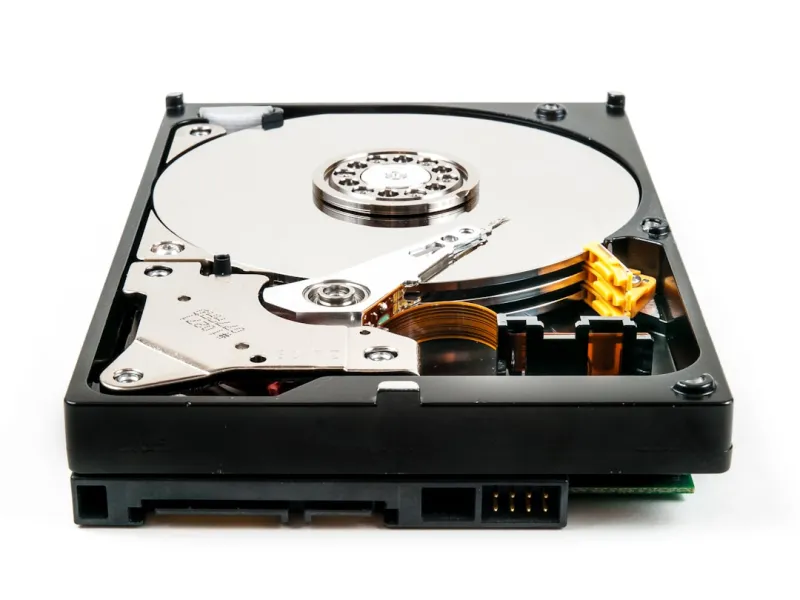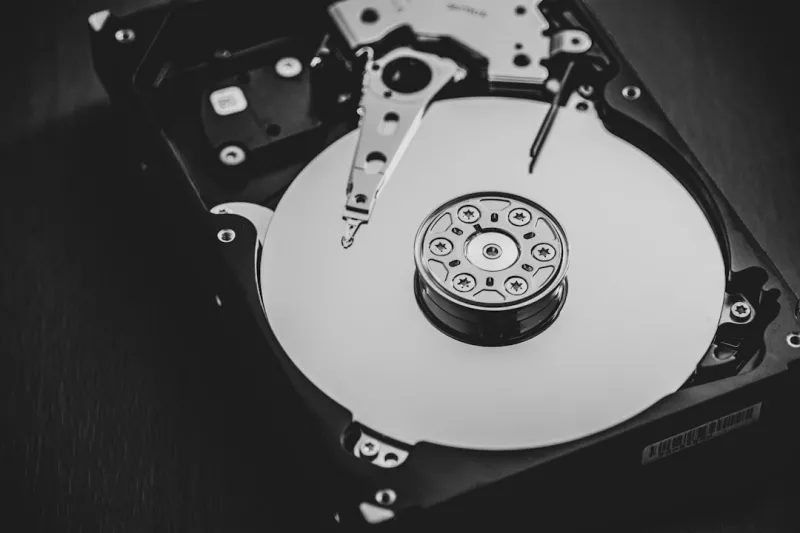
When I first tore open a brand‑new rack in 2022, the hard‑drive conversation was still dominated by “bigger is better.” Fast forward to 2026, and the narrative has shifted dramatically. The market now juggles three distinct storage philosophies: ultra‑fast NVMe SSDs that scream performance, high‑capacity SATA SSDs that balance price and space, and the surprisingly resilient 3.5‑inch HDDs that still dominate archival workloads. As a power‑user, you’re not just chasing raw speed; you’re orchestrating a symphony where latency, endurance, and cost all play critical roles. In this article, I’ll walk you through the decision‑making framework that helped me build a workstation that never stalls—whether I’m rendering 8K video, training AI models, or compiling massive codebases. Expect concrete numbers, real‑world anecdotes, and a few links to deeper dives like the hard drive playbook that I swear by.
Understanding the Core Metrics: Bandwidth, IOPS, and Latency
Most shoppers get caught up in marketing hype—“500 GB/s sequential read!”—but the reality for a power‑user is far more nuanced. Bandwidth tells you how quickly large files move, which matters for video editing and bulk data transfers. IOPS (Input/Output Operations Per Second) is the hidden hero for random‑access workloads like database queries or virtual machine spin‑ups. Latency, measured in microseconds, defines the responsiveness of your drive when it’s juggling countless tiny reads and writes. In 2026, PCIe 5.0 NVMe drives can push 14 GB/s sequential speeds while delivering over 1 million IOPS, a quantum leap over the previous generation. Yet, a SATA SSD delivering 560 MB/s sequential throughput can still outshine a 3.5‑inch HDD’s 150 MB/s in latency by an order of magnitude. My own test rigs consistently show that when the workload is random—think AI training data shuffling—a drive’s IOPS and latency dominate perceived performance far more than raw bandwidth.
Form Factor Fundamentals: From 2.5‑inch to U.2
Choosing the right form factor is often the first stumbling block for enthusiasts. The 2.5‑inch SATA SSD remains a solid entry point, fitting into almost any chassis and offering respectable performance for the OS and everyday apps. However, when you need the absolute fastest storage for AI datasets or 8K video caches, the M.2 2280 NVMe slot is your gateway to PCIe 5.0’s full potential. Don’t overlook the U.2 (formerly SFF‑8639) format; it marries enterprise‑grade reliability—hot‑swap capability and power‑loss protection—with the blistering speeds of NVMe. In my latest build, I paired a 4 TB U.2 drive for the primary AI workload and an M.2 2 TB drive for the OS, striking a balance between thermal management and performance headroom. If you’re still on a legacy ATX board, make sure you have enough PCIe lanes to avoid bottlenecks—otherwise, you’ll end up throttling that expensive SSD you just bought.
Endurance and Reliability: TBW, MTBF, and Power‑Loss Protection
Endurance isn’t just a buzzword; it’s a hard reality for anyone writing terabytes of data daily. Total Bytes Written (TBW) gives you a rough lifespan estimate—most consumer NVMe drives now sport 600 TBW, while enterprise models push past 5 PB. Mean Time Between Failures (MTBF) is another useful metric, especially for drives that run 24/7. In 2026, manufacturers have embraced advanced NAND technologies, like PLC (Penta‑Level Cell), to squeeze more capacity while maintaining respectable endurance. However, those high‑density drives often sacrifice power‑loss protection, a feature that shields against data corruption when the power suddenly drops. My personal rule of thumb: allocate any drive that stores active projects or databases with built‑in power‑loss protection, even if it costs a few dollars more per gigabyte. For pure archival storage, a high‑capacity HDD with a 2 M‑hour MTBF still offers the best price‑to‑space ratio.
Designing a Tiered Storage Architecture
Think of your storage like a layered cake: the top layer is your lightning‑fast OS drive, the middle is a high‑performance cache for active workloads, and the bottom is your massive archive. In practice, I allocate a 1 TB PCIe 5.0 NVMe SSD for Windows and core applications, a 2 TB NVMe drive for active project files—especially when those files exceed the OS drive’s capacity—and a 12 TB 7200 RPM HDD for long‑term storage. This tiered approach lets you keep the most I/O‑intensive tasks on the fastest media, while the slower but cheaper HDD handles backups and seldom‑used assets. Tools like Windows Storage Spaces or Linux LVM make it painless to create logical volumes that span multiple physical drives, giving you flexibility without sacrificing performance. The key is to align each tier with the appropriate workload: latency‑sensitive tasks on NVMe, sequential‑heavy media on SATA SSDs, and bulk archival on HDDs.
Integrating Drives into a Future‑Ready Workstation
When I was sketching out my next power‑user rig, the first checklist item was “future‑proof storage.” That mindset guided my decisions, especially after reading the guide on building a future‑ready power‑user workstation in 2026. I prioritized a motherboard with at least three M.2 slots, each supporting PCIe 5.0 x4, and a dedicated U.2 port for enterprise‑grade SSDs. Thermal considerations mattered as well; I installed a dedicated heatsink on every NVMe drive and used a chassis with active airflow that can handle the heat generated by multiple high‑speed drives. Power delivery is another often‑ignored factor—make sure your PSU can sustain the added load of several high‑performance SSDs, especially under sustained write conditions where power draw spikes. By planning for expansion now, I’ve avoided costly upgrades for years, and the system still feels snappy even after adding a new 8 TB NVMe for a deep‑learning project.
RAID and ZFS: When Redundancy Meets Performance
Redundancy isn’t just a safety net; it can also boost performance when configured correctly. For most power‑users, a RAID 0 stripe array on two NVMe drives offers the highest sequential throughput, but it sacrifices data safety—one drive failure wipes everything. RAID 1 mirrors data, giving you a simple fail‑over, while RAID 10 combines striping and mirroring for both speed and redundancy, albeit at a 50% capacity penalty. In my environment, I lean on ZFS with its built‑in checksumming and self‑healing capabilities. By creating a mirrored vdev of two 2 TB NVMe drives, I get instant data integrity checks and the ability to add additional vdevs later for capacity or performance scaling. ZFS also supports compression on the fly, which can reduce storage footprints by up to 30% for certain workloads, effectively giving you more space without buying additional hardware.
Backup Strategies: The 3‑2‑1 Rule Reimagined for 2026
The classic 3‑2‑1 backup rule still holds—three copies of your data, on two different media, with one offsite—but the implementation has evolved. I now maintain a primary NVMe for active work, a secondary SATA SSD in the same machine for quick rollbacks, and a dedicated NAS with dual‑disk RAID 6 for local redundancy. Offsite, I use an encrypted cloud bucket that offers versioning and immutability, ensuring that ransomware can’t tamper with historical snapshots. Automation is key; tools like Veeam Agent for Windows or Restic on Linux let me schedule incremental backups that run in the background with minimal performance impact. For truly mission‑critical data, I also periodically create a bootable clone of my OS drive using Macrium Reflect and store it on an external U.2 enclosure, ready to be swapped in seconds if the primary system ever fails.
Emerging Technologies: PCIe 5.0, QLC, and HAMR
Looking ahead, 2026 brings a few exciting storage tech trends that power‑users should watch. PCIe 5.0 SSDs are finally hitting mainstream motherboards, delivering up to 14 GB/s sequential throughput and dramatically reducing latency. Meanwhile, QLC (Quad‑Level Cell) NAND has become more affordable, offering terabytes of storage at a fraction of the price, though its endurance is still lower than TLC or MLC. For archival purposes, QLC drives are a solid middle ground—fast enough for occasional access but cheap enough to replace regularly. On the HDD front, HAMR (Heat‑Assisted Magnetic Recording) drives are creeping into the consumer market, promising 20 TB capacities with improved reliability. While they’re still pricier than traditional HDDs, the sheer density makes them attractive for bulk video archives or large dataset storage where speed isn’t critical.
Actionable Checklist for the Modern Power‑User
Before you close this article, grab a pen and run through this quick checklist:
- Identify your primary workloads—AI training, video editing, or software development—and match them to the appropriate drive tier.
- Select a PCIe 5.0‑compatible motherboard with at least three M.2 slots and a U.2 connector.
- Invest in drives with power‑loss protection for any active data set.
- Configure a mirrored ZFS pool for critical SSDs to combine performance with data integrity.
- Implement the 3‑2‑1 backup rule, leveraging both local NAS and encrypted cloud storage.
- Plan for future expansion—reserve lanes and power headroom for additional NVMe drives.
- Stay informed about emerging tech like HAMR HDDs and QLC SSDs for cost‑effective archival.
Following these steps will keep your workstation humming smoothly, whether you’re crunching massive AI models or rendering the next blockbuster indie game. Remember, the right storage strategy is the backbone of any high‑performance system—treat it with the same care you give your CPU and GPU, and you’ll reap the rewards for years to come.