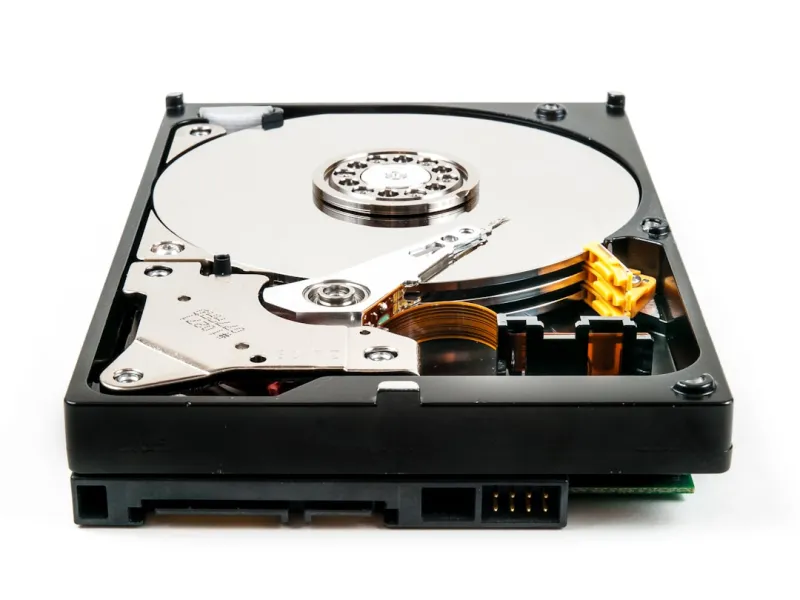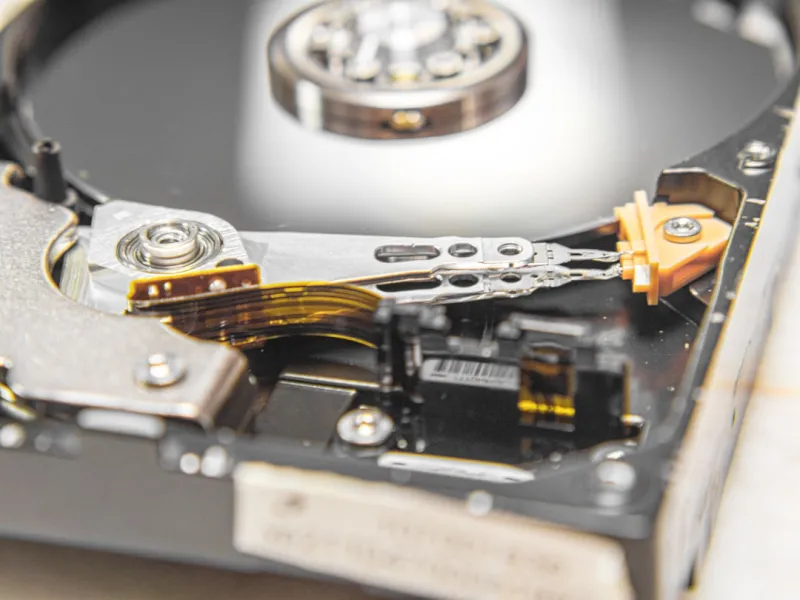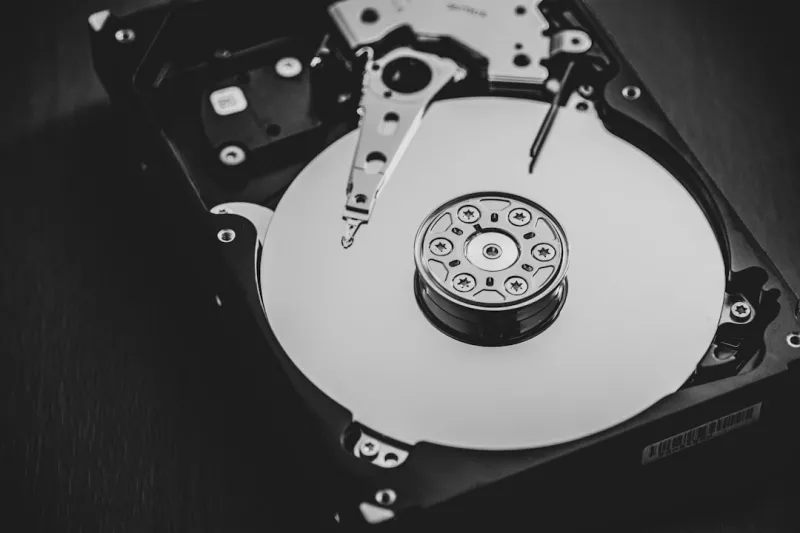
When I first tore into a rack‑mount server back in the early 2020s, I was shocked at how much the conversation still revolved around spinning platters. Fast forward to 2026, and while SSDs dominate the headlines, the seasoned power‑user community—myself included—knows that a well‑chosen hard drive remains the unsung hero of any serious workstation. In this deep dive I’ll walk you through the nuances of selecting, configuring, and maintaining hard drives that can keep pace with today’s data‑intensive workloads, from 4K video editing to AI model training. We’ll explore why capacity, endurance, and interface matter just as much as raw speed, and I’ll share the practical checks I run before I ever seal a drive into a chassis. Expect a blend of hard‑earned anecdotes, actionable metrics, and a few links to our broader Hard Drive Playbook that will help you avoid common pitfalls. By the end, you’ll see hard drives not as relics, but as a strategic layer in a modern power‑user build.
The Enduring Value of Capacity Over Speed
One of the biggest misconceptions I encounter in forums and on social media is that “bigger is always better” when it comes to storage. In reality, the sweet spot for a power user in 2026 often lies somewhere between massive, low‑cost SATA HDDs and high‑end NVMe SSDs. Massive capacities—think 12 TB to 20 TB—still make sense for archival footage, raw scientific data sets, or massive game libraries. These drives provide a cost‑per‑gigabyte that SSDs simply can’t match at scale, allowing you to hoard data without breaking the bank. Meanwhile, the speed advantage of SSDs shines when you need sub‑second access for active projects; but for cold storage or “write‑once, read‑many” workloads, a 7200 RPM drive with a large cache can deliver more than adequate performance while keeping power consumption low. My own workflow often splits the storage tier: a lightning‑fast NVMe boot and app drive, a mid‑range SATA SSD for active project files, and a high‑capacity HDD array for everything else. This layered approach maximizes both budget efficiency and real‑world speed where it counts.
Form Factor and Interface: Matching the Motherboard
The modern motherboard offers a dizzying array of connectors—SATA III, U.2, M.2, and now PCIe 5.0 x4—so picking the right drive starts with understanding which slots you actually have. In many of my builds, especially when I’m designing a future‑proof workstation, I prioritize a mix of 2.5‑inch SATA bays for traditional HDDs and M.2 slots for NVMe SSDs. The key is to avoid bottlenecking a high‑end NVMe drive on a SATA controller; the interface must match the drive’s capabilities. For example, a PCIe 4.0 NVMe SSD on a board that only supports PCIe 3.0 will see a noticeable performance dip, while a SATA‑III HDD will max out at 6 Gb/s regardless of the controller’s generation. I also keep an eye on power delivery—some high‑performance HDDs require more than the typical 5 V rail, especially in multi‑drive cages. By mapping out the motherboard’s layout early, you can allocate space efficiently, prevent cable clutter, and ensure that each drive operates at its optimal bandwidth.
Balancing Endurance and Reliability
Endurance is often discussed in the context of SSDs, but hard drives have their own wear metrics: MTBF (Mean Time Between Failures), spin‑up cycles, and error‑rate specifications. A drive with a 2 million‑hour MTBF may sound impressive, yet real‑world reliability hinges on factors like operating temperature and vibration. I always install drives in trays with built‑in vibration dampening and ensure adequate airflow—hard drives love cool, stable environments. Monitoring SMART attributes is a habit I never break; I set thresholds for reallocated sector count and seek error rate, and I use tools that can alert me via email before a catastrophic failure. In 2026, many enterprise‑grade HDDs now ship with enhanced firmware that proactively reallocates bad sectors, but the principle remains: treat the drive as a living component, not a set‑and‑forget piece of hardware. Regular backups, combined with predictive health checks, turn a potentially disastrous data loss scenario into a manageable maintenance task.
Speed Meets Capacity: Leveraging Hybrid Configurations
Hybrid storage—pairing an SSD cache with a large HDD—has become a mature strategy for power users who need both speed and bulk. Modern controllers can automatically promote frequently accessed files to the SSD cache, delivering near‑SSD performance for hot data while keeping the bulk of your archives safely on magnetic platters. In my own rigs, I configure a 1 TB NVMe drive as a cache tier for a 16 TB 7200 RPM HDD. The result is a seamless experience: large video files load instantly after the first read, and subsequent edits feel as responsive as if they were stored on an SSD. The key to success is selecting a cache algorithm that aligns with your workload—some users benefit from write‑back caching for heavy write operations, while others prefer write‑through to protect data integrity. By fine‑tuning these settings in the BIOS or using software like Intel’s Rapid Storage Technology, you can extract the best of both worlds without sacrificing storage capacity or budget.
Power‑User Workflow Integration
For power users, storage isn’t just about holding files; it’s a critical part of the workflow pipeline. When I’m rendering 8K footage, the drive must sustain sustained sequential writes of 500 MB/s or more without throttling. Conversely, during data‑science model training, I need rapid random reads across terabytes of datasets. This dichotomy means that a one‑size‑fits‑all drive rarely suffices. I often segment my tasks: a dedicated high‑performance NVMe for the operating system and active applications, a mid‑range SSD for temporary project files, and a high‑capacity HDD for final renders and archives. Additionally, I map network shares to specific drives to offload traffic—critical when collaborating over LANs. Integrating storage with backup solutions like incremental snapshots on a separate HDD array ensures that a single drive failure doesn’t bring the whole pipeline to a halt. By aligning each drive’s role with the specific demands of the task at hand, you create a resilient, high‑throughput ecosystem.
Maintenance, Monitoring, and the Art of Proactive Replacement
Even the most reliable hard drive will eventually reach the end of its useful life, and the hallmark of a seasoned power user is the ability to anticipate that moment. I employ a combination of SMART monitoring, temperature logging, and vibration analysis to create a health score for each drive. When a drive’s health dips below a predefined threshold—say, a reallocated sector count above 5 or a temperature consistently above 45 °C—I schedule a replacement before any data loss occurs. The process is straightforward: clone the failing drive to a fresh unit using a sector‑by‑sector imaging tool, verify the checksum, and swap it out during a planned maintenance window. This proactive approach not only safeguards data but also minimizes downtime, a critical factor when you’re running a production studio or a research lab. Remember, the cost of a replacement drive is minuscule compared to the lost productivity and potential revenue impact of an unexpected failure.
Future‑Proofing: Embracing Emerging Standards
Looking ahead, the storage landscape will continue to evolve, but hard drives will retain a niche as the most cost‑effective way to store massive data volumes. In 2026, we’re seeing the emergence of SMR (Shingled Magnetic Recording) drives that push capacities beyond 20 TB, ideal for cold storage where write‑once, read‑many patterns dominate. Meanwhile, CMR (Conventional Magnetic Recording) drives remain the go‑to for workloads that demand frequent writes, such as video editing scratch disks. When planning a build, I recommend allocating at least one SMR drive for archival use and a CMR drive for active projects. Additionally, keep an eye on the growing adoption of PCIe 5.0 NVMe SSDs, which will eventually blur the line between “fast” and “massive” storage. By designing your chassis with extra drive bays and modular power supplies, you ensure that future upgrades—whether a new generation HDD or an ultra‑fast SSD—can be integrated without a complete system overhaul.
Putting It All Together: Your Hard‑Drive Playbook
To wrap up, let’s recap the essential steps for building a hard‑drive strategy that serves a power‑user’s demanding environment in 2026. First, define your storage tiers—high‑speed NVMe for OS and apps, mid‑range SSD for active projects, and high‑capacity HDD for archives. Second, match each drive’s interface to the motherboard’s available slots, ensuring you don’t waste bandwidth on mismatched hardware. Third, prioritize reliability by monitoring SMART data, controlling temperature, and using vibration‑dampened mounts. Fourth, consider hybrid caching to bridge the speed‑capacity gap, and finally, adopt a proactive replacement schedule based on health metrics. For a deeper dive into each of these topics, refer to our comprehensive Hard Drive Playbook, which offers checklists, firmware update tips, and case studies. By treating hard drives as an integral, managed component of your workstation, you’ll enjoy the best blend of performance, capacity, and peace of mind—exactly what every power user needs to stay ahead of the curve.