
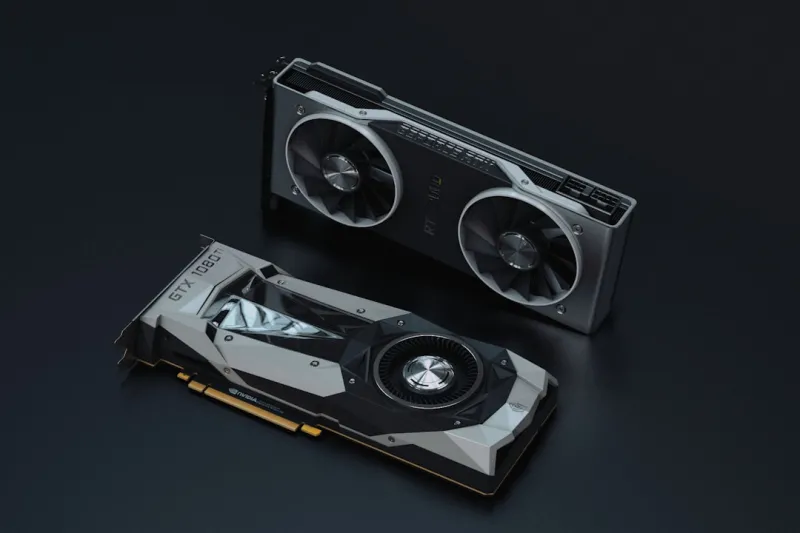
When I first tore into my rig back in the early days of consumer graphics, the biggest headache was coaxing a card to stay on the desktop long enough to render a single frame. Fast‑forward to 2026, and the GPU ecosystem is a dazzling blend of ray‑tracing cores, AI accelerators, and ever‑shrinking process nodes. Yet, despite all that horsepower, the fundamental pain points—instability, thermal spikes, and driver quirks—remain stubbornly familiar. In this post, I’m pulling back the curtain on the most common video‑card ailments that even seasoned power users encounter, and I’ll walk you through the diagnostic steps that have saved my own builds from becoming brick‑sized paperweights. Think of this as a seasoned‑tech‑guy’s field guide: practical, no‑fluff, and peppered with the hard‑won lessons I’ve learned while juggling 4K gaming, AI workloads, and a never‑ending stream of streaming content.
The Silent Saboteur: Power Delivery and Voltage Fluctuations
One of the most overlooked culprits behind sudden GPU crashes is the power delivery subsystem. Modern cards draw anywhere from 250 W to well over 500 W under load, and the difference between a clean, stable voltage rail and a jittery, overloaded one can be the line between a flawless frame and a dreaded “GPU has stopped responding.” I’ve seen cases where a seemingly robust 850 W PSU would sag under the combined draw of a high‑end GPU, a fast‑refresh monitor, and a handful of NVMe drives, causing the card to reset mid‑render. The first step is to verify that your PSU’s rail voltage stays within the manufacturer’s tolerance, preferably using a hardware monitoring tool that logs real‑time fluctuations. If you spot dips below 0.95 V on the +12 V rail, it’s time to either upgrade the power supply or redistribute the load across additional rails. For a deeper dive into power‑related failures, check out Why Your GPU Keeps Crashing and How to Fix It Once and for All. Understanding the power budget not only steadies your GPU but also prolongs the lifespan of every component that shares that same electrical highway.
Thermal Management: More Than Just a Fan Curve
Heat is the eternal adversary of silicon, and modern GPUs have become masters of thermal gymnastics. The typical “set fan to 70 %” approach works for older cards, but in 2026 we’re dealing with dual‑fan, triple‑fan, and even liquid‑cooled beasts that require nuanced cooling strategies. First, validate that your case airflow follows the classic front‑intake, rear‑exhaust pattern—any deviation can create hot spots that the GPU’s built‑in sensors won’t anticipate. Next, scrutinize the thermal paste application; a thin, even layer of a high‑quality compound can shave off several degrees Celsius, especially under prolonged AI inference tasks. Don’t forget the role of ambient temperature: a room that consistently runs above 24 °C (75 °F) will push even the most efficient coolers beyond their design envelope. If you’re seeing temperatures creep past 85 °C under moderate load, consider adding an additional case fan or re‑orienting existing ones to create a direct airflow path over the GPU’s heatsink. The key is to treat cooling as an iterative process, not a set‑and‑forget configuration.
Driver Drift and Firmware Incompatibility
Even when power and cooling are dialed in, software can still betray you. Driver drift—where a seemingly stable driver version becomes unstable after a Windows update or a new game patch—has plagued power users for years. The solution is a disciplined driver management routine: keep a repository of “known‑good” driver versions, and pair each with a snapshot of your system’s restore point. In 2026, GPU manufacturers are also pushing firmware updates that tweak clock speeds, power limits, and even AI inference pathways. However, flashing the wrong firmware can instantly render a card inoperable or cause erratic behavior. Always cross‑reference your card’s exact model and PCB revision before applying a firmware patch. A practical habit is to test any new driver in a controlled environment—perhaps a secondary workstation—before rolling it out to your primary machine. For readers who want a step‑by‑step on how to systematically isolate driver‑related issues, the guide Future‑Proof Your PC: Upgrade Strategies Power Users Swear By offers an excellent checklist.
Memory Bottlenecks: When VRAM Isn’t Enough
VRAM capacity and bandwidth often get a shout‑out during marketing, but the real-world impact on stability is subtle and easy to miss. A GPU that consistently hits 95 % VRAM utilization can start throttling, leading to stutters, texture pop‑ins, and in extreme cases, driver crashes. This is especially true for AI‑driven workloads that flood the card with tensors larger than the advertised memory size. To diagnose, monitor VRAM usage with tools that display per‑process allocation; watch for sudden spikes when launching a new application. If you notice sustained high usage, consider lowering texture quality, reducing AI batch sizes, or, better yet, investing in a card with a larger memory pool. Keep in mind that some games and professional apps also allocate “reserved” VRAM that isn’t reported in standard monitors, so always leave a headroom buffer of at least 10 % to avoid inadvertent overflow. When memory pressure becomes a recurring issue, it’s a sign that your workflow has outgrown the current card’s capabilities, and an upgrade is the prudent path forward.
PCIe Lane Saturation and Motherboard Compatibility
It’s easy to assume that plugging a GPU into any PCIe slot will yield optimal performance, but the reality is more nuanced. Modern motherboards, especially those designed for AI‑centric workloads, can allocate PCIe lanes dynamically across multiple devices. If your GPU shares lanes with a high‑speed NVMe SSD or a dedicated networking card, you might experience bandwidth throttling that manifests as intermittent freezes or reduced frame rates. The first diagnostic step is to consult your motherboard’s manual and verify that the GPU is seated in the primary x16 slot, which typically enjoys full 16‑lane connectivity. Additionally, check the BIOS for “PCIe bifurcation” settings that could inadvertently split lanes across devices. A quick benchmark using a synthetic PCIe bandwidth test can confirm whether you’re truly operating at the advertised x16 @ Gen 5 speeds. If you discover lane contention, re‑arrange your peripherals or upgrade to a motherboard that offers more dedicated PCIe lanes—something you’ll find discussed in depth in the post AI Computing Unleashed: Building a Future‑Ready Power‑User Workstation.
Software Conflicts: Overlay Apps and Background Services
Even the most meticulously built rigs can fall victim to software interference. Overlay applications—think performance monitors, Discord voice chat, or streaming tools—inject themselves into the GPU’s rendering pipeline. While they’re often harmless, certain versions can clash with driver APIs, causing sporadic black screens or “GPU device lost” errors. The same principle applies to background services that aggressively poll the GPU for telemetry; they can inadvertently trigger a race condition in the driver stack. My go‑to tactic is to run a clean boot, disabling all non‑essential startup items, and then re‑introduce each overlay one at a time while monitoring stability. If a particular overlay proves problematic, either update it to the latest version or replace it with a lighter alternative. Keeping a minimal set of utilities not only reduces the attack surface for software bugs but also frees up precious GPU cycles for your primary tasks.
Cross‑Platform Nuances: Windows vs. Linux GPU Handling
While Windows 11 remains the de‑facto playground for most power users in 2026, a growing number of developers and AI researchers gravitate toward Linux for its flexibility. However, the GPU experience can differ dramatically between the two OSes. On Windows, the driver stack is tightly integrated with the OS kernel, often delivering seamless plug‑and‑play functionality. In contrast, Linux relies on the open‑source Nouveau driver for basic support and the proprietary NVIDIA or AMD driver for full performance. Misaligned driver versions or mismatched kernel modules can lead to the dreaded “GPU hangs” that freeze an entire workstation. If you operate across both platforms, maintain a clear inventory of driver versions and ensure that each OS receives its own dedicated, up‑to‑date driver set. Using tools like “nvidia-smi” on Linux can provide real‑time insight into GPU health, while Windows users can rely on the “Device Manager” and “Event Viewer” logs. Understanding these platform‑specific quirks is essential for building a truly resilient, cross‑compatible workstation.
Future‑Proofing: When to Upgrade vs. When to Tinker
Deciding whether to pour more time into tweaking an existing card or to bite the bullet and upgrade is a classic power‑user dilemma. The rule of thumb I follow is simple: if you spend more than three days diagnosing recurring crashes, it’s a sign the hardware has reached its functional ceiling. Look at your workload trends—are you moving from 1080p gaming to 8K streaming, or are you adding AI inference pipelines that demand higher tensor throughput? If the answer is yes, the ROI on a newer GPU with expanded VRAM and dedicated AI cores becomes clear. However, if the instability stems from ancillary factors like power delivery or cooling, a targeted upgrade—such as a higher‑wattage PSU or a better case fan configuration—can extend your card’s usable life by years. This balanced approach ensures you’re not chasing the latest spec hype, but rather making strategic, cost‑effective decisions that align with your performance goals.
Closing the Loop: Building a Resilient Troubleshooting Routine
At the end of the day, a stable GPU ecosystem is less about luck and more about disciplined maintenance. I recommend establishing a weekly “GPU health check” that includes reviewing temperature logs, confirming driver versions, and running a brief stress test like 3DMark or a compute benchmark. Document any anomalies in a simple spreadsheet—date, symptoms, actions taken—so you can spot patterns over time. This habit not only catches issues before they become catastrophic failures but also builds a knowledge base that you can reference when you’re troubleshooting future builds. Remember, the goal isn’t just to fix a problem; it’s to develop a proactive mindset that keeps your workstation humming smoothly, whether you’re crushing the latest AAA titles, training massive neural networks, or simply editing 4K video. Armed with the insights and strategies outlined here, you’ll be ready to tackle any GPU gremlin that dares to cross your path.




