
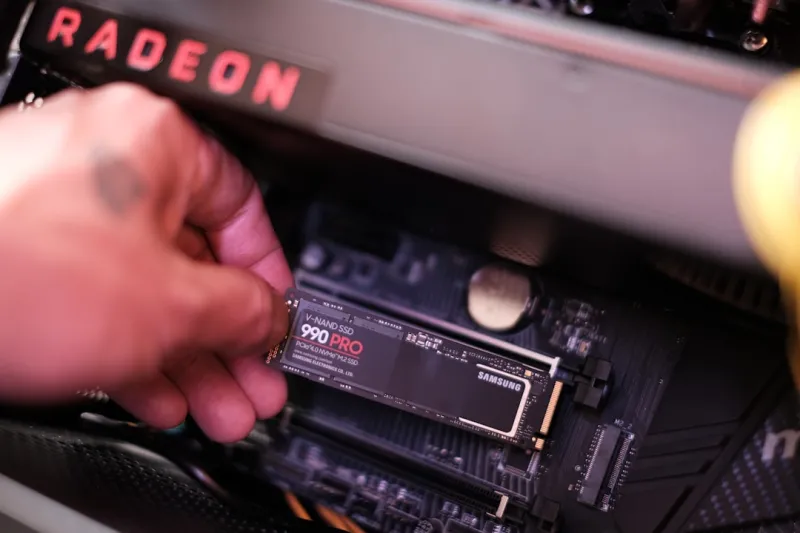
When a video card throws a tantrum—artifacts on the screen, sudden crashes, or the dreaded “no signal” message—it feels like the entire creative pipeline has hit a brick wall. As a power‑user who lives at the intersection of high‑resolution rendering, AI‑assisted workflows, and competitive gaming, I’ve learned that video‑card issues are rarely isolated; they ripple through the system, affecting everything from GPU‑accelerated encoding to real‑time ray tracing. In 2026, the sheer bandwidth of PCIe 5.0 and the raw horsepower of RTX 6000‑series equivalents mean that even a minor misconfiguration can cause major bottlenecks. My troubleshooting philosophy is simple: isolate, verify, and then optimize. By systematically checking power delivery, driver integrity, and thermal performance, you can often pinpoint the fault before it escalates into a full‑blown system failure. This article walks you through a step‑by‑step diagnostic routine that reflects my hands‑on experience, helping you keep your GPU humming at peak performance without resorting to costly hardware swaps.
Power Delivery and BIOS Settings
The first place I look when a GPU misbehaves is the power delivery chain. Modern cards demand up to 450 W under load, and a marginally undersized PSU can cause voltage sag, leading to throttling or sudden shutdowns. Start by confirming that your PSU’s wattage exceeds the card’s recommended minimum by at least 20 %, and that you’re using the correct 8‑pin or 12‑pin connectors. Next, dive into the BIOS—many motherboards now feature GPU power limit sliders and PCIe link speed controls. Setting the PCIe slot to run at full x16 speed rather than defaulting to x8 can shave off latency and prevent intermittent dropouts. For power‑user builds that prioritize future‑proofing, I often reference Building a Future‑Ready Power‑User PC in 2026 to ensure the entire platform, from PSU to motherboard, is sized for the next generation of graphics workloads.
Driver Health and Software Conflicts
Even with perfect hardware, a corrupt driver stack can sabotage a GPU’s performance. In 2026, driver ecosystems have grown more complex, incorporating AI‑based optimization layers that can conflict with third‑party utilities like overclocking suites or screen‑recording software. Begin by performing a clean install of the latest driver directly from the manufacturer’s website, using the “custom” option to purge previous versions. After the reinstall, verify that no residual services—such as legacy telemetry daemons—are running in the background. It’s also wise to audit any software that hooks into the GPU, especially tools that inject overlays or modify frame pacing. If you suspect a conflict, temporarily disable or uninstall those utilities and observe whether stability improves. For those who push the envelope with AI‑driven development pipelines, maintaining a pristine driver environment can be the difference between seamless rendering and frustrating crashes.
Thermal Management and Physical Inspection
Heat is the silent assassin of modern GPUs. With the rise of high‑density VRAM stacks and boosted clock speeds, temperatures can easily breach the 85 °C safety threshold, prompting thermal throttling or outright shutdowns. First, inspect the card’s heatsink and fans for dust buildup; even a thin layer can reduce airflow by 15‑20 %. Replace thermal paste every 18‑24 months, especially if you’ve overclocked or operate in a warm ambient environment. Monitoring tools now provide per‑core temperature graphs, so watch for hotspots that indicate uneven heat distribution. If temperatures remain high despite clean hardware, consider augmenting case airflow with high‑static‑pressure fans or re‑routing cables to improve intake pathways. A well‑cooled GPU not only sustains performance but also extends the lifespan of expensive VRAM modules.
PCIe Slot Health and Firmware Updates
Beyond power and cooling, the physical slot and firmware can be culprits. A loose or dirty PCIe slot can cause intermittent signal loss, manifesting as flickering or “device not found” errors. Power down, remove the card, and gently clean the slot contacts with compressed air. While the card is out, check for BIOS updates from your motherboard manufacturer that address PCIe compatibility—many updates in 2026 add support for the latest 5.0 lane configurations and improve GPU initialization sequences. Pair this with a firmware flash for the GPU itself, which can resolve obscure bugs introduced in earlier releases. For power users who value stability above all, staying current on both motherboard and GPU firmware is a non‑negotiable habit.
Memory Errors and VRAM Stress Testing
VRAM issues can masquerade as visual glitches, making them hard to diagnose. Running a memory stress test specifically designed for GPUs can reveal faulty memory chips that standard benchmarks miss. Tools like CUDA‑memtest or the built-in stress modules of popular overclocking suites push the VRAM to its limits, flagging errors that cause texture corruption or frame tearing. If errors appear, it’s time to consider RMA‑ing the card—most manufacturers honor warranty claims for VRAM defects within the first two years. Remember, a stable VRAM subsystem is crucial for workloads that rely heavily on large textures or AI model inference, where even a single bad byte can corrupt an entire render.
System‑Wide Interactions and Peripheral Checks
A GPU does not operate in isolation; the rest of the system can influence its behavior. Peripheral devices that draw significant power—such as high‑speed NVMe drives or USB‑C docks—can compete for the same power rails, causing momentary dips that affect the GPU. Verify that power‑hungry peripherals are connected to dedicated headers or external power sources. Additionally, ensure that your operating system’s power plan is set to “High Performance,” as aggressive power‑saving settings can downclock the GPU unexpectedly. For power users looking to optimize the entire workflow, I often reference Why Modern Motherboards Are the Real Game‑Changer for Power Users to understand how chipset features like dynamic power management can be fine‑tuned to support stable GPU performance.
Strategic Upgrades and Future‑Proofing
Sometimes the most effective troubleshooting step is to plan a strategic upgrade. In 2026, the market offers GPUs with dedicated AI cores and ray‑tracing accelerators that can offload work from the main shaders, reducing thermal and power strain. When evaluating a new card, consider the total cost of ownership: power consumption, cooling requirements, and compatibility with your existing chassis. A well‑chosen upgrade can eliminate chronic issues that stem from trying to push an aging GPU beyond its design limits. For a holistic approach, see Strategic PC Upgrades for Power Users in 2026, which outlines how to balance performance gains with system stability, ensuring your video‑card investments pay off for years to come.
Documenting Findings and Building a Knowledge Base
Finally, the best troubleshooting habit is meticulous documentation. Keep a log of symptoms, temperature readings, driver versions, and any changes you make. Over time, this personal knowledge base becomes an invaluable reference, allowing you to spot patterns—like a specific game that always triggers artifacts after a driver update. Use simple tools like markdown notes or a dedicated troubleshooting spreadsheet, and tag entries with keywords such as “artifact,” “thermal,” or “VRAM.” When you encounter a new issue, a quick search through your records can save hours of guesswork. By treating each glitch as a data point, you not only resolve the current problem faster but also build a resilient system that’s prepared for the ever‑evolving demands of modern graphics workloads.




