
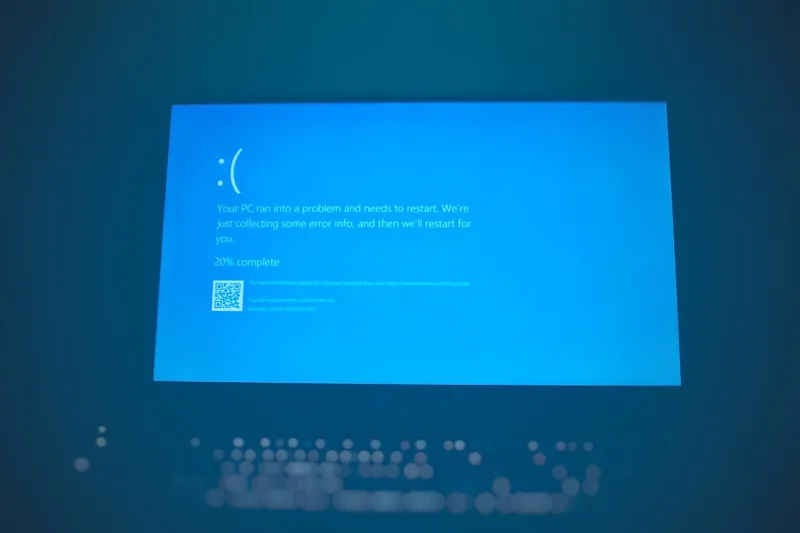
Blue screens have become a strange sort of badge of honor among power users, and in 2026 they still manage to pop up just when you’re about to close that critical render job or push a commit to production. I’ve spent countless nights staring at that iconic cobalt backdrop, wondering whether it’s a hardware betrayal, a rogue driver, or a subtle software bug that slipped through the cracks of modern Windows safeguards. In this deep‑dive, I’ll walk you through the most common triggers, the diagnostic tools that have saved my sanity, and the preventive strategies that keep my workstation humming without a single stop‑code in sight. Whether you’re a developer, a content creator, or a gamer who treats the PC as an extension of the mind, understanding the anatomy of a BSOD (Blue Screen of Death) is essential for maintaining uptime and protecting those hard‑earned gigabytes of work. Let’s peel back the layers and turn that dreaded blue canvas into a clear, actionable roadmap.
Why the Blue Screen Still Haunts Modern Power Users
Even with Windows 12’s revamped kernel protection, the BSOD remains a stubborn reality because the operating system still has to mediate between a dizzying array of hardware components, third‑party drivers, and increasingly complex AI‑accelerated workloads. In 2026, the sheer speed of PCIe 5.0 GPUs and the rise of dedicated AI inference chips mean the system’s error‑handling pathways are under more stress than ever. A misbehaving firmware module can trigger a stop‑code before the OS even gets a chance to log the event. Moreover, the shift toward zero‑trust security models adds layers of verification that, when misconfigured, can cause a sudden halt to protect the system from perceived threats. For power users who push hardware to its limits, those protective mechanisms can feel like a double‑edged sword—shielding you from malware while occasionally mistaking a legitimate memory spike for a security breach.
Hardware Faults That Spark a BSOD
At the core of many blue screens lies a hardware issue that masquerades as a software problem. Faulty RAM modules, overheating CPUs, or a power‑delivery hiccup on the motherboard can cause the kernel to encounter an unrecoverable error. In my own builds, a single bad DIMM would cause intermittent stop‑codes that only appeared during intensive AI model training. The key is to isolate the culprit before you start swapping drivers. Run a full memtest86+ pass, monitor temperatures with HWInfo, and verify that your PSU is delivering clean, stable rails under load. If you’re using a custom workstation, the Motherboard Playbook I wrote earlier offers a checklist for validating BIOS settings, VRM temperatures, and power phases—essential steps that often save hours of frustration.
Driver Chaos: The Silent BSOD Instigator
Drivers are the most common software layer that can catapult a system into a blue screen, especially when they’re built for a previous generation of silicon. The rapid rollout of AI‑focused GPUs and specialized accelerators in 2026 means manufacturers are pushing driver updates at a breakneck pace. An outdated graphics driver paired with a fresh Windows update can cause a mismatch in memory handling, leading to the dreaded “IRQL_NOT_LESS_OR_EQUAL” stop‑code. My personal routine includes setting Windows Update to notify‑only for driver patches, then vetting each new release on a secondary test rig before deploying it to my primary workstation. This approach mirrors the strategy outlined in Master the Art of PC Upgrades, where a controlled upgrade path ensures stability while still reaping performance gains.
Memory Management Errors and How to Tame Them
Even when the RAM is physically sound, memory‑management bugs can trigger BSODs that look identical to hardware failures. Modern applications that leverage large language models or real‑time video encoding often allocate gigabytes of RAM in quick succession, testing the limits of Windows’ virtual memory manager. If a program requests a memory block that isn’t page‑aligned or exceeds the process’s address space, the kernel throws a “PAGE_FAULT_IN_NONPAGED_AREA” error. To diagnose, enable the “GlobalFlag” registry key to create detailed memory dump files, then analyze them with WinDbg. Additionally, keep the system’s paging file size dynamic or set it to 1.5× the installed RAM to give the OS breathing room during peak workloads. Regularly updating the firmware of your SSDs and ensuring they’re on the latest NVMe driver also mitigates latency‑induced memory timeouts that can manifest as blue screens.
BIOS, UEFI, and Firmware: The Hidden Triggers
The firmware layer is often overlooked, yet it’s a fertile ground for stop‑code generation. In 2026, many motherboards ship with UEFI that supports advanced power‑management features like Intel’s Adaptive Boost and AMD’s Precision Boost Overdrive. Misconfiguring these settings can lead to voltage spikes or timing issues that the OS interprets as fatal errors. I once experienced a cascade of “CRITICAL_PROCESS_DIED” BSODs after enabling an aggressive power‑saving mode that throttled the CPU too aggressively under load. The fix was a simple BIOS reset to default, followed by a measured re‑enable of the features with incremental testing. Always keep the BIOS version aligned with the CPU microcode updates released by the vendor, as these patches often address subtle stability concerns that only surface under heavy multi‑threaded workloads.
Software Updates: Blessing and Curse
Microsoft’s annual cadence for major OS releases and cumulative updates brings both security patches and new code paths that can inadvertently trigger blue screens. While the new Windows 12 builds promise improved driver isolation, they also introduce a fresh set of APIs that older third‑party software may not handle gracefully. I recommend using the “Windows Insider Program” on a separate partition to test upcoming builds before committing them to your primary environment. This sandbox approach mirrors the methodology described in the Future‑Proof Power‑User Workstation guide, where a dual‑boot configuration isolates experimental software from mission‑critical workloads. By staging updates, you can catch compatibility issues—like a legacy security suite that conflicts with the new kernel hardening features—before they cause downtime.
Diagnostic Toolbox: From Kernel Dumps to Live Monitoring
When a BSOD finally decides to reveal itself, the real work begins. Windows automatically generates a minidump file located in C:\\Windows\\Minidump, which contains a snapshot of the system state at the moment of failure. Load this file into WinDbg, enable the “!analyze -v” command, and look for the “MODULE_NAME” and “IMAGE_NAME” fields that point to the offending driver or subsystem. For power users who prefer a GUI, the “BlueScreenView” utility from NirSoft can quickly highlight the most frequent culprits across multiple dumps. Complement these tools with real‑time monitoring via the “Windows Performance Recorder” (WPR) and “Windows Performance Analyzer” (WPA), which let you capture trace logs that reveal timing anomalies leading up to a crash. Pairing these insights with the hardware validation steps described earlier creates a feedback loop that dramatically reduces repeat incidents.
Proactive Monitoring and the Role of Telemetry
In 2026, proactive health monitoring is no longer optional for serious power users. Leveraging tools like Microsoft’s “Endpoint Manager” or third‑party platforms such as “Pulseway” allows you to set alerts for temperature spikes, voltage irregularities, and driver crash loops before they culminate in a BSOD. I integrate these alerts into my daily Slack channel, ensuring that a sudden deviation—say, a GPU core temperature crossing 95 °C—triggers an immediate investigation. This practice aligns with the zero‑trust mindset advocated in our “Zero‑Trust, AI‑Driven Defense” article, where continuous telemetry forms the first line of defense against both malicious attacks and inadvertent hardware failures. By automating log collection and correlating events across the stack, you transform the blue screen from a reactive nightmare into a data point you can predict and prevent.
Future‑Proofing Your Build Against Blue Screens
Looking ahead, the best defense against BSODs is a combination of robust hardware, disciplined update practices, and an architecture that anticipates change. When designing your next workstation, prioritize components with proven firmware support cycles—think motherboards that receive BIOS updates for at least five years and GPUs with driver roll‑out guarantees. Incorporate modular storage solutions, such as NVMe drives with enterprise‑grade endurance, to avoid sudden I/O bottlenecks that can cascade into kernel faults. Finally, embed a recovery strategy: maintain a bootable USB with the latest Windows 12 image, keep a snapshot of your system’s critical configuration, and document your troubleshooting workflow in a personal knowledge base. By treating each blue screen as a learning opportunity rather than a roadblock, you’ll keep your machine—and your productivity—running smoothly for years to come.




