When I first cracked open my 2015 desktop, the hard drive was a hulking, 1‑TB spinning platter that took ages to boot anything. Fast‑forward to 2026, and the storage landscape feels like a hyper‑fast highway where the old‑school mechanical drives coexist with blindingly quick NVMe flash. As a long‑time power‑user, I’ve learned that choosing the right hard drive isn’t just about raw numbers; it’s about aligning capacity, speed, reliability, and future‑proofing with the workloads that keep my day moving. Whether you’re rendering 8K video, training AI models, or just hoarding a massive library of indie games, the storage subsystem is the silent workhorse that can make or break performance. In this deep dive, I’ll walk you through the decision‑making framework I use, share the metrics that matter, and reveal the strategies that keep my rigs humming efficiently year after year.
Understanding the 2026 Storage Spectrum
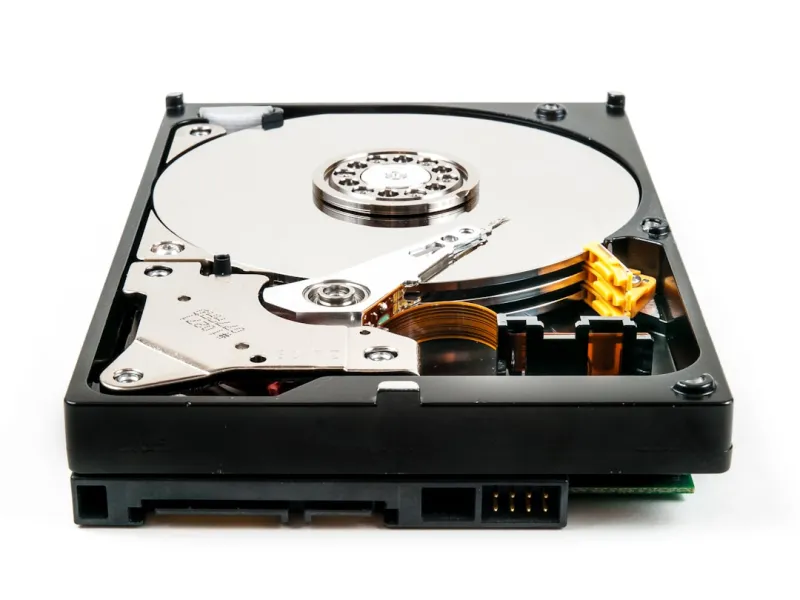
The first step is to grasp the three main categories that dominate the market today: traditional hard disk drives (HDDs), SATA solid‑state drives (SSDs), and NVMe SSDs that plug directly into the PCIe lanes. HDDs still win on price per gigabyte, offering massive capacities—up to 20 TB for a single 3.5‑inch unit—making them ideal for archival and bulk backup. SATA SSDs, while slower than their NVMe cousins, deliver a sweet spot of performance and affordability for everyday OS and application loads. NVMe drives, especially those leveraging PCIe 5.0, can exceed 14 GB/s sequential reads, a game‑changer for data‑intensive tasks like real‑time ray tracing or large dataset processing. The key is not to chase the fastest tech for every need but to map each workload to the storage tier that offers the best cost‑to‑performance ratio.
Capacity Planning: More Than Just Numbers
It’s tempting to eyeball the “TB” label and go big, but capacity planning demands a more nuanced approach. Ask yourself: how much raw data will you generate annually, and how much of that needs instant access? For a content creator juggling 4K footage, a 4‑TB NVMe drive for active projects paired with a 12‑TB HDD for raw footage archives can prevent bottlenecks while keeping costs in check. Meanwhile, developers who compile massive codebases benefit from a dedicated 2‑TB NVMe drive for the OS and IDE, ensuring lightning‑fast read/write cycles. Remember the 5‑2‑1 backup rule: keep at least five copies of data, on two different media types, with one offsite. This principle guides the mix of high‑speed SSDs for primary work and larger HDDs for redundant backups, striking a balance between performance and peace of mind.
Reliability Metrics That Matter to Power Users
When you’re running mission‑critical workloads, drive reliability isn’t a nice‑to‑have—it’s a non‑negotiable. Look beyond the marketing spin and scrutinize specs like MTBF (Mean Time Between Failures) and TBW (Terabytes Written). Modern NVMe drives often quote MTBFs in excess of 2 million hours and TBW ratings that comfortably outlast typical consumer usage patterns. However, endurance can vary dramatically; a drive rated for 600 TBW is fine for a gaming rig but might crumble under the constant write cycles of a video‑editing workstation. Enable SMART monitoring and set up alerts for re‑allocation events, read/write error rates, and temperature spikes. In my own builds, I’ve integrated these health checks into Windows 12’s built‑in storage dashboard, letting me pre‑emptively replace a drive before it fails catastrophically.
Use‑Case Deep Dive: Gaming, AI, and Development
Let’s break down three common power‑user scenarios. For gamers, especially those diving into massive open‑world titles, load times are now heavily influenced by DirectStorage, which streams assets directly from NVMe storage to the GPU. A 2‑TB PCIe 5.0 NVMe drive can shave seconds off level loads, translating to a smoother experience. AI researchers, on the other hand, need massive sequential throughput for training datasets; here, pairing a multi‑drive RAID‑0 array of NVMe units can deliver the bandwidth required to keep GPUs fed. Finally, developers benefit from fast random I/O—think countless small file reads/writes during compilation. A single high‑end NVMe drive with low latency often outperforms a RAID configuration for this use case, simplifying the setup while still delivering top‑tier performance.
Future‑Proofing Your Storage Architecture
One mistake I see many make is buying a drive that fits today’s motherboard but leaves no room for tomorrow’s upgrades. Look for drives with forward‑compatible form factors—U.2, M.2 2280, and the emerging 22110 sizes—so you can swap in higher‑capacity or faster models without a chassis overhaul. Hot‑swap bays and modular drive cages also extend longevity, allowing you to add or replace drives without powering down the system. For those planning RAID or zoned storage, ensure your motherboard supports the necessary PCIe lanes and that the firmware can handle advanced features like NVMe‑based tiered storage. I often reference the Power‑User PC Upgrade Playbook when mapping out these expansions, as it outlines the exact BIOS settings and driver updates needed to keep a rig ready for the next generation of storage tech.
Cost vs. Performance: Getting the Most Bang for Your Buck
Price per gigabyte has been on a steady decline, but the premium for the latest NVMe technology can still be steep. In 2026, a 2‑TB PCIe 5.0 SSD hovers around $250, while a comparable SATA SSD sits near $120. If you’re on a tight budget, consider a hybrid approach: allocate a smaller, ultra‑fast NVMe drive for the OS and active workloads, then bulk out with a larger SATA SSD or HDD for less‑time‑critical data. Keep an eye on flash memory generations—Gen4 NAND still dominates, but Gen5 is creeping into the market, promising higher endurance at a slightly higher price point. Bulk purchasing during seasonal sales can also stretch your budget, especially when you combine drives into a RAID‑0 or RAID‑1 array for added performance or redundancy without breaking the bank.
Integrating with Windows 12 and Modern Storage Features
Windows 12 introduced several storage innovations that power users should exploit. Storage Spaces Direct now supports tiered storage pools that automatically migrate hot data to NVMe tiers while keeping cold data on slower HDDs, optimizing both speed and cost. The new DirectStorage API, originally designed for gaming, can be repurposed for any application that benefits from fast asset streaming, such as video editing suites. By enabling the “Performance‑Optimized” profile in the OS, you can ensure that the scheduler prioritizes SSD I/O over HDD, reducing latency across the board. For a deeper dive into leveraging these capabilities, check out the Turbocharge Your PC in 2026 guide, which walks you through configuring storage policies, driver updates, and firmware tweaks that unlock the full potential of your hardware.
Actionable Checklist for the Modern Power‑User
Before you click “Add to Cart,” run through this quick checklist:
- Define your primary workload and match it to the appropriate storage tier (HDD, SATA SSD, NVMe).
- Confirm the form factor and interface (M.2 2280, U.2, PCIe 5.0) are supported by your motherboard.
- Review endurance ratings (TBW) against expected write volumes.
- Plan for redundancy: RAID‑1 for mirroring, RAID‑0 for speed, or use Windows Storage Spaces.
- Set up SMART monitoring and schedule regular health checks.
- Allocate budget—reserve ~30% for future upgrades or additional capacity.
- Enable OS‑level storage optimizations (DirectStorage, tiered Storage Spaces).
By systematically evaluating each factor, you’ll build a storage solution that not only meets today’s performance demands but also scales gracefully as your data needs grow. In the ever‑accelerating world of 2026 computing, a well‑planned hard drive strategy is the backbone of any power‑user’s success.