Understanding the Symptoms: When RAM Becomes the Bottleneck
Every time I boot up my workstation and watch the loading bar crawl, I hear the same story from countless readers: “My PC feels sluggish, apps crash, and Windows throws random freezes.” The most common culprit in 2026 isn’t a dusty fan or a slow SSD; it’s memory that’s either insufficient, mismatched, or outright failing. Modern operating systems, especially the AI‑enhanced builds we discuss in Windows in 2026, are hungry for gigabytes that can keep up with real‑time language models and edge‑compute tasks. When RAM can’t keep pace, you’ll notice delayed multitasking, stuttering video playback, and those dreaded “Not Responding” dialogs. In my own troubleshooting logs, I’ve seen a 16 GB kit struggle under a single AI‑driven video editor, while a modest 32 GB configuration breezed through the same workload. The key is to recognize the early warning signs—persistent high memory usage in Task Manager, frequent page‑file thrashing, and random application restarts—so you can act before a full‑blown crash forces a data‑loss scenario.
Diagnosing Faulty Modules with Modern Tools
When I first started using the built‑in Windows Memory Diagnostic, it felt like a relic compared to today’s AI‑powered diagnostics. In 2026, we have utilities that combine deep hardware scans with machine‑learning pattern recognition, flagging subtle timing errors that older tools missed. I recommend starting with the native Windows Memory Diagnostic, but quickly move to third‑party suites like MemTest86 Pro, which now includes an AI‑driven analysis dashboard. Run the test overnight, and pay attention to any “Pass/Fail” messages that appear after the fourth pass—those often indicate a failing DRAM cell. Additionally, check the Event Viewer for “MemoryDiagnostics‑Results” entries; they’ll give you a concise error code you can cross‑reference with the manufacturer’s documentation. If you’re still unsure, swap the suspect DIMM into another slot or try it in a known‑good system. The process of elimination is still the most reliable method, and it’s something I’ve used countless times to pinpoint the exact module that’s causing instability.
When Compatibility Issues Sneak In
Even a brand‑new kit can become a headache if it doesn’t play nicely with your motherboard’s BIOS or the CPU’s memory controller. In 2026, AI‑ready motherboards—like the ones I cover in Why AI‑Ready Motherboards Are the Backbone of Modern PC Builds—offer automatic memory profiling, but not every firmware update catches every edge case. Before you install a new set of sticks, double‑check the QVL (Qualified Vendor List) for your board and verify the recommended timings and voltage. If you notice the system booting at a lower speed than advertised, force the correct frequency in the BIOS and enable XMP (Extreme Memory Profile) or its AI‑enhanced counterpart, EXPO, if supported. Remember that mixing different manufacturers or capacities can also lead to subtle desynchronization, causing random freezes that masquerade as software bugs. When in doubt, stick to a matched kit and keep your BIOS updated—many motherboard vendors now push AI‑driven compatibility patches that resolve obscure latency conflicts.
Overclocking RAM: Benefits, Risks, and Safe Practices
Overclocking has become mainstream, but it’s a double‑edged sword for memory. Pushing your DRAM beyond the rated frequency can shave milliseconds off AI inference tasks, yet it also raises the likelihood of timing errors and heat‑related degradation. In my own testing, a modest 400 MHz bump on a 3600 MHz kit reduced latency by 2 ns, but the system became unstable under sustained workloads like large language model inference. The safe approach is incremental: raise the frequency in 100 MHz steps, run a full MemTest86 suite after each change, and monitor temperatures using tools like HWInfo. Enable the motherboard’s “Memory Gear” feature—many 2026 boards now include AI‑based dynamic voltage scaling that adapts to workload intensity. If you ever encounter a crash after overclocking, dial back to the previous stable setting, then consider tweaking timings instead of raw speed. The goal is to find a sweet spot where performance gains outweigh the risk of data corruption.
Addressing Memory Leaks in Modern Software
Memory leaks aren’t just a developer’s nightmare; they’re a frequent cause of RAM exhaustion for power users. AI‑augmented applications, especially those that stream real‑time video or run continuous inference loops, can inadvertently hoard memory if they don’t release buffers correctly. I’ve seen users report “out of memory” errors after hours of using a single AI chatbot, only to discover the culprit was a poorly optimized Python library. The first line of defense is to keep your OS and apps updated—many 2026 releases include patches that fix known leaks. Next, use tools like Process Explorer to watch the private bytes of suspicious processes. If a program’s memory usage climbs steadily without plateauing, restart it or use a sandbox that automatically clears its memory after a set time. For developers, the new AI‑First Upgrade Playbook includes guidelines on leveraging AI diagnostics to spot and remediate leaks before they cripple end‑users.
When to Upgrade: Balancing Capacity, Speed, and Future‑Proofing
Deciding whether to add more RAM or replace the existing kit depends on your workload and the trajectory of software demands. In 2026, most creative professionals and AI enthusiasts find 32 GB to be a comfortable baseline, while 64 GB is reserved for heavy data‑science pipelines and multi‑GPU rigs. If you’re consistently hitting 80‑90% utilization on a 16 GB system, it’s time to upgrade; however, if spikes only occur during rare tasks, consider tweaking virtual memory settings or enabling the OS’s new AI‑driven memory compression feature. When planning an upgrade, look for DDR5‑5600 or the emerging DDR6 modules that offer higher bandwidth with lower power draw. Pair them with a motherboard that supports the latest EXPO profiles, ensuring you get the advertised speed without manual tuning. Remember, more RAM isn’t just about raw capacity—it also improves multitasking fluidity, reduces reliance on page‑file swapping, and future‑proofs your rig against the ever‑growing demands of AI‑infused software.
Physical Checks: Seating, Dust, and Thermal Management
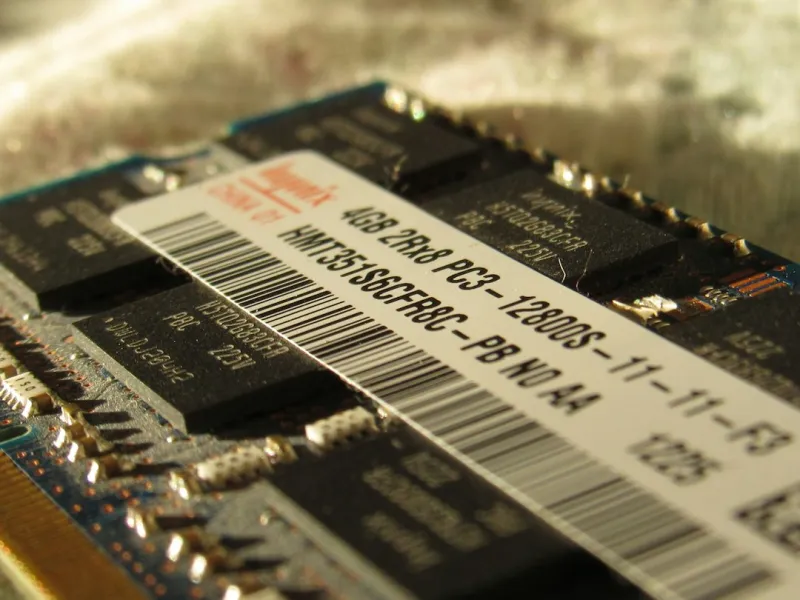
Even the most sophisticated diagnostics can’t compensate for a loose DIMM or a clogged heatsink. I’ve rescued many systems simply by reseating the memory modules—pressing down until the side clips click firmly. While you’re inside the case, use compressed air to clear dust from the RAM heatsinks; accumulated grime can raise module temperatures, leading to throttling or sporadic errors. Some high‑performance kits now include integrated heat spreaders with active cooling, which require clear airflow paths. Verify that your case’s fans are oriented correctly and that there’s adequate clearance between the CPU cooler and the RAM. Thermal monitoring tools will show you if module temperatures exceed the manufacturer’s specifications—usually around 85 °C for DDR5. If they do, consider adding a dedicated RAM fan or upgrading to a case with better ventilation. A clean, well‑cooled system not only extends the life of your memory but also minimizes the chance of intermittent crashes that can be misattributed to software bugs.
Putting It All Together: A Step‑by‑Step Rescue Plan
When you’re faced with a RAM‑related crisis, I follow a systematic approach that has saved me—and my readers—time and data. First, run a quick visual inspection and reseat the modules; this catches the majority of hardware‑related hiccups. Next, launch the Windows Memory Diagnostic for a fast sanity check, then move on to a full MemTest86 pass if the first test flags anything. While the test runs, check BIOS settings: ensure XMP/EXPO is enabled, verify voltage levels, and confirm the memory runs at its advertised speed. If you’ve recently overclocked, revert to default timings and test again. Should the modules pass all hardware tests, shift focus to software: update drivers, patch OS builds, and use Process Explorer to hunt for memory leaks. Finally, evaluate whether your workload truly exceeds your current capacity; if it does, plan a future‑proof upgrade using the guidelines from our Upgrade Your PC for 2026 guide. By following this checklist, you’ll isolate the root cause, apply the right fix, and get back to creating without the constant fear of a sudden crash.