
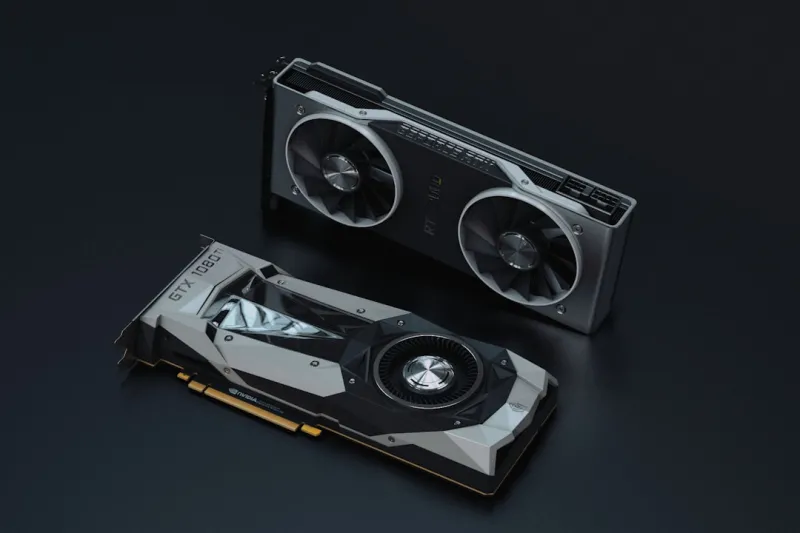
When a brand‑new RTX 4090 or the latest AMD Radeon XTX refuses to render a single frame, it feels like a betrayal from the silicon itself. I’ve spent the last decade in the trenches of high‑performance builds, and by 2026 the GPU landscape has become a blend of raw computational power and intricate software interdependencies. In this post I’ll walk you through the systematic approach I use to diagnose, isolate, and resolve the most common video‑card nightmares. From power‑delivery quirks on the newest 12‑phase motherboards to the ever‑shifting driver ecosystem, every step is designed to save you time, money, and that inevitable frustration of staring at a black screen while the fans spin like a helicopter. Let’s dive in, armed with the same rigor I apply to every power‑user build.
Decode the Architecture Before You Panic
The first mistake many make is treating every GPU failure as a generic “it’s broken” problem. Modern GPUs in 2026 are hybrid beasts, combining dedicated ray‑tracing cores, tensor accelerators for AI, and massive VRAM buffers. Understanding which block is misbehaving can narrow your troubleshooting dramatically. For instance, if you notice stuttering only during DLSS‑enhanced sessions, the tensor cores might be starved for power or throttling due to insufficient VRM headroom. Conversely, a sudden drop in texture fidelity often points to VRAM timing issues. Use tools like GPU‑Z or the built‑in Windows 11 Performance tab to pull real‑time metrics on core clocks, memory usage, and power draw. This data‑driven approach transforms guesswork into a targeted investigation, letting you focus on the right component—whether it’s BIOS settings, driver versions, or physical cooling.
Start with the Obvious: Power and Connections
Before you open the case, double‑check the basics. A loose 12‑V rail or a partially seated 8‑pin connector can manifest as intermittent black screens, driver crashes, or even POST failures. In 2026 many high‑end cards demand up to 600 W from the PSU, and the new ATX12VO standard has split the power rails in ways that can surprise even seasoned builders. Verify that your power supply is certified for the required wattage and that the cables are the correct gauge. If you’re running a custom loop or an aftermarket GPU bracket, make sure the airflow isn’t obstructed. A quick visual inspection often reveals a bent pin or a dust‑clogged heatsink, problems that are far cheaper to fix than a full RMA.
Driver Hell: When Updates Become the Enemy
Driver management has become a battlefield of its own. NVIDIA’s “Game Ready” releases and AMD’s “Adrenalin” updates arrive weekly, each promising performance gains but sometimes introducing regressions. My go‑to strategy is a controlled driver rollback: uninstall the current version with DDU (Display Driver Uninstaller) in Safe Mode, then install the last known stable release that matches your workload. Keep a spreadsheet of driver versions that work with specific titles or professional applications. If you’re using the latest Windows 11 build, make sure the driver is signed for that OS version—Microsoft’s driver signing enforcement tightened in 2026, and unsigned drivers can silently fail to load, leaving you with a phantom GPU.
BIOS Settings: The Hidden Lever
The motherboard BIOS is often overlooked, yet it holds the keys to optimal GPU performance. Many power‑user motherboards now expose a “PCIe Power Management” toggle that can force the slot into Gen 5 x16 mode, unlocking the full bandwidth of the newest GPUs. Additionally, the “Above 4G Decoding” and “Resize BAR” settings can dramatically affect VRAM addressability, especially for cards with 24 GB of memory. If you’re seeing “GPU not recognized” errors after a fresh build, enable these options, then save and reboot. For advanced users, flashing the GPU’s own BIOS to a version that supports higher power limits can solve throttling under sustained loads—just be sure to back up the original BIOS and follow the manufacturer’s warranty guidelines.
Thermal Management: Don’t Let Heat Kill Performance
Even the most robust silicon will throttle if temperatures climb beyond design limits. In 2026, many GPUs feature hybrid cooling—air on the VRAM and liquid on the core. Verify that your pump is primed, the coolant level is adequate, and that the fans are spinning at the correct PWM duty cycle. Use a thermal imaging camera or the built‑in HWInfo sensor suite to spot hotspots on the PCB. If the VRAM modules are running hotter than the GPU core, consider adding a dedicated VRAM fan bracket or re‑applying thermal pads. Remember, ambient room temperature plays a larger role than ever; a modest 5 °C increase can shave several hundred megahertz off boost clocks.
Stress Testing and Benchmarks: Proving the Fix
After each adjustment, you need objective data to confirm success. Tools like 3DMark Time Spy, Unigine Heaven, and the newer AI‑focused BenchX suite provide standardized workloads that push both rasterization and tensor cores. Run a baseline test on a known‑good system, then compare the scores after your fixes. Pay attention to frame‑time variance; a high 1% low frame time indicates micro‑stutter, often tied to power or driver inconsistencies. For professional workloads, run a CUDA or OpenCL benchmark to verify that compute performance matches specifications. Document the results; a well‑kept log becomes invaluable if the issue resurfaces after a future driver update.
When to RMA vs. DIY Repair
Not every glitch warrants a full teardown. If you’ve exhausted power, driver, BIOS, and thermal avenues, and the error persists across multiple test rigs, it’s time to consider a Return Merchandise Authorization (RMA). Manufacturers in 2026 have streamlined RMA processes, often offering same‑day replacements for flagship cards. However, if the card is out of warranty but you have soldering skills, you might replace a faulty MOSFET or re‑flow the VRM using a hot air station—a risky but sometimes rewarding move. Weigh the cost of parts and the potential voiding of warranties against the downtime of a new card. My rule of thumb: if you’re unsure, ship it back. The peace of mind is worth the extra shipping fee.
Future‑Proofing Your GPU Investment
Investing in a high‑end video card today should consider tomorrow’s demands. The Future‑Proof PC Upgrades guide outlines why a robust power delivery system, ample PCIe lanes, and a case with modular airflow are essential for longevity. Opt for a PSU with a high efficiency rating (80+ Gold or Platinum) and a motherboard that supports PCIe 5.0 with full bifurcation. This ensures that when next‑gen GPUs push beyond 30 TFLOPs, your platform can keep pace without a complete overhaul. Additionally, keep an eye on emerging standards like Compute Express Link (CXL), which may become the new conduit for GPU‑CPU synergy, especially in AI‑heavy workloads.
Integrating GPUs into AI Workflows
Modern GPUs are no longer just for gaming; they’re the workhorses behind AI inference and training pipelines. If you’re using the latest tensor cores for machine‑learning models, make sure your software stack—CUDA, cuDNN, and PyTorch—matches the driver version to avoid incompatibilities. In 2026, NVIDIA’s RTX 6000 Ada generation introduced DLSS‑3 and advanced ray‑tracing, but also added new APIs for AI‑accelerated rendering. Align your AI workloads with these capabilities to squeeze extra performance. For AMD cards, leverage the ROCm platform and ensure the OpenCL runtime is up to date. When troubleshooting, isolate AI tasks from gaming loads; a GPU that performs flawlessly in a game may still falter under sustained tensor workloads if power limits are not properly configured.
Final Checklist and Resources
Before you close the case, run through this quick audit: verify power connections and PSU rating; confirm BIOS settings for PCIe Gen 5, Above 4G Decoding, and Resize BAR; roll back to a stable driver version; check temperatures on both core and VRAM; execute a benchmark suite and compare against baseline; and finally, document any anomalies. If the issue persists, consult the Power‑User’s Step‑by‑Step Playbook for deeper dive diagnostics, or consider reaching out to the manufacturer’s support with your logs in hand. By following this methodical approach, you’ll transform a dreaded GPU failure into a manageable, repeatable process—keeping your rig humming at peak performance well into the future.




