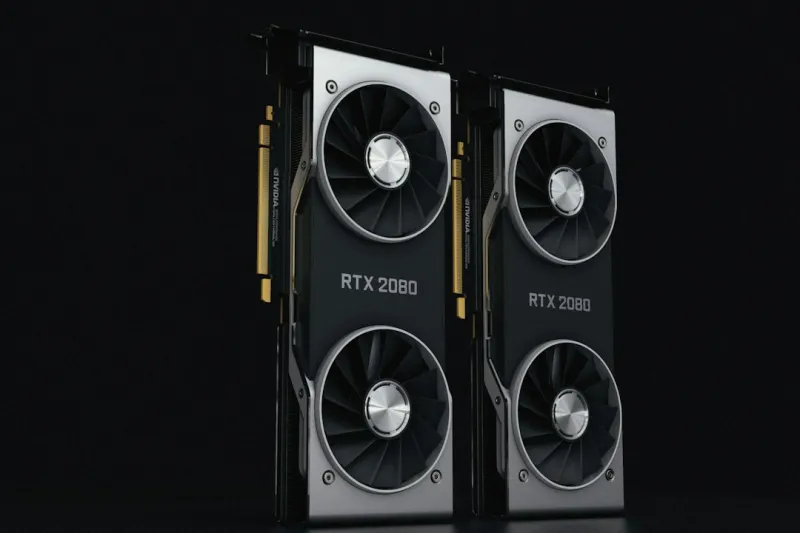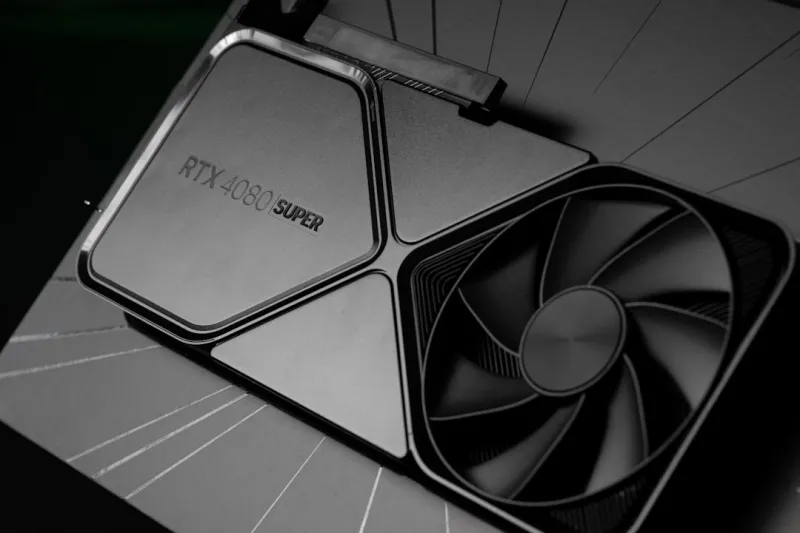
When a gamer or creator in 2026 tells you their GPU is “acting up,” you know it’s more than a fleeting hiccup. Video cards have become the beating heart of everything from AI‑enhanced rendering to high‑frame‑rate esports, and a single glitch can ripple across workloads, causing stutters, crashes, or the dreaded black screen. In my years of tinkering with everything from early RTX models to the latest Ada‑Lovelace beasts, I’ve learned that most issues boil down to three core pillars: power, software, and heat. Ignoring any one of these can masquerade as a mysterious performance dip, but once you isolate the culprit, the fix is often a straightforward, budget‑friendly tweak. This article walks you through the systematic approach I use to diagnose and resolve video‑card woes, peppered with real‑world anecdotes and the latest best practices that keep my rigs humming in 2026.
Identifying the Symptoms Before You Panic
The first step in any troubleshooting adventure is to catalog what you’re actually seeing. Are you experiencing random driver resets, artifacting on the screen, or a complete failure to boot into Windows? Each symptom points to a different failure mode. For instance, “artifacting” – those colorful, pixelated glitches that appear during gaming – usually signals a memory error or overheating, while intermittent driver crashes often stem from software conflicts or power delivery hiccups. Take note of the exact conditions: does the issue appear only under heavy load, or does it surface during idle? Does it happen after a recent driver update or a hardware upgrade? By creating a concise symptom checklist, you’ll save hours of trial‑and‑error later, and you’ll have concrete data to share if you need to contact a vendor’s support team. Remember, a well‑documented problem is already half‑solved.
Power Delivery: The Unsung Hero
Even the most powerful GPUs can’t perform without clean, stable power. In 2026, many high‑end cards draw upwards of 350 watts, and a marginally undersized PSU or a failing PCIe power connector can cause sudden resets or prevent the card from initializing altogether. Start by verifying that your power supply’s wattage matches the GPU’s recommended minimum – a good rule of thumb is to have at least 100 watts of headroom. Next, inspect the 6‑pin and 8‑pin connectors for bent pins, loose fittings, or dust accumulation. A quick swap with a known‑good cable can rule out cable‑related issues. If you suspect the PSU itself, use a multimeter or a dedicated power‑tester to confirm that each rail stays within spec under load. Many of my readers overlook this step, assuming the problem lies “inside” the card, only to discover a marginally failing power supply was the silent saboteur.
Driver Management in an Ever‑Evolving Ecosystem
GPU drivers are a moving target, with NVIDIA, AMD, and Intel releasing optimizations weekly to support the latest games and professional workloads. While chasing the newest version can bring performance gains, it also introduces the risk of regressions. My personal mantra is “stay current, but stay safe.” Before installing a fresh driver, create a system restore point and note the current driver version. If you’re on Windows 11, use the built‑in “Device Manager” roll‑back feature as a safety net. When a new driver causes instability, the quick fix is often to revert to the previous “stable” release – the one that shipped a few weeks earlier. Additionally, keep an eye on the community forums; they’re a goldmine for spotting early‑stage bugs. For a deeper dive into systematic driver troubleshooting, see Mastering GPU Troubleshooting: A Practical Guide for 2026.
Firmware and BIOS: Aligning the Card with the System
Just as drivers sit between the OS and hardware, firmware bridges the GPU’s silicon and its onboard controllers. In 2026, many manufacturers push BIOS updates that improve power‑limit handling, fix memory leaks, or unlock additional performance headroom. However, flashing firmware is a delicate operation – a power loss mid‑flash can brick the card. Before you proceed, download the exact BIOS version matching your card’s SKU from the official vendor site, and verify the checksum. Use a reliable flashing utility, and ensure your system isn’t set to sleep during the process. If you’re running a custom water‑cooling loop, double‑check that the temperature sensor reporting to the BIOS is accurate; a misreading can cause the card to throttle aggressively, masquerading as a driver issue. Firmware updates are often the quiet hero that resolves “random crashes” that no amount of driver tweaking can fix.
Thermal Management: Dust, Paste, and the Art of Silent Cooling
Heat is the ultimate enemy of silicon, and modern GPUs are no exception. Even with advanced vapor chambers, a clogged heatsink or dried thermal paste can push core temperatures past safe thresholds, leading to throttling or outright shutdowns. Begin by performing a visual inspection: remove the GPU’s shroud (if it has one) and use compressed air to clear out dust from the fan blades and fins. While you have the card out of the case, consider reapplying a high‑quality thermal compound – a pea‑sized dot in the center of the die is sufficient for most modern GPUs. After reassembly, monitor temperatures using tools like MSI Afterburner or HWInfo; aim for sub‑80 °C under sustained load in 2026 titles. If temperatures remain high, evaluate case airflow – adding a front intake fan or repositioning existing fans can make a dramatic difference. Remember, a clean GPU not only runs cooler but also lasts longer, saving you money in the long run.
Stress Testing and Benchmarking: Proving the Fix Works
Once you’ve addressed power, drivers, firmware, and cooling, it’s time to validate the solution with a controlled stress test. Tools such as 3DMark, Unigine Heaven, or the open‑source FurMark provide repeatable workloads that push the GPU to its limits. Run a baseline benchmark before making changes, then repeat the same test after each tweak; this quantitative approach shows you exactly how performance and stability have shifted. Pay attention to frame‑time variance – spikes often indicate lingering issues. If the card still exhibits crashes, consider swapping it into another system to rule out motherboard or CPU interactions. The methodical use of benchmarks turns guesswork into data‑driven confidence, a habit I’ve cultivated over countless builds. For those craving a comprehensive checklist, revisit the guide linked earlier for an exhaustive troubleshooting workflow.
System Compatibility: Motherboards, PCIe Lanes, and Future‑Proofing
Even the most robust GPU can be hamstrung by a mismatched motherboard. In 2026, PCIe 5.0 is becoming mainstream, offering double the bandwidth of PCIe 4.0, but not all slots deliver the full spec, especially on budget boards. Verify that your GPU is seated in a slot that operates at the advertised lane count – the motherboard BIOS often lets you toggle between x16, x8, or auto modes. Additionally, check for any BIOS updates for your motherboard that address GPU compatibility; many vendors release patches that resolve “no display” issues on newer cards. For a broader view of how these hardware decisions impact overall performance, explore Hardware Trends Shaping PCs in 2026. Understanding the interplay between GPU, CPU, and motherboard ensures you’re not chasing phantom problems caused by bottlenecks elsewhere.
When to RMA, Replace, or Refurbish
After exhausting the software and hardware checks, you may still face persistent failures. At this stage, consider the warranty status of your GPU. Most manufacturers in 2026 offer a three‑year “lifetime” warranty for high‑end models, but the definition of “lifetime” can be murky. Keep your purchase receipts, serial numbers, and any RMA ticket numbers handy. When you initiate an RMA, document the troubleshooting steps you’ve already taken – this speeds up the approval process and reduces back‑and‑forth. If the card is out of warranty, weigh the cost of a professional repair versus purchasing a newer generation. Remember, a refurbished unit from a reputable dealer can be a cost‑effective stopgap, but ensure it comes with a warranty and has undergone thorough testing. The decision ultimately balances performance needs, budget constraints, and the anticipated lifespan of your system.
Future‑Proofing Your GPU Setup for the Years Ahead
Looking beyond the immediate fix, think about how today’s choices affect tomorrow’s upgrades. Opt for a power supply with extra headroom, choose a case with modular fan mounts, and keep driver backups for quick rollbacks. Investing in a GPU that supports the latest DirectX 13 and ray‑tracing pipelines ensures you can tackle upcoming game releases without a major overhaul. Moreover, keep an eye on emerging technologies like AI‑accelerated rendering and real‑time DLSS 3.5, which can offload work from the GPU to dedicated tensor cores. By aligning your current troubleshooting mindset with a forward‑looking strategy, you turn each repair into an opportunity to build a more resilient, adaptable rig. And as always, stay curious, stay methodical, and let the data guide you – that’s the secret sauce that keeps my builds performing at the top of their game year after year.