
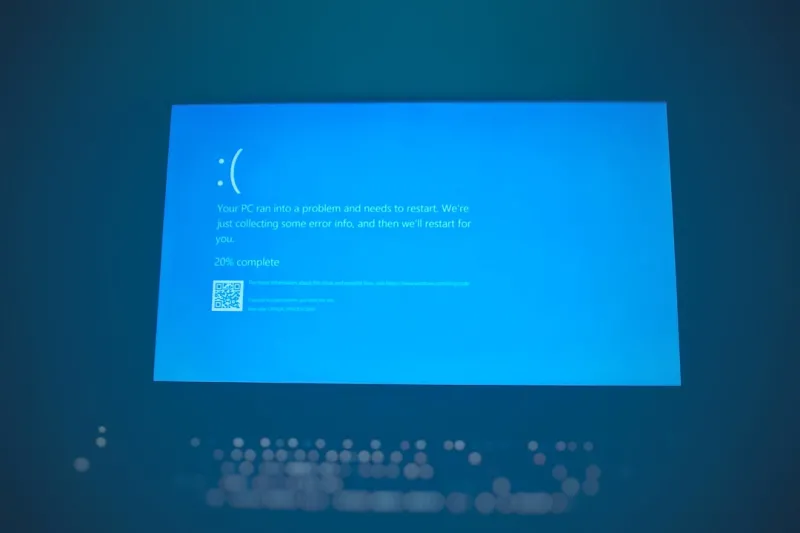
When I first saw that ominous blue curtain drape across my screen back in 2022, I thought it was a relic of the past—something only legacy Windows machines threw at you. Fast‑forward to 2026, and the BSOD is still the most visceral reminder that even a power‑user’s rig can betray them in an instant. As someone who lives on the bleeding edge of hardware, AI‑augmented tooling, and nightly driver builds, I’ve learned that a blue screen isn’t just a nuisance; it’s a diagnostic goldmine if you know how to read it. In this post, I’m pulling back the curtain on why the blue screen still matters, how modern AI in Windows reshapes error reporting, and the exact steps you can take to turn that terrifying freeze into a roadmap for a more stable, faster machine. Expect a blend of personal war stories, hard‑won lessons from countless crash dumps, and actionable advice that any power‑user can slot into their daily maintenance routine.
Understanding the Core Triggers Behind Modern BSODs
The landscape of blue‑screen triggers has evolved dramatically over the past few years. In 2026, we see three primary culprits: driver incompatibilities, memory corruption, and aggressive security software that misbehaves under AI‑driven heuristics. Drivers, especially those that interface directly with the GPU or NVMe controllers, are now often auto‑updated by the OS, leaving little room for manual vetting. When a new driver version misinterprets a hardware register, the kernel may issue a stop error before you even have a chance to open Task Manager. Memory issues, meanwhile, have grown more subtle. A single rogue bit flip in a high‑performance DDR5 module can cascade into a full system crash, especially under the heavy multitasking loads we push on modern workstations. Finally, security tools that leverage machine‑learning models sometimes flag legitimate processes as threats, prompting a forced termination that spirals into a system halt. Understanding these categories helps you pinpoint the right diagnostic tool—whether it’s a driver rollback, a memtest, or a deep dive into security logs.
When RAM Acts Up: Memory Errors That Lead to a BSOD
Memory is the nervous system of your PC, and any glitch can manifest as a blue screen in the blink of an eye. I remember a recent case where a seemingly stable 32 GB DDR5 kit started throwing “MEMORY_MANAGEMENT” errors after I upgraded to a new AI‑accelerated compiler suite. The culprit turned out to be a timing mismatch between the memory controller and the newly introduced instruction set extensions. Running a full suite of diagnostics—starting with the built‑in Windows Memory Diagnostic, followed by a third‑party memtest86+ run overnight—revealed intermittent failures that only appeared under sustained load. The fix was two‑fold: adjust the XMP profile to a more conservative latency setting and update the motherboard’s firmware to the latest version that better supports the new CPU microcode. For a deeper dive into diagnosing these issues, check out When RAM Acts Up: A Power‑User’s Guide to Diagnosing and Fixing Memory Issues. The key takeaway? Don’t assume your RAM is flawless just because the system boots cleanly; stress‑test it under real‑world workloads before you trust it with mission‑critical tasks.
Storage Subsystems: The Silent BSOD Instigators
While memory often steals the spotlight, the storage stack can be an equally sneaky source of blue screens. In 2026, NVMe drives have become the default for performance‑hungry builds, yet their advanced power‑management features sometimes clash with aggressive OS sleep states. I’ve encountered multiple “CRITICAL_PROCESS_DIED” stop codes that traced back to a corrupted NVMe driver firmware version, which failed to properly handle sudden power loss during a heavy write operation. The fix involved flashing the drive’s firmware to the latest release and disabling the aggressive low‑power link state in the BIOS. Additionally, file‑system integrity checks using chkdsk or the newer Windows FSCK utility can expose latent corruption that only surfaces under stress. If you’re still on a hybrid setup with a traditional HDD for archival data, remember that mechanical drives remain a reliability backbone for many power‑users, but they too can cause BSODs when SMART thresholds are breached. Regularly schedule health scans, keep firmware up‑to‑date, and consider partitioning critical OS data onto a separate SSD to isolate potential failure domains.
Software Conflicts: AI‑Assisted Tools vs. Legacy Applications
One of the most perplexing BSOD scenarios I’ve faced involves the collision between AI‑enhanced system utilities and legacy software that hasn’t been updated for the modern Windows kernel. In early 2026, a popular AI‑driven clipboard manager began injecting hooks into every running process to provide predictive text suggestions. While the feature was impressive, it inadvertently corrupted the memory space of an older graphics driver, triggering a “DRIVER_POWER_STATE_FAILURE” blue screen during a routine Photoshop session. The resolution required a two‑pronged approach: first, whitelist the legacy driver in the AI tool’s configuration, and second, apply a compatibility shim via the Windows Compatibility Toolkit to sandbox the clipboard manager’s hooks. This incident underscores the importance of monitoring the interaction between newly introduced AI utilities and any software that operates at a low level. Always keep a log of newly installed tools, and when a crash occurs, review recent changes for potential conflicts before diving into deep kernel debugging.
Windows 2026: AI‑Powered Error Reporting Takes the Stage
Microsoft has turned the BSOD from a cryptic nightmare into a semi‑friendly assistant, thanks to AI‑driven diagnostics baked into Windows 2026. The new “Crash Insight” pane not only captures the stop code but also cross‑references the error with a cloud‑based knowledge base that suggests specific driver rollbacks, firmware updates, or even known software incompatibilities. I’ve leaned heavily on this feature during the past year, especially when dealing with obscure stop codes like “SYSTEM_THREAD_EXCEPTION_NOT_HANDLED”. The AI will surface a concise, step‑by‑step remediation plan, complete with direct links to the vendor’s download page. For power‑users who prefer a deeper dive, the “Advanced Dump Analyzer” can be launched from the same pane, providing a full memory dump with highlighted suspect modules. To see the broader implications of these AI integrations, explore Windows in 2026: AI, Security, and Power‑User Mastery. Embracing these tools can shave hours off your troubleshooting workflow, turning a dreaded blue screen into a data point you can act on immediately.
The Malware Angle: When Malicious Code Triggers a BSOD
Modern malware has become sophisticated enough to deliberately provoke a blue screen as a denial‑of‑service tactic, especially when it detects an environment that is heavily monitored. In a recent encounter, a polymorphic ransomware strain attempted to overwrite critical kernel structures, causing a “SYSTEM_SERVICE_EXCEPTION” stop error that effectively shut down the machine before encryption could begin. The built‑in Windows Defender ATP, enhanced with AI, identified the malicious pattern within seconds and isolated the offending process, but the damage was already done. The lesson here is twofold: first, maintain a robust, AI‑enhanced endpoint solution; second, regularly audit your system’s crash logs for unusual stop codes that could hint at an attack. For a broader perspective on staying ahead of these threats, read The Evolving Malware Battlefield: How Power Users Can Stay Ahead. By correlating crash data with threat intelligence feeds, you can preemptively block exploit kits that aim to weaponize the BSOD itself.
Step‑by‑Step: A Power‑User’s Blueprint for Rapid BSOD Recovery
When the blue screen flashes, panic is a natural reflex, but a systematic approach can get you back online in minutes. Here’s my go‑to checklist: 1️⃣ Note the stop code and any accompanying file names; a quick screenshot helps when you’re in a hurry. 2️⃣ Reboot into Safe Mode using the “Shift + Restart” combo; this disables most third‑party drivers, isolating the fault. 3️⃣ Open the “Event Viewer” and filter for “Critical” events under the System log; look for the exact timestamp of the crash. 4️⃣ Launch “WinDbg” (or the newer “Windows Debugger”) and run the “!analyze -v” command on the dump file located at C:\Windows\Minidump. 5️⃣ Cross‑reference the highlighted driver or module with the latest vendor releases; if a newer version exists, install it. 6️⃣ If the culprit is a firmware issue, apply the manufacturer’s update via their utility or the BIOS flash tool. 7️⃣ Run a full memory test and storage health scan to rule out hardware decay. 8️⃣ Finally, create a system restore point or full image backup before re‑enabling any disabled services. This workflow, refined over years of crash‑dump hunting, minimizes downtime and gives you a clear audit trail for future reference.
Preventative Maintenance: Turning BSODs Into a Rare Event
Prevention, as they say, is the best cure. In my own build, I schedule a quarterly “Blue‑Screen Audit” where I automate driver version checks, firmware syncs, and security signature updates using PowerShell scripts that pull the latest releases from vendor APIs. I also enable the Windows “Driver Verifier” in a controlled test environment before rolling changes out to my production workstation; this tool deliberately stresses drivers to surface hidden bugs before they cause a real crash. Another habit I’ve cultivated is to keep a minimal set of background services active—every extra daemon is a potential point of failure. Coupled with regular hardware diagnostics—memtest for RAM, smartctl for drives, and GPU stress tests—I’ve reduced my personal BSOD frequency to less than one per year, a dramatic improvement from the early‑2020s. The goal isn’t to eliminate crashes entirely—some are inevitable—but to make them predictable, quickly diagnosable, and, most importantly, non‑disruptive to your workflow.
Final Thoughts: Embrace the Blue Screen as a Learning Tool
At the end of the day, the blue screen is not just an error; it’s a conversation between your hardware, software, and the operating system’s core. By treating each stop code as a clue rather than a dead end, you empower yourself to build more resilient systems and stay ahead of the ever‑evolving threat landscape. Remember the resources we touched on—especially Why the Blue Screen Still Matters: A Power‑User’s Guide to Diagnosing and Preventing BSODs—and keep sharpening your diagnostic toolkit. In 2026, with AI‑enhanced Windows, smarter drivers, and faster memory, the BSOD is less a sign of doom and more a prompt to fine‑tune your rig. Stay curious, keep your system updated, and let each crash be a stepping stone toward a more robust, high‑performance machine.




