
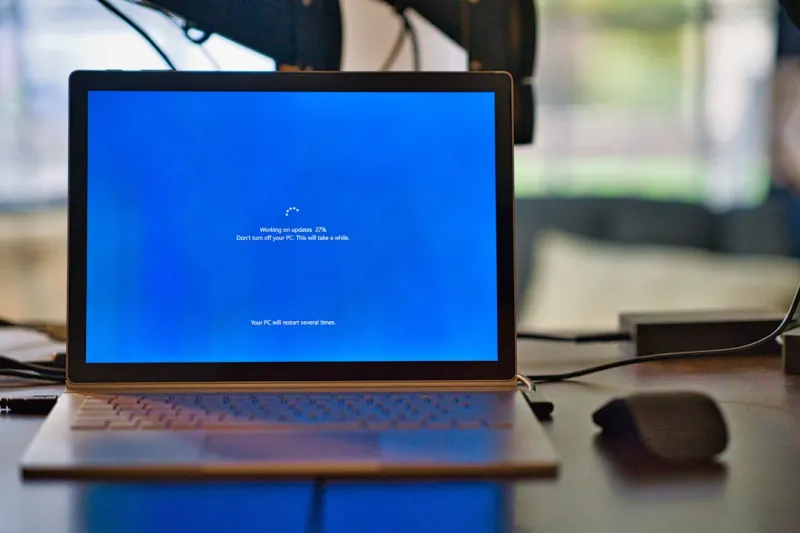
When my workstation flashed that dreaded cobalt canvas this week, I felt a familiar mix of frustration and curiosity. The blue screen of death (BSOD) has evolved from a relic of the early Windows era into a sophisticated diagnostic billboard for today’s power users. In 2026, with AI‑enhanced kernels, hyper‑threaded CPUs, and ultra‑fast NVMe storage, the underlying mechanisms are more complex, but the core message remains the same: something went catastrophically wrong. I’ve spent the past decade turning every crash into a learning opportunity, and I’m convinced that a modern BSOD can actually be your most valuable ally if you know how to read it. In this deep dive, I’ll walk you through the latest triggers, the tools we now have at our fingertips, and a step‑by‑step workflow that lets you turn a panic‑inducing freeze into a systematic, data‑driven repair process. Grab a coffee, fire up your admin console, and let’s demystify the blue screen together.
Why the Blue Screen Still Matters in a Cloud‑Centric World
Even as workloads migrate to the cloud and edge AI processors take center stage, the blue screen remains a critical feedback loop for anyone who runs a local OS. In 2026, Windows has integrated deep learning models that predict driver conflicts and proactively quarantine rogue processes, yet those safeguards are not infallible. The BSOD is now a concise snapshot that includes AI‑generated error codes, memory dump pointers, and, increasingly, a short textual hint powered by a neural net trained on millions of crash logs. This evolution means that the blue screen is no longer just a cryptic hexadecimal dump; it’s a richer, more actionable artifact—if you know how to decode it. For power users who treat their machines as living, adaptive platforms, the BSOD serves as a real‑time health check, flagging issues that could otherwise degrade performance silently over weeks or months. Ignoring it is akin to skipping a car’s check engine light; the problem will only worsen, potentially leading to data loss or costly hardware replacement.
Common Culprits Behind Modern BSODs
In my experience, three categories dominate the BSOD landscape today: driver stack anomalies, firmware/BIOS mismatches, and software‑level attacks. First, driver stack anomalies have surged because manufacturers now ship ultra‑thin drivers that leverage AI for dynamic power scaling. A tiny regression in a GPU driver’s power management routine can trigger a kernel panic under heavy 4K gaming or AI rendering loads. Second, firmware mismatches—particularly with UEFI updates—can cause memory address translation errors when the OS expects a newer microcode version. This is why you’ll sometimes see a “Firmware\_Version\_Mismatch” flag in the crash report. Third, sophisticated malware now employs kernel‑mode rootkits that deliberately cause a crash to hide their footprints, a technique that’s resurfacing as defenders tighten other attack vectors. Understanding which of these three is at play is the first step in narrowing down the root cause, and it guides you toward the right set of tools—whether that’s a driver rollback utility, a BIOS flash, or a specialized anti‑rootkit scanner.
Capturing the Dump: From Raw Data to Actionable Insight
Before you can troubleshoot, you need to ensure Windows is actually saving the crash dump you need. In 2026, the default setting is “Automatic Memory Dump (256 MB)”, which balances detail with storage efficiency. To verify, open System Properties → Advanced → Startup and Recovery and confirm the dump file location—typically C:\Windows\MEMORY.DMP. If you have a high‑capacity SSD, consider switching to a “Complete Memory Dump” for the most granular view; the extra detail can be a lifesaver when hunting elusive driver bugs. Once you have the .dmp file, tools like WinDbg Preview now incorporate AI‑assisted symbol resolution, highlighting the most likely offending module within seconds. Don’t forget to enable Kernel Memory Dump if you’re troubleshooting low‑level hardware interactions, as it captures the entire kernel address space. By the end of this step, you’ll have a concise report that includes the error code (e.g., 0x0000009F), the implicated driver, and a brief AI‑generated recommendation—information that will power the rest of your investigation.
Step‑by‑Step: A Power‑User’s BSOD Playbook
The first rule of any BSOD investigation is to isolate variables. Start by rebooting into Safe Mode (press F8 or use the advanced startup menu) to see if the system stabilizes. If the blue screen disappears, you know a third‑party driver or service is the likely offender. Next, open Unlocking the Power of Modern Operating Systems for 2026 Power Users and enable the built‑in Driver Verifier utility—this stress‑tests every loaded driver and forces a crash if a violation is detected, giving you a precise error report. After a forced crash, examine the dump with WinDbg to pinpoint the offending file. If a GPU driver surfaces, you’ll want to roll back to a known‑good version or install the latest beta from the vendor’s website. For firmware issues, download the latest UEFI firmware from the motherboard manufacturer and flash it using the built‑in BIOS update tool. Finally, run a full system scan with a reputable anti‑rootkit suite to eliminate the possibility of malicious kernel tampering. Document each change in a troubleshooting log; the habit of meticulous note‑taking often reveals patterns that static logs alone can’t show.
When the GPU Becomes the Trigger
GPU‑related BSODs have become a hot topic among power users, especially as real‑time ray tracing and AI‑accelerated workloads push hardware to its limits. In my own rig, a recent driver update introduced a subtle memory leak that only manifested under sustained 8K video editing, ultimately causing a “VIDEO_TDR_FAILURE” stop code. The fix? A combination of driver rollback and a BIOS tweak that disables the aggressive power‑saver state for the PCIe slot. For a more detailed walkthrough, check out When Your GPU Misbehaves: Proven Fixes for Power Users, which outlines a systematic approach to diagnosing and resolving GPU‑induced crashes. Remember, modern GPUs now expose a plethora of telemetry via the Windows Performance Recorder, so you can monitor shader execution times, temperature spikes, and voltage fluctuations in real time. Correlating that telemetry with the timestamp of the BSOD often reveals a clear causality chain, turning a vague “driver issue” into a concrete, reproducible bug that you can either patch or report to the vendor.
Storage Subsystems: The Silent BSOD Instigators
Hard drives and SSDs are rarely the headline act, but they’re frequent silent contributors to blue screens, especially when the storage stack misbehaves under heavy I/O. A failing NAND cell on an NVMe drive can trigger a “PAGE_FAULT_IN_NONPAGED_AREA” error, while a traditional HDD with bad sectors might cause a “KERNEL_DATA_INPAGE_ERROR”. In my recent audit, I discovered that a firmware bug in a popular mid‑range SSD caused intermittent timeouts when the OS attempted to write large AI model checkpoints, leading to sporadic BSODs during model training. The cure was simple: update the SSD firmware and enable Windows’ “Write‑Caching” feature for the drive, which reduced latency spikes. For a deeper dive into why storage still matters in a flash‑dominated world, read Why Hard Drives Still Matter in a Flash‑Dominated World. Proactively monitoring SMART attributes and using tools like CrystalDiskInfo can give you early warnings before a crash ever happens.
Malware’s New Playbook: Causing Crashes to Hide
Modern malware has become surprisingly sophisticated at leveraging the BSOD as a cover. By intentionally corrupting kernel memory, a rootkit can force a crash that wipes volatile forensic evidence, then reboots into a clean state, leaving only a cryptic blue screen for the user. In 2026, AI‑driven malware can even predict which error code will be most confusing to a non‑technical user, increasing the chance the victim will ignore the issue. To protect against this, always keep your security suite updated and enable Windows Defender’s “Core Isolation” and “Memory Integrity” features, which isolate critical processes from malicious tampering. If you suspect a crash was caused by malware, run a full offline scan using a bootable rescue environment, and examine the crash dump for suspicious modules that lack proper digital signatures. Cross‑referencing the offending driver name with known malicious hashes—available on threat intelligence platforms—can quickly confirm a compromise. Staying vigilant against this emerging tactic is essential for any power user who values both performance and security.
Future‑Proofing: Turning BSODs into a Preventive Tool
After you’ve tamed a blue screen, the real work begins: preventing the next one. One of the most effective strategies is to adopt a “rolling restore point” regime, where you create a system snapshot after every major driver or firmware update using tools like Macrium Reflect. Pair this with a disciplined driver management policy—only install drivers from vendor‑verified channels and keep a log of version numbers. Additionally, consider enrolling in the Windows Insider Program’s “Fast Ring” for early access to kernel patches that address emerging BSOD trends before they hit the mainstream release. For power users who want to push the envelope, integrating AI‑based monitoring agents that alert you to anomalous kernel activity can turn a potential crash into a preemptive adjustment. By treating each BSOD as a data point in a larger health‑monitoring system, you convert a disruptive event into a proactive maintenance cycle that keeps your rig humming at peak efficiency.
Wrapping Up: Embrace the Blue, Master the Fix
The blue screen is no longer a death sentence; it’s an invitation to dig deeper into the symbiosis between hardware, firmware, and software that powers your machine. In 2026, with AI‑augmented operating systems and increasingly complex hardware stacks, the ability to read and react to a BSOD is a hallmark of the true power user. By capturing detailed dumps, leveraging AI‑assisted diagnostic tools, and following a disciplined, data‑driven troubleshooting workflow, you can turn every crash into a stepping stone toward a more resilient system. Remember to keep your drivers current, your firmware aligned, and your security posture aggressive. And when the next cobalt canvas appears, you’ll greet it not with panic, but with confidence, armed with the knowledge that the blue screen is just another piece of the puzzle you’re built to solve.




