
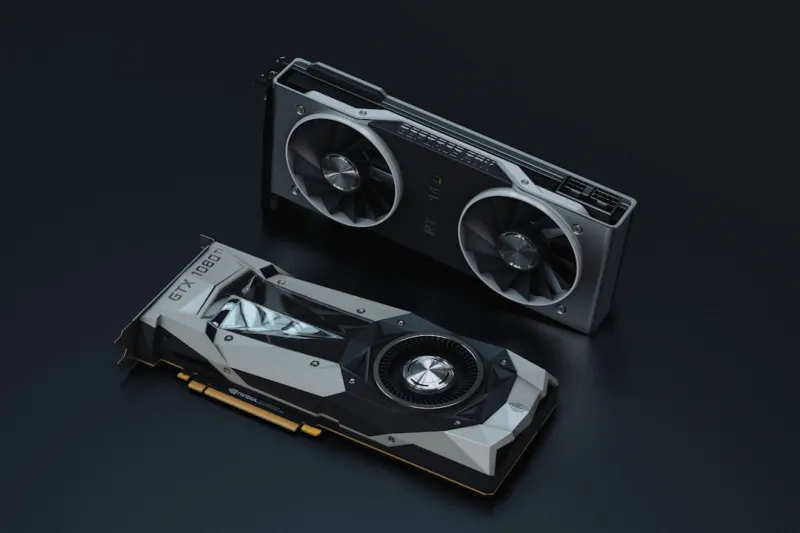
When a graphics card throws a tantrum, the symptoms can feel like a cryptic code: flickering textures, sudden crashes, or a black screen that mocks your carefully tuned settings. As a power‑user who spends countless hours in 3D design, high‑frame‑rate gaming, and GPU‑accelerated data crunching, I’ve learned that the key to taming these beasts is a methodical, data‑driven approach. In 2026 the GPU market is saturated with AI‑enhanced silicon, ray‑tracing cores, and power‑efficient architectures, but the fundamentals of troubleshooting haven’t changed. Start by treating the card as a living component: monitor its temperature, power draw, and driver version before you leap to hardware swaps. This mindset not only saves money but also deepens your understanding of how the GPU interacts with the rest of the system, from the motherboard’s PCIe lanes to the OS’s scheduler. In this article I’ll walk you through the exact steps I use, peppered with real‑world anecdotes, to pinpoint the root cause and get your video card back to delivering buttery‑smooth frames.
Understanding the Modern GPU Landscape
The first step in any troubleshooting mission is context. In 2026, most high‑end GPUs are built on 5nm or smaller processes, integrating dedicated AI tensor cores and advanced ray‑tracing units that demand precise driver support. Yet the underlying challenges remain: thermal throttling, power delivery hiccups, and firmware bugs. Many users overlook the fact that a seemingly minor BIOS setting—like enabling “Above 4G Decoding” or adjusting the PCIe link speed—can make or break stability. Moreover, the rise of driver‑as‑a‑service models means that a single update can resolve months of unexplained crashes, but it can also introduce new regressions. That’s why I always cross‑reference the latest release notes with community feedback before hitting “Install.” If you’re building a rig that aims to be Future‑Ready Hardware, you’ll also want to verify that your power supply can handle the GPU’s peak draw, especially under the new “Boost” profiles that push clocks well beyond the nominal specifications.
Step‑by‑Step Troubleshooting Workflow
My go‑to checklist starts with the simplest variables. First, I confirm that the monitor cable is securely seated and that the display input matches the GPU’s output—HDMI 2.1, DisplayPort 2.0, or even USB‑C for the newest cards. A loose connector can masquerade as a driver issue, producing intermittent blackouts. Next, I launch a hardware monitoring suite—such as HWInfo or MSI Afterburner—to capture temperature spikes, voltage fluctuations, and clock throttling events in real time. If the GPU consistently hits 95 °C or higher, I suspect inadequate cooling or dust‑clogged fins; a quick clean‑out can resolve what looks like a software bug. Should the power draw exceed the PSU’s rated capacity during stress tests, the system may silently drop frames or reboot. In those cases, I either upgrade to a higher‑wattage unit or adjust the power limit in the driver’s control panel, keeping an eye on the stability of benchmark tools like 3DMark or Blender’s render test.
Assuming the hardware checks out, the next frontier is the driver stack. I always start by rolling back to the last known‑good version before the latest update, as newer releases sometimes introduce compatibility quirks with specific motherboards or Windows kernel patches. If rolling back stabilizes the system, the culprit is likely a regression; I then file a detailed report on the GPU manufacturer’s forum, including log files and a description of the workload that triggered the issue. When a driver isn’t the problem, I move to the operating system layer. In 2026 Windows incorporates AI‑driven graphics scheduling, which can occasionally misallocate resources, especially on systems with mixed‑generation GPUs. Disabling the “Hardware‑accelerated GPU scheduling” toggle can instantly resolve stutter and crash loops for many users.
When software tweaks fail to deliver relief, it’s time to dig deeper with diagnostic utilities. The Diagnosing and Fixing GPU Headaches playbook recommends running the built‑in GPU stress test from the driver’s control panel, paired with a kernel‑mode debugging session to capture error codes. A frequent error I see is the “Display driver stopped responding and has recovered” (TDR) timeout, which can indicate that the GPU is unable to finish a rendering task within the default 2‑second window. Adjusting the TDR timeout in the registry—setting the “TdrDelay” value to 8 or higher—gives the card more breathing room during heavy compute tasks, but it’s a double‑edged sword: it can also mask deeper hardware failures that need attention.
Hardware-level debugging often involves swapping components to isolate the fault. If you have a spare GPU, install it and run the same workload; if the problem disappears, the original card is likely defective. If the issue persists across multiple GPUs, the motherboard’s PCIe slot, BIOS version, or even the CPU’s integrated graphics may be at play. Updating the motherboard firmware is a surprisingly effective remedy, as newer BIOS releases include enhanced compatibility tables for the latest GPU architectures. In my experience, a BIOS update that adds support for PCIe 5.0 lane training can eliminate random disconnects that were previously blamed on “faulty hardware.”
Beyond the immediate technical fixes, consider the long‑term health of your GPU. Modern cards support dynamic fan curves and voltage offsets that can be tuned to balance noise and performance. However, aggressive undervolting—while beneficial for power efficiency—can introduce instability if the voltage falls below the silicon’s minimum operating threshold. I recommend using a gradual approach: lower the voltage in small 0.025 V increments, run a stress test after each change, and monitor for any artifacting or crashes. This methodical tuning not only extends the card’s lifespan but also yields a cooler, quieter system that’s a pleasure to work with for extended creative sessions.
One often‑overlooked aspect is the interplay between the GPU and system memory. In 2026, many power users run dual‑channel or quad‑channel DDR5 configurations, and the GPU can leverage shared system memory for certain compute tasks. If your RAM is overclocked beyond the GPU’s supported bandwidth, you may encounter subtle frame‑timing anomalies or occasional driver resets. A quick sanity check involves resetting the memory profile to its JEDEC defaults and observing whether the instability persists. If the problem vanishes, you’ve identified a cross‑component timing mismatch that can be resolved by dialing back the RAM frequency or adjusting the memory voltage.
Finally, document every change you make. I keep a troubleshooting log that records the driver version, BIOS date, temperature readings, and the exact steps taken during each test. This habit not only helps you track patterns over time but also provides invaluable data when reaching out to vendor support. When you present a clear, concise history of your attempts, support engineers are more likely to prioritize your case and may even grant you early access to beta firmware that resolves obscure bugs.
In summary, effective GPU troubleshooting for a power‑user in 2026 blends disciplined hardware verification, strategic driver management, and a willingness to dive into low‑level system settings. By methodically ruling out the usual suspects—cables, cooling, power, drivers, BIOS, and memory—you can isolate the true cause of the issue and apply a targeted fix rather than resorting to costly replacements. Keep your video card humming, because every frame counts today, and with the right approach, your rig will stay at the cutting edge of performance for years to come.




