
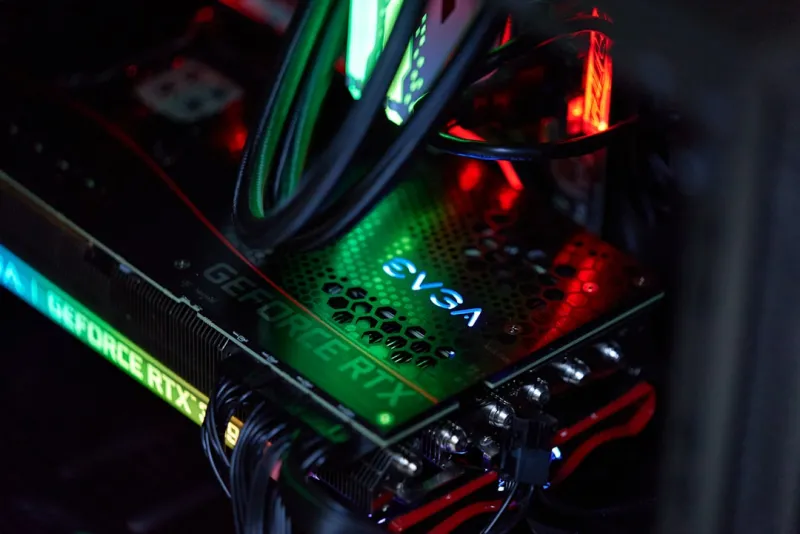
When I first cracked open a new RTX 4090 back in 2023, the sheer roar of the fans felt like a promise of limitless frames. Fast‑forward to 2026, and that promise has morphed into a complex dance of AI‑enhanced drivers, power‑hungry architectures, and ever‑tightening thermal envelopes. As a long‑time power‑user and the kind of tinkerer who treats his rig like an evolving pet, I’ve learned that troubleshooting a video card today is less about “turn it off and on again” and more about speaking the language of silicon, firmware, and the OS that mediates them. In this post, I’ll walk you through the most common pitfalls we face in the modern era, share a step‑by‑step diagnostic workflow that has saved me countless nights of frustration, and sprinkle in a few forward‑thinking tips to keep your GPU humming smoothly for years to come. Buckle up, because the GPU landscape in 2026 is as exciting as it is unforgiving, and a methodical approach is the only way to stay ahead of the curve.
Spotting the Red Flags: Common GPU Symptoms in 2026
Even the most robust graphics cards can betray subtle warning signs before a full‑blown failure. The first thing I watch for is visual artifacting—those shimmering, rainbow‑colored glitches that appear during intensive gaming sessions or compute workloads. While a single stray pixel might be harmless, persistent patterning often points to memory errors or overheating. Next up are unexpected driver crashes or sudden application hangs; these are usually logged in the Windows Event Viewer and can hint at driver‑GPU mismatches. A sudden drop in frame rates, especially when paired with stuttering audio, is another classic symptom of throttling, often caused by power delivery hiccups or thermal throttling. Finally, the dreaded “black screen” after a reboot can be a BIOS‑level issue, especially on motherboards that have adopted new AI‑driven power management schemes. Recognizing these patterns early allows you to isolate the problem domain—whether it’s software, power, or hardware—and prevents the cascade of wasted time that comes from guessing.
Diagnosing Hardware vs. Software: The First 15 Minutes
My go‑to diagnostic routine starts with a clean slate: I boot into Windows Safe Mode to strip away third‑party overlays and background services that might be contaminating the test environment. From there, I run a lightweight GPU stress test—such as Unigine Heaven set to 1080p, 30 fps—to see if the artifacting reproduces under controlled conditions. If the issue persists, I dive into GPU-Z to monitor real‑time clock speeds, memory usage, and temperature thresholds. A sudden spike in temperature beyond 85 °C under moderate load is a strong indicator of inadequate cooling. Conversely, if the card remains cool yet still glitches, I suspect a firmware or driver mismatch. At this stage, I also check the system logs for driver‑related error codes (like “dxgkrnl.sys” failures) and cross‑reference them with the latest release notes from the GPU manufacturer. This bifurcated approach—software first, hardware second—saves hours of needless component swapping and lets you target the exact layer that’s misbehaving.
Riding the Wave of AI‑Driven Drivers
2026 has ushered in a new era of AI‑enhanced drivers that dynamically adjust shader compilation, power states, and even fan curves based on real‑time workload analysis. While these intelligent drivers promise smoother performance, they also add a layer of complexity to troubleshooting. If you notice erratic frame‑time spikes after a recent driver update, roll back to the previous stable version and run the same stress test. If the problem disappears, you’ve likely run into a regression in the AI optimization module. For those who like to stay on the cutting edge, I recommend keeping a “driver vault”—a local archive of the last three stable releases—so you can quickly revert without hunting through the manufacturer’s website. Additionally, many modern GPUs now expose an AI telemetry panel within the driver’s control center, allowing you to toggle the AI features on or off. Disabling these features during troubleshooting can isolate whether the AI layer is the culprit or if you’re dealing with a more traditional hardware issue. For deeper insights, see my related piece on Windows in 2026: AI, Security, and Power‑User Mastery.
Power Delivery: The Unsung Hero of GPU Stability
Even the most sophisticated silicon can’t perform if its power source is shaky. In 2026, power‑delivery designs have become more nuanced, with GPUs drawing from multiple 12 V rails and leveraging on‑board DC‑DC converters for efficiency. First, verify that your PSU meets the recommended wattage—most high‑end cards now suggest a minimum of 850 W, especially when overclocked. Use a digital multimeter or a dedicated PSU tester to confirm that the 12 V rails are delivering stable voltage under load; a dip below 11.8 V can trigger throttling or, worse, permanent damage. Next, inspect the PCIe power connectors for any signs of oxidation or loose pins; a single compromised pin can cause intermittent crashes that mimic software bugs. BIOS settings also play a role: many modern motherboards feature an “GPU Power Boost” option that can be fine‑tuned for either performance or stability. For a broader view of how power considerations fit into a future‑ready build, check out Future‑Ready PC Building: Hardware Trends That Power the Modern Power‑User. Balancing power headroom with efficient consumption is the key to a reliable GPU experience.
Thermal Management in the Age of Mini‑LED and Vapor‑Chamber Coolers
Thermal engineering has leaped forward dramatically, with many 2026 GPUs sporting hybrid cooling solutions that combine vapor‑chamber plates, mini‑LED heat spreaders, and AI‑controlled fan curves. However, the fundamentals remain: adequate airflow and clean heatsinks. Start by confirming that your case’s front intake and rear exhaust fans are unobstructed and operating at optimal RPMs. Dust buildup on the vapor‑chamber fins can dramatically reduce heat dissipation, so a quarterly cleaning with compressed air is non‑negotiable. Use software like MSI Afterburner to plot temperature versus fan speed; you’ll often find a “sweet spot” where the GPU stays below 70 °C without excessive noise. If temperatures still creep upward, consider re‑applying a high‑performance thermal paste—modern carbon‑based compounds can shave off a few degrees. Additionally, many GPUs now support “zero‑RPM” mode at low loads, which can be disabled during troubleshooting to ensure the fans are always spinning, giving you real‑time feedback on cooling efficacy.
Firmware Updates: Walking the Tightrope of Risk and Reward
Flashing a new VBIOS can unlock higher boost clocks, improved power efficiency, or better compatibility with the latest DirectX 13 features. Yet, a misstep can brick the card or void the warranty. Before you ever initiate a firmware update, back up the existing BIOS using tools like GPU-Z’s “Save BIOS” function. Review the changelog meticulously; if the update addresses a specific issue you’re experiencing—say, a memory‑timing bug—proceed, but otherwise you may be exposing yourself to unnecessary risk. During the flashing process, ensure the system is on a UPS to prevent power loss, and never run other applications. After the flash, reset the GPU’s power settings to default before applying any custom overclocks. If the new firmware introduces instability, you can always revert using the backup you created. Remember, firmware updates are a double‑edged sword: they can solve problems or create new ones, so treat them with the same caution you’d give a delicate hardware modification.
When to RMA and When to DIY: A Pragmatic Decision Tree
After exhausting software rollbacks, driver toggles, and hardware inspections, you may still be staring at a stubbornly faulty GPU. At this juncture, the decision to pursue an RMA (Return Merchandise Authorization) versus attempting a DIY repair hinges on three factors: warranty status, the nature of the fault, and your comfort level with soldering. If the card is under a standard three‑year warranty, initiating an RMA is usually the fastest route—manufacturers often replace the unit within a week. However, if the fault is isolated to a single memory module or a blown VRM capacitor and the warranty has expired, a careful replacement of the offending component can breathe new life into the card. This requires a hot‑air rework station, proper ESD precautions, and sourcing OEM‑grade parts. For most power‑users, the time and risk involved in a DIY repair outweigh the benefits, so I generally recommend an RMA unless you have a lab‑grade soldering setup and a track record of successful repairs.
Future‑Proofing Your GPU Investment: Looking Beyond the Hype
Finally, let’s talk longevity. In 2026, the GPU market is saturated with cards that promise 4K gaming at 144 Hz, but not all of them will stay relevant as AI‑driven workloads become mainstream. When selecting a new GPU, prioritize architectures that support hardware‑accelerated ray tracing, DLSS‑3 equivalents, and robust driver support for emerging APIs like DirectX 13 Ultimate. Look for models with ample VRAM—12 GB is the new baseline for future‑proofing, especially for content creators who dabble in 8K video editing. Additionally, consider the card’s power efficiency; a GPU that can deliver high performance at 250 W will be easier to keep cool and quieter in the long run. Pair your GPU choice with a motherboard that offers PCIe 5.0 x16 lanes and an ample supply of BIOS flash points, ensuring you can adopt future firmware enhancements without a full system overhaul. By treating your GPU as a modular component—much like RAM or storage—you can upgrade intelligently and keep your rig competitive for years to come.




