
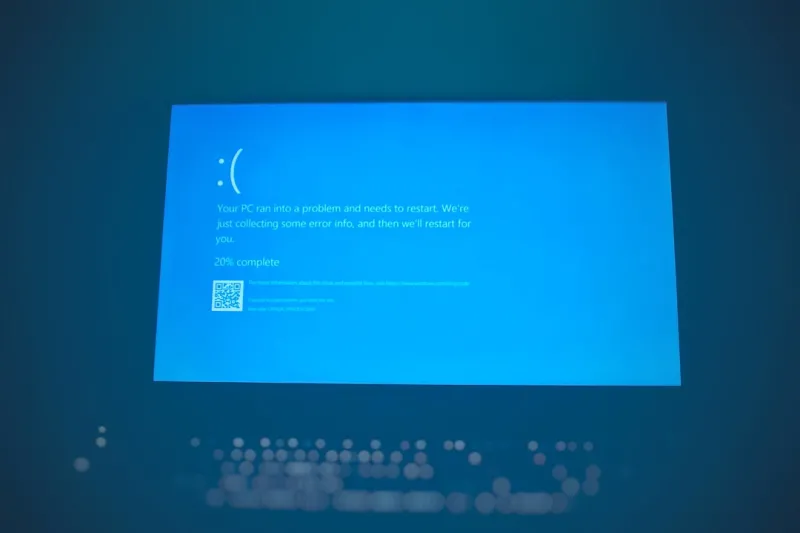
When the dreaded blue screen flashes across my monitor, it feels like a personal affront—especially after a marathon coding session or a high‑stakes gaming tournament. I’m Shawn DesRochers, a power‑user who lives at the intersection of hardware tinkering and software optimization, and I’ve learned that a blue screen isn’t just an annoyance; it’s a diagnostic goldmine. In 2026, with operating systems more complex and hardware pushing the limits of what’s possible, the frequency of these “stop errors” has paradoxically risen even as stability improves for the average consumer. My goal in this post is to share the mindset, tools, and step‑by‑step tactics that keep my workstation humming, even when Windows (or its competitors) decides to pull the plug. By the end of this read, you’ll have a clear roadmap for turning a panic‑inducing crash into a systematic, data‑driven troubleshooting session—exactly the kind of playbook a power‑user needs.
The Anatomy of a Blue Screen in Modern Systems
At its core, a blue screen—technically a “stop error” or “bug check”—is the operating system’s way of saying it has encountered a condition it cannot safely recover from. In 2026, Windows 11, Linux kernels, and the emerging “Unified OS” platforms all employ a similar strategy: capture a memory dump, log critical registers, and halt all processes to protect data integrity. While the visual style has evolved from the classic “STOP: 0x0000007B” to a sleek, minimalistic overlay, the underlying mechanics remain rooted in kernel‑level fault handling. What’s changed dramatically, however, is the depth of information available. Modern dump files now embed hyper‑linked stack traces, driver version metadata, and even AI‑generated hints about probable culprits. For a power‑user, this means you can move beyond guesswork and apply forensic analysis techniques that were once the domain of enterprise IT teams. Understanding the terminology—such as “PAGE_FAULT_IN_NONPAGED_AREA” or “CRITICAL_PROCESS_DIED”—is the first step toward demystifying the cryptic messages that appear on the screen.
Common Triggers That Keep Power Users Awake at Night
One of the most frequent blue‑screen triggers in a high‑performance rig is a driver conflict. When you’re running the latest GPU drivers to squeeze every frame per second out of your RTX 5090, a mismatched kernel module from an older peripheral can cause a fatal interrupt. Overclocking pushes the CPU and RAM beyond factory specifications, and while the performance gains are intoxicating, the margin for error shrinks dramatically. In 2026, many motherboards now expose granular voltage controls, but a slight misstep can cause memory corruption that the OS interprets as a critical failure. Firmware bugs—especially in SSDs that rely on NVMe over PCIe 5.0—also surface as blue screens when the storage stack cannot reconcile a sudden I/O timeout. Lastly, aggressive security suites that hook deep into the kernel can inadvertently create race conditions during updates. Recognizing which layer—driver, firmware, or security—your system is most vulnerable in helps you prioritize the right preventative measures before the next crash.
Diagnosing a BSOD with 2026‑Era Tools
When the blue screen fades, the real work begins. The first place I look is the Windows Event Viewer, where the “System” log tags the exact bug check code and the offending module. For Linux enthusiasts, dmesg and journalctl provide comparable timestamps and stack traces. Next, I pull the memory dump—usually located at C:\Windows\Minidump—and open it with the latest version of WinDbg Preview, which now includes an AI‑assisted “Crash Analyzer” that suggests probable root causes based on millions of crowdsourced samples. This tool can point you to a specific driver version or a firmware revision that needs updating. I also run built‑in hardware diagnostics from the BIOS/UEFI, which in 2026 can test memory, CPU cache, and PCIe lanes without rebooting into a separate environment. Finally, I cross‑reference the error code with the Operating Systems in 2026 playbook, which offers a curated list of known issues for each OS release. By combining these resources, I turn a vague error screen into a concrete action plan.
Critical Updates: The First Line of Defense
In the fast‑moving ecosystem of 2026, staying on top of critical updates is non‑negotiable. A single missed patch can leave a kernel vulnerability exposed, which malware can exploit to force a crash or even gain persistent access. I’ve built a personal update schedule that aligns with the “Patch Tuesday” cadence for Windows, but I also monitor the upstream Linux kernel release notes and the firmware advisories from my motherboard manufacturer. When an update arrives, I first read the release notes to see if it addresses any known BSOD patterns—especially those related to memory management or driver stability. Then, I create a system restore point, apply the update, and run a brief stress test using tools like Prime95 and AIDA64 to confirm that the system remains stable under load. This disciplined approach has saved me countless hours of downtime, and it’s a habit I recommend to any power‑user who refuses to let a blue screen dictate their workflow. For a deeper dive into why these updates matter, check out the Critical Updates Power Users Can’t Afford to Miss guide.
Hardware Hygiene: Motherboards, RAM, and Beyond
Even the most polished software stack can be derailed by a flaky hardware component. In my experience, the motherboard is the unsung hero—or villain—of blue‑screen stability. A board with inadequate VRM cooling can cause subtle voltage dips during heavy GPU loads, leading to intermittent memory errors that the OS flags as fatal. Similarly, mixing RAM modules with different latencies or timings can trigger “MEMORY_MANAGEMENT” errors that appear only under stress. In 2026, many power‑users are gravitating toward boards that support DDR5‑6000+ and PCIe 5.0, but the trade‑off is tighter tolerance for BIOS tuning. I always verify that my BIOS is set to the manufacturer’s “Stable” profile before enabling any XMP profiles or manual overclocks. If you’re unsure which motherboard to trust, the Future‑Proof PC Upgrades article breaks down the components that deliver the most bang for your buck while minimizing crash risk.
Software Threats That Can Trigger a Crash
Malware isn’t just a data‑theft vector; it can be a direct cause of blue screens. Modern ransomware families embed kernel‑mode drivers to hide their presence, and a poorly coded driver can collide with legitimate system extensions, resulting in a crash that looks identical to a hardware fault. That’s why I treat my endpoint protection suite as a core part of my blue‑screen prevention strategy. I run periodic scans with a solution that offers real‑time kernel monitoring, and I keep an eye on any newly installed drivers that lack proper digital signatures. When a crash does occur, I cross‑reference the offending module against the Malware Survival Guide to see if it’s a known malicious component. Additionally, I isolate the system on a VLAN with strict outbound filtering, ensuring that any rogue process can’t pull in external code during a critical operation. This layered defense not only reduces the likelihood of a blue screen but also fortifies the entire system against future attacks.
Future‑Proofing Your Rig to Minimize BSODs
Looking ahead, the most effective way to keep blue screens at bay is to adopt a future‑proof mindset. This means selecting components that can gracefully handle the next generation of software demands without requiring constant firmware rewrites. For instance, opting for a motherboard with a robust BIOS flash recovery mode can save you from a “brick” situation if a failed update triggers a crash. Investing in high‑capacity, ECC‑enabled RAM—especially for workstations that run virtual machines—adds an extra safety net against memory corruption. I also recommend enabling Secure Boot and TPM 2.0, which not only harden the system against rootkits but also provide a trusted boot chain that can help the OS recover more cleanly after a crash. Finally, maintain a regular backup regimen using incremental snapshots on a separate NVMe drive, so that if a blue screen does lead to data loss, you can roll back to a known‑good state in minutes. By treating each upgrade as a defensive measure, you turn your PC into a resilient platform that thrives even when the unexpected occurs.
When to Escalate: Getting Professional Help
Despite the best DIY tactics, there are moments when a blue screen points to deeper issues—perhaps a subtle silicon defect or a rare compatibility bug that only the OEM can address. In those cases, I don’t hesitate to open a support ticket with the hardware vendor, attaching the dump file and a concise summary of the steps I’ve already taken. It’s crucial to provide clear, reproducible steps, because the support engineers rely on that context to prioritize your case. Meanwhile, keep a bootable rescue USB on hand that includes the latest WinPE tools, a copy of your BIOS, and a snapshot of your driver database. This allows you to perform a clean reinstall or a firmware downgrade if the vendor recommends it. Remember, a systematic approach—documenting every change, update, and test—can dramatically reduce the time it takes to resolve a stubborn BSOD, turning what could be a weekend nightmare into a manageable, albeit technical, project.
Final Thoughts: Turning Blue Screens Into Learning Opportunities
In my journey as a power‑user, each blue screen has taught me something valuable—whether it’s a nuance in driver signing, a hidden BIOS setting, or the importance of a well‑timed firmware update. The key is to treat every crash as a data point rather than a defeat. By leveraging the diagnostic tools available in 2026, staying disciplined with updates, and maintaining hardware hygiene, you can dramatically reduce the frequency and impact of these stop errors. I hope this playbook equips you with the confidence to confront the blue screen head‑on, armed with actionable steps and reliable resources. If you’ve found this guide helpful, share your own BSOD stories in the comments; the community learns best when we all contribute our hard‑earned insights.




