When I first built my rig back in the early 2020s, upgrades were a luxury reserved for the occasional enthusiast. Fast‑forward to 2026, and the landscape has transformed—new silicon, faster memory, and storage that can read a 4K video in the blink of an eye. As a self‑declared power‑user, I’ve learned that the smartest upgrades aren’t just about raw specs; they’re about balancing performance, power draw, and future‑proofing. In this post, I’ll walk you through the upgrades that truly matter for a high‑performance PC, share the pitfalls I’ve stumbled into, and give you a roadmap that you can adapt to your own build. Whether you’re chasing higher frame rates in the latest AAA titles, slashing render times in content creation, or simply keeping your system secure and snappy for everyday tasks, the right upgrades can make a world of difference. Let’s dive into the components that will keep your rig ahead of the curve this year.
Graphics Card: The Heartbeat of Modern Gaming and Compute
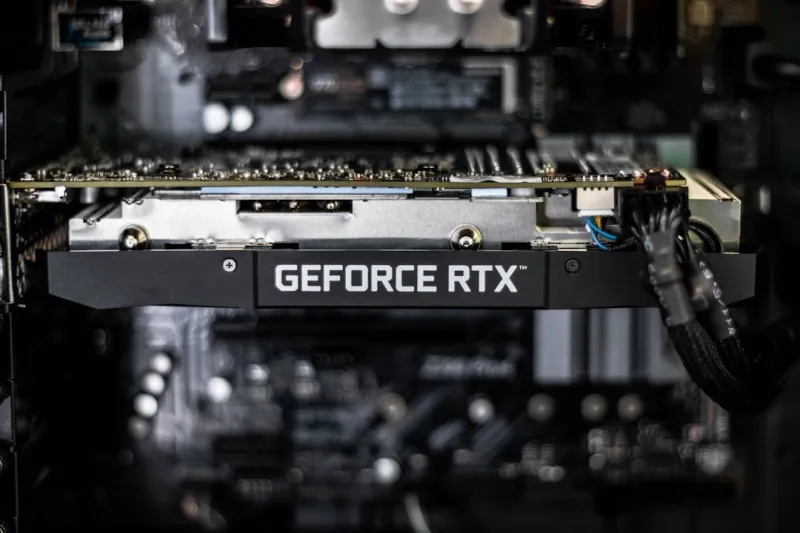
Graphics cards have always been the most visible upgrade, and 2026 brings a wave of GPUs built on the newest 4‑nanometer architecture. These chips deliver up to 30 % more rasterization performance and double the ray‑tracing throughput compared to their 2024 counterparts, thanks to dedicated AI‑accelerated cores that handle denoising and upscaling. When choosing a GPU, consider not just the raw TFLOPs but also the VRAM capacity—16 GB is becoming the sweet spot for 4K gaming and AI workloads. Don’t overlook the power requirements; a high‑end GPU can draw 350 W under load, demanding a robust PSU and efficient cooling. If you’re a creator who leverages CUDA or OpenCL, look for cards that offer expanded tensor cores, which accelerate video encoding and neural‑network inference. Pairing the right GPU with a monitor that supports HDMI 2.1 or DisplayPort 2.0 ensures you’ll actually see those extra frames, especially when you enable variable refresh rate technologies like G‑Sync or FreeSync.
CPU Choices: Balancing Core Count, Clock Speed, and Efficiency
The CPU market in 2026 is defined by a fierce competition between the leading vendors, each pushing core counts higher while squeezing more clock speed out of smaller process nodes. For power users, the sweet spot lies in a 12‑core, 24‑thread processor with a base clock of 3.6 GHz and boost up to 5.2 GHz. Such a chip delivers smooth multitasking for heavy workloads—think video rendering, virtualization, and real‑time game streaming—while keeping power consumption under 125 W thanks to adaptive voltage scaling. If your workflow leans heavily on single‑threaded performance, prioritize higher boost clocks and lower latency caches over sheer core count. Don’t forget to verify motherboard compatibility; the latest socket supports PCIe 5.0 lanes, which can be a game‑changer for fast storage and GPU bandwidth. Additionally, consider the thermal design power (TDP) when selecting a cooler; a high‑end air cooler can now match the performance of a modest AIO liquid solution if you choose one with a well‑designed fin array and high‑static pressure fans.
Memory Matters: Capacity, Speed, and Stability
RAM upgrades are often underestimated, yet they can be the bottleneck that stalls an otherwise blazing system. In 2026, DDR5‑6000 has become mainstream, offering lower latencies and higher bandwidth that translate into quicker texture loading and smoother multitasking. For most power users, 32 GB is the baseline; however, if you’re heavy on virtual machines or 8K video editing, bumping to 64 GB can prevent those dreaded “out of memory” crashes. Speed isn’t the only factor—CAS latency (CL) still plays a role, especially in latency‑sensitive applications like game engines. A good rule of thumb is to aim for a CL30‑36 at 6000 MT/s. If you notice instability or random freezes, it might be time to check the memory configuration; our guide on Why Your RAM Is Acting Up and How to Fix It Like a Power User walks through troubleshooting steps, from reseating DIMMs to updating the BIOS for proper XMP profile handling.
Storage Evolution: NVMe Dominance and the Role of Traditional Hard Drives
Storage in 2026 is all about speed and reliability. NVMe PCIe 5.0 SSDs now deliver sequential reads beyond 14 GB/s, slashing game load times and accelerating large file transfers. For a power user, a 2 TB PCIe 5.0 drive is a solid foundation, but consider a secondary 4 TB NVMe for massive media libraries or a fast SATA SSD for less critical data. While SSDs dominate, hard drives still have a place for archival storage. Selecting the right HDD involves understanding platter density and spindle speed; a 12 TB 7200 RPM drive offers a good balance of capacity and performance. Our detailed walkthrough in The Ultimate Power‑User Guide to Choosing and Optimizing Hard Drives in 2026 explains how to pair SSDs with HDDs for an optimal tiered storage system, ensuring that your most frequently accessed data lives on the fastest media while bulk archives stay cost‑effective.
Cooling Solutions: Keeping Temperatures Low Without Excess Noise
Effective cooling is the unsung hero of any upgrade project. In 2026, high‑static‑pressure fans with fluid‑dynamic bearings have become the go‑to for air‑cooled builds, delivering up to 95 dBA of airflow while staying under 20 dBA at typical loads. If you prefer liquid cooling, all‑in‑one (AIO) radiators have grown to 360 mm with improved pump designs that can handle the increased thermal output of modern CPUs and GPUs. When installing a new cooler, pay attention to the mounting pressure and ensure that the contact surface is free of old thermal paste—using a high‑performance compound like a ceramic‑based paste can shave off a few degrees. Moreover, case airflow matters; a well‑planned intake/exhaust balance, coupled with dust filters, prolongs component lifespan. For those pushing overclocked CPUs beyond 5 GHz, a hybrid approach—airflow‑optimized case paired with a 240 mm AIO—can keep temperatures in the safe zone while preserving a quiet workspace.
Power Supply Upgrades: The Backbone of Stability
Power supplies often get overlooked until a sudden shutdown reminds you of their importance. In 2026, the efficiency curve has shifted, with 80 PLUS Platinum and Titanium models becoming more affordable. A 750 W Platinum PSU offers headroom for a top‑tier GPU, a high‑end CPU, and multiple storage devices, while maintaining sub‑0.5 % idle power draw. When selecting a PSU, prioritize a fully modular design; it simplifies cable management, reduces clutter, and improves airflow inside the case. Also, check the rail distribution—some high‑current GPUs benefit from a dedicated 12 V rail. Look for built-in protections such as over‑voltage, under‑voltage, and short‑circuit protection, which safeguard your components against power spikes—a common occurrence when using surge‑prone home wiring. Finally, verify that the PSU’s connectors match your hardware; newer graphics cards sometimes require a 12‑pin or 16‑pin connector, and adapters can introduce latency or power loss if not rated appropriately.
Peripheral Upgrades: Monitors, USB, and Future‑Proof Connectivity
Beyond the core components, peripheral upgrades can dramatically improve your workflow. A 1440p 165 Hz monitor with HDR support offers a sweet spot for both competitive gaming and content creation, delivering vibrant colors without the GPU strain of 4K at high frame rates. USB‑4 ports are now standard on many motherboards, providing up to 40 Gbps transfer speeds and power delivery for external GPUs or fast external SSDs. When upgrading, consider a dock that consolidates USB‑4, Thunderbolt 4, and Ethernet—this reduces cable spaghetti and keeps your desk tidy. Additionally, invest in a quality mechanical keyboard with hot‑swappable switches; it lets you fine‑tune typing feel without replacing the whole board. Finally, don’t forget to update firmware on peripherals; many monitors now support variable refresh rate over HDMI 2.1, and a firmware update can unlock hidden performance modes that enhance the overall experience.
Putting It All Together: A Strategic Upgrade Path
Now that we’ve dissected each component, the key is to approach upgrades strategically. Start by assessing your current bottlenecks—use performance monitoring tools to pinpoint whether CPU, GPU, RAM, or storage is holding you back. Allocate your budget to the component that offers the biggest performance uplift for your workload, then plan secondary upgrades that complement the primary change. For example, pairing a new GPU with a faster SSD ensures you won’t stall on texture streaming, while a CPU upgrade might necessitate a more capable cooler and PSU. Don’t forget the long‑term view: choose parts with upgrade paths in mind, such as a motherboard that supports the next generation of PCIe or DDR5 modules. Our comprehensive checklist in Essential PC Upgrades for Power Users can help you prioritize and schedule each step, ensuring you get the most bang for your buck without unnecessary downtime. By following this roadmap, you’ll keep your rig humming at peak performance throughout 2026 and beyond.