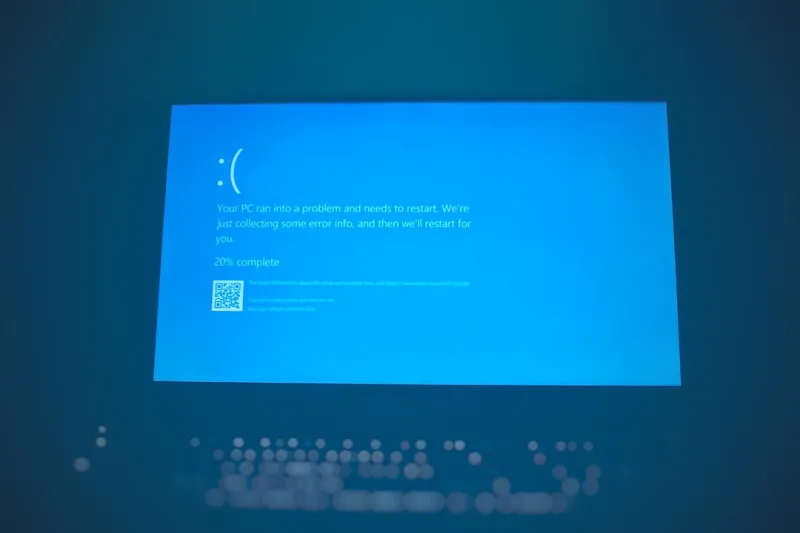
When my laptop flashed that ominous electric‑blue warning screen this spring, my first reaction was a blend of panic and curiosity. The Blue Screen of Death (BSOD) isn’t just a relic from the Windows 95 era; it’s a living, breathing symptom of deep‑seated system stress, especially in 2026 where AI‑enhanced drivers and ultra‑fast storage are the norm. In my years tinkering with everything from vintage rigs to the latest AI‑optimized workstations, I’ve learned that each BSOD tells a story—a hardware whisper, a driver misstep, or a software conflict screaming for attention. This post is my roadmap, distilled from countless late‑night debugging sessions, to help you decode those cryptic error codes, pinpoint the root cause, and, most importantly, prevent future crashes before they hijack your workflow. Let’s dive into the modern BSOD landscape and arm you with the knowledge to keep your PC humming smoothly.
Driver Conflicts: The Silent Saboteurs
In 2026, driver ecosystems have exploded in complexity. AI‑driven optimizers now auto‑tune graphics, network, and storage drivers on the fly, promising peak performance but also introducing new friction points. When a driver receives an update that conflicts with another component’s expectations, the kernel can trigger a BSOD in a heartbeat. I’ve seen this happen with the latest AI‑enhanced GPU stacks, where the driver attempts to overclock memory lanes without the BIOS being aware. The result? A “VIDEO_MEMORY_MANAGEMENT_INTERNAL” stop code that looks like gibberish to most users. The best defense is a disciplined driver strategy: stick to manufacturer‑approved releases, create restore points before any major update, and keep a log of changes. If you suspect a driver is at fault, roll back to the previous stable version and monitor the system’s stability. This proactive approach can save you hours of frustration and keep those blue screens at bay.
Windows Updates: Blessing or Curse?
Microsoft’s relentless cadence of cumulative updates in 2026 brings security patches, feature enhancements, and—unfortunately—new bugs. While most updates fortify your machine against emerging threats, they sometimes clash with legacy software or specialized hardware. I remember a recent patch that inadvertently disabled a low‑level power management protocol on certain laptops, leading to the dreaded “CRITICAL_PROCESS_DIED” error during idle. The key is vigilance: before you let Windows apply the latest bundle, review the update notes on the official Windows Release Health Dashboard. If an update mentions known issues with your hardware, defer it until a fix is released. Additionally, enable “Pause updates” for up to 35 days on critical machines, giving you a buffer to test the patch in a controlled environment. By treating updates as a strategic decision rather than a forced routine, you can avoid many preventable BSODs.
Hardware Faults: When the Physical Fails
Even the most polished software can’t compensate for failing hardware. Faulty RAM, a dying SSD, or an overheating GPU can all trigger stop codes that look eerily similar to driver errors. In my own troubleshooting diary, I once traced a persistent “MEMORY_MANAGEMENT” BSOD to a single defective DRAM chip that passed basic diagnostics but failed under sustained load. Modern PCs in 2026 often use high‑density LPDDR5 modules that operate at the edge of thermal limits, making thorough testing essential. If you suspect hardware, start with a memory test using the built‑in Windows Memory Diagnostic or third‑party tools like MemTest86. For storage, run the manufacturer’s SSD health utility and check SMART attributes. And for graphics cards, consult the comprehensive guide Mastering GPU Troubleshooting to verify clock stability and thermal thresholds. Replacing or reseating components can often resolve recurring blue screens that software tweaks alone cannot fix.
AI‑Powered Malware: A New Breed of BSOD Triggers
Artificial intelligence isn’t just reshaping productivity; it’s also empowering cyber‑threat actors. In 2026, AI‑driven malware can manipulate low‑level system calls to cause deliberate kernel crashes, masquerading as hardware failures. I’ve analyzed samples that inject malicious code into the Windows kernel, deliberately causing a “SYSTEM_SERVICE_EXCEPTION” stop to disrupt business continuity. These attacks are stealthy, often slipping past traditional antivirus solutions because they adapt their signatures in real time. To defend against such threats, adopt a layered security approach: keep Windows Defender’s cloud‑based protection enabled, supplement it with reputable AI‑aware anti‑malware tools, and regularly audit startup processes for anomalies. Additionally, staying informed through resources like The New Malware Playbook can give you actionable insights into emerging tactics. By hardening your system against AI‑crafted exploits, you reduce the likelihood of a maliciously induced BSOD.
Future‑Proofing Your PC: Proactive Measures for 2026
Preventing a BSOD starts long before the first error flashes on screen. Future‑proofing means building a resilient system architecture that can absorb updates, new workloads, and evolving threats. One practical step is to maintain a clean, modular driver environment: use driver isolation tools that sandbox third‑party drivers, limiting their ability to interfere with core OS functions. Another is to regularly audit firmware versions—BIOS and UEFI updates often contain critical stability patches that address early‑boot conflicts. I also recommend investing in high‑quality cooling solutions, especially for systems running AI‑intensive workloads that push CPUs and GPUs to their thermal limits. For a deeper dive into why 2026 is the year to future‑proof your rig, check out Why 2026 Is the Year You Must Future‑Proof Your PC. By treating your PC as a living ecosystem rather than a static box, you dramatically lower the odds of encountering that dreaded blue screen.
Step‑by‑Step BSOD Troubleshooting Checklist
When the blue screen finally appears, a systematic approach can save you time and prevent misdiagnosis. Follow this checklist:
- Record the Stop Code: Write down the alphanumeric code and any accompanying file name.
- Check Event Viewer: Navigate to Windows Logs → System and filter for “Critical” entries around the crash time.
- Run a System File Check: Execute
sfc /scannowin an elevated Command Prompt to repair corrupted system files. - Test Memory and Storage: Use the methods described earlier to validate RAM and SSD health.
- Update or Roll Back Drivers: Focus on recent changes; revert if the crash coincides with a driver install.
- Analyze Dump Files: Use WinDbg or the built‑in “Debug Diagnostic Tool” to parse the .dmp file for clues.
By ticking off each item, you’ll quickly narrow down the culprit, whether it’s a software glitch, driver conflict, or hardware defect. This methodical process also builds a knowledge base for future incidents, turning each BSOD into a learning opportunity rather than a roadblock.
Leveraging Built‑In Diagnostics and Logs
Windows 11 in 2026 ships with a suite of diagnostic utilities that can be lifesavers during a BSOD investigation. The “Windows Memory Diagnostic” tool can be launched from the Start menu and runs automatically on reboot, providing a clear pass/fail report. The “Performance Monitor” offers real‑time insights into CPU, GPU, and disk latency, allowing you to spot spikes that precede a crash. Don’t overlook the “Reliability Monitor,” a timeline view that aggregates events, warnings, and errors, highlighting patterns you might miss in raw logs. I regularly export the “System Diagnostic Report” and cross‑reference it with the crash dump to spot correlations—say, a spike in network latency just before a “NETWORK_BOOT_INITIALIZATION_FAILED” error. These built‑in resources, combined with third‑party tools, give you a comprehensive picture of system health and help you preemptively address issues before they manifest as a blue screen.
Conclusion: Turning the Blue Screen into a Learning Moment
Blue screens are no longer the obscure, unmanageable nightmares they once were. In 2026, with AI‑enhanced drivers, relentless updates, and sophisticated malware, the landscape is more intricate, but also more transparent thanks to richer diagnostics and community knowledge. By adopting disciplined driver management, thoughtful update strategies, rigorous hardware testing, and a proactive security posture, you can dramatically reduce the frequency of BSODs. When they do occur, treat each crash as a diagnostic puzzle—record the code, analyze logs, and follow a systematic checklist. Over time, you’ll build a resilient PC that not only survives the inevitable hiccups of modern computing but also thrives in the face of evolving challenges. Stay curious, stay updated, and let every blue screen be a stepping stone toward a more stable digital life.