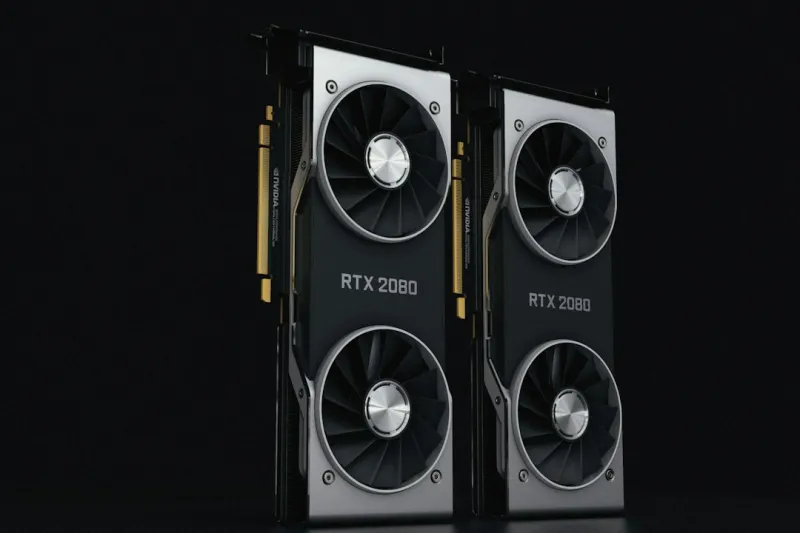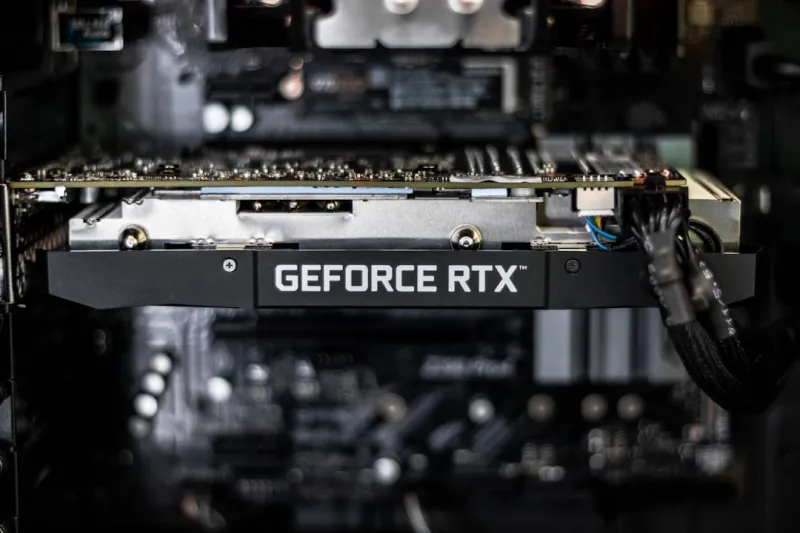
When I first unboxed my new RTX 4090 in early 2026, the excitement was palpable—until the screen flickered and the game crashed. It’s a familiar story for many PC enthusiasts: a brand‑new GPU that refuses to behave. In my years of troubleshooting video cards, I’ve learned that the root causes are rarely mystical; they’re often mundane, overlooked details that compound under the pressure of today’s AI‑heavy workloads. This article walks you through a systematic, no‑nonsense approach to diagnosing and fixing those pesky GPU issues that keep popping up in 2026. From driver drift to power delivery quirks, I’ll share the exact steps I take, the tools I trust, and the mental checklist that saves me hours of frustration. By the end, you’ll not only have a healthier graphics card but also a deeper understanding of why video‑card problems have spiked this year, as highlighted in Critical 2026 Tech Updates Every User Must Know.
Symptom Checklist Before You Panic
Before you dive into BIOS menus or start uninstalling drivers, take a moment to catalog what’s actually happening. Common symptoms include artifacting (those strange, colored pixels that look like a glitchy rainbow), sudden driver crashes, black screens after a game loads, and unexpected system reboots. Each of these clues points to a different subsystem. For instance, artifacting often signals overheating or a failing VRAM module, while abrupt driver crashes can be a sign of software conflicts or an outdated driver stack. Write down the exact error messages, the games or applications involved, and whether the issue occurs at idle, under load, or after a period of inactivity. This simple habit of note‑taking can dramatically narrow down the troubleshooting path and prevent you from chasing red herrings that waste valuable time.
Driver Drift: When the Latest Update Breaks Everything
In 2026, GPU manufacturers push driver updates at a breakneck pace to optimize performance for the newest AI‑accelerated titles. While these updates can unlock impressive frame rates, they also introduce a phenomenon I call “driver drift”—where a previously stable system suddenly becomes unstable after an update. The first line of defense is to roll back to the last known good driver version using tools like DDU (Display Driver Uninstaller) in safe mode. After cleaning the old drivers, reinstall the previous stable release before testing the latest one on a clean system. Keep a local archive of driver versions you trust; this habit has saved me countless late‑night sessions. Remember to verify that the driver matches your GPU’s exact model and the Windows build you’re running, as mismatches can cause silent crashes that are hard to pinpoint.
Power Delivery and Connectors – The Silent Saboteurs
Power delivery issues are the hidden culprits behind many GPU failures, especially with the power‑hungry cards released this year. A common oversight is using an inadequate or damaged PCIe power cable. Even a single loose pin can cause voltage spikes, leading to system reboots or artifacting under load. Before you blame the GPU itself, open your case and inspect the power connectors: ensure the 8‑pin and 6‑pin cables are fully seated, and check that your PSU meets the recommended wattage—typically 750 W or higher for flagship cards. If you’re running a modular PSU, verify that the cables you’re using are the ones supplied by the manufacturer; third‑party cables can sometimes lack proper shielding. Using a multimeter to confirm stable voltage on the GPU’s power pins can also pinpoint intermittent drops that standard software tools might miss.
BIOS/UEFI Settings That Can Save You Hours
Many users overlook the BIOS/UEFI as a troubleshooting ally, but it holds the keys to stable GPU operation. First, enable “Above 4G Decoding” and set the PCIe slot to run at its maximum link speed—usually x16 Gen 5 in modern motherboards. Disabling C‑State power saving for the GPU can also prevent sudden latency spikes that manifest as stutters in games. If your board offers an option for “Resizable BAR,” enable it to allow the CPU to access the GPU’s full memory buffer, which can improve performance and stability for certain titles. However, be aware that some older GPUs may not fully support Resizable BAR, leading to crashes; in such cases, toggling the feature off can resolve the issue. Always save a backup of your current BIOS settings before making changes, so you can revert if something goes awry.
Overclocking: The Fine Line Between Performance and Failure
Overclocking remains a popular way to squeeze extra frames out of a GPU, but in 2026 the margin for error has shrunk due to tighter silicon tolerances. If you’re experiencing instability after pushing clock speeds, dial back the core clock by 5‑10 MHz and re‑run your benchmark suite. Likewise, adjust the memory frequency incrementally; sometimes the memory controller becomes the bottleneck before the core does. Use tools like MSI Afterburner or the vendor’s own overclocking suite to set a conservative voltage curve rather than a flat increase, which can cause excess heat. Monitor temperatures with a target of staying below 80 °C under full load; if you see thermal throttling, consider improving case airflow or upgrading your GPU’s cooler. A modest, stable overclock can provide a noticeable performance bump without the headaches of crashes and artifacting.
The AI‑Accelerated GPU Era and Its Quirks
This year, AI‑accelerated GPUs are dominating the market, offering dedicated Tensor cores for real‑time ray tracing and AI upscaling. While these features are impressive, they also introduce new layers of complexity. Certain AI workloads can cause the driver to allocate massive buffers, exhausting VRAM and triggering “out‑of‑memory” crashes that appear as driver quits. To mitigate this, disable or lower the intensity of AI‑upscaling (like DLSS or XeSS) in the game settings and see if stability improves. Additionally, some titles ship with beta AI drivers that are not fully vetted; keeping an eye on community forums for known issues can save you from diving down a rabbit hole of trial‑and‑error. Understanding how AI workloads interact with your GPU’s memory architecture is essential for troubleshooting modern rendering pipelines.
Testing Tools That Give You Real Answers
When the symptoms persist, it’s time to bring in reliable diagnostics. Tools such as 3DMark Stress Test, Unigine Heaven, and the built‑in Windows DirectX Diagnostic (dxdiag) provide objective data on frame rates, temperature, and error logs. Run a prolonged stress test—at least 30 minutes—to see if artifacts or crashes appear under sustained load. Capture the error codes from the Windows Event Viewer; a “Display driver stopped responding and has recovered” message (TDR) points to driver timeout issues, while a “PCIe Bus Error” indicates hardware-level communication problems. For a deeper dive, use GPU-Z to monitor real‑time clock speeds, power draw, and memory usage. Recording these metrics lets you compare baseline performance against a known‑good configuration, making it easier to isolate the variable that’s causing trouble.
When It’s Time to RMA – Navigating Warranty Labyrinths
Even after exhaustive troubleshooting, some GPUs simply have defective silicon. Knowing when to cut your losses and initiate an RMA can save you weeks of frustration. Most manufacturers offer a one‑year warranty, but many extend it to three years for premium models. Before you file a claim, gather all your diagnostic logs, screenshots of artifacts, and a detailed timeline of the steps you’ve taken. This documentation not only speeds up the approval process but also demonstrates that you’ve exercised due diligence. Be prepared to ship the GPU in its original packaging or a well‑padded box to avoid further damage. Keep a copy of the shipping receipt and tracking number; many companies require proof of delivery before processing a replacement. A smooth RMA experience hinges on clear communication and thorough evidence.
Future‑Proofing Your Graphics Stack
Looking ahead, the best defense against recurring GPU headaches is a proactive, future‑proofing mindset. Align your hardware choices with emerging standards—PCIe 5.0, DDR5, and higher wattage PSUs—to ensure compatibility with next‑gen cards. For deeper insight into upcoming trends, check out Future‑Proof PC Hardware Trends You Can’t Miss, which breaks down the components that will keep your system relevant for years. Additionally, consider the broader ecosystem; a well‑balanced CPU, sufficient RAM, and robust cooling will mitigate many of the bottlenecks that cause GPU failures. As I often remind my readers, “Why 2026 Is the Year You Must Future‑Proof Your PC” Why 2026 Is the Year You Must Future‑Proof Your PC. By investing in quality power delivery, keeping firmware up to date, and staying informed about AI‑driven software changes, you’ll enjoy smoother gaming sessions and fewer emergency repair calls.