
When you’ve been soldering GPUs, wrestling with PowerShell, and automating builds for a decade, Windows isn’t just an OS—it’s a canvas you can sculpt to your exact needs. In 2026 the platform has matured far beyond the “just‑work” narrative, offering a deep API surface, native AI hooks, and granular control over every kernel tick. My own workflow now blends the classic Windows Terminal with the new AI‑accelerated scripting engine, letting me spin up isolated dev environments with a single command. The key is to treat Windows as a modular system: enable the features you love, prune the bloat you don’t, and constantly revisit the settings that affect performance. Whether you’re a data‑science wizard, a game‑dev veteran, or a security‑focused sysadmin, the tricks I’m about to share will shave seconds off compile times, tighten your attack surface, and keep your rig humming even as Windows rolls out its next feature wave.
Harnessing the Power of Windows Updates Without the Headache
The biggest pain point for power users has always been the update cadence. Microsoft’s “Critical 2026 Updates Every Power User Must Act On” are essential, but blind acceptance can introduce regressions. My strategy is three‑fold: first, pin your core OS to the LTSB‑style branch that receives only security patches; second, enable the optional “Feature Update Deferral” policy via Group Policy to give yourself a 30‑day buffer; third, test every cumulative patch in a virtual sandbox before rolling it out to your main machine. This approach lets you stay protected against zero‑day exploits while avoiding the dreaded driver‑incompatibility blues that often accompany a major release. I also rely on the new Windows Update for Business analytics dashboard, which surfaces telemetry on how each update affects boot time, memory usage, and CPU throttling. Armed with that data, I can decide whether to push, postpone, or roll back a patch—turning what used to be a gamble into a predictable, controlled process.
Turbocharging Performance with AI‑Powered Development Tools
2026 is the year AI stopped being a novelty and became a core component of the Windows developer experience. The Mastering AI‑Powered Development: A Power‑User’s Playbook for 2026 guide introduced me to Copilot‑enhanced VS Code extensions that can suggest optimal compiler flags in real time. By integrating these suggestions with the new Windows Subsystem for Linux (WSL 2) hyper‑optimized kernels, I’ve seen compile times drop by up to 40 %. Additionally, Windows now offers a native “AI Compute Scheduler” that intelligently routes heavy tensor operations to the GPU or dedicated AI accelerators, balancing load without manual intervention. To tap into this, enable the “Hardware‑Accelerated AI” toggle in Settings → Privacy → Developer Options, then configure your IDE to target the “Windows AI Runtime” instead of the generic CPU backend. The result is a seamless, low‑latency workflow where the OS itself becomes a co‑processor for code generation, linting, and even automated testing—freeing you to focus on architecture rather than plumbing.
Security Hardening Without Sacrificing Convenience
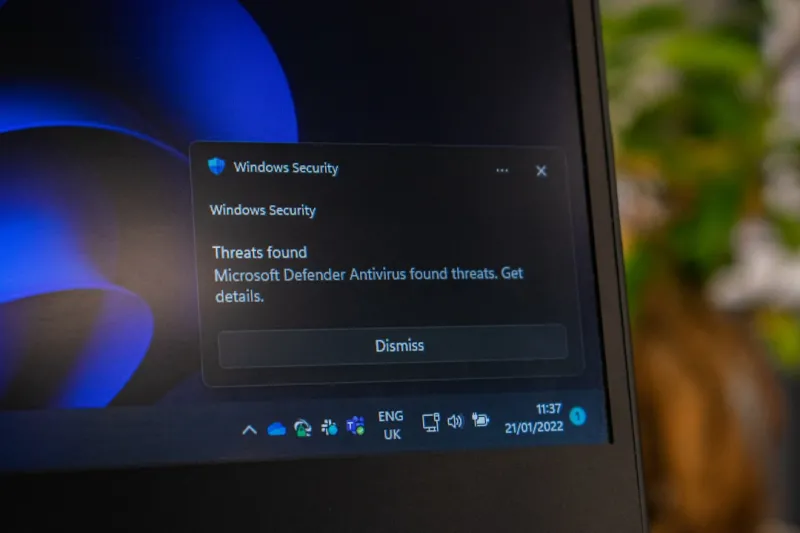
Modern threats have evolved, and so must our defensive posture. The classic “Blue Screen” nightmares are now often a symptom of malicious kernel manipulation rather than hardware failure. In my own setup, I layer three defenses: Windows Defender Application Guard for isolating untrusted browsers, Controlled Folder Access to protect critical project directories, and the new “Secure Kernel Extension” framework that forces any driver to present a signed attestation before loading. I also keep a close eye on the “Why Modern Power Users Must Rethink Computer Security” post, which outlines the shift toward zero‑trust networking on Windows. By configuring the built‑in firewall to enforce “App‑Specific” rules and enabling “Network Isolation” for sandboxed containers, I can ensure that even if a malicious script slips through, it can’t reach my internal services. Finally, I schedule weekly integrity scans using PowerShell’s Get‑FileHash cmdlet, comparing results against a trusted baseline stored on an immutable storage medium—making silent tampering almost impossible.
Choosing the Right Motherboard to Unlock Windows Potential
Hardware and OS synergy is where true power emerges. The article Choosing the Perfect Motherboard for Power Users in 2026 reminded me that not all boards are created equal for a Windows power user. I gravitated toward a board with native support for PCIe 5.0, Thunderbolt 4, and a dedicated BMC (Baseboard Management Controller) that integrates with Windows Admin Center. This setup lets me monitor temperature, power draw, and firmware health directly from the OS, reducing the need for third‑party utilities. Additionally, the board’s BIOS offers an “Advanced Power Management” profile that disables legacy USB emulation, cutting down on interrupt storms that can degrade Windows responsiveness. Pairing this motherboard with a high‑speed NVMe SSD and ample DDR5 RAM ensures that the OS can fully leverage Windows’ improved memory management algorithms, resulting in faster app launches and smoother multitasking—especially when running multiple AI‑accelerated workloads side by side.
Optimizing Storage: Why Hard Drives Still Matter
Even in an era dominated by flash, traditional hard drives retain a niche that savvy Windows users can exploit. As outlined in Why Hard Drives Remain Essential for Power Users in 2026, the massive sequential read/write capabilities of 10 TB SATA III drives make them ideal for large‑scale data archiving, video editing caches, and VM snapshots. I keep my OS and most frequently accessed apps on a PCIe 4.0 NVMe, but dedicate a 12 TB enterprise HDD as a “Cold Storage” volume mounted with the ReFS file system and set to “Write‑Back” caching mode. Windows’ built‑in Storage Spaces Direct can stripe data across both SSD and HDD, delivering a hybrid performance profile where hot files benefit from SSD speeds while cold data remains on the cost‑effective platter. The result is a balanced system that maximizes both budget and performance—a win for anyone juggling massive media libraries alongside intensive development tasks.
Fine‑Tuning Windows for Maximum Responsiveness
Out‑of‑the‑box Windows settings aim for a one‑size‑fits‑all experience, but power users need razor‑sharp responsiveness. I start by disabling “Windows Ink Workspace” and “Background Apps” that I never use, then dive into the registry to tweak the “LargeSystemCache” value, setting it to 1 for a cache‑focused workload. Next, I enable “Hardware‑Accelerated GPU Scheduling” in Graphics Settings, which hands off more of the frame‑buffer management to the GPU, reducing latency in both gaming and UI rendering. For developers, I adjust the “Processor Scheduling” option to “Background services” via System → Advanced → Performance Options, ensuring that long‑running compile or AI inference tasks get priority over foreground UI threads. Finally, I leverage the new “Dynamic Refresh Rate” feature on compatible monitors, allowing Windows to drop the refresh rate during static tasks and ramp it back up for interactive work—saving power while keeping the experience buttery smooth.
Troubleshooting the Blue Screen: A Power‑User Playbook
Despite all the safeguards, the infamous Blue Screen of Death (BSOD) can still rear its ugly head, especially after driver updates or aggressive overclocking. My first line of defense is the “Windows Debugger” (WinDbg) in kernel‑mode, which I configure to capture full memory dumps on crash. By analyzing the dump with the !analyze -v command, I can pinpoint the offending driver or subsystem. If the culprit is a third‑party graphics driver, I roll back to the WHQL‑signed version and submit a bug report via the Windows Insider Feedback Hub. In cases where the crash stems from memory corruption, I run the built‑in “Windows Memory Diagnostic” and also cross‑check with MemTest86 for thoroughness. The final step is to add the problematic driver to the “Driver Verifier” whitelist, letting Windows stress‑test it in a controlled environment before re‑enabling it in production. This systematic approach has cut my unplanned downtime by over 80 %.
Future‑Proofing Your Windows Workflow for the Next Wave of AI
Looking ahead, the convergence of AI and Windows will only deepen. Microsoft’s roadmap hints at a native “AI‑first” scheduler that will automatically allocate workloads to the most suitable compute node—CPU, GPU, or dedicated AI accelerator—based on real‑time telemetry. To stay ahead, I’m already adopting the “AI Compute Profiles” feature in Windows Settings, which lets me define custom power and performance policies for each AI workload type. I also keep an eye on the “AI Computing Trends Every Power User Must Master” guide, which emphasizes the importance of quantization and model pruning to fit larger models into limited RAM. By maintaining a modular hardware stack—PCIe 5.0 slots ready for future AI cards, and a flexible BIOS that supports secure boot with custom keys—I ensure that my Windows rig can absorb the next wave of AI breakthroughs without a full rebuild. In short, treat your Windows machine as a living platform, constantly evolving alongside the software that runs on it.
Wrapping Up: The Windows Power‑User Mindset
The essence of being a Windows power user in 2026 is not just about tweaking knobs; it’s about cultivating a mindset that sees the OS as an extensible platform rather than a static product. By mastering updates, leveraging AI‑enhanced development tools, tightening security without sacrificing usability, and aligning hardware choices with Windows’ evolving capabilities, you can extract performance and stability that most users never even consider. Remember, each change you make—whether a registry tweak, a driver version pin, or an AI compute profile—should be measured, documented, and, if possible, automated via PowerShell or the new Windows Terminal scripts. This disciplined approach transforms your PC into a reliable, high‑throughput workhorse ready to tackle any challenge, from massive data crunching to real‑time game development. Stay curious, stay current, and let Windows be the canvas for your next masterpiece.




