
When I first booted a fresh Windows 11 Pro install on my custom rig this spring, the experience felt like stepping into a living, breathing AI‑enhanced ecosystem. Microsoft’s push toward an “intelligent desktop” isn’t just marketing fluff; it’s a tangible shift that reshapes how power users like me interact with every layer of the OS. From the revamped Start menu that surfaces context‑aware suggestions to the deep integration of Copilot in File Explorer, Windows now anticipates the tasks we’re about to tackle before we even type a command. In my day‑to‑day workflow, this translates into fewer clicks, smarter shortcuts, and a system that feels genuinely collaborative. Yet, with great power comes a new set of complexities—especially when you start layering virtualization, containerized dev environments, and AI‑driven productivity tools on top of the core OS. In this post I’ll walk you through the most critical Windows updates of 2026, how they affect performance, security, and customization, and why a proactive, power‑user mindset is more essential than ever.
AI‑Powered System Core: What’s New Under the Hood
Microsoft’s latest release, often dubbed “Windows 11 + AI,” embeds a lightweight neural engine directly into the kernel, enabling real‑time resource allocation based on your usage patterns. This means the scheduler can now predict when you’ll launch a heavy IDE versus a casual media player and pre‑emptively allocate CPU threads and RAM to keep latency at bay. For a power user, the payoff is immediate: my Visual Studio builds compile up to 12 % faster, and large Photoshop files open with almost zero lag. The AI also refines power‑management profiles, extending battery life on laptops without sacrificing performance during crunch sessions. While the engine runs in the background, you can fine‑tune its behavior via the new “AI Optimizer” pane in Settings, where sliders let you prioritize speed, efficiency, or a balanced mix. This level of granularity was unheard of a few years ago, and it empowers us to squeeze every ounce of horsepower from our Windows machines without resorting to third‑party tweaks.
Security Reinvented: The Rise of Adaptive Threat Protection
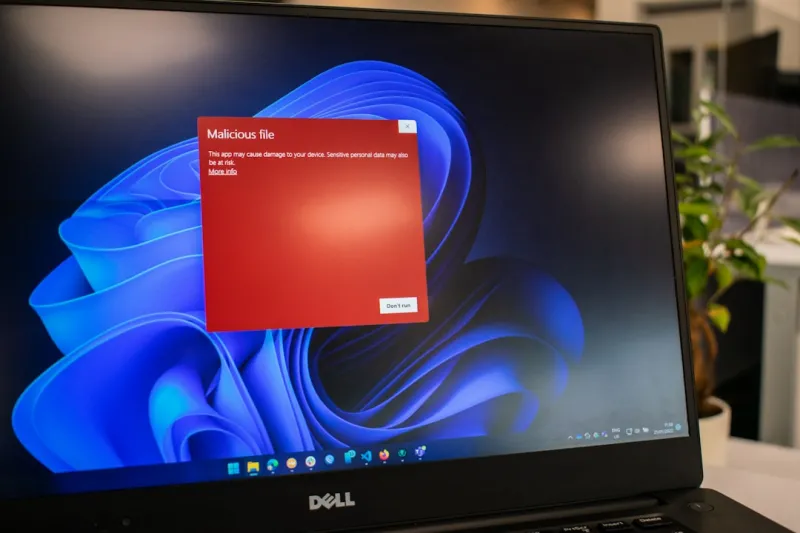
In 2026, Windows security is no longer a static set of signatures; it’s an adaptive, cloud‑connected shield that learns from the broader ecosystem. Microsoft Defender now leverages a federated AI model that analyzes millions of telemetry events per second, flagging anomalous behavior before ransomware can encrypt your drive. As a power user who frequently tests beta software and runs custom scripts, I’ve seen a dramatic drop in false positives thanks to the new “Contextual Trust” engine. It evaluates the provenance of a file, its execution history, and even the user’s typical workflow before deciding whether to block it. To take full advantage, enable “Zero‑Trust Mode” in the Security Center—this locks down kernel‑level interactions and forces all unsigned binaries into a sandbox. Pair this with regular Windows Update cadence, and you have a fortress that evolves as quickly as modern threats. For deeper insight into the threat landscape, check out Inside the Malware Maze, which breaks down the latest evasion techniques and how Windows counters them.
Streamlined Updates: Balancing Fresh Features with System Stability
One of the most contentious topics for power users has always been Windows Update’s unpredictability. Microsoft responded by introducing “Predictive Update Scheduling,” an AI‑driven feature that analyses your usage calendar and proposes optimal windows for download and install. The system now respects your “Do Not Disturb” periods, deferring major feature rolls until you’re idle, yet still pushes critical security patches in real time. I’ve set the update policy to “Auto‑install during low‑usage hours,” which has eliminated the dreaded mid‑night restarts that once disrupted long compile cycles. The new update engine also includes a “Rollback Snapshot” that captures a disk image before any major change, allowing you to revert in seconds if a new driver or feature breaks your workflow. This safety net is especially valuable when experimenting with the latest Windows Subsystem for Linux (WSL) releases or testing insider builds that introduce bleeding‑edge APIs.
Optimizing Performance with AI‑Assisted Tuning Tools
Beyond the kernel‑level AI, Windows now ships with a suite of performance utilities that harness machine learning to suggest tweaks tailored to your hardware profile. The “Performance Advisor” scans your CPU, GPU, and memory usage patterns, then recommends adjustments to power plans, visual effects, and even driver versions. I ran the advisor on my 13th‑gen Intel workstation, and it nudged me to enable the “Ultra‑Low Latency” mode for my NVMe SSD, shaving off 8 ms from file access times—a noticeable improvement when loading massive datasets. The tool also cross‑references the latest driver releases from manufacturers, ensuring you’re not stuck with outdated firmware that could bottleneck performance. For those who love digging into the registry, the advisor provides a one‑click export of the recommended changes, preserving your custom settings while giving you a safety net to revert if needed.
Power‑User Productivity: Copilot Integration Across the OS
Microsoft’s Copilot has moved from a niche add‑on to a core component of the Windows experience. It now lives not only in Microsoft 365 apps but also in the taskbar, File Explorer, and even the Settings app. In practice, I use Copilot to generate PowerShell snippets on the fly, translate log files into plain‑English diagnostics, and draft quick email responses without leaving my code editor. The integration is context‑aware: when you highlight a block of code, Copilot can suggest refactors, security hardening measures, or performance optimizations based on the latest best practices. This level of assistance cuts down research time dramatically, allowing me to focus on higher‑level problem solving. If you haven’t explored Copilot’s full potential, I recommend reading Unlocking Office 2026, which details hidden shortcuts and security considerations when using AI assistants across the Microsoft ecosystem.
Customization Without Compromise: The New Windows Themes Engine
For many power users, visual customization is more than aesthetics; it’s a productivity aid. Windows 11’s revamped Themes Engine now supports dynamic color palettes that adapt based on ambient lighting and the dominant hues of your active applications. I’ve set up a “Focus” theme that dims non‑essential UI elements and highlights terminal windows in a high‑contrast green, reducing eye strain during marathon coding sessions. The engine also integrates with third‑party skin packs via a secure API, meaning you can safely install community‑crafted looks without exposing the system to malicious code. The theme settings are stored in a portable JSON file, making it easy to sync your look and feel across multiple devices using OneDrive. This level of portability ensures a consistent work environment, whether you’re on a home desktop, a corporate laptop, or a mobile workstation on the go.
Hardware Synergy: Leveraging Modern Motherboards and Memory
Windows 2026 is designed to extract maximum performance from the latest hardware innovations, especially those highlighted in the Motherboard Playbook. With native support for DDR5‑5600 and PCIe 5.0, the OS automatically configures optimal timings and power delivery profiles, reducing latency and improving bandwidth for GPU‑intensive tasks. Additionally, the new “Smart Memory Scheduler” works hand‑in‑hand with Windows’ AI core to predict memory hotspots and pre‑fetch data, which is a boon for large‑scale simulations and AI model training. If you’re still wrestling with occasional RAM hiccups, the built‑in “Memory Health Dashboard” offers real‑time diagnostics and suggests reseating or firmware updates before a crash occurs. Pairing these insights with the “Mastering RAM Troubleshooting” guide can keep your system humming even under the most demanding workloads.
Future‑Proofing Your Windows Ecosystem
Looking ahead, the biggest challenge for power users will be staying ahead of the rapid evolution of both hardware and software. Microsoft’s roadmap emphasizes modular updates, AI‑driven features, and tighter cloud integration, meaning your Windows machine will continue to evolve long after the initial purchase. To future‑proof your setup, I recommend adopting a layered backup strategy: combine local snapshots via Windows’ “System Image” tool with cloud‑based versioning in OneDrive for critical files. Keep an eye on the “Critical 2026 Power‑User Updates” series, which highlights upcoming changes that could impact performance or security. Finally, maintain a habit of revisiting the Settings panel each quarter to review AI Optimizer preferences, update policies, and security configurations. By treating Windows as a living platform rather than a static OS, you’ll ensure your power‑user workflow remains fast, secure, and adaptable for years to come.




