
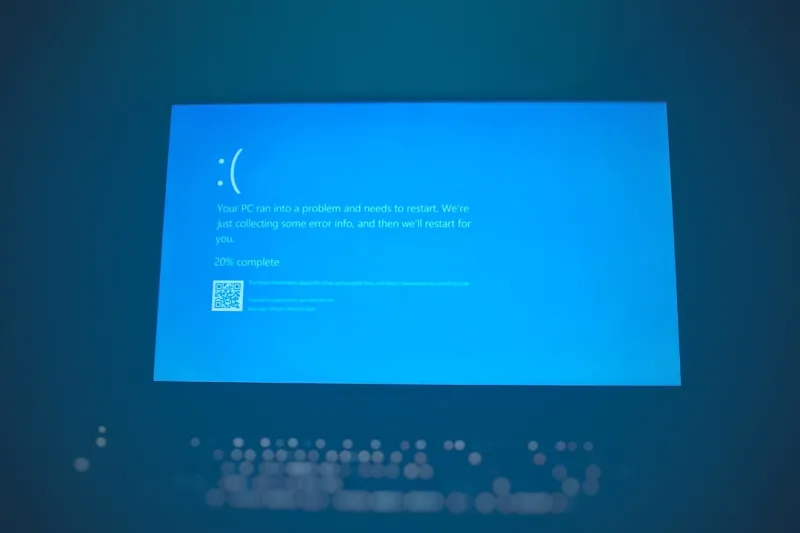
When I first booted a Windows machine back in the early 2001s, I never imagined I’d be navigating the same ecosystem three decades later, still finding fresh ways to squeeze performance out of an OS that’s both ubiquitous and surprisingly adaptable. Fast forward to 2026, and Windows isn’t just a platform for office suites and gaming; it’s a dynamic sandbox for AI‑enhanced workflows, secure remote workstations, and even home‑lab hyper‑convergence. As a self‑confessed power user, I’ve learned that the key to thriving in this environment isn’t about chasing the newest hardware alone—it’s about mastering the OS’s hidden levers, from advanced power‑plan tuning to the latest virtualization tricks that let you run Linux containers side‑by‑side with native Windows apps. In this post, I’ll walk you through the most impactful updates, the subtle settings that can shave seconds off boot times, and the security practices that keep your data safe in an era where ransomware is more sophisticated than ever. Think of it as a roadmap for anyone who wants to stay ahead of the curve without constantly rebuilding their machine from scratch.
Windows 11’s Quiet Revolution in 2026
Most users still associate Windows 11 with its sleek Start menu and rounded corners, but beneath that polished surface lies a series of under‑the‑hood changes that have transformed how power users interact with the OS. The 2026 update introduced a revamped DirectStorage pipeline that now extends to non‑gaming workloads, dramatically reducing I/O latency for data‑intensive tasks like video rendering and large‑scale data analysis. Coupled with the new “Focus Assist” AI that learns your work patterns, Windows can now dynamically allocate CPU cores and GPU slices to foreground applications, ensuring that your CAD software never competes with background sync tasks. Additionally, the integrated Windows Subsystem for Linux (WSL) has finally matured to support full GPU pass‑through, letting you train machine‑learning models natively without a dual‑boot. For anyone who’s built a hybrid dev‑ops environment, this means you can spin up a Linux container in seconds, compile code, and push it straight into a Windows‑based CI pipeline—all without leaving the comfort of a single desktop.
Leveraging Native Encryption Without Sacrificing Speed
Security is no longer a checkbox; it’s a continuous battle against increasingly sophisticated threats. In 2026, Microsoft has doubled down on BitLocker’s performance, introducing hardware‑accelerated encryption that works seamlessly with the latest TPM 2.2 modules. The result? You get full‑disk AES‑256 protection without the noticeable slowdown that plagued earlier versions. I’ve paired this with the strategies outlined in Unlocking the Power of Encryption: A Power‑User’s Guide, configuring pre‑boot authentication to require a hardware token, which adds a physical layer of defense while keeping the boot process under five seconds. For portable devices, the new “Dynamic Encryption” feature intelligently toggles encryption strength based on network trust levels, conserving battery life when you’re on a secured corporate Wi‑Fi but ramping up protection on public hotspots. The takeaway? You don’t have to choose between speed and security—Windows now offers a balanced, user‑friendly approach that even the most cautious IT departments can endorse.
Optimizing Power Plans for Modern Workloads
One of the most underrated tweaks in Windows is the power‑plan configuration. The default “Balanced” setting is a compromise that can leave performance on the table, especially on machines equipped with the latest 13th‑gen Intel or AMD Zen 4 processors. I recommend creating a custom profile that sets the “Maximum Processor State” to 100 % while lowering the “Minimum Processor State” to 20 % during idle periods. This prevents the CPU from throttling too aggressively when you return from a break, shaving off those annoying lag spikes. Pair this with the “PCI Express – Link State Power Management” set to “Off” to maintain consistent GPU bandwidth—a crucial factor when you’re running graphics‑heavy tasks like 4K video editing or real‑time ray tracing. Don’t forget to enable “High‑Performance Networking” under the “Wireless Adapter Settings,” which can reduce latency for cloud‑based services. These adjustments may look minor, but across a full workday they can translate into a noticeable productivity boost and lower energy consumption, aligning with the sustainability goals many enterprises are now tracking.
Harnessing AI‑Driven Maintenance Tools
Windows 2026 has embraced AI not just for user‑facing features but also for system health. The new “Windows Health Assistant” monitors telemetry in real time, proactively suggesting driver updates, storage clean‑ups, and even predicting hardware failures before they happen. I’ve integrated this with my own PowerShell scripts, pulling the assistant’s recommendations via its REST API and automatically scheduling maintenance windows during off‑peak hours. The result is a near‑zero‑downtime environment where updates are applied intelligently rather than being forced upon you at inconvenient times. For those who still prefer manual control, the assistant offers a granular view of each component’s health score, allowing you to prioritize upgrades based on actual wear and tear rather than a fixed refresh cycle. This AI‑driven approach dovetails nicely with the proactive mindset outlined in Future‑Proof Your PC: A Power‑User’s Blueprint for 2026, ensuring that your Windows rig stays both cutting‑edge and reliable.
Advanced Virtualization: Hyper‑V Meets WSL 2.0
Virtualization has become a cornerstone of modern Windows workflows, and 2026’s Hyper‑V has finally caught up with the demands of heavy‑duty developers. The platform now supports nested virtualization with full GPU acceleration, meaning you can run a Windows VM inside WSL 2.0, allocate a dedicated RTX 4090 slice, and still maintain near‑native performance. This is a game‑changer for AI researchers who need isolated environments for different model versions but still want to leverage the host’s powerful hardware. Additionally, the new “VM Quick‑Boot” feature snapshots the entire VM state, allowing you to resume work in seconds rather than minutes—a crucial time‑saver when iterating on large datasets. I’ve also taken advantage of “Dynamic Memory” to allocate RAM on the fly, ensuring that my host system never runs out of memory when multiple VMs are active. The seamless integration between Hyper‑V and WSL makes Windows a truly hybrid platform, blurring the lines between native and containerized workloads.
Troubleshooting Common Windows 11 Glitches
Even with all its advancements, Windows 11 still throws occasional curveballs that can frustrate even seasoned power users. One recurring issue is the “Explorer.exe” memory leak that can cause the task manager to report ballooning RAM usage after prolonged sessions. My fix involves a scheduled script that restarts Explorer every six hours, combined with a registry tweak that disables the “Thumbs.db” indexing for network drives, significantly reducing I/O overhead. Another frequent hiccup is the “Audio Service” crash, often tied to outdated audio drivers. By using the “Device Manager” to set drivers to “Automatically download drivers from Windows Update,” you can keep the stack current without manual intervention. Lastly, for users who rely on legacy applications, the new “Compatibility Mode” now supports a broader range of Windows 7 and 8 settings, allowing you to run older software without the dreaded “Program Compatibility Assistant” pop‑ups. Keep a cheat sheet of these quick fixes handy, and you’ll spend less time troubleshooting and more time getting work done.
Securing Remote Workstations in a Distributed World
Remote work isn’t a temporary trend; it’s the new normal, and Windows 2026 reflects that reality with built‑in enhancements for secure, low‑latency connectivity. The revamped “Windows Hello for Business” now supports biometric authentication over VPN tunnels, meaning you can unlock your workstation with a fingerprint or facial scan even when you’re miles away from the office. Coupled with the “Zero‑Trust Network Access” (ZTNA) framework, each device is treated as an untrusted endpoint until it proves its identity, dramatically reducing the attack surface. For teams that handle sensitive data, I recommend enabling “Controlled Folder Access” in Windows Defender, which whitelists only approved applications to read or write to designated directories. Pair this with “Device Guard” policies that enforce code integrity, and you create a layered defense that’s both robust and transparent to end users. These tools empower power users to maintain the same level of security and performance at home as they would in a corporate data center.
Future‑Proofing Your Windows Machine
Looking ahead, the most effective way to keep your Windows rig relevant is to adopt a modular mindset. Start by choosing a motherboard that supports PCIe 5.0 and DDR5, ensuring that you can upgrade storage and memory without a full system overhaul. Invest in a solid‑state drive that utilizes the latest NVMe 2.0 specification for sustained read/write speeds exceeding 10 GB/s—this not only speeds up boot times but also accelerates large‑file transfers common in media production. On the software side, maintain a clean installation baseline and regularly prune unnecessary bloatware, as a lean OS is easier to patch and less prone to vulnerabilities. Leverage the “Windows Insider Program” to test upcoming features in a sandboxed environment before they hit production, giving you a head‑start on adapting to changes. By combining hardware foresight with disciplined software hygiene, you’ll ensure that your Windows experience remains fast, secure, and ready for whatever innovations the next few years bring.
Wrapping Up: The Power‑User’s Playbook for Windows
In the end, mastering Windows in 2026 is less about memorizing every new setting and more about cultivating a strategic approach—one that blends performance tweaks, security best practices, and forward‑thinking hardware choices. Whether you’re a developer harnessing WSL for cross‑platform projects, a creator pushing the limits of real‑time rendering, or an IT professional safeguarding a remote workforce, the OS offers a versatile toolbox that, when wielded correctly, can dramatically boost productivity. Remember to revisit the internal resources we’ve linked throughout this article for deeper dives into encryption, hardware future‑proofing, and malware defenses. By staying curious, testing new features in a controlled manner, and keeping your system lean and secure, you’ll not only keep pace with Microsoft’s rapid evolution but also set the standard for what a true power user looks like in today’s Windows‑centric world.




