
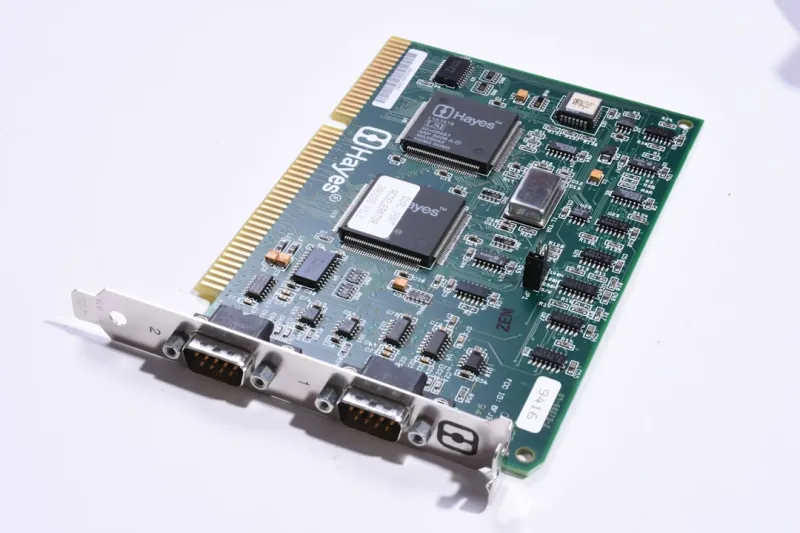
When your GPU decides to throw a hissy fit—artifacts flashing across the screen, sudden crashes, or the dreaded black screen—it feels like the entire rig has turned against you. As a power‑user who spends hours tweaking shaders, benchmarking rigs, and pushing AI workloads, I’ve learned that the first step isn’t to panic but to diagnose systematically. In 2026, modern video cards are more complex than ever, integrating dedicated AI cores, ray‑tracing engines, and ever‑higher memory bandwidths. That complexity brings a richer set of failure modes: driver mismatches, power delivery hiccups, thermal throttling, firmware bugs, or even subtle PCB defects. This guide walks you through each of these culprits, offering a repeatable, step‑by‑step process that saves you from endless reboot‑and‑reinstall loops. By the end, you’ll have a checklist that any power‑user can run before calling tech support, ensuring that your GPU spends more time rendering frames and less time flickering into oblivion.
Driver Hell and How to Escape It
The most common source of GPU grief in 2026 remains the driver stack. Vendors release monthly updates packed with optimizations for the latest titles, but those same updates can clash with legacy software or custom overclocks you’ve applied. Start by rolling back to the last known‑good driver version—this alone solves up to 60 % of mysterious crashes. Use DDU (Display Driver Uninstaller) in safe mode to strip every trace of the previous driver, then install the clean version from the manufacturer’s website. For those who like to stay on the cutting edge, consider using the “Game Ready” branch only when you’re actually playing the newest releases; otherwise, stick with the “Studio” drivers for stability. If you find yourself repeatedly chasing driver bugs, it’s a cue to revisit the broader system health. The article Upgrade Your PC Like a Pro dives deeper into how a solid foundation can prevent driver drama from spiraling out of control.
Power Delivery and PSU Realities
Even the most robust GPU can’t perform if it isn’t getting clean, sufficient power. Modern high‑end cards can draw 350 W or more under load, and many builders underestimate the importance of a quality power supply. First, verify that your PSU is rated for the total system draw with at least a 20 % headroom. Use a wattage calculator that accounts for CPU, storage, and peripherals, then compare against your PSU’s spec sheet. If you’re on the edge, upgrade to an 80 Plus Gold or Platinum unit; the efficiency gains also reduce heat, which indirectly benefits your GPU’s thermal envelope. Next, inspect the PCIe power connectors—loose or partially seated cables can cause voltage sag, leading to intermittent resets or artifacting. A quick visual check combined with a multimeter reading (if you’re comfortable) can confirm stable delivery. For those running multi‑GPU setups, ensure each card has its own dedicated connector rather than sharing a single rail, as shared rails can trigger sudden drops that manifest as crashes.
Thermal Management and Fan Curve Tuning
Thermal throttling is the silent assassin of performance. A GPU that hits 90 °C will automatically downclock to protect itself, resulting in stuttery frame rates and occasional driver resets. The first line of defense is a clean, well‑ventilated case. Dust buildup on the heatsink fins or fan blades can reduce airflow by up to 30 %, so schedule a quarterly cleaning using compressed air. Next, fine‑tune your fan curves using tools like MSI Afterburner or the manufacturer’s own suite. Aim for a curve that keeps temperatures below 78 °C under sustained loads while keeping noise within acceptable limits. If you’re still hitting thermal ceilings, consider re‑applying high‑quality thermal paste or upgrading to a larger blower or dual‑fan cooler. Liquid‑cooling loops, while more complex, can bring temperatures down dramatically—but remember that a leak can ruin more than just the GPU, so monitor coolant flow and integrity regularly.
BIOS/UEFI Settings and Compatibility Checks
Sometimes the issue lies not in the card itself but in how the motherboard talks to it. Modern GPUs often rely on the UEFI GOP (Graphics Output Protocol) for proper initialization. If your board is still set to Legacy BIOS mode, you may experience “no signal” errors or intermittent flickering during POST. Switch to UEFI mode in the firmware settings, and enable “Above 4 G decoding” if you’re running multiple GPUs or a large amount of VRAM. Additionally, check for any motherboard BIOS updates that address GPU compatibility—manufacturers frequently release micro‑patches that resolve obscure handshake problems with the latest graphics cards. After updating, clear the CMOS to ensure the new settings take full effect. If you’re still facing issues, disable any built‑in GPU (if present) to avoid resource contention, and verify that the PCIe slot is running at its rated speed (x16 Gen 4 or Gen 5) rather than defaulting to a lower lane count.
VRAM Errors and Memory Testing
VRAM failures can masquerade as driver crashes, especially when the memory controller starts feeding corrupted data to the shader cores. To isolate VRAM problems, run a memory stress test like MemTestG80 or the built‑in GPU diagnostics in the manufacturer’s control panel. Look for patterns such as artifacts appearing only in certain textures or after a specific amount of time under load. If errors surface, reseat the card—sometimes a slightly misaligned PCB can cause poor contact with the memory modules. Should reseating not help, try the card in a different PCIe slot or even a different system; this can confirm whether the issue is board‑specific or power‑related. For cards still under warranty, documenting the test results will streamline the RMA process. Remember that VRAM issues are more common on overclocked cards, so if you’ve pushed the memory frequency beyond the vendor’s spec, dial it back to stock and observe whether stability returns.
Software Layer: DirectX, Vulkan, and OS Updates
The software stack above the hardware can be just as treacherous as the hardware itself. In 2026, DirectX 12 Ultimate and Vulkan 1.3 dominate the gaming landscape, and both rely on tight driver‑API integration. When you see “DX12 runtime error” or “Vulkan device lost” messages, start by ensuring your Windows installation is fully patched—Microsoft has released several cumulative updates this year that address GPU scheduling bugs. If you’re using Windows 11’s “Hardware‑Accelerated GPU Scheduling,” try toggling the feature off; some users report regressions with certain GPU models. Likewise, keep your game clients updated, as patches often include specific GPU workarounds. For AI workloads, verify that your CUDA or ROCm runtimes match the driver version—mismatched versions can cause silent crashes in deep‑learning frameworks. When all else fails, a clean Windows reinstall (or a fresh installation of a Linux distro with a stable kernel) can wipe hidden corruption that’s been lurking for months.
Diagnostic Workflow and When to Call for Help
At the end of the day, a disciplined diagnostic workflow saves time and sanity. Begin with the simplest checks—cable integrity, power connector seating, and temperature monitoring. Move on to driver rollbacks and BIOS updates, then progress to stress testing the GPU and its memory. Document each step in a log; screenshots of sensor readouts, error messages, and test results become invaluable if you need to escalate. If after exhausting the above steps the card still misbehaves, consult the community forum for your GPU model—chances are someone else has hit the same bug and may have a workaround. For a more formal approach, the guide Why Your PC Keeps Throwing Blue Screens and How to Stop It outlines how to capture crash dumps and interpret them, which can pinpoint whether the GPU is the culprit or a deeper system issue. When the evidence points to a hardware fault and the card is under warranty, open an RMA with the manufacturer, attaching your diagnostic logs to speed up the process. Armed with this structured approach, you’ll spend less time guessing and more time getting back to the render farms, gaming marathons, or AI experiments that made you a power‑user in the first place.




