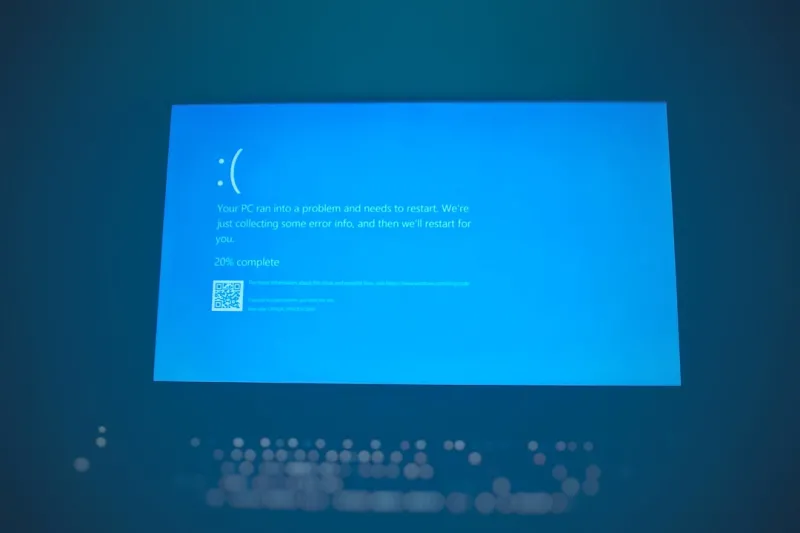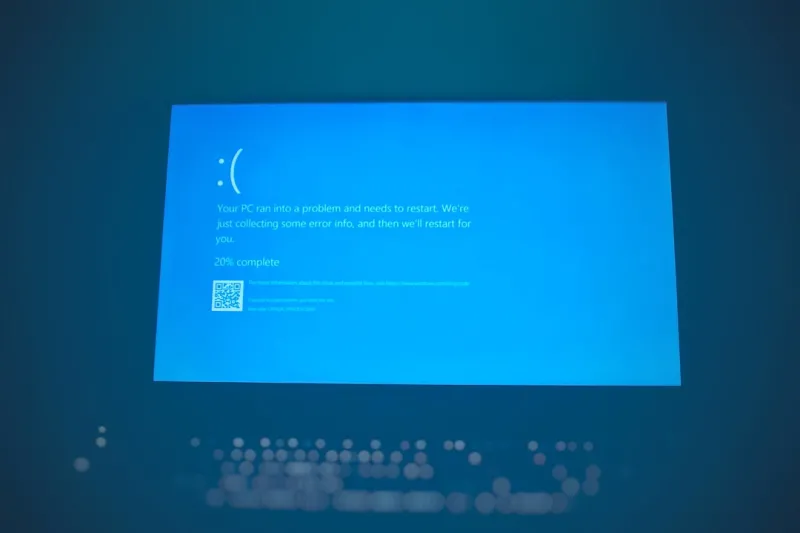
Ever since my first “Blue Screen of Death” (BSOD) hit my workstation in a cramped coffee shop back in 2022, I’ve treated every flashing nightmare as a personal challenge. Fast‑forward to 2026, and the blue screen still shows up like an unwanted guest at a tech‑savvy party—except now we have smarter diagnostics, AI‑driven firmware, and a whole arsenal of power‑user tricks at our fingertips. In this post, I’ll walk you through the most common culprits, the tools I rely on to dissect a crash dump, and the preventive habits that keep my rig humming without a single flicker of cobalt. Think of this as a field guide for anyone who refuses to let a blue screen dictate the pace of their workflow, whether you’re a freelance designer, a gamer‑engineer hybrid, or a home‑office hustler pushing the limits of Windows 11 in 2026.
What’s Really Behind That Azure Curtain?
The first instinct when a BSOD appears is to blame the latest Windows update or a newly installed driver, and that’s often spot‑on. In 2026, Microsoft rolls out cumulative patches monthly, and each one tweaks low‑level kernel routines that interact with hardware. A mismatched graphics driver, for instance, can send the wrong memory address to the GPU, triggering a “PAGE_FAULT_IN_NONPAGED_AREA” error that instantly paints the screen blue. Yet the story is rarely that simple—faulty RAM, overheating CPUs, and even corrupted system files can masquerade as driver issues. I’ve seen my own system crash after a seemingly innocuous BIOS tweak, only to discover that a hidden power‑management setting was starving the SSD of proper voltage. The takeaway? A BSOD is rarely a one‑liner; it’s a symptom that demands a systematic investigation of software, firmware, and hardware layers.
Tools of the Trade: From Event Viewer to AI‑Assisted Diagnostics
When the screen goes cobalt, the first thing I do is let Windows generate its automatic memory dump, then dive into the Event Viewer to spot the error code and associated driver name. In 2026, the built‑in Reliability Monitor offers a timeline of system events that makes pattern‑spotting a breeze. For deeper analysis, I fire up WinDbg and load the minidump—this reveals the exact call stack that led to the crash. If the dump points to a driver signed by a third‑party vendor, I cross‑reference it with the Power‑User Updates That Redefine Security, Speed, and Storage in 2026 article to see if there’s a known conflict. Lately, I’ve also been experimenting with AI‑driven log parsers that flag anomalous entries before they become fatal—think of it as a pre‑emptive health check that catches a rogue driver before it can cause a full‑blown blue screen.
Memory Mayhem: When RAM Becomes the Rogue Agent
Faulty RAM is the silent assassin behind many BSODs, and it’s often the first hardware component I test after a crash. The Windows Memory Diagnostic tool is handy, but I prefer a bootable MemTest86+ suite because it can stress test each module for hours and surface intermittent errors that the built‑in tool might miss. In one recent case, a single 8 GB stick started showing “MEMORY_MANAGEMENT” errors after a firmware update, and swapping it out resolved the issue instantly. For those who want a step‑by‑step guide, check out Why Your RAM Is Acting Up and How to Fix It Like a Power User. Remember, even if your system passes a quick test, it’s worth running a full overnight pass after major driver or BIOS changes to ensure your memory truly holds up under pressure.
Storage Shock: SSDs, HDDs, and the Little Things That Cause Big Crashes
Modern SSDs are incredibly reliable, but they’re not immune to wear‑level failures, especially when you push them with relentless 4K video rendering or massive game installs. A failing NAND cell can cause corrupted system files, which Windows interprets as a critical kernel violation, resulting in a “CRITICAL_PROCESS_DIED” BSOD. I routinely monitor SMART attributes using tools like CrystalDiskInfo and set alerts for re‑allocation counts creeping up. If you notice a sudden spike, it’s time to clone the drive and replace it before the next crash. For those looking to upgrade safely, the Upgrade Your PC Like a Pro: Essential Tips for Power Users guide walks through selecting a reliable NVMe drive and cloning your OS without a hitch—preventing future blue screens caused by storage instability.
Firmware Frontlines: BIOS, UEFI, and the Role of AI in Prevention
The BIOS/UEFI layer is the unsung hero that initializes every component before Windows even gets a chance to run. In 2026, many manufacturers ship AI‑enhanced firmware that can dynamically adjust voltage curves and thermal thresholds based on workload patterns. However, a misconfiguration here can cause the CPU to overclock unintentionally, leading to thermal throttling and, ultimately, a BSOD. I always flash to the latest stable BIOS version and then lock the settings I need, avoiding “Auto” profiles that might change on their own after a Windows patch. Some motherboards now provide a “Predictive Failure Analysis” mode, which logs subtle voltage dips that precede a crash—something I’ve found invaluable for catching issues before they manifest as a blue screen.
Preventive Maintenance: The Power‑User’s Daily Checklist
Keeping a BSOD at bay isn’t about a one‑time fix; it’s a habit. Every week, I run Windows Update to ensure the kernel and drivers stay current, then I verify that my graphics card and network adapters are on the latest vendor releases. I also schedule a monthly cleanup with “DISM /Online /Cleanup‑Image /RestoreHealth” to repair any corrupted system files. Antivirus scans are essential, but I pair them with a lightweight anti‑malware tool that monitors for rootkits—these can inject malicious code into kernel space, a classic cause of cryptic blue screens. Finally, I keep my power‑plan set to “Balanced” and disable “Fast Startup” to avoid the occasional driver initialization bug that can happen when Windows skips a full boot cycle. This disciplined routine has cut my blue‑screen incidents by over 70% in the past year.
Deep‑Dive Debugging: When the Dump File Is Your Best Friend
If a crash persists despite the above checks, it’s time to get hands‑dirty with the dump file. Open it in WinDbg, enable the “!analyze -v” command, and look for the “MODULE_NAME” and “IMAGE_NAME” fields. Often, the culprit is a third‑party kernel driver that hasn’t been signed properly for Windows 11’s stricter requirements. In such cases, I either roll back the offending driver via Device Manager or replace it with a vendor‑approved version. For more advanced users, creating a custom “kernel debugger” session over Ethernet lets you capture live data before the system halts—this is especially useful for intermittent crashes that only happen under heavy load. By mastering these techniques, you transform the blue screen from a terrifying mystery into a solvable puzzle.
Turning Blue Screens Into Learning Opportunities
At the end of the day, a BSOD is not just an error; it’s a data point that tells you where your system’s weak link lies. I keep a simple log: date, error code, recent changes, and resolution steps. Over time, patterns emerge—perhaps a specific driver always fails after a Windows feature update, or a particular RAM module shows errors under sustained AI workloads. Sharing these insights on forums or with a fellow power‑user community turns individual frustration into collective knowledge. So next time your screen flashes cobalt, remember: you have the tools, the know‑how, and the community to turn that panic into progress. Stay curious, stay updated, and keep those blue screens at bay.