
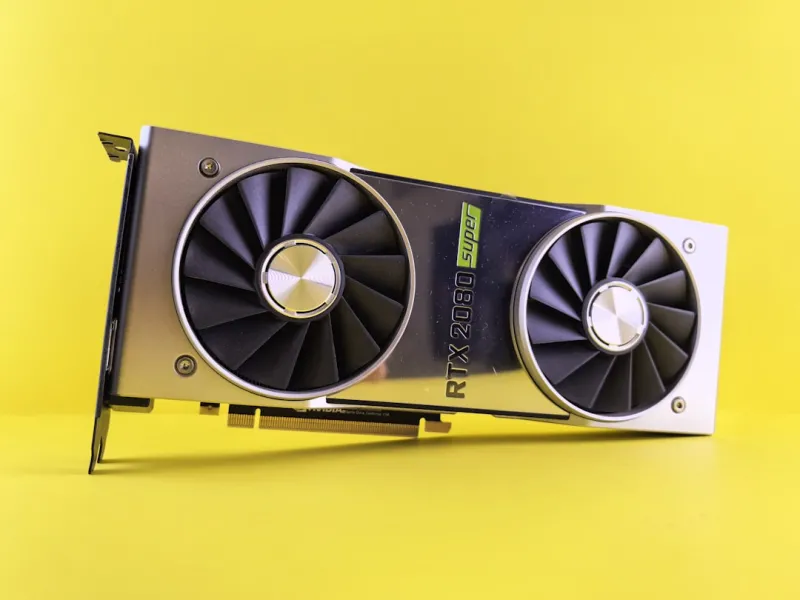
When my rig decided to throw a fit in the middle of a high‑stakes gaming session, I felt that familiar blend of frustration and curiosity that only a true power‑user knows. In 2026, video cards have become far more than just graphics processors; they are the backbone of AI workloads, real‑time ray tracing, and even some security functions. Yet, despite the advances, the fundamentals of troubleshooting a misbehaving GPU haven’t changed—knowledge, methodology, and a dash of stubbornness are still the keys. In this guide, I’ll walk you through the step‑by‑step process I rely on when a card refuses to cooperate, from deciphering cryptic error codes to validating BIOS settings. By the end, you’ll have a repeatable playbook that cuts down downtime and helps you keep your rig humming, whether you’re crushing frames in the latest titles or crunching tensors for machine‑learning projects.
Understanding the Symptom Landscape
First things first: you need to accurately identify what “not working” actually means. A GPU can exhibit a spectrum of symptoms—screen flicker, sudden driver crashes, artifacting, or complete system freezes that masquerade as a blue screen. In 2026, many of these issues are flagged by Windows Event Viewer or the newer GPU Diagnostics Hub introduced in recent driver packages. Pay attention to patterns: does the problem appear after a specific game update, during heavy compute tasks, or when you enable DLSS 3? Knowing the context narrows the field dramatically. For example, if you notice artifacting only when ray tracing is active, the culprit might be a power‑delivery glitch or an overheating VRM rather than the silicon itself. Documenting the exact conditions—resolution, refresh rate, driver version, and any recent software installations—creates a reliable baseline you can reference later. This disciplined approach is the same one I use when I dive into my GPU crash diagnostics guide, ensuring I never chase ghosts.
Once you have the symptom catalog, it’s time to check the obvious suspects: driver integrity and system updates. In 2026, driver rollbacks are a bit more nuanced because manufacturers now ship multiple “branch” releases tailored for AI workloads versus pure gaming. I always start by using the clean‑install option in the driver installer, which wipes residual files that can cause hidden conflicts. After the install, I verify the driver’s signature through the Device Manager and run a quick dxdiag to confirm the GPU is recognized correctly. If the issue persists, the next logical step is to examine the power plan settings; many power‑hungry cards misbehave when Windows defaults to “Balanced” mode, throttling performance under the guise of energy savings. Switching to a high‑performance plan and disabling any aggressive power‑saving features in the BIOS can often resolve seemingly mysterious crashes.
Hardware Validation and Thermal Management
With software cleared, the investigation shifts to the hardware itself. The first physical check is always the connection: reseat the PCIe slot, ensure the power connectors are fully engaged, and double‑check that the card isn’t suffering from a loose screw or bent pin. Next, run a comprehensive thermal audit. Modern GPUs in 2026 often sport dual‑fan or liquid‑cooling solutions with programmable curves. Use tools like MSI Afterburner or the vendor’s own monitoring suite to log temperatures under load; a sudden spike to 95 °C or higher is a red flag that the cooling loop might be clogged or the pump failing. Cleaning dust, reapplying thermal paste, and verifying that the case airflow aligns with the card’s intake and exhaust orientation can shave several degrees off the peak temperature, dramatically improving stability.
If temperatures check out, the focus turns to the power delivery subsystem. Modern power‑hungry cards draw upwards of 350 W, and a marginally under‑spec PSU can cause intermittent resets that manifest as driver crashes or black screens. I always cross‑reference the card’s TDP with the PSU’s 80 Plus rating and available connectors. Using a dedicated power‑monitoring dongle, you can watch voltage sag in real time while the GPU is under stress. If you spot dips below the recommended rails, it’s time to upgrade the PSU or redistribute power draw across additional cables. Additionally, some motherboards in 2026 allow you to adjust the PCIe slot’s voltage manually—tweaking this setting can stabilize power delivery for borderline configurations.
Advanced Diagnostics and Future‑Proofing
When the usual suspects are ruled out, advanced diagnostics come into play. One powerful technique is to isolate the GPU’s firmware by flashing the latest VBIOS, but only after backing up the original version. Manufacturers occasionally release firmware updates that address subtle bugs like memory timing issues or compatibility with the newest PCIe 5.0 specifications. Coupled with a BIOS update for your motherboard—especially if you’re using a newer chipset that optimizes PCIe lane distribution—you can eliminate obscure incompatibilities. In my experience, a clean VBIOS flash paired with a BIOS tweak resolved a stubborn artifacting problem that had lingered for months.
Finally, think about longevity. The rapid pace of AI‑accelerated workloads means today’s “top‑tier” card may become a bottleneck sooner than you expect. My go‑to resource for staying ahead is the Future‑Proofing Your Rig playbook, which outlines strategic upgrades like moving to a PCIe 5.0‑ready platform or adding a secondary GPU for compute off‑loading. By planning for modularity—using riser cables, ensuring adequate case clearance, and selecting a PSU with headroom—you reduce the pain of future troubleshooting. Moreover, regularly scheduled maintenance, such as firmware checks and thermal clean‑ups, keeps your GPU in peak condition, turning potential crises into routine check‑ups.
In the end, troubleshooting a video card isn’t just about fixing a single failure; it’s about cultivating a mindset of proactive care. Treat every glitch as an opportunity to learn more about how your hardware interacts with the software stack you rely on. Keep a log of every change you make, from driver versions to BIOS tweaks, and you’ll build a personal knowledge base that rivals any online forum. When the next GPU hiccup arrives—whether it’s a sudden crash during a marathon streaming session or an unexpected slowdown while training a neural net—you’ll be ready to diagnose, fix, and move on, keeping your workflow smooth and your rig future‑ready.




