
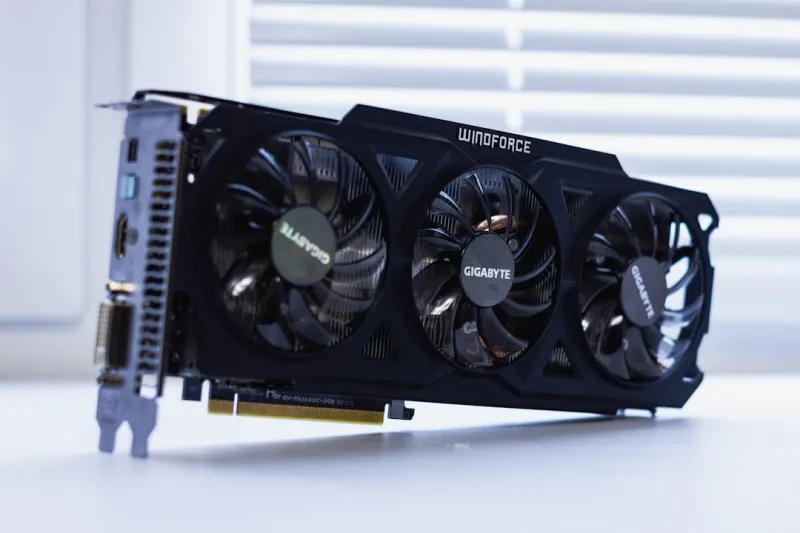
When a graphics card decides to throw a tantrum in the middle of a render session or a high‑octane gaming night, the frustration is real—but it’s also an opportunity to flex the kind of power‑user instincts I’ve honed over a decade of tinkering. In 2026, the GPU landscape is more diverse than ever, with everything from ray‑tracing behemoths to ultra‑compact mobile‑grade dies populating our rigs. Yet the fundamental symptoms—artifact‑laden frames, sudden driver crashes, or the dreaded black screen—still follow a predictable pattern. My approach starts with a methodical “listen‑to‑the‑symptoms” checklist, because every flicker, beep, or freeze tells a story about where the problem lives. In this post, I’ll walk you through that checklist, dive into the most common culprits, and share a few pro‑level tricks that turn a chaotic crash into a controlled diagnosis. Grab a coffee, fire up your favorite monitoring suite, and let’s get our hands dirty.
Spotting the Tell‑Tale Signs
First things first: you need to recognize the subtle clues before the full‑blown failure. A sudden spike in frame time, occasional screen tearing, or a brief loss of audio sync often points to a GPU struggling to keep pace. Look for visual artifacts like “snow” or “z‑banding” that appear when the card’s VRAM is under stress, and pay attention to any “driver has stopped responding” warnings in Windows Event Viewer. Even a modest increase in system temperature—just a few degrees above idle—can be the early warning light for an overheating GPU. I always log these events in a simple spreadsheet, noting the time, running application, and any recent system changes. This habit not only gives you a timeline but also helps you correlate software updates or driver installs with the onset of trouble, making the root cause easier to isolate later on.
Driver Deep‑Dive and Clean Install
The first line of defense is a clean driver environment. In 2026, NVIDIA’s Studio Drivers and AMD’s Adrenalin Pro are both packed with optimizations, but they also bring a layer of complexity that can cause conflicts. I recommend using How to Diagnose and Fix Video Card Issues Like a Power‑User Pro as a reference guide, but here’s the quick version: uninstall the existing driver with DDU (Display Driver Uninstaller) in Safe Mode, then reinstall the latest stable driver directly from the manufacturer’s website—avoid third‑party “game‑ready” bundles unless you’re testing a specific feature. After installation, run a quick sanity test with a benchmark like 3DMark Time Spy to confirm baseline performance. If the issues persist, it’s time to look beyond software and start probing the hardware layer.
Hardware Slot and BIOS Realities
Even the most robust driver stack can’t save a card that isn’t seated properly. Remove the GPU, inspect the PCIe slot for dust or bent pins, and reseat it firmly. While you’re in the case, double‑check that the power connectors—whether 6‑pin, 8‑pin, or the newer 12‑pin—are fully engaged; a loose latch can cause intermittent power loss and those dreaded “driver reset” events. Next, pop into your BIOS and verify that the PCIe link is set to “Auto” or manually forced to the maximum version supported by both the motherboard and the GPU (usually Gen 4 or Gen 5 in 2026). For deeper insight, consult Choosing the Right Motherboard in 2026: A Power‑User’s Guide, which outlines how motherboard firmware can impact GPU stability, especially when running on a mixed‑generation platform.
Thermal Management and Fan Curves
Heat is the silent assassin of modern GPUs. Even a well‑ventilated case can suffer if the card’s thermal paste has dried out after a couple of years of heavy use. I like to start by cleaning the heatsink fins with compressed air, then applying a high‑quality thermal compound—thermal pads are fine for the memory chips, but a fresh paste on the die makes a measurable difference. Once reassembled, use tools like MSI Afterburner or AMD’s Radeon Software to craft a fan curve that keeps temperatures under the 80 °C threshold under load. In my experience, a modest increase of fan speed at 70 °C can shave off 5–10 °C, reducing the chance of thermal throttling that often masquerades as “driver crashes.” Keep an eye on VRM temperatures as well; overheating power delivery components can cause instability that’s easily mistaken for a faulty GPU.
VRAM Health Checks
When you see visual glitches that look like corrupted textures or random color patches, the culprit is often VRAM. Modern cards come with anywhere from 8 GB to 48 GB of GDDR6X, and a single bad memory chip can corrupt an entire frame. Use the built‑in diagnostic tools from NVIDIA (the “GPU Memory Test” in GeForce Experience) or AMD’s “Memory Tuning” utility to run a quick scan. For a more thorough assessment, I turn to third‑party utilities like MemTestG80, which stress‑tests the graphics memory while logging error codes. If errors appear, the safest route is to RMA the card—most manufacturers honor a 3‑year warranty in 2026—but you can also try reseating the memory modules if you feel adventurous.
Power Supply Adequacy
A GPU’s power draw can fluctuate dramatically, especially during ray‑tracing spikes. If your PSU is marginal—say, a 550 W unit powering a 300 W RTX 4090—it may dip below the required rails, leading to sudden resets or the dreaded “PCIe Bus Error.” Check the PSU’s label for total wattage and the number of +12 V rails; the GPU typically draws from these rails. Use a power meter or software like HWInfo to monitor voltage stability under load. If you notice the voltage sagging below 11.8 V, it’s time for an upgrade. In 2026, I recommend a high‑efficiency (80+ Gold or Platinum) unit with at least 20% headroom over your peak draw, which not only improves stability but also reduces heat and noise.
Advanced Firmware Tactics
When the usual suspects are cleared, I move into the realm of firmware. Updating the GPU’s VBIOS can resolve obscure compatibility issues with newer motherboards or operating system updates. Manufacturers often release “dual‑BIOS” firmware images that address stability on specific platforms—just be sure to follow the flashing instructions to the letter. Similarly, a BIOS update on your motherboard can unlock hidden PCIe lanes or improve power management, which is critical for multi‑GPU setups. For a deeper dive, see Why Video Card Issues Persist and How Power‑Users Can Crush Them, where I detail a step‑by‑step process for safely flashing both GPU and motherboard firmware without bricking your system.
Preventive Maintenance and Future‑Proofing
After you’ve wrestled the gremlin back into its box, the real work begins: preventing the next one. Regularly schedule a dust‑off session—every three to four months—to keep airflow optimal. Keep your driver suite up to date, but avoid jumping on every beta release; stable releases are your friend. Consider a modular power supply that lets you swap out cables for better airflow, and always keep spare thermal paste on hand for quick touch‑ups. Looking ahead, the best defense is a forward‑thinking build strategy—something I explore in Future‑Proofing Your Power‑User PC: Hardware Strategies That Actually Work. By choosing a motherboard with extra PCIe slots, a PSU with higher wattage headroom, and a GPU that supports the latest display standards, you’ll be ready to tackle the next wave of graphical innovations without breaking a sweat.




