
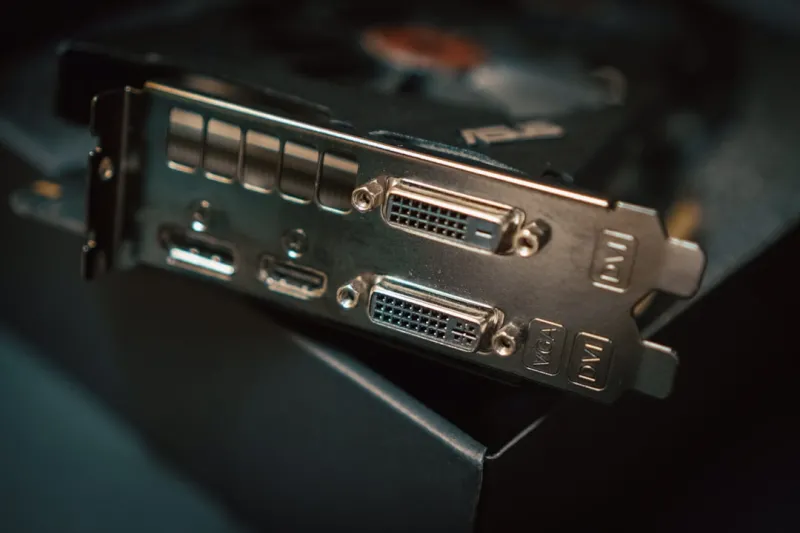
When my RTX 4090 started flickering mid‑render last month, I felt that all‑too‑familiar rush of panic that every power user knows too well. In 2026, the GPU market is saturated with ultra‑high‑bandwidth cards, yet the fundamentals of troubleshooting haven’t changed. My approach blends old‑school hardware intuition with the newest firmware tools, and I’m sharing that playbook so you can skip the guesswork and get back to crunching frames. Whether you’re a competitive streamer, a 3D artist, or a hardcore gamer, the same symptoms—artifacts, crashes, or silent black screens—often share a common root cause. In this deep dive I’ll walk you through a step‑by‑step checklist that lets you isolate the issue, verify the fix, and avoid costly RMA trips. Let’s get under the hood and treat your video card the way a seasoned technician would, without the jargon overload.
Start With a Symptom Checklist
The first rule of any repair is to document what you see before you start pulling screws. In 2026, the most frequent complaints are visual artifacts (stuttering textures, strange lines), sudden driver crashes, and the dreaded “Display driver stopped responding” error. Take screenshots or record a short video clip—this visual evidence helps when you contact support later. Next, note the exact conditions: Were you gaming at 4K, running a compute‑heavy AI model, or simply browsing the web? Temperature spikes, power fluctuations, and recent Windows updates are all clues. A quick sanity test—swap the display cable, try a different monitor, or boot into Safe Mode—can rule out peripheral problems. By creating a concise symptom log, you give yourself a reference point that will make each subsequent troubleshooting step more purposeful and less time‑consuming.
Driver Nightmares and How to Tame Them
Drivers remain the most volatile piece of the GPU puzzle. NVIDIA and AMD push monthly updates, and while many bring performance gains, a handful introduce regressions that manifest as black screens or sudden reboots. In 2026, I recommend using the “Clean Install” option from the driver installer and pairing it with DDU (Display Driver Uninstaller) to purge any lingering files. After reinstalling, verify the driver version through Device Manager and compare it against the release notes on the manufacturer’s site. If the latest driver is unstable, roll back to the previous “golden” version that matches your hardware’s sweet spot. For AMD users, the Radeon Software “Adrenalin” suite also offers a “Driver Reset” feature that can quickly restore default settings. Keeping a driver archive in a dedicated folder saves you the hassle of hunting down older versions when a new release bites you.
Heat Is the Silent Saboteur
Even the most robust GPUs will throttle or crash when they exceed safe temperature thresholds. Modern cards ship with sophisticated fan curves, but dust buildup, degraded thermal paste, and obstructed airflow can still push temps past 85 °C under load. Start by monitoring real‑time temperatures with tools like MSI Afterburner or HWInfo. If you see temperatures climbing rapidly, pause your workload and inspect the cooler. A gentle brush‑out of dust, re‑applying a high‑quality thermal paste, and ensuring your case has proper intake and exhaust fans can dramatically lower temps. In 2026, many enthusiasts are also experimenting with semi‑passive cooling—setting the fan curve to spin only when the GPU exceeds 70 °C—to reduce acoustic noise without sacrificing performance. Remember, a cooler card not only runs smoother but also prolongs the lifespan of your hardware.
Power Delivery: Don’t Let the PSU Be the Bottleneck
A powerful GPU demands a reliable power source. If your power supply unit (PSU) is undersized, aged, or has a flaky 12 V rail, you’ll experience sudden shutdowns, artifacting, or even the dreaded “PC won’t boot” scenario. Check the PSU’s wattage rating against the GPU’s TDP—most high‑end cards in 2026 require at least 750 W for headroom. Use a multimeter or a PSU tester to verify that each rail delivers stable voltage under load. Don’t forget to inspect the PCIe power connectors; loose or partially seated cables can mimic GPU failure. If you suspect power issues, swap in a known‑good PSU or test the card in a different system. Ensuring a clean, steady power flow eliminates one of the most common, yet often overlooked, culprits behind video‑card instability.
BIOS/UEFI Settings: The Hidden Layer
Many power users overlook the impact of BIOS or UEFI configurations on GPU behavior. In 2026, motherboard firmware now includes dedicated “PCIe Slot Power Management” options that can limit bandwidth or enforce power‑saving modes. Start by resetting the BIOS to default values, then enable “Above 4G Decoding” and “Resize BAR” if your GPU supports it—these settings improve memory addressing and can resolve occasional stuttering. For enthusiasts running overclocked GPUs, double‑check that the BIOS isn’t throttling the GPU clock due to voltage limits. Updating the motherboard’s firmware is also crucial; manufacturers release patches that improve compatibility with the latest GPUs and fix known bugs. A well‑tuned BIOS acts like a silent partner, ensuring your card receives the resources it needs without interference.
Software Conflicts and Windows Updates
Even with perfect hardware, software layers can sabotage performance. In 2026, Windows 11’s frequent cumulative updates sometimes introduce driver conflicts or modify graphics APIs, leading to crashes in popular games or professional apps. Before blaming the GPU, create a system restore point, then roll back the most recent update if problems began after its installation. Additionally, background applications—especially those that hook into the graphics pipeline like screen recorders, overlays, or VPNs—can cause instability. Use Task Manager to identify high‑CPU or high‑GPU usage processes and temporarily disable them. If you suspect a third‑party program, boot into a clean Windows environment using the “Clean Boot” technique. This isolation helps you pinpoint whether the issue originates from the OS or the GPU itself.
Diagnostic Tools and Pro‑Level Strategies
When you’ve exhausted the basics, it’s time to bring out the heavy‑hitting diagnostic utilities. How to Diagnose and Fix Common Video Card Problems Like a Pro outlines a suite of tools—from GPU-Z for sensor data to FurMark for stress testing. Run a benchmark loop for 30 minutes while monitoring temperature, clock speeds, and power draw; any deviation from the card’s specifications signals a problem. For deeper analysis, NVIDIA Nsight or AMD Radeon GPU Profiler can trace driver calls and pinpoint where the breakdown occurs. If artifacts appear only during specific shader executions, the issue may be a hardware defect. Pair these tools with a methodical log—note the exact test, duration, and observed anomalies—to build a compelling case for warranty service if needed.
When to RMA: Knowing the Warranty Timeline
Even the most diligent troubleshooting can’t fix a hardware defect. Most manufacturers in 2026 offer a three‑year warranty, but some premium cards extend to five years. Keep your purchase receipt and serial number in a digital folder; you’ll need them when filing an RMA. Before you ship the card, take clear photos of the GPU, its connectors, and any visible damage. Include the diagnostic logs you compiled—manufacturers appreciate data that demonstrates you’ve ruled out software causes. Pack the card in its original antistatic bag, then place it in a sturdy box with cushioning. Shipping with insurance and tracking protects you against loss. Knowing the exact steps to initiate an RMA saves time and helps you get a replacement before your next project deadline.
Future‑Proofing and Upgrade Paths
Finally, think ahead. In 2026, the line between consumer and workstation GPUs continues to blur, and planning for the next upgrade can prevent recurring issues. When selecting a new card, consider factors beyond raw performance: power efficiency, driver support lifespan, and compatibility with upcoming DirectX 13 features. Pairing your GPU with a high‑quality PSU, a well‑ventilated case, and a motherboard that supports the latest PCIe 5.0 standard ensures you’re not bottlenecked by ancillary components. For power users looking to push the envelope, the article Unlock Maximum Power: A 2026 Guide to PC Upgrades for Power Users offers a roadmap for building a balanced system that can handle next‑gen workloads without frequent troubleshooting. By investing wisely now, you’ll enjoy smoother performance and fewer headaches down the road.




