
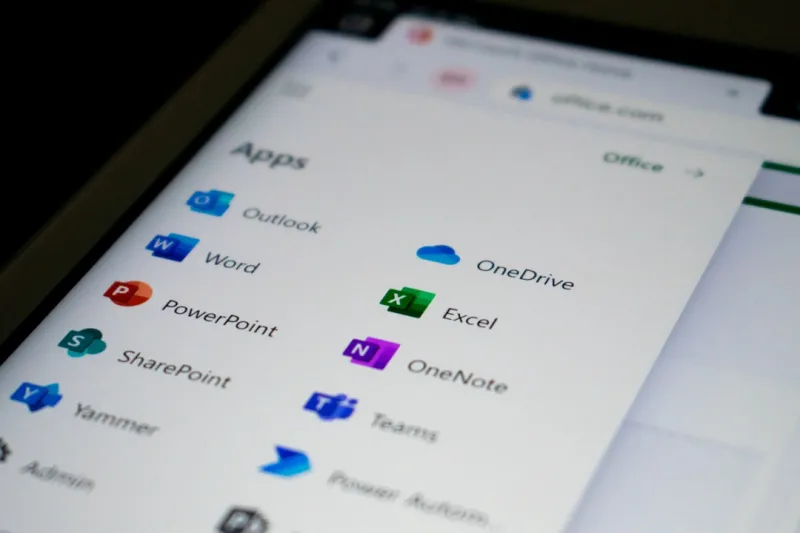
When I first started tinkering with Microsoft Office back in the early 2010s, the suite felt like a static collection of productivity tools—useful, but largely unchanged year after year. Fast‑forward to 2026, and the landscape has been reshaped by AI, cloud‑first thinking, and an unrelenting focus on security. As someone who lives at the intersection of hardware, software, and user experience, I’ve watched Office evolve from a desktop‑centric program into a dynamic, AI‑powered ecosystem that adapts to how we work, learn, and collaborate. The biggest shift? Office is no longer just a set of applications; it’s an intelligent assistant that predicts your next move, safeguards your data in real time, and leverages the power of modern PCs to deliver buttery‑smooth performance even on the most demanding spreadsheets. In this post, I’ll unpack the most compelling changes, why they matter for everyday users and power users alike, and how you can harness them to stay ahead in the fast‑moving world of digital productivity.
The AI Copilot Takes Center Stage
Microsoft’s AI Copilot is the headline act in the 2026 Office suite, and for good reason. In Word, Copilot can draft entire reports from a simple bullet list, suggest tone adjustments, and even generate citations that adhere to your chosen style guide—all while you sip your morning coffee. Excel has been supercharged with “data insights” that automatically surface trends, forecast future values, and propose visualizations you might never have considered. PowerPoint now offers design suggestions that balance branding guidelines with the latest visual trends, creating slide decks in minutes that previously required a designer’s touch. What’s remarkable is that these capabilities are not locked behind a premium tier; they’re baked into the subscription, meaning any user with an active license can tap into a level of assistance that was once the realm of specialized AI tools. As a tech enthusiast, I appreciate how the Copilot leverages the same underlying models that power modern developers must blend AI, security, and performance, delivering context‑aware help that feels genuinely personal.
Security Gets Smarter with Zero‑Trust Integration
Security is no longer an afterthought—it’s woven directly into the Office fabric. Microsoft has adopted a Zero‑Trust architecture across the suite, meaning every document, email, and collaboration session is continuously verified, regardless of where it originates. Real‑time encryption ensures that your files are protected both at rest and in transit, while AI-driven anomaly detection flags suspicious activity before it becomes a breach. This is especially critical for enterprises that handle sensitive data, as the platform now automatically enforces compliance with regulations like GDPR and the newer Data Privacy Act of 2026. For individual users, the benefit is a seamless experience where you no longer need to juggle third‑party VPNs or extra password managers; Office does the heavy lifting. The approach aligns perfectly with the insights from Zero‑Trust and AI, showing how these concepts are moving from buzzwords to everyday reality, safeguarding everything from a simple PowerPoint deck to a multi‑sheet financial model.
Collaboration at Warp Speed with Teams Integration
Collaboration has always been a strong suit of Microsoft, but 2026 raises the bar with deeper Teams integration and real‑time co‑authoring that feels truly instantaneous. Whether you’re editing a shared Excel workbook or brainstorming in a Word document, changes appear on every collaborator’s screen within milliseconds, thanks to low‑latency networking protocols that take advantage of modern hardware. The new “Live Canvas” feature in Teams lets you sketch ideas, embed them directly into Office files, and have AI suggest refinements on the fly. Moreover, the platform now supports “contextual threads,” where discussions are automatically linked to the relevant section of a document, eliminating the endless back‑and‑forth of email chains. As someone who frequently runs remote workshops, I’ve found this integration reduces meeting times by up to 30%, freeing up valuable time for actual content creation. The synergy between Office and Teams also means that meeting notes are auto‑populated into OneNote, and action items are instantly turned into Planner tasks—a workflow that feels almost magical.
Performance Optimizations for Modern PCs
Office’s performance in 2026 is a testament to how software can be tuned to leverage the latest hardware breakthroughs. Thanks to the new “Adaptive Rendering Engine,” Word, Excel, and PowerPoint automatically adjust graphic fidelity and compute intensity based on your PC’s capabilities, whether you’re on a high‑end workstation with a RTX 5000 GPU or a thin‑and‑light laptop powered by an ARM‑based chip. This means large Excel models with millions of rows load in seconds, and PowerPoint transitions stay buttery‑smooth even with 8K video embeds. The suite also taps into the OS‑level improvements highlighted in Unlocking Windows 2026, using hardware‑accelerated encryption and AI inference directly on the CPU’s neural cores, reducing reliance on cloud calls and preserving privacy. For power users, the new “Performance Dashboard” inside Office provides real‑time metrics on CPU, memory, and GPU usage, allowing you to fine‑tune settings for optimal speed. The result is a seamless experience where the software feels as responsive as the hardware it runs on.
Developer Flexibility Through Extensible Add‑Ins
One of the most exciting aspects of Office in 2026 is its openness to developers who want to extend functionality without sacrificing security. The revamped Office Add‑in model lets you write extensions in JavaScript, TypeScript, or even Python, and deploy them directly through the Microsoft Store or an internal catalog. These add‑ins run in a sandboxed environment, ensuring they can’t inadvertently access sensitive data unless explicitly granted permission. For organizations, this means IT can vet and control which extensions are allowed, aligning with the Zero‑Trust framework discussed earlier. From a user’s perspective, the marketplace now boasts AI‑enhanced add‑ins that can, for example, auto‑summarize meeting minutes, translate documents in real time, or pull data from enterprise APIs directly into Excel. I’ve personally experimented with a custom add‑in that pulls real‑time stock prices into a financial model, and the ease of deployment—coupled with the built‑in security checks—makes it a compelling option for anyone looking to tailor Office to niche workflows.
Future Trends: What’s Next for Office?
Looking ahead, Microsoft has hinted at several game‑changing innovations that will continue to blur the line between productivity and intelligence. First, a deeper integration with the Azure AI ecosystem promises to bring specialized models—like legal contract analysis or scientific data interpretation—directly into Office applications. Second, the rise of “Mixed Reality Workspaces” will allow users to interact with Office documents in a 3D environment, using HoloLens‑type devices to visualize complex data sets in a more intuitive way. Finally, sustainability is becoming a core pillar; Office will now provide carbon‑footprint insights for large documents and recommend energy‑saving settings based on your usage patterns. While some of these features are still in preview, the trajectory is clear: Microsoft Office is evolving into a platform that not only helps you get work done but also anticipates your needs, protects your data, and aligns with broader societal goals.
Practical Takeaways for Power Users
To make the most of Office’s 2026 capabilities, start by enabling the AI Copilot across all your apps and spend a few minutes customizing its preferences to match your workflow. Next, audit your security settings—ensure Zero‑Trust policies are active and that encryption is turned on for all shared files. Take advantage of the new Performance Dashboard to identify any bottlenecks on your PC, and consider upgrading your hardware if you regularly work with massive datasets. If you have developer resources, explore building a custom add‑in that addresses a repetitive task in your daily routine; the low barrier to entry makes experimentation worthwhile. Finally, stay engaged with Microsoft’s roadmap by subscribing to the Office Insider program, where you can test upcoming features like Mixed Reality Workspaces before they roll out to the broader audience. By adopting these practices, you’ll not only boost productivity but also future‑proof your workflow against the rapid evolution of digital work tools.




