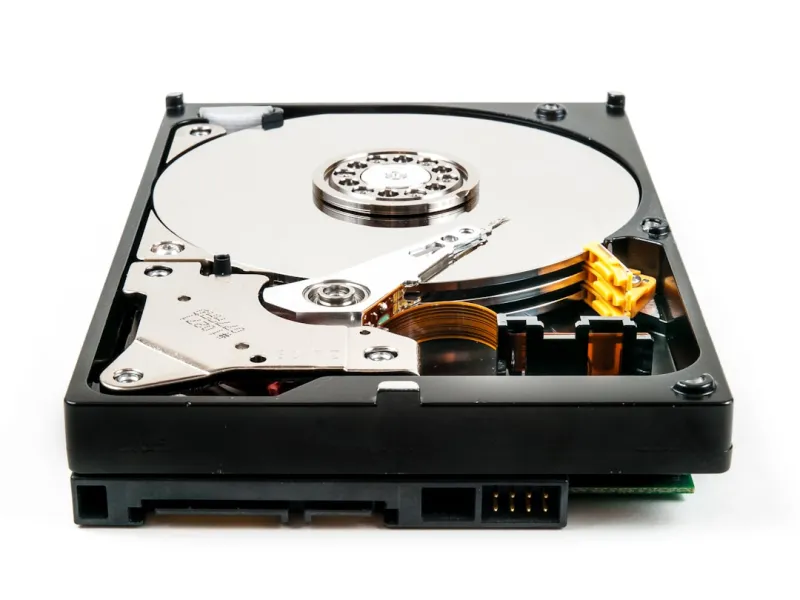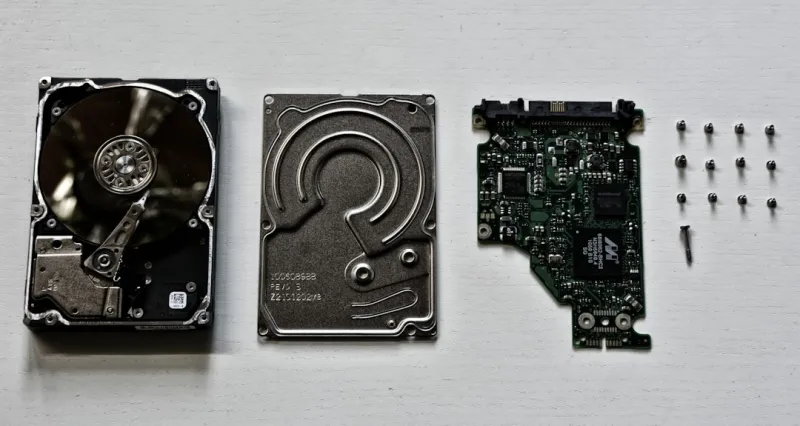
When I first tore open a 2.5‑inch SATA drive back in the early 2020s, I felt like a surgeon in a data‑driven operating room. Fast‑forward to 2026, and the landscape has shifted dramatically—yet the humble hard drive still has a starring role in a power‑user’s arsenal. Modern workloads demand blazing speeds, but they also crave massive, cost‑effective storage pools that can survive a year‑long archival stint without breaking the bank. That paradox is why I’m constantly juggling NVMe flash, PCIe‑based SSDs, and the ever‑reliable 3.5‑inch platter. In this deep dive, I’ll walk you through the hard‑drive renaissance, explain how to blend the best of both worlds, and share the strategies I use to keep my rigs humming without a hitch. Expect a blend of technical nuance, practical anecdotes, and a few hard‑earned lessons that only a decade of troubleshooting can teach. By the end, you’ll have a roadmap for building a storage solution that’s as future‑proof as it is budget‑friendly.
Understanding the Speed‑Capacity Trade‑off in 2026
The most common misconception among power users is that “faster” automatically means “better.” In reality, speed and capacity are often at odds. NVMe drives now top 16 TB, but the price per gigabyte remains prohibitive for large media libraries or AI model caches. Conversely, a 10‑TB 7200 RPM HDD can store endless video footage, game assets, and backup snapshots for a fraction of the cost. The key is to allocate workloads intelligently: keep active project files on a PCIe 4.0 SSD, let the OS and applications live on a high‑performance NVMe, and offload long‑term archives to a sturdy, high‑capacity HDD. This tiered approach not only maximizes performance where it matters but also extends the life of your flash media by reducing write‑amplification. I’ve found that pairing a 4 TB NVMe boot drive with a 12‑TB 7200 RPM workhorse strikes the perfect balance for most power‑user scenarios, delivering both speed and storage without breaking the bank.
Reliability Metrics: What to Look for When Buying
Hard‑drive reliability is no longer just about MTBF (Mean Time Between Failures); it’s about SMART health indicators, vibration tolerance, and even the type of bearing used. Modern drives boast fluid dynamic bearings that reduce noise and wear, while enterprise‑grade models include dual‑port controllers for redundancy. When I’m scouting for a new storage tier, I scrutinize the drive’s annualized failure rate (AFR) and look for drives that support TLER (Time‑Limited Error Recovery) to keep RAID arrays from dropping a sluggish disk. I also run regular smartctl diagnostics to catch early warning signs. In my experience, drives from manufacturers that provide a 5‑year warranty and a transparent firmware update path tend to stay reliable longer. Pairing these insights with a solid backup strategy—like rotating 3‑2‑1 backups—creates a safety net that protects you from both hardware failures and data corruption.
Power Consumption and Heat Management
Power draw and thermal output have become critical factors, especially in dense workstation builds where every watt counts. A 10‑TB 7200 RPM HDD typically sips around 6 W under load, but when you stack multiple drives in a rack, the cumulative heat can raise your case temperature by several degrees. I mitigate this by using dedicated HDD cooling brackets and opting for drives with lower acoustic ratings. Additionally, leveraging power‑management features in the BIOS—such as staggered spin‑down—helps keep energy usage in check. For those who run AI workloads, the Unlocking AI Computing for the Modern Power User guide offers tips on balancing GPU intensity with storage efficiency, ensuring your system doesn’t overheat while crunching massive datasets.
Choosing Between SATA, SAS, and NVMe Interfaces
Interface selection can make or break your performance goals. SATA remains the most ubiquitous for consumer HDDs, offering up to 6 Gb/s bandwidth—enough for archival tasks but insufficient for real‑time data streaming. SAS (Serial Attached SCSI) steps in with dual‑port capabilities and higher reliability, ideal for enterprise‑grade servers. NVMe, on the other hand, bypasses the traditional storage bus altogether, delivering sub‑microsecond latency via the PCIe lane. My rule of thumb: use SATA for bulk, infrequently accessed data; SAS for mission‑critical environments that demand redundancy; and NVMe for anything that needs immediate access, like live video editing or AI model training. The decision also influences your motherboard layout—ensure you have enough PCIe lanes and appropriate slots before committing to a multi‑drive configuration.
Future‑Proofing Your Storage Architecture
Looking ahead, it’s essential to design a storage ecosystem that can adapt to emerging technologies without a complete overhaul. One strategy I champion is building a modular chassis with hot‑swap bays, allowing you to replace or add drives on the fly. Pair this with a robust RAID controller that supports both HDD and SSD caching. I also recommend setting aside an M.2 slot for a future PCIe 5.0 NVMe drive, which will become more affordable as adoption rises. By aligning your storage plan with the broader hardware trends discussed in Building a Future‑Proof Power‑User PC in 2026, you’ll ensure that your data pipeline remains agile, whether you’re handling 8K video, massive simulation outputs, or the next wave of AI workloads.
Backup Strategies That Respect Hard‑Drive Limitations
No matter how reliable your drives are, a well‑crafted backup regimen is the safety net that keeps data loss at bay. The classic 3‑2‑1 rule still holds: three copies of your data, on two different media, with one off‑site location. In practice, I maintain a primary SSD for daily work, a high‑capacity HDD for weekly snapshots, and a cloud‑based cold storage tier for monthly archives. Using tools like Robocopy with VSS (Volume Shadow Copy Service) ensures that open files are captured consistently. Additionally, implementing checksum verification on each backup set can catch silent corruption early. For power users who juggle multiple machines, a centralized NAS equipped with dual‑node RAID 6 offers both speed and redundancy, while still allowing you to spin down drives during idle periods to conserve power.
Security Considerations for Hard‑Drive Data
Hard‑drive security has evolved beyond simple password protection. Modern drives support hardware‑based encryption (Self‑Encrypting Drives, or SEDs) that can be managed via BitLocker or Linux dm‑crypt. When configuring encryption, I always enable pre‑boot authentication to prevent unauthorized access if the drive is removed from the system. It’s also crucial to keep firmware up to date—many recent vulnerabilities have been patched through firmware updates that address data‑exfiltration vectors. Pairing encrypted drives with a robust security framework, as outlined in the Beyond Antivirus: A Power‑User’s Playbook for Modern Computer Security, creates a layered defense that protects both at‑rest and in‑transit data. Remember, physical security matters too; lock your chassis and consider tamper‑evident seals for drives that store especially sensitive information.
Practical Tips for Maintaining Peak Performance
Even the most advanced hard drives will degrade over time if neglected. Regular defragmentation—though less critical for SSDs—still benefits large HDDs by reducing read‑seek times. I schedule a monthly defrag during off‑hours and combine it with a health scan using the manufacturer’s utility suite. Keeping the drive’s firmware current, cleaning dust from the drive bays, and ensuring proper airflow are also essential. For users who run intensive workloads, I recommend monitoring SMART metrics in real‑time with a dashboard like HWMonitor, setting alerts for temperature spikes or reallocated sector counts. Finally, when a drive approaches the end of its warranty or shows early signs of failure, replace it proactively. This preventive mindset not only safeguards data but also ensures that your workstation remains responsive and reliable for the demanding tasks that define a power user’s daily grind.