
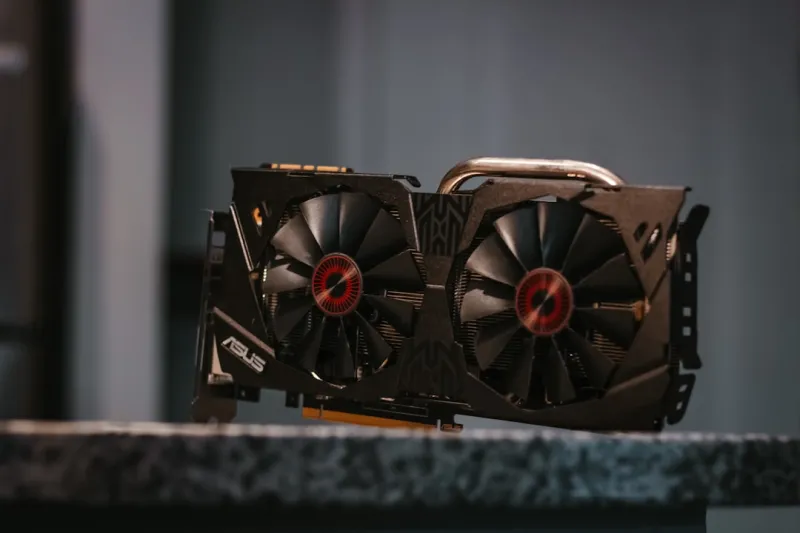
When my RTX 5090 started emitting a faint, rhythmic flicker every time I launched a rendering job, I knew it was more than just a stray pixel. In 2026, GPUs have become the beating heart of everything from AI inference to high‑refresh gaming, so a malfunction can feel like a cardiac arrest for your rig. The first thing I do is stop assuming the problem is a “driver bug” – that’s the default excuse manufacturers love. Instead, I treat the card like a living organism: check its vitals, isolate the symptoms, and then dig into the root cause. Power delivery, thermal thresholds, BIOS firmware, and even the subtle quirks of PCIe lane negotiation can all conspire to produce artifacts, crashes, or silent performance loss. This article walks you through a step‑by‑step diagnosis that a power user can execute without a PhD in electrical engineering, giving you the confidence to restore that buttery‑smooth performance without a costly RMA.
Power Delivery: The Silent Killer
One of the most overlooked culprits is the power supply. In 2026, GPUs can draw upwards of 500 watts under peak AI workloads, and a marginally underspec’d PSU will manifest as random resets, throttling, or even a total blackout the moment the voltage drops. I start by confirming the PSU’s rating against the card’s spec sheet, then I use a USB‑C multimeter to check the voltage on the 12 V rail while the GPU is under load (stress‑test tools like FurMark or Blender’s benchmark are perfect for this). If you see the voltage dip below 11.8 V, that’s a red flag. Swap in a known‑good PSU or add an auxiliary PCIe connector if your card supports it. Many modern rigs also benefit from a smart power management hub that can log voltage fluctuations, giving you a historical view of spikes that could have damaged the VRMs. Remember, a stable power source is the foundation for any further troubleshooting.
Thermal Performance: More Than Just a Fan Speed
Heat is the enemy of silicon, and GPUs are no exception. The newer 2026 silicon nodes are more power‑dense, meaning they generate heat faster than ever before. I always start by cleaning the heatsink fins and checking the thermal paste – a thin, even layer of high‑quality thermal compound can shave off several degrees of temperature. Next, I verify the fan curve in the GPU’s management software, ensuring that the fans ramp up before the die reaches 80 °C. If you notice hotspots on the PCB (use an infrared thermometer or a thermal imaging camera), it could indicate a clogged heatpipe or a failing vapor chamber. Also, consider the case airflow: positive pressure setups with front intakes and top exhausts prevent hot air from pooling around the GPU. An overlooked tip is to enable “Boost Clock Limiter” for a short period; if the system stabilizes, you’ve pinpointed a thermal throttling issue rather than a hardware fault.
Driver and Firmware: The Software Layer
Even the best hardware can be rendered useless by a buggy driver. In 2026, driver releases are more frequent, often bundled with firmware updates that address power‑management quirks or compatibility with the latest APIs. I always start by performing a clean installation: use DDU (Display Driver Uninstaller) in Safe Mode to strip away every trace of the previous driver, then install the latest certified version from the GPU vendor’s website. Pay special attention to the “custom firmware” option if your card supports it; flashing the latest BIOS can resolve stability issues introduced by new memory chips or changed power delivery profiles. For those who love to stay on the cutting edge, keep an eye on the beta driver streams, but test them on a non‑critical system first. If problems persist after a clean driver stack, it’s time to dig deeper into the hardware diagnostics.
PCIe Lane Negotiation: Bandwidth Bottlenecks
It’s easy to overlook the role of the motherboard in GPU troubleshooting. The PCIe slot’s lane allocation can dramatically affect performance, especially when you’re running AI workloads that demand high data throughput. I start by checking the BIOS settings – make sure the slot is configured for x16 mode rather than a fallback x8 or x4, which can happen if other devices are sharing lanes. Also, verify that the motherboard’s firmware is up‑to‑date; many 2026 boards have released BIOS patches that fix erratic lane negotiation bugs. If you’re using a multi‑GPU setup, ensure that the spacing between cards doesn’t cause electrical interference, and consider enabling “Above 4 G decoding” for better address handling. A simple misconfiguration here can explain why a GPU appears to under‑perform despite a seemingly healthy hardware profile.
Memory Errors: The Silent Data Corruptor
VRAM errors are notoriously silent – you might get a corrupted frame or a subtle stutter, but the system won’t always crash. I use a dedicated memory test like MemTestG80 or the built-in GPU diagnostics in the vendor’s suite to stress the VRAM. If errors appear, it could be a sign of a faulty memory chip or a problem with the memory controller. In some cases, adjusting the GPU’s memory clock down a few percent can stabilize the system, especially if the card is a “bin‑shaved” SKU pushed to its limits. For those with a solder‑less board, re‑flowing the memory modules with a controlled heat gun can sometimes revive a failing chip, but this is a last‑resort measure. Remember, a faulty VRAM module can also masquerade as driver issues, so systematic testing is crucial.
Software Conflicts: The Hidden Nemesis
Even the most powerful rigs can be sabotaged by a stray piece of software. In 2026, background services like AI accelerators, virtual machine managers, or even overzealous antivirus can hijack GPU resources, causing instability. I run a clean boot, disabling non‑essential services and startup programs, then re‑run the workload to see if the issue persists. Additionally, check for conflicting GPU APIs – having both DirectX 12 and Vulkan drivers loaded simultaneously in certain applications can lead to driver deadlocks. The article Mastering Video Card Troubleshooting for Power Users dives deeper into diagnosing these subtle software collisions. If the problem vanishes under a clean environment, you’ve found the hidden nemesis, and it can be addressed by updating, whitelisting, or uninstalling the offending program.
Monitoring Tools: Data‑Driven Diagnosis
Data is your ally when you’re hunting for the culprit. I rely on a suite of monitoring utilities: HWInfo for real‑time telemetry, GPU‑View for detailed GPU-specific metrics, and the vendor’s own performance suite for clock, voltage, and power tracking. Set up a logging session while reproducing the fault; this creates a timestamped snapshot that can be correlated with temperature spikes, voltage drops, or driver resets. In 2026, many GPUs also expose an SMBus interface that can be queried for error codes directly from the firmware. Export the logs, then use a simple spreadsheet to chart trends – a sudden voltage dip correlating with a frame drop is a clear indicator of a power issue, whereas a gradual temperature rise points to cooling deficiencies. This evidence‑based approach saves time and prevents unnecessary component replacements.
When to RMA: Knowing the Cut‑off
After exhausting power, thermal, driver, BIOS, and memory checks, it’s time to consider a replacement. Most manufacturers offer a 2‑year warranty, and in 2026, they’re extending coverage for high‑performance cards due to accelerated wear from AI workloads. Document every test you performed, including logs, screenshots, and a concise summary of the symptoms. When contacting support, reference the troubleshooting steps you’ve taken; this not only speeds up the RMA process but also shows that you’ve ruled out user‑error. Pack the card securely, preferably in the original anti‑static bag, and include any required paperwork. If you’re lucky, the vendor may offer a rapid‑swap program, getting you a replacement within days rather than weeks.
Future‑Proofing Your GPU Setup
Preventing the next crisis starts with a forward‑thinking build. The article Inside the 2026 Power‑User PC Build: Hardware Trends That Matter outlines the rise of modular VRM designs, which allow you to upgrade power phases without swapping the entire motherboard. Investing in a high‑efficiency 80+ Gold or Platinum PSU, a case with smart airflow management, and a monitoring‑centric motherboard (with on‑board diagnostics LEDs) can dramatically reduce downtime. Also, consider a secondary GPU for compute‑only tasks, keeping your primary graphics card dedicated to display output – this isolates workloads and reduces thermal load on a single card. Finally, schedule regular firmware updates and a quarterly dust‑clearing routine; a little preventive maintenance goes a long way in keeping your rig robust against the demands of modern AI and gaming workloads.




