When I first laid hands on a 2026‑era workstation, the first thing I noticed wasn’t the blazing GPU or the sleek motherboard—it was the storage rack humming like a well‑tuned engine. As a power‑user who lives at the intersection of content creation, AI experimentation, and high‑speed gaming, my hard‑drive strategy has become the backbone of every project. The market today offers a dizzying mix of PCIe 5.0 NVMe SSDs, SATA‑III SSDs, and ever‑larger HDDs that still hold a place for bulk archiving. Understanding how each tier fits into my workflow is no longer optional; it’s a survival skill. In this post I’ll walk you through the decisions I make, the pitfalls I avoid, and the future‑proofing tricks that keep my rigs humming for years, all while staying anchored in the realities of 2026 pricing and technology cycles.
Why does storage deserve the same strategic planning you give your CPU or GPU? Because every byte you read or write translates directly into productivity. A laggy drive can add seconds—or minutes—to render times, model training, or even simple file transfers, eroding the advantage of a top‑tier processor. Performance, capacity, and reliability form the holy trinity for any power‑user, and each point pulls the others in a delicate balance. For example, a 4 TB PCIe 5.0 SSD may deliver sub‑100 µs latency, but if you need 20 TB of cold storage for raw footage, a high‑density 18‑TB HDD remains the most cost‑effective solution. The key is to align storage tiers with the data’s temperature: hot, warm, or cold.
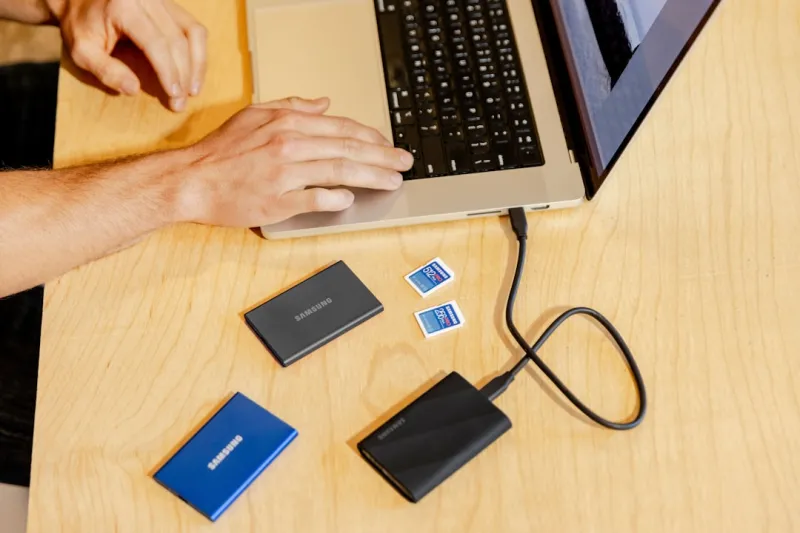
Form factor selection is where theory meets the physical world of your case. The rise of M.2 2280 modules has made PCIe 4.0 and now PCIe 5.0 drives practically plug‑and‑play, but you still need to verify that your motherboard supports the required lane count and thermal solution. U.2 drives, though less common, offer enterprise‑grade reliability and are a perfect match for servers that demand hot‑swap capability. Meanwhile, external NVMe enclosures connected via Thunderbolt 4 or the emerging USB4‑Gen3 provide a portable, high‑speed expansion path without opening the chassis. I always double‑check clearance, heat‑sink compatibility, and power delivery before committing to a form factor—mistakes here can force a costly redesign later.
Reliability isn’t just about brand reputation; it’s quantified by metrics like total bytes written (TBW), mean time between failures (MTBF), and SMART health indicators. In 2026, QLC NAND has finally matured enough to be trusted for daily workloads, but I still reserve it for data that isn’t rewritten frequently—think media archives or backup images. For my primary OS and application drives, I lean toward MLC or PLC‑based SSDs that boast higher endurance and lower write amplification. Monitoring tools now integrate seamlessly with Windows 12, letting me set threshold alerts for wear‑leveling and temperature spikes. When a drive starts flirting with its TBW limit, I proactively clone it to a fresh device, avoiding the dreaded “drive died on me” scenario that can halt months of work.
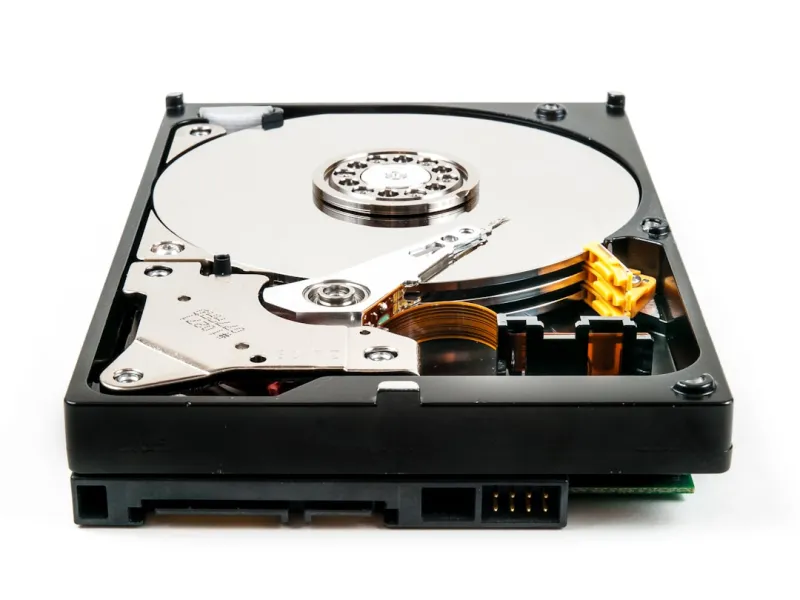
One of the most effective strategies I employ is a multi‑tiered storage architecture that mirrors the classic memory hierarchy. My boot drive is a 2 TB PCIe 5.0 SSD, trimmed down to a minimal OS footprint for lightning‑fast startup and patching. Next, a 4 TB “work” NVMe sits on the same PCIe lane set, dedicated to active project files, large datasets, and the swap file—keeping latency at a bare minimum. Finally, a 16 TB 7200 RPM HDD, mounted in a vibration‑damped cage, holds raw footage, old game installs, and long‑term backups. This segregation not only optimizes performance but also extends the lifespan of my faster drives by keeping them free of massive write‑heavy archives.
For a deeper dive into building that kind of hierarchy, check out Crafting a Future‑Ready Hard‑Drive Strategy for Power Users. That guide walks you through the exact sizing calculations, tier‑selection criteria, and software tools I use to automate tier migration. By mapping your data temperature to the appropriate drive class, you’ll see a measurable boost in throughput while also reducing total cost of ownership. The article also highlights how emerging technologies like PCIe 5.0 × 4 lanes and NVMe‑over‑Fabric can be leveraged in future builds without over‑investing today.
Backup and cloud sync are no longer afterthoughts; they’re integral to a resilient storage plan. I pair local RAID‑1 mirrors on my critical SSDs with an encrypted snapshot schedule that pushes nightly deltas to a private S3‑compatible bucket. This hybrid approach gives me the speed of local restores and the safety of off‑site redundancy. Encryption, especially with the new hardware‑accelerated AES‑256‑GCM in 2026 CPUs, adds negligible overhead while protecting sensitive data. I also use Windows 12’s built‑in “Storage Spaces Direct” feature to create tiered pools that automatically move cold files to the HDD tier, freeing SSD capacity for active workloads.
Cost trends in 2026 have finally aligned price‑per‑gigabyte of PCIe 5.0 SSDs with the lower end of SATA‑III SSDs, thanks to scaling NAND production and the waning of QLC price premiums. A 4 TB PCIe 5.0 drive now sits around $350, making it a viable primary drive for most power‑users. Meanwhile, 18‑TB HDDs have dropped below $300, narrowing the gap for bulk storage needs. However, beware of “budget” drives that cut corners on controller firmware; they can suffer from inconsistent write performance under heavy load. When evaluating a purchase, weigh endurance ratings, warranty length, and firmware update track record as heavily as raw price.
Let me paint a typical workflow: I start a 4K video edit by importing raw footage onto my 16 TB HDD, then copy the clips I’ll need for the current edit onto the 4 TB NVMe work drive. As I trim and color‑grade, the SSD’s sub‑microsecond latency keeps scrubbing through the timeline fluid, while the CPU offloads encoding tasks to a dedicated NVMe cache. Once the edit is finalized, the final render—often a 200 GB file—is moved back to the HDD for archival and then uploaded to a cloud CDN. The same tiered logic applies when training AI models: the dataset lives on the HDD, a sliced batch is streamed to the PCIe 5.0 SSD for fast access, and checkpoint files are periodically backed up to the cloud.
In closing, the future‑proof hard‑drive strategy isn’t a one‑size‑fits‑all checklist; it’s a living document that evolves with your workload and the market. Start by mapping your data temperature, select the appropriate form factor and endurance class, and then layer redundancy and backup into the mix. For a comprehensive overview of how storage fits into the broader hardware ecosystem, see Future‑Proofing Your PC: The 2026 Power‑User Hardware Playbook. Follow the playbook, stay aware of emerging standards, and you’ll keep your rigs performing at peak speed while safeguarding the data that fuels your creative and technical ambitions.