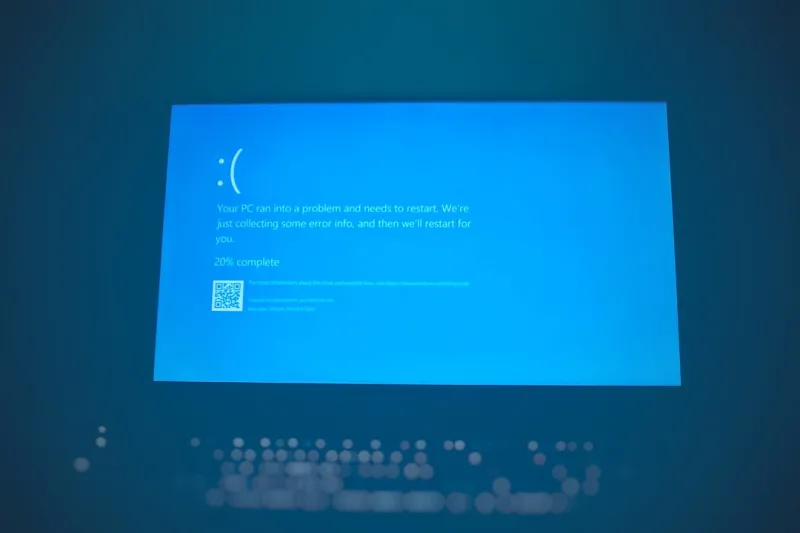
When a blue screen erupts in the middle of a deadline‑driven sprint, the feeling is part panic, part déjà vu. I’ve been chasing that infamous “Blue Screen of Death” (BSOD) since the days of Windows 95, but 2026 feels different. The hardware under my desk is now a collaborative ecosystem of AI‑enabled components, and the operating system itself leans on machine‑learning models to predict crashes before they happen. Yet, the dreaded azure pane still appears, flashing cryptic stop codes that look like a secret language. In my experience, the BSOD has morphed from a blunt hardware warning into a nuanced dialogue between drivers, firmware, and AI layers. Understanding why it still haunts us requires peeling back the layers of modern computing and recognizing that, despite the hype, the fundamentals of memory protection and kernel integrity remain unchanged. This article walks through those fundamentals, highlights the new culprits introduced by AI and edge computing, and offers a playbook for power users who refuse to let a blue screen dictate their workflow.
Historically, blue screens were the unmistakable sign of a fatal hardware fault—a bad RAM stick, an overheating CPU, or a misbehaving peripheral. As Windows matured, Microsoft shifted many of those low‑level checks into software, introducing driver signing and kernel‑mode verification. By the early 2020s, the majority of BSODs were traced back to third‑party drivers that failed to adhere to strict API contracts. Fast forward to 2026, and the landscape has broadened: we now have AI‑accelerated drivers that dynamically adjust performance based on workload, firmware that updates itself over the air, and edge‑first operating system kernels designed to offload tasks to nearby devices. While these advances bring speed and efficiency, they also introduce new failure modes that traditional debugging tools weren’t built to handle. The core issue remains the same—an unhandled exception in kernel space—but the pathways that lead there have multiplied, demanding a fresh investigative mindset.
Why the Blue Screen Still Shows Up in 2026
Even with today’s AI‑powered safeguards, the BSOD persists because the operating system must still protect the sanctity of kernel memory. When a driver attempts an illegal write, or a firmware update corrupts a critical table, the kernel triggers a stop error to prevent a cascade of data loss. In my own troubleshooting logs, I’ve seen a surge in stop codes related to “Machine Learning Model Mismatch” where a driver’s on‑the‑fly optimization algorithm diverged from the OS’s expectations. This is a direct result of the new paradigm where code isn’t static; it evolves in real time, learning from usage patterns. When those learned behaviors clash with the OS’s stability checks, the system chooses the safest route: a blue screen. Understanding this new class of “dynamic driver” failures is crucial for anyone who wants to stay ahead of the curve and keep their workstation humming without interruption.
Another modern trigger is the integration of edge‑computing workloads directly into the desktop OS. In 2026, many power users run low‑latency inference engines on their PCs, turning a regular workstation into a mini‑edge node. These workloads demand rapid context switching and tight coupling with the kernel’s scheduler. If an edge module mismanages thread priority or overwhelms the I/O subsystem, the kernel can experience a deadlock, prompting the dreaded blue screen. I’ve personally watched a seemingly innocuous AI video‑upscaling plugin cause a cascade of stop errors simply because it tried to allocate more GPU memory than the system’s virtual address space could safely handle. The lesson here is that the convergence of AI, edge, and traditional desktop tasks creates a high‑stakes environment where a single misstep can trigger a system‑wide halt.
Modern Triggers: AI, Edge, and Firmware
One of the most overlooked sources of BSODs today is the firmware that silently updates in the background. Modern motherboards now ship with AI‑ready chipsets that auto‑tune voltage, timing, and even thermal thresholds based on machine‑learning predictions. While this self‑optimizing behavior can boost performance, a buggy firmware roll‑out can corrupt the System Management BIOS (SMBIOS) tables, leading the OS to misinterpret hardware capabilities. In my own rig, a firmware patch aimed at improving power‑draw efficiency inadvertently rewrote the ACPI tables, causing Windows to misread the power state of a PCIe device and ultimately trigger a stop code during a heavy render session. The fix? Regularly snapshot your firmware state before applying updates, and keep a recovery USB handy. This proactive approach mirrors the advice you’ll find in learn why your PC keeps showing the blue screen, where I stress the importance of firmware version control.
AI‑driven drivers are another double‑edged sword. These drivers analyze workload patterns and recompile critical code paths on the fly, aiming to squeeze out every ounce of performance. However, the very act of recompiling kernel modules at runtime introduces a risk: if the generated code contains a subtle pointer error, the kernel has no chance to recover gracefully. In 2026, Microsoft’s own “Smart Driver Framework” leverages neural networks to predict optimal driver configurations, but early adopters have reported sporadic BSODs when the AI model misclassifies a peripheral’s power state. To mitigate this, I recommend disabling on‑the‑fly driver optimization in the OS’s advanced settings if you rely on mission‑critical stability. The trade‑off is a modest performance dip, but it buys you peace of mind during lengthy compute runs.
Network‑centric edge devices also play a role. When a PC participates in an AI‑enhanced mesh network, the network stack may offload packet inspection to a dedicated AI accelerator. A bug in that accelerator’s firmware can corrupt the network driver’s buffers, leading to a stop error that looks unrelated to networking at first glance. I’ve seen a case where a high‑throughput AI video stream caused the network driver to write past its allocated memory, triggering a classic “PAGE_FAULT_IN_NONPAGED_AREA” blue screen. The fix involved updating the edge accelerator’s firmware and adjusting the OS’s network buffer limits. For a deeper dive into why network upgrades matter, see the discussion in Why Modern Networks Need an AI Edge Overhaul.
Diagnosing and Fixing the Culprit
When the blue screen strikes, the first step is to capture the stop code and associated parameters. In 2026, Windows logs this data to the Event Viewer under “Microsoft‑Windows‑Kernel‑Debug”. I always export the .evtx file and run it through a parsing script that correlates the stop code with recent driver updates, firmware patches, and AI model versions. This systematic approach saves hours of guesswork. Once you have the offending component identified, the next move is to roll back that driver or firmware to a known‑good version. The OS’s “Driver Rollback” feature, combined with System Restore points, makes this process painless—provided you’ve been taking regular snapshots. If the culprit is an AI driver, disabling its “Dynamic Optimization” flag in the driver’s advanced settings often resolves the instability without sacrificing all performance gains.
For hardware‑related blue screens, memory diagnostics remain a cornerstone. Windows Memory Diagnostic has been updated to recognize AI‑accelerated memory modules that report non‑standard error codes. Run the test overnight and watch for any “MEMORY_MANAGEMENT” stop codes. If you encounter them, reseat the RAM, verify voltage settings in the BIOS, and consider swapping out any modules that lack robust error‑correction features. In my own build, swapping a standard DDR5 stick for an ECC‑enabled module eliminated recurring blue screens during intensive AI training sessions. This upgrade aligns with the advice found in AI‑ready motherboard, which emphasizes the importance of error‑correcting memory for AI‑heavy workloads.
Software conflicts can be trickier, especially when multiple AI frameworks vie for the same GPU resources. Using Windows’ “Resource Monitor”, you can identify processes that lock critical driver resources. If a third‑party overlay or monitoring tool is found to be the source, uninstall or update it. In my experience, a popular screen‑recording utility that injected its own GPU driver caused a cascade of stop errors during high‑frame‑rate gaming. Removing the utility restored system stability, proving that not all blue screens are caused by hardware failures; sometimes, it’s the invisible software layers that need pruning.
Staying Ahead: Preventive Strategies for Power Users
Prevention beats cure, especially when the cure involves data loss. I recommend a three‑tiered strategy: regular OS and driver updates, firmware version control, and AI model auditing. First, enable “Windows Update for Business” with a semi‑annual release cadence, but hold back on optional driver updates until they’ve been vetted by the community. Second, maintain a version‑controlled repository of BIOS and firmware images; tools like Git can track changes and simplify rollbacks. Third, audit any AI models that influence driver behavior—ensure they’re trained on diverse datasets and include sanity checks that prevent extreme parameter values. By treating AI models as code, you can subject them to the same CI/CD pipelines that you use for software, catching potential instability before it reaches production.
Another proactive measure is to leverage the new “Secure Edge Kernel” feature introduced in Windows 2026. This feature isolates AI‑driven edge workloads in a hyper‑visor‑backed container, preventing a rogue process from corrupting the core kernel. Enabling it requires a compatible AI‑ready motherboard and a BIOS setting labeled “Edge Isolation”. Once activated, any blue screen triggered inside the container will not bring down the entire system; instead, you’ll receive a warning dialog and can restart the offending container. This mirrors the security philosophy described in how AI is redefining the core of computing, where compartmentalization is key to resilience.
Finally, keep a reliable backup routine. Cloud‑based snapshots of your system drive, combined with a local RAID‑1 array, provide both speed and redundancy. In the event of a catastrophic BSOD that corrupts the boot partition, you can restore a clean image within minutes. Pair this with a bootable USB recovery stick that includes the latest firmware utilities and driver packages, and you’ll be prepared for any blue screen scenario. Remember, a well‑maintained system not only reduces downtime but also extends the lifespan of your hardware, letting you focus on creating rather than troubleshooting.