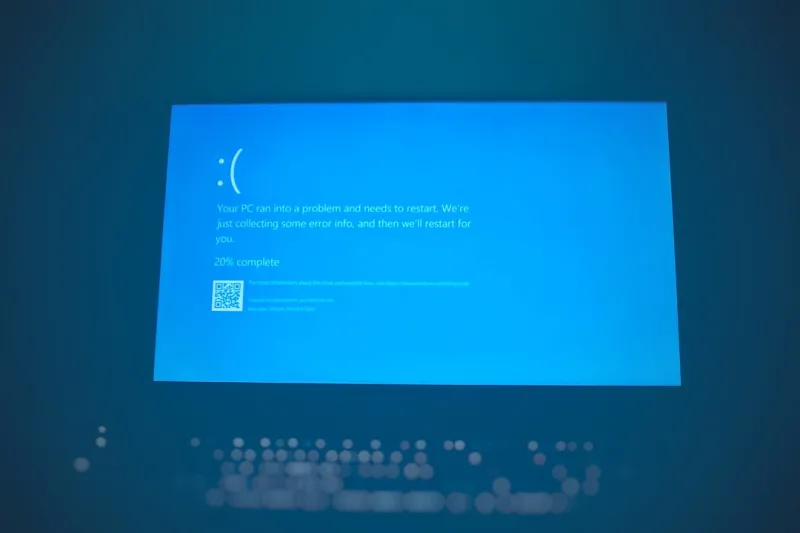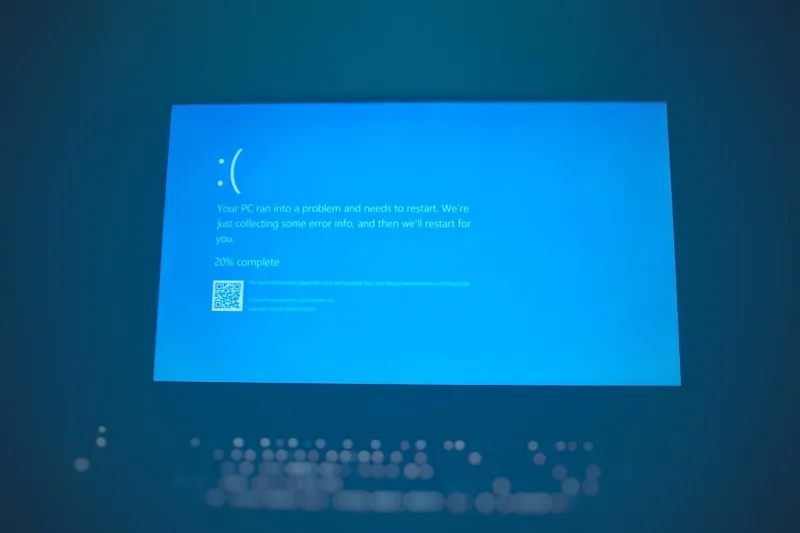
Every time my screen goes white with that iconic, almost poetic cascade of error codes, I’m reminded why I fell in love with computers in the first place—there’s a story hidden in every crash. In 2026, the infamous Blue Screen of Death (BSOD) is no longer just a relic of Windows XP; it’s an evolving symptom of a hyper‑connected ecosystem where hardware, firmware, and AI‑augmented operating systems converse in real time. For a power user like me, the BSOD is both a warning and a diagnostic goldmine, especially when you know where to look. While the sheer panic of seeing that azure expanse can make even seasoned techies reach for the power button, the modern toolkit gives us the confidence to dig deeper, isolate the culprit, and—most importantly—prevent the next nightmare. In this post, I’ll walk you through the most common triggers, the AI‑driven utilities that can turn a crash into a learning moment, and the proactive habits that keep your rig humming smoothly even as the software landscape morphs around us.
Why the New AI‑Ready Motherboard Changes the BSOD Game
When I upgraded to an AI‑ready motherboard last spring, I expected faster inference pipelines, not a fresh set of blue screens. The reality is that these next‑gen boards come packed with on‑board neural accelerators, dynamic power‑management firmware, and deeper integration with the OS kernel. This convergence means that a misbehaving driver or a rogue firmware module can trigger a BSOD far more quickly than on legacy platforms. In particular, the AI‑Ready Motherboard guide highlights how the new “Smart Power Scheduler” can inadvertently clash with legacy power‑profile settings, causing a sudden kernel panic. The good news? Those same AI subsystems also log richer telemetry, allowing us to pinpoint whether the crash stemmed from a hardware fault, an over‑clocking mishap, or an incompatibility with a recently installed AI‑accelerated driver. Understanding this new hardware‑software dance is the first step toward turning the BSOD from a cryptic dead end into a clear, actionable data point.
Operating Systems in 2026: AI at the Core and Its Impact on Crashes
Microsoft’s 2026 OS release has taken a bold leap by embedding AI directly into the kernel for predictive memory management and real‑time threat mitigation. While this leap brings performance gains, it also means the OS now makes autonomous decisions that can backfire if fed inaccurate data. The AI core redesign article explains how the system’s “Self‑Healing Service” monitors error patterns and attempts on‑the‑fly fixes, which sometimes result in a BSOD if the corrective action conflicts with a low‑level driver. This is especially true for legacy applications that expect deterministic behavior. For me, the key takeaway is to keep an eye on the new “AI Diagnostics Hub” in the Settings panel; it provides a granular breakdown of why the OS chose to reboot, often flagging a specific module or predictive model as the root cause. Embracing these insights allows us to fine‑tune the AI’s learning parameters, reducing the frequency of unexpected blue screens.
Step‑by‑Step: The Immediate Response After a BSOD
When the blue veil drops, the first instinct is to press the power button, but a more measured approach yields better results. I always start by noting the error code—those alphanumeric strings (e.g., 0x000000D1) are not random; they map directly to specific fault categories. Next, I let the system restart naturally, then dive into the “Event Viewer” under “Windows Logs > System.” Here, the most recent “BugCheck” entry will contain a dump file path and a brief description of the failure. If you’re comfortable with command‑line tools, running winDbg -z C:\Windows\Memory.dmp can decode the memory dump and reveal the offending driver. In 2026, the AI‑enhanced Memory Analyzer can automate this step, presenting a plain‑English summary that points you to the exact line of code or hardware interaction that caused the crash. Documenting these details in a personal log not only helps you spot patterns over time but also makes it easier to communicate the issue to support forums or the vendor’s ticketing system.
Leveraging Built‑In AI Diagnostics to Decode the Crash
One of my favorite upgrades in the latest OS is the “AI‑Driven Crash Analyzer,” which runs silently in the background and learns from each failure. After a BSOD, the analyzer surfaces a pop‑up with a concise “What Went Wrong?” card, highlighting the top three contributors: a driver conflict, a firmware mismatch, or a resource exhaustion event. The AI then recommends corrective actions, such as rolling back a driver, updating firmware, or adjusting the power schedule. What’s powerful about this system is its ability to cross‑reference data from the “Smart Power Scheduler” on your AI‑ready motherboard and the network telemetry from your edge devices. If the AI suspects a recent driver update triggered the crash, it will even schedule a safe rollback during your next idle window. This proactive approach turns what used to be a reactive troubleshooting nightmare into a forward‑looking maintenance routine that keeps the blue screen at bay.
Network‑Level Influences: When the Edge Overhaul Triggers BSODs
Modern PCs don’t exist in isolation; they’re tethered to AI‑powered edge networks that offload heavy computation and provide real‑time security patches. The AI Edge Overhaul article outlines how aggressive network policies can inadvertently flood the system with malformed packets, confusing the kernel’s network stack and causing a crash. In my experience, a misconfigured VLAN tag on an AI‑enhanced switch caused the OS’s “Network Driver Interface Specification” (NDIS) to enter a race condition, resulting in a classic STOP_0x3B error. To mitigate this, I enable the “Network Integrity Guard” in the OS settings, which leverages AI to validate incoming traffic patterns before they touch the kernel. Additionally, keeping your network firmware up to date and aligning your PC’s “Edge‑Aware Driver Suite” with the latest AI policies ensures that the data flowing through your machine remains clean, reducing the likelihood of a BSOD triggered by network anomalies.
Firmware Updates, Secure Boot, and Their Role in System Stability
Firmware is the silent guardian of your hardware, and in 2026 it’s more dynamic than ever thanks to AI‑driven update mechanisms. Secure Boot now checks the cryptographic signature of each firmware module against a cloud‑based AI reputation service, instantly flagging rogue or outdated firmware. When a BSOD occurs after a recent firmware flash, the first place I look is the “Secure Boot Log” in the BIOS/UEFI interface. The log often reveals a “Firmware Integrity Violation” that forced the kernel to halt to protect the system. The solution is usually a quick rollback to the previous stable version, followed by a scheduled update that passes the AI’s security validation. Remember, turning off Secure Boot might seem like a shortcut, but it removes a critical safety net that can prevent the OS from loading compromised low‑level code—a common root cause of the dreaded blue screen.
Proactive Maintenance: Backups, System Images, and the Art of Prevention
Prevention beats cure, especially when dealing with an unpredictable BSOD. I make it a habit to create a full system image every Sunday night using the built‑in “AI‑Optimized Backup” tool, which intelligently selects the most critical system files and compresses them using a neural‑network‑based algorithm. Coupled with a daily snapshot of the “Driver Store,” this strategy ensures that if a blue screen wipes out a critical driver, I can roll back to a known‑good state in minutes. Additionally, the AI monitors the health of your SSDs and flags sectors that are beginning to degrade, prompting preemptive replacements before they cause I/O errors that could cascade into a kernel crash. By keeping these backups current and leveraging the AI’s predictive insights, you reduce downtime and eliminate the panic that usually follows a sudden BSOD.
The Future: Self‑Healing Operating Systems That Fix Themselves
Looking ahead, the next wave of operating systems will go beyond diagnostics and actually apply fixes without user intervention. Imagine a scenario where the AI detects a driver incompatibility, pulls the correct version from the vendor’s repository, and silently installs it while you’re away—no reboot prompts, no manual rollbacks. This vision is already materializing in the “Self‑Healing Service” beta, which leverages cloud‑based AI models trained on millions of crash reports. For power users, this translates to fewer interruptions and a more resilient computing environment. However, the technology also raises new questions about control and transparency—will you trust an AI to make low‑level changes without your explicit consent? In my experience, a balanced approach—where the AI suggests actions and you approve them—offers the best of both worlds: the speed of automation with the safety of human oversight.
Wrapping Up: Turning the Blue Screen Into a Learning Opportunity
Blue screens will always be a part of the computing journey, but they don’t have to be the end of the road. By understanding how AI‑ready hardware, modern operating systems, and edge‑centric networks interact, you can demystify the cryptic error messages and take decisive action. Embrace the AI‑driven diagnostics, keep your firmware and drivers aligned with the latest secure standards, and maintain a disciplined backup routine. Most importantly, treat each BSOD as a data point—a clue that helps you refine your system’s configuration and prepares you for the next challenge. If you’ve found these insights helpful, dive deeper into the related topics linked throughout this article and stay ahead of the curve in the ever‑evolving world of 2026 computing.