
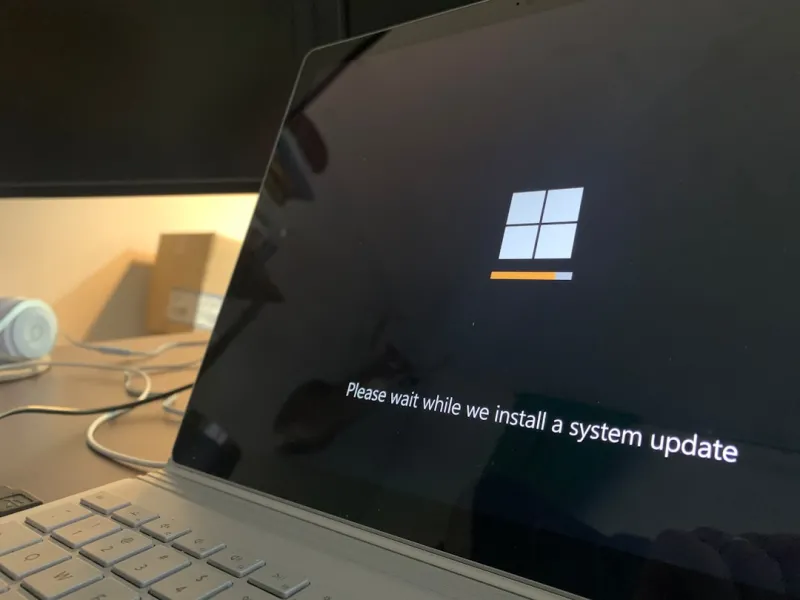
When you’ve been tweaking Windows workstations since the days of NT, you quickly learn that the operating system isn’t just a platform—it’s a living, breathing partner in every project. In 2026, Windows 11 has settled into a sweet spot where its modern UI, refined core architecture, and deep integration with cloud services give power‑users a level of fluidity that older releases simply can’t match. The latest cumulative updates have tightened the memory manager, slashed boot times, and introduced a host of subtle performance flags that only a seasoned user notices. Yet the most exciting shift is how Microsoft has opened the OS to third‑party AI assistants and low‑level GPU hooks, turning what used to be a static desktop into a responsive, context‑aware sandbox. For someone like me, who spends half the day writing code, half the day testing hardware, and the other half debugging cryptic driver interactions, these under‑the‑hood improvements feel like a silent partner that finally respects the power‑user’s need for speed, stability, and control.
The Evolution of Native Tooling
Windows’ built‑in toolset has gone from a handful of clunky utilities to a sophisticated arsenal that rivals any Linux distro. PowerShell 7.x now runs natively, offering cross‑platform scripting with deep access to COM objects, while the Windows Terminal’s multi‑pane support lets you monitor logs, compile code, and stream telemetry without juggling separate windows. The recent Critical 2026 Power‑User Updates You Can’t Afford to Miss article highlighted the rollout of the “Hyper‑Responsive Scheduler,” which dynamically reallocates CPU slices based on real‑time workload analysis. In practice, this means your video rendering job won’t starve a background machine‑learning inference process, and vice versa. Coupled with the revamped Windows Subsystem for Linux (WSL 2), you can spin up a full Ubuntu environment side‑by‑side with native Windows apps, sharing the same file system and network stack. The result is a seamless hybrid workflow where you no longer have to choose between the comfort of Windows and the flexibility of Linux.
Security Layers You Can’t Ignore
Security in 2026 is no longer a checklist; it’s an ongoing, adaptive process, especially for power‑users who frequently install cutting‑edge drivers and experimental software. Microsoft’s implementation of a hardware‑rooted trust model—leveraging TPM 2.0 and Secure Boot—creates an immutable baseline that stops malware before it even touches the kernel. On top of that, the “Zero‑Trust for Power Users” framework, detailed in Zero Trust for Power Users: A High‑Performance Security Playbook, pushes verification to the application layer, demanding signed binaries and runtime attestation for any privileged operation. I’ve baked these policies into my daily routine: every new tool is sandboxed with Windows Sandbox, then gradually granted incremental permissions after a short observation window. This approach keeps my workstation “unbreakable” while still allowing the freedom to test bleeding‑edge code. The combination of hardware‑anchored trust and continuous policy enforcement means the OS can silently block suspicious behavior without interrupting your flow.
AI‑Accelerated Workflows on Windows
The integration of AI into the Windows stack is the most transformative development of the last few years. With the new DirectML 2.0 API, developers can offload tensor operations to any compatible GPU, not just those tied to specific vendors. This democratization of AI compute has turned my everyday laptop into a rapid prototyping machine for neural‑network inference. The guide Unleashing AI Computing: A Power‑User’s Blueprint for 2026 walks through setting up a local “Model Zoo” using ONNX Runtime, enabling instant testing of vision and language models directly from PowerShell. What used to require a cloud GPU now runs locally at sub‑second latency, thanks to the OS’s smarter scheduling and the new “GPU‑First” memory manager that reduces data copies between system RAM and VRAM. For power‑users who blend data science with software development, this shift means you can iterate on model architecture, benchmark performance, and deploy to production all within a single, cohesive Windows environment.
Hardware Synergy: GPUs, RAM, and Storage
Choosing the right hardware for a Windows workstation is more than a numbers game; it’s about how each component talks to the OS. The latest RTX 5000‑series GPUs, for instance, expose a low‑latency queue that Windows 11’s scheduler can prioritize over traditional graphics tasks, delivering smoother multitasking when you’re running a GPU‑accelerated compiler alongside a 4K video editor. Meanwhile, RAM management has been overhauled to support “persistent memory pools” that let you allocate large buffers directly in physical memory, cutting down on page‑file thrashing. This is especially valuable when you’re training models or compiling massive codebases. I still reference the classic Why RAM Issues Still Haunt Power Users—and How to Crush Them article for baseline diagnostics, but the new Windows Memory Diagnostics tool now surfaces per‑process latency spikes, making it easier to pinpoint bottlenecks before they cause a crash.
Networking and the Future‑Proof Playbook
Network performance often becomes the hidden choke point in a high‑throughput Windows setup. In 2026, Microsoft’s implementation of “Smart‑Connect” leverages both Ethernet and Wi‑Fi 6E adapters, automatically routing latency‑sensitive traffic—like remote desktop or low‑latency gaming—through the fastest path while relegating bulk transfers to the secondary link. This dynamic bonding is configured via the new Network Mastery Control Panel, which provides real‑time graphs of packet loss, jitter, and throughput per interface. For power‑users who rely on fast code repositories or large dataset syncs, this translates to a noticeable reduction in waiting times. The Future‑Proof Networking for Power Users: Speed, Security, and Scalability guide dives deep into setting up VLAN isolation and applying zero‑trust network policies that keep your workstation shielded even when you’re on a public hotspot.
Tuning the OS: Power‑User Settings That Matter
Beyond the big‑picture features, the true power of Windows lies in the granular settings that only seasoned users tweak. Disabling the “Superfetch” service on SSD‑only machines frees up RAM for active applications, while enabling “Power Throttling” on background processes ensures your CPU focuses on the tasks that matter. I also recommend turning on “Hardware‑Accelerated GPU Scheduling” in the Graphics Settings panel; this moves the scheduling burden from the CPU to the GPU, shaving milliseconds off frame times in intensive rendering workloads. For developers, configuring the Windows Event Log to retain detailed trace data for at least 30 days provides a rich forensic timeline when something goes sideways. These tweaks are small individually, but collectively they form a performance tapestry that lets you extract every ounce of horsepower from a Windows 11 machine.
Looking Ahead: What Windows Might Bring
Peering into the next five years, the trajectory for Windows is unmistakably focused on tighter AI integration, deeper hardware abstraction, and an even stronger security posture. Rumors suggest that Microsoft will roll out a “Unified Compute Fabric” that blurs the line between CPU, GPU, and dedicated AI accelerators, allowing a single API call to distribute work across any available compute slice. If that vision materializes, power‑users will be able to write a single script that scales from a laptop to a multi‑node cluster without rewriting code. Additionally, the anticipated “Dynamic Trust Engine” will continuously evaluate the risk of each running process, automatically sandboxing or revoking privileges in real time. As someone who lives at the intersection of software, hardware, and security, I’m excited to see Windows evolve from a reliable workhorse into a self‑optimizing, self‑defending ecosystem that finally matches the agility of the most cutting‑edge development stacks.




