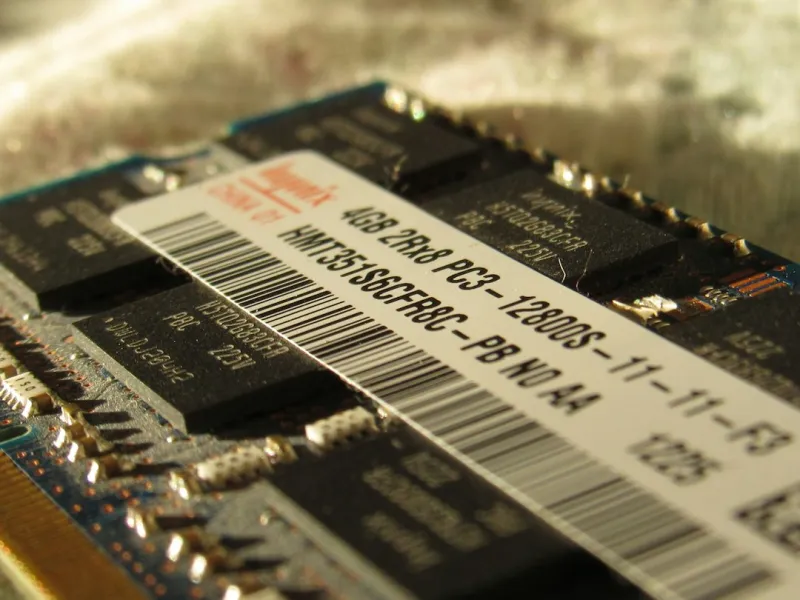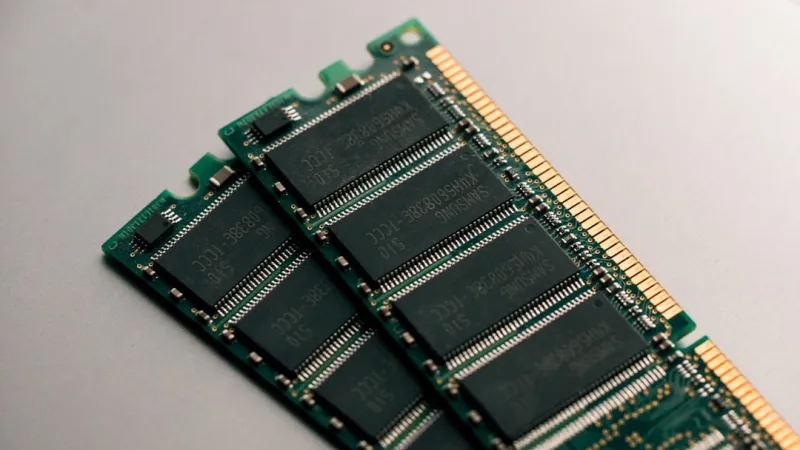
When I first started tearing apart motherboards in my cramped garage back in the early 2020s, RAM was the mysterious, fickle beast that could make or break a build. Fast‑forward to 2026, and despite the rise of DDR5, LPDDR5x, and even the experimental DDR6 prototypes, the fundamental challenges of troubleshooting memory remain stubbornly consistent. Users still report random crashes, blue screens, and performance hiccups that seem to appear out of thin air. The truth is, RAM operates at blistering speeds and tiny voltage tolerances, so even a microscopic defect can cascade into system‑wide chaos. In this guide, I’ll walk you through the modern, yet timeless, methodology I’ve honed over a decade of hands‑on experience—so you can diagnose, isolate, and resolve memory issues before they turn a perfectly good rig into a paperweight.
Recognizing the Tell‑Tale Symptoms
The first step in any troubleshooting journey is spotting the warning signs. In 2026, the most common RAM‑related symptoms still echo the classics: spontaneous reboots, unexplained freezes during heavy multitasking, and those dreaded “IRQL_NOT_LESS_OR_EQUAL” blue screens that make any tech‑savvy heart skip a beat. But we now also see subtler cues, like jittery frame rates in high‑refresh‑rate monitors that aren’t tied to GPU throttling, or intermittent failures when running AI‑accelerated workloads that push memory bandwidth to the limit. If you notice your system taking an unusually long time to boot, or if specific applications—especially large databases or virtual machines—crash without warning, it’s time to suspect the RAM. Keep a log of when these incidents occur; patterns often emerge that point directly to a problematic module or a timing mismatch in the BIOS.
Arming Yourself with the Right Diagnostic Tools
In my early days I relied solely on the built‑in Windows Memory Diagnostic, but today we have a robust toolbox that can pinpoint errors with surgical precision. Start with the native Windows Memory Diagnostic for a quick sanity check; it’s fast, free, and runs before the OS fully loads, catching low‑level faults. For deeper analysis, bootable utilities like MemTest86+ and its newer sibling MemTest86 Pro offer exhaustive pattern testing across multiple passes, revealing stubborn bit‑flips that only surface under sustained load. Don’t overlook vendor‑specific tools—Corsair’s iCUE, G.Skill’s Trident Z utility, and Kingston’s HyperX Performance Software all include memory stress tests that integrate with system monitoring. Finally, leverage the power of Diagnose and fix RAM issues guide for step‑by‑step walkthroughs that combine software and hardware checks, ensuring you leave no stone unturned.
Physical Inspection: The Hands‑On Approach
Even the most sophisticated software can’t replace the insight gained from a tactile inspection. Power down your machine, unplug it, and ground yourself to avoid static discharge—a tiny spark can ruin a freshly installed module. Once you’ve removed the side panel, locate the RAM sticks; modern boards often sport dual‑channel or even quad‑channel configurations, so note the color‑coded slots and any labeling that indicates optimal placement. Gently release the retaining clips and lift each module straight up, avoiding any twisting motions that could damage the gold contacts. Examine the PCB for any visible signs of damage: burnt spots, cracked solder joints, or corrosion from humidity. Clean the contacts with a lint‑free cloth lightly dampened with isopropyl alcohol, then let them dry completely before reseating. When you reinstall, press firmly until the clips snap back, ensuring a uniform, audible click that signals a solid connection. This methodical process often resolves “intermittent” errors that software diagnostics miss.
BIOS/UEFI Settings: Fine‑Tuning Timings and Voltage
The BIOS is the command center for memory performance, and misconfigurations here can masquerade as faulty hardware. In 2026, most UEFI interfaces provide an “XMP” (Extreme Memory Profile) toggle, which automatically loads the manufacturer’s rated speed, timings, and voltage. However, aggressive overclocking or mismatched profiles across mixed‑brand modules can cause instability. Start by resetting the BIOS to default settings, then enable XMP for a baseline. If issues persist, manually adjust the DRAM voltage in small increments—typically +0.05 V steps—while monitoring system stability. Timing parameters like CAS latency (CL), tRCD, tRP, and tRAS are also crucial; loosening these values by a few cycles can often cure elusive crashes without sacrificing noticeable performance. Don’t forget to check the memory controller voltage (VCCIO) on newer CPUs, as the integrated memory controller (IMC) can be sensitive to voltage swings, especially when pushing DDR5 beyond its spec sheet.
Compatibility Checks: Matching CPUs, Motherboards, and RAM
One of the most overlooked aspects of RAM troubleshooting is ensuring component compatibility. The rapid adoption of DDR5 has introduced new subtleties: not all DDR5 kits are created equal, and some motherboards only support certain speeds or densities. Consult the motherboard’s Qualified Vendor List (QVL) to verify that your modules are officially supported. Additionally, newer CPUs—like the 13th‑gen Intel “Raptor Lake” successors or AMD’s “Zen 5” line—have varying IMC capabilities. A high‑density 32‑GB DDR5 stick might run flawlessly on a flagship board but falter on a mid‑range chipset due to limited channel support. When mixing capacities (e.g., a 16 GB stick with an 8 GB stick), ensure they share the same voltage and timing profiles; mismatched modules can force the system to default to the lowest common denominator, leading to performance throttling and stability woes. If you’re ever in doubt, the community‑tested guide memory problems in modern PCs offers a concise checklist to verify every compatibility angle.
Leveraging System Logs for Hidden Clues
System logs are an underutilized goldmine for memory diagnostics. In Windows, the Event Viewer records “BugCheck” entries that often include a memory address or module identifier. Look for Event ID 1001 or 41, which can pinpoint the exact RAM slot or channel that triggered a crash. On Linux, the dmesg output will surface “MCE” (Machine Check Exception) messages, sometimes indicating a “correctable ECC error” if you’re using ECC memory. macOS users can consult the “Console” app for “kernel panic” logs that reference “memory” errors. By correlating the timestamp of a crash with the corresponding log entry, you can narrow down whether the problem is hardware‑centric or software‑induced. This forensic approach is especially valuable when dealing with intermittent failures that don’t reproduce under stress‑test tools, providing a breadcrumb trail that leads straight to the offending DIMM.
Preventive Maintenance: Keeping Your RAM Happy for the Long Haul
Once you’ve identified and resolved the root cause, the next step is to implement a maintenance routine that prolongs the life of your memory. Dust accumulation can act as an insulator, causing modules to run hotter than intended. Periodically clean the RAM slots with compressed air, and consider adding a low‑profile heat spreader if you’re running high‑performance DDR5 kits. Reseating the modules every six to twelve months can also mitigate contact degradation caused by thermal expansion and contraction. Keep your system’s firmware up to date; motherboard manufacturers release BIOS updates that refine memory training algorithms and address obscure compatibility quirks. Finally, monitor memory health using utilities like HWInfo or the built‑in Windows Performance Monitor, which can flag rising error counts before they manifest as crashes. A proactive approach not only saves you time but also shields your investment against the inevitable wear‑and‑tear of intensive workloads.
The Future of RAM Troubleshooting: AI‑Driven Insights
Looking ahead, the landscape of memory diagnostics is poised for a quantum leap, thanks to AI‑enhanced monitoring platforms that learn your system’s baseline behavior. In 2026, several vendors are rolling out firmware‑level telemetry that feeds real‑time latency, temperature, and error‑rate data into cloud‑based analytics engines. These engines can predict an imminent failure days before you experience a crash, recommending preemptive swaps or voltage tweaks. As a long‑time troubleshoot‑guru, I’m excited to see these tools integrate with the traditional methods we’ve discussed, creating a hybrid workflow where human intuition meets machine precision. Until these AI assistants become mainstream, the fundamentals—observing symptoms, running thorough tests, and maintaining clean hardware—remain your best defense against memory‑related nightmares. Stay curious, stay methodical, and remember that every failed module is an opportunity to deepen your understanding of the delicate dance between silicon and software.