
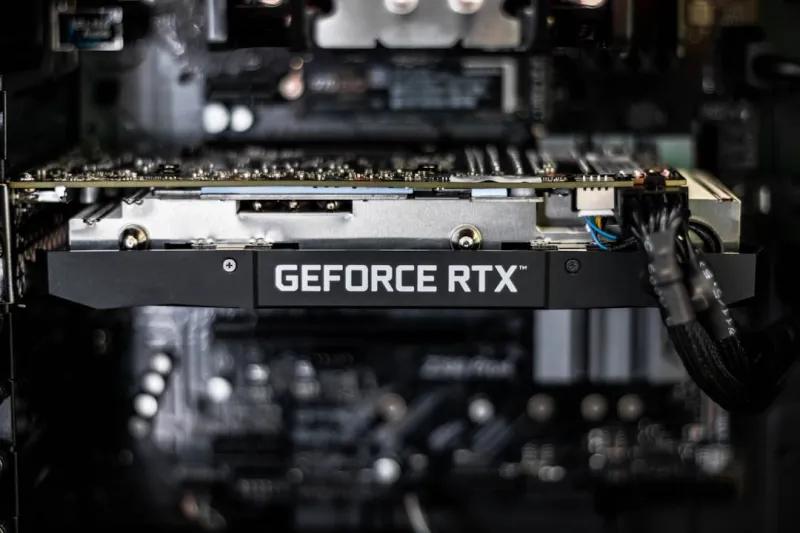
If you’ve ever stared at a black screen while your favorite 4K title refuses to launch, you know the frustration of a misbehaving video card. I’m Shawn DesRochers, and after a decade of turning coffee‑fueled late nights into stable rigs, I’ve learned that the GPU is both the most rewarding and the most temperamental component in a power‑user’s arsenal. In 2026, the sheer horsepower of modern graphics silicon—think 48 GB VRAM, real‑time ray tracing, and AI‑accelerated upscaling—means the failure points have multiplied. From driver mismatches to subtle power delivery quirks, each symptom tells a story if you listen closely. This article walks you through a systematic, step‑by‑step approach that blends old‑school hardware intuition with the latest software diagnostics, ensuring you can get back to crunching frames and rendering workloads without a prolonged outage.
Typical Symptoms That Signal a GPU Problem
Before you dive into BIOS settings or reinstall drivers, it’s essential to catalog what you’re actually seeing. Common red flags include sudden screen flicker, artifacting that resembles digital snow, unexplained crashes during demanding workloads, and the dreaded “Driver Stopped Responding” Windows notification. In some cases, the system may reboot silently, leaving only a brief glimpse of a black screen before returning to the desktop. Artifacting often points to memory errors or overheating, while frequent driver timeouts can indicate a software conflict or a failing power phase on the card. Pay close attention to the timing of these events—do they occur after a Windows update, a new game install, or when you enable a new AI feature? Knowing the context helps you narrow down whether the root cause is firmware, software, or hardware related, setting the stage for a more focused troubleshooting session.
Diagnosing Driver and Software Conflicts
The first line of defense against GPU misbehavior is the driver stack. In 2026, manufacturers push monthly updates that bundle performance tweaks, security patches, and AI‑driven enhancements like DLSS 3.5. However, the rapid cadence can also introduce regressions, especially when you’re running a custom Windows build or a Linux distribution tailored for AI workloads. Start by using a clean driver install: uninstall the current package with a tool like DDU (Display Driver Uninstaller), then download the latest stable release directly from the vendor’s website. If the problem persists, roll back to the previous version that you know was stable—this simple test can reveal whether the newest code is at fault. Additionally, verify that your operating system’s graphics API layers (DirectX, Vulkan, OpenGL) are up to date, and consider disabling experimental features such as ray‑tracing overlays or AI‑based upscaling until the issue is resolved.
Power Delivery and Thermal Management Checks
Even the most robust GPU can falter if it isn’t receiving clean, stable power or is forced to operate above its thermal envelope. Begin by confirming that your PSU meets the recommended wattage—most modern high‑end cards demand 300 W or more, plus headroom for the rest of the system. Use a power meter to monitor real‑time draw; spikes above the spec can cause the GPU to throttle or crash. Next, inspect your cooling solution. Ensure the fan curve is appropriately aggressive, and clean any dust from the heatsink fins. Modern GPUs also employ liquid‑metal thermal interfaces; if you’ve recently re‑pasted, double‑check for air bubbles that can degrade heat transfer. Thermal monitoring tools—like MSI Afterburner or HWInfo—allow you to set temperature alerts; if you consistently see throttling above 85 °C, it’s time to improve case airflow or consider an aftermarket cooler.
BIOS/UEFI Settings and Firmware Updates
Many power users overlook the role of BIOS and firmware in GPU stability. In 2026, manufacturers release firmware updates that address everything from power‑limit optimization to bug fixes for PCIe 5.0 compatibility. Check the card’s support page for the latest VBIOS version and flash it using the vendor’s utility—always back up the existing firmware first. In the motherboard BIOS, verify that the PCIe slot is running at the correct generation (PCIe 5.0 x16 for most new cards) and that the “Above 4G Decoding” and “Resizable BAR” features are enabled if supported. These settings can dramatically affect performance and stability, especially when running AI‑accelerated workloads that push the bus bandwidth to its limits. Remember to save a profile before making changes so you can revert quickly if something goes awry.
Software‑Side Considerations: Games, Rendering Engines, and APIs
Even a perfectly healthy GPU can appear “broken” if the software stack is misaligned. Modern games and professional rendering tools now rely heavily on AI kernels that interact directly with the GPU’s tensor cores. Verify that the application’s settings match your hardware capabilities—disable features like ray‑tracing or AI upscaling to see if the crashes stop. Similarly, keep your game engines (Unreal, Unity) and rendering suites (Blender, Maya) updated to the latest patches, as developers frequently release hotfixes for new driver releases. If you’re using a virtual machine or containerized environment for AI training, ensure that the GPU passthrough is configured correctly and that the appropriate CUDA or ROCm runtime is installed. Misaligned versions can cause silent failures that surface as driver timeouts or black screens.
Leveraging Diagnostic Tools and Community Resources
When the problem still won’t budge, it’s time to bring out the heavy diagnostics. Tools like GPU-Z, OCCT, and the built‑in Windows Event Viewer can reveal hidden errors—look for “Display driver stopped responding and has recovered” entries or GPU memory ECC failures. For a structured approach, I often reference the GPU troubleshooting playbook, which walks you through stress‑testing with FurMark, checking VRAM integrity, and isolating the issue to a specific component. Don’t underestimate the power of community forums; the power‑user community on Reddit, Discord, and specialized tech boards frequently shares firmware patches and custom BIOSes that can resolve obscure bugs. Document every step you take, as a clear log will help you or anyone you ask for assistance to pinpoint the failure mode faster.
Future‑Proofing with AI Computing Trends
One of the most exciting—and challenging—developments in 2026 is the integration of AI accelerators directly onto the GPU die. This convergence means that a graphics card is now a hybrid compute engine, handling everything from rasterization to large language model inference. Staying ahead of this curve requires a mindset that treats driver updates and firmware as part of a broader AI strategy. The article AI Computing Trends Every Power User Must Know outlines how emerging standards like DirectML and NVIDIA’s RTX‑AI can impact stability. For example, enabling Tensor Core‑based DLSS may expose hidden thermal or power delivery issues that were previously dormant. By monitoring AI workload metrics alongside traditional GPU performance counters, you can preemptively adjust power limits or cooling profiles before a crash occurs.
Integrating GPU Health Into Your Overall System Playbook
A robust workstation is only as strong as its weakest link, and the GPU often sits at the center of that equation. Pairing GPU diagnostics with a broader hardware checklist—like the Motherboard Playbook—ensures you’re not chasing phantom symptoms caused by a flaky PCIe lane or a mismatched BIOS version. For power users, it’s wise to schedule regular maintenance windows: clean dust, verify PSU voltages, update firmware, and run a quick stress test on both the CPU and GPU. This proactive approach not only reduces downtime but also extends the lifespan of expensive components, giving you more compute cycles for creative projects, deep‑learning experiments, and high‑frame‑rate gaming sessions.
Wrapping Up: A Methodical Mindset Wins the Day
GPU troubleshooting can feel like detective work, but the key is a methodical, evidence‑based process. Start with the simplest variables—drivers and power settings—then progressively move to deeper layers like firmware, BIOS, and finally the silicon itself. Documenting each step, leveraging community‑tested playbooks, and staying informed about AI‑driven trends will keep you ahead of the curve. Remember, every glitch is an opportunity to learn more about how your machine thinks, and that knowledge translates into faster, more reliable builds down the line. If you’ve found a hidden gem of a fix or want to share your own workflow, drop a comment below—let’s keep the power‑user community thriving.




