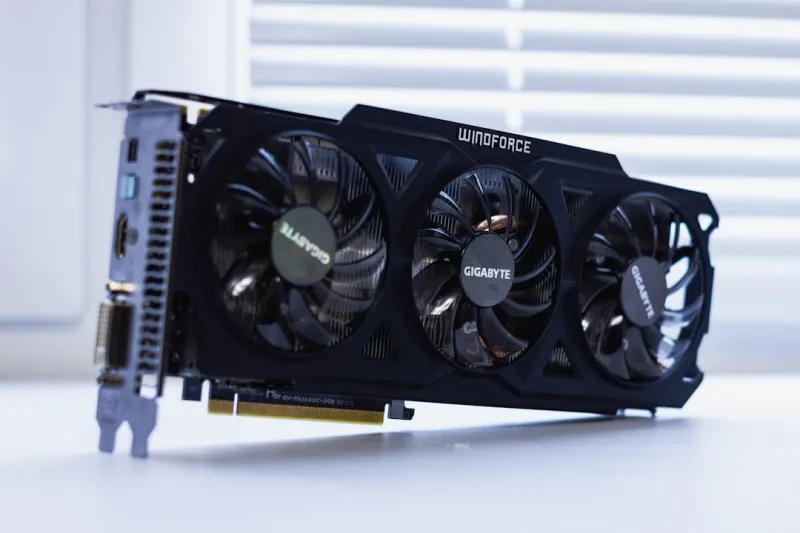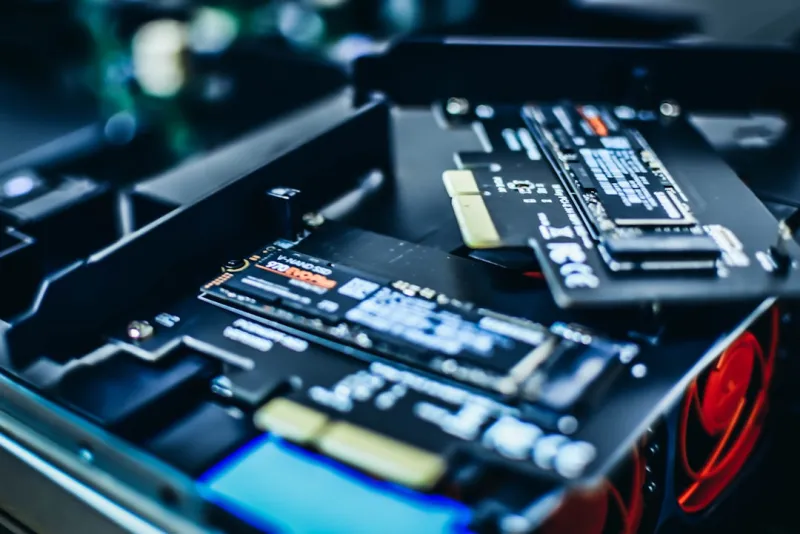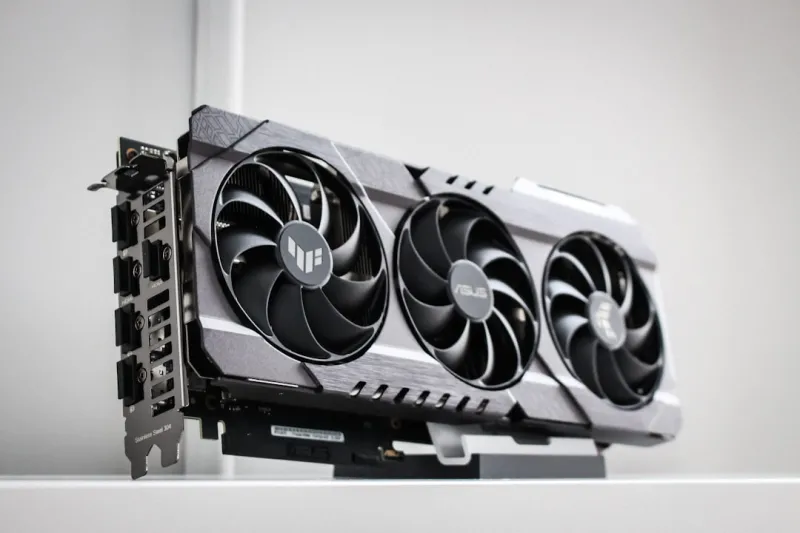
When a video card decides to throw a tantrum, the fallout is immediate: stuttering frames, sudden crashes, or the dreaded black screen. As a long‑time power‑user and someone who lives at the intersection of high‑performance gaming and AI‑intensive development, I’ve learned that the key to keeping a GPU happy lies in systematic, data‑driven troubleshooting. In 2026, the sheer power of modern GPUs—often sporting upwards of 48 GB of VRAM—means a single misstep can ripple through an entire workflow. This guide walks you through the exact checklist I run every time something goes wrong, from the obvious cable check to the subtle quirks of firmware interactions. By the end, you’ll have a repeatable process that saves you hours of downtime and protects your investment.
Spot the Symptoms Before They Snowball
The first step is recognizing the warning signs. In my experience, the most common red flags include random driver resets, artifact‑laden frames, and unexpected system reboots during GPU‑heavy tasks. Pay attention to when the issue occurs: is it during a specific game, a deep‑learning training run, or even while browsing a GPU‑accelerated website? Timing can point you toward the root cause—thermal throttling often shows up under sustained load, while driver conflicts manifest as occasional crashes during driver‑heavy operations. Keeping a simple log—date, application, observed behavior—helps you spot patterns. Remember, the goal isn’t to guess; it’s to gather concrete data that will guide the next steps in your diagnostic chain.
Hardware Foundations: Power, Cabling, and Seating
Before you dive into software, verify the basics. A GPU that’s under‑powered will throw errors that masquerade as driver bugs. Double‑check that the PCIe power connectors are fully seated and that the PSU can comfortably deliver the required wattage—most high‑end cards now demand 350 W or more. Inspect the motherboard’s PCIe slot for dust or bent pins; a loose connection can cause intermittent loss of signal. While you’re at it, confirm that the BIOS is set to the correct PCIe generation (usually auto, but forcing Gen 5 on older boards can cause instability). These hardware sanity checks are quick, inexpensive, and eliminate a large percentage of “it just won’t work” scenarios.
Driver Hygiene: Clean Installs and Compatibility Checks
Drivers are the lingua franca between the OS and the GPU, and a corrupted driver stack can cripple performance. I always start with a clean uninstall using Display Driver Uninstaller (DDU) in safe mode, then reinstall the latest stable driver from the vendor’s website. In 2026, many manufacturers release “Game Ready” and “Studio” branches; choose the one that aligns with your primary workload. If you’re running a niche AI framework, verify that the driver’s CUDA or DirectML version matches the toolkit’s requirements. Don’t forget to disable any third‑party overlay software during testing—it’s a common source of hidden conflicts that can masquerade as hardware failure.
BIOS and Firmware: Keeping Your GPU Up‑to‑Date
Just as your motherboard has a BIOS, modern GPUs ship with their own firmware that can be updated to fix bugs, improve power efficiency, or unlock new features. Check the manufacturer’s support page for the latest BIOS version and read the release notes carefully; sometimes a firmware update resolves known memory leaks or stability issues under specific clock settings. Flashing the GPU BIOS is a low‑risk operation when you follow the vendor’s instructions and ensure power isn’t interrupted. In my own builds, a timely firmware bump eliminated a persistent “driver reset” loop that had me pulling my hair out for weeks.
Thermals, Power Limits, and the Art of Controlled Overclocking
Heat is the silent assassin of GPU reliability. Use tools like MSI Afterburner or the vendor’s own monitoring suite to watch temperature, power draw, and clock speeds in real time. If you see temps consistently above 85 °C under load, consider re‑applying thermal paste or improving case airflow. Adjust fan curves to be more aggressive during heavy workloads—many power users set a custom curve that ramps to 80 % fan speed at 70 °C. Likewise, if you’ve overclocked, dial back the core clock or voltage to see if stability improves. Remember, a modest overclock can boost performance, but a stable baseline is non‑negotiable for mission‑critical tasks.
VRAM Health: Stress‑Testing and Error Detection
Faulty VRAM can produce subtle artifacts that are easy to mistake for driver bugs. Run a dedicated VRAM stress test—tools like MemTestG80 or the built‑in “GPU Memory Test” in the Windows Driver Kit—to sweep the video memory for errors. If you spot failures, try reseating the card or testing it in another system to rule out motherboard issues. In some cases, a firmware update can correct VRAM timing problems. For power users who routinely push large models or ultra‑high‑resolution textures, a stable VRAM pool is as critical as a clean driver install. You might also reference Diagnosing and Fixing Memory Issues for deeper insights into system‑wide memory health.
Integrating the GPU into an AI‑Ready Workstation
Modern AI workloads demand more than raw horsepower; they require a balanced ecosystem where CPU, storage, and networking keep pace. If you’re building or upgrading a development rig, consider the lessons from my AI‑Ready Development Workstation guide. A well‑designed workstation mitigates many GPU‑related headaches by providing adequate PCIe lanes, high‑speed NVMe storage for rapid dataset loading, and a robust cooling solution that keeps both CPU and GPU in the optimal thermal envelope. When your platform is engineered for harmony, the GPU can focus on crunching numbers rather than fighting for resources.
Putting It All Together: A Step‑by‑Step Playbook
After you’ve verified power, connections, drivers, firmware, thermals, and VRAM, you’re ready for the final diagnostic loop. Start by reproducing the issue with a controlled benchmark like Unigine Heaven, noting any spikes in temperature or power draw. If the problem persists, isolate variables: test the GPU in a different PCIe slot, swap power cables, or even try a known‑good PSU. Document each change and its effect—this systematic approach reduces guesswork and builds a knowledge base for future incidents. For a comprehensive walkthrough, see my detailed Mastering GPU Troubleshooting guide, which expands on each of these steps with screenshots and command‑line utilities. Armed with this playbook, you’ll turn GPU frustration into a predictable, manageable part of your power‑user workflow.