
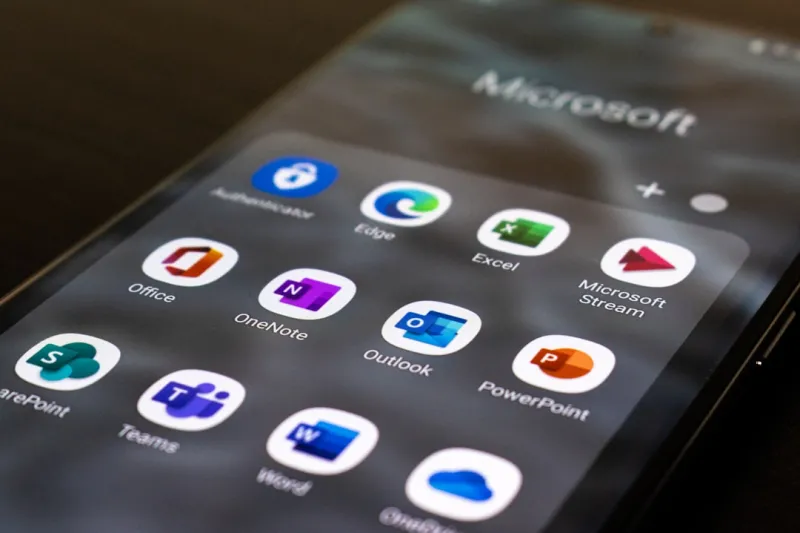
When I first opened Microsoft Office this morning on my Windows 12 machine, the familiar ribbon greeted me—but the experience felt unmistakably futuristic. In 2026, Office is no longer just a suite of static productivity tools; it’s an AI‑infused ecosystem that anticipates my needs, learns my habits, and even suggests next‑level strategies for tackling complex projects. As a longtime power‑user, I’ve watched Office evolve from the clunky Office 2007 days to today’s seamless, cloud‑first environment, and the transformation has been nothing short of exhilarating. The integration of large‑language‑model copilots, real‑time collaboration across Teams, and deep ties to the Power Platform have reshaped how I draft reports, crunch numbers, and streamline workflows. In this deep dive, I’ll unpack the most compelling features, security considerations, and performance tweaks that can help any power‑user harness the full potential of Microsoft Office in 2026.
AI Copilots: Your New Digital Assistant in Word, Excel, and PowerPoint
The headline‑grabbing AI Copilot is now a native part of Word, Excel, and PowerPoint, and it’s more than a fancy autocomplete. In Word, the Copilot can generate entire sections of a document based on a brief prompt, suggest tone adjustments, and even rewrite paragraphs for clarity—all while preserving your unique voice. In Excel, it can draft complex formulas, create pivot tables, and forecast trends without you typing a single function. PowerPoint benefits from instant slide design, image recommendations, and speaker notes that adapt to your presentation style. What truly sets these copilots apart is their contextual awareness: they pull data from your OneDrive, recent emails, and even your Teams chats to deliver suggestions that feel personalized. As a power‑user, I’ve found that leveraging Copilot for the first draft saves me roughly 30 % of the time I’d otherwise spend on repetitive tasks, freeing mental bandwidth for higher‑order analysis and creative work.
Fortifying Your Documents: Encryption and Compliance in the Cloud Era
Security remains a top priority, especially when sensitive data flows through Office apps that are now heavily cloud‑centric. Microsoft has doubled down on end‑to‑end encryption, and as a power‑user I routinely enable Azure Information Protection labels to enforce classification policies across Word, Excel, and Outlook. For those who need granular control, the Encryption Essentials for Power Users guide walks you through setting up conditional access, managing encryption keys, and auditing document access logs. One feature I appreciate is the ability to lock a file’s encryption level directly from the Office ribbon, ensuring that even if the document is downloaded locally, it remains unreadable without proper authentication. Coupled with Microsoft’s compliance manager, you can generate real‑time compliance reports that align with GDPR, HIPAA, and other regulations, giving peace of mind that your data is both productive and protected.
Real‑Time Collaboration: Teams, Loop, and the New Office Canvas
Collaboration in 2026 is no longer limited to editing a shared document; it’s an immersive, multi‑modal experience. Microsoft Loop components now embed directly within Word and Excel, allowing you to insert live tables, task lists, or brainstorming boards that sync instantly across Teams channels. When I co‑author a quarterly report with a remote teammate, we see each other’s cursor movements, comments, and AI‑suggested edits in real time, all without leaving the document. The integration with Teams also means that a single click can launch a video call, share a screen, and annotate a PowerPoint slide—all within the same workflow. For power‑users managing large, cross‑functional projects, this fluid collaboration eliminates the need for endless email threads and version‑control headaches, dramatically accelerating decision‑making cycles.
Power Platform Integration: Automate, Extend, and Customize Office
One of the most empowering aspects of modern Office is its deep tie‑ins with the Power Platform—Power Automate, Power Apps, and Power BI. I’ve built custom Power Automate flows that trigger when a new row is added to an Excel table, automatically drafting a follow‑up email in Outlook and logging the interaction in a SharePoint list. Power Apps can surface a lightweight form within Teams that writes data directly to an Excel workbook, turning a simple spreadsheet into a functional database without a line of code. Moreover, the new “Office Scripts” feature lets you write JavaScript‑like macros for Excel, which can be invoked from Power Automate, creating a seamless loop of automation. For power‑users seeking to eliminate manual steps, these tools collectively turn Office into a programmable hub for business processes.
Advanced Analytics in Excel: From Dynamic Arrays to Integrated Power BI
Excel’s analytical muscle has never been stronger. The introduction of dynamic array functions—such as FILTER, UNIQUE, and LET—has turned spreadsheets into true data engines capable of handling millions of rows with ease. In 2026, the integration with Power BI is tighter than ever; a single click lets you push a pivot table or a chart to Power BI, where you can enrich it with AI‑driven insights, custom visuals, and interactive dashboards. I’ve leveraged the new “Analyze Data” pane, which uses the Copilot to suggest the best visualizations based on the data’s distribution and outliers. This synergy means you can stay within Excel for data wrangling while instantly scaling up to enterprise‑grade analytics, all without leaving the familiar interface.
Accessibility at the Core: AI‑Driven Inclusive Features
Inclusivity has moved from an afterthought to a core design principle in Office. AI now automatically generates alt‑text for images in Word and PowerPoint, ensuring that screen readers can convey visual information accurately. The “Read Aloud” feature now offers real‑time translation, allowing multilingual teams to listen to a document in their native language while preserving original intent. For users with motor impairments, voice commands have become more robust, letting you dictate entire tables in Excel or navigate the ribbon without a mouse. These features not only comply with accessibility standards but also foster a collaborative environment where every team member can contribute effectively, regardless of ability.
Optimizing Office on Windows 12: Speed, Security, and Smarter Workflows
Running Office on Windows 12 unlocks performance gains that power‑users can feel immediately. The new memory‑compression algorithms allocate more RAM to Office apps, reducing load times for massive Excel workbooks by up to 40 %. Additionally, Windows 12’s hyper‑visor security layer isolates Office processes, mitigating the risk of macro‑based attacks. If you’re looking to squeeze every ounce of efficiency from your system, check out the Unlocking Windows 12 guide, which details tweaks like enabling the “Fast Startup for Office” toggle and configuring the new “Dynamic Refresh Rate” to keep your display smooth during lengthy presentations. These optimizations ensure that Office runs buttery‑smooth, even on high‑resolution 4K monitors, making multitasking a breeze.
Looking Ahead: Low‑Code Macros, Generative AI, and the Future of Office
The road ahead for Microsoft Office is paved with low‑code innovation and generative AI. Microsoft has hinted at a next‑generation macro language that blends VBA’s familiarity with the power of JavaScript, allowing you to embed AI models directly into spreadsheets. Imagine an Excel macro that not only forecasts sales but also generates a narrative report in Word, complete with charts and actionable insights—all without leaving the workbook. Moreover, the upcoming “Data Types” expansion will let you attach live data streams—like stock prices or weather data—to cells, updating in real time. As a power‑user, staying ahead means experimenting with these preview features, joining the Office Insider program, and contributing feedback to shape the next iteration of the suite.
Final Thoughts: Embrace the Power‑User Mindset and Keep Evolving
Microsoft Office in 2026 is a living, learning platform that rewards curiosity and experimentation. By mastering AI copilots, tightening security with encryption, harnessing the Power Platform, and optimizing performance on Windows 12, you can transform everyday tasks into strategic advantages. I encourage fellow power‑users to dive into the Key Tech Updates Every Power User Must Know article to stay abreast of the latest features and best practices. The ecosystem is evolving rapidly, and the most successful professionals will be those who blend technical savvy with a willingness to adopt new tools. So, fire up Office, explore the new AI capabilities, and let the suite become the catalyst for your next breakthrough.




