
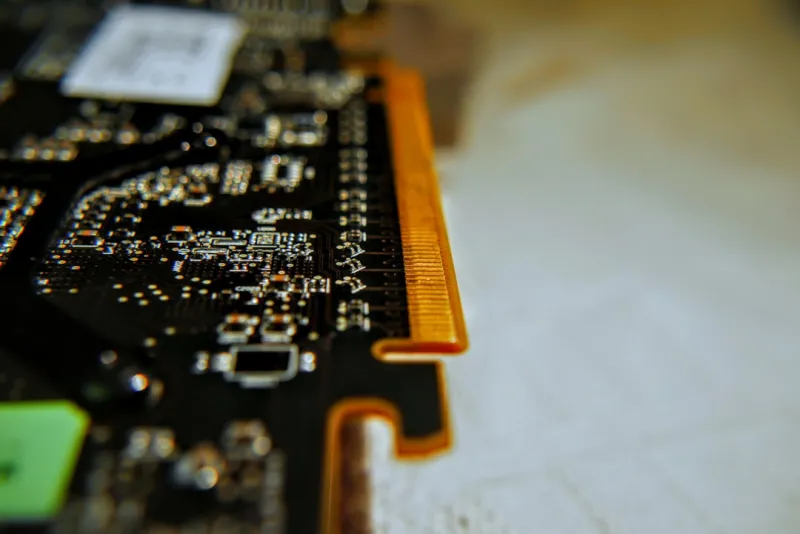
When I first pulled the power cord on my RTX 4090 after a sudden crash, I felt that familiar mix of panic and curiosity that every power‑user knows too well. Video card failures aren’t just random hiccups; they’re often the result of a cascade of subtle misconfigurations, firmware mismatches, or even the sheer heat generated by modern GPUs pushing 500 watts of power. In 2026, the expectations we have for buttery‑smooth 4K gaming, AI‑accelerated rendering, and real‑time ray tracing put our graphics stacks under unprecedented stress. The good news is that with a systematic, methodical approach, you can diagnose and fix most issues without sending the card back to warranty. In this guide I’ll walk you through the exact steps I use—right from the first flicker on your screen to deep‑level BIOS tweaks—so you can keep your rig humming at peak performance. Trust me, a few minutes of disciplined troubleshooting beats weeks of downtime, especially when your deadlines are breathing down your neck.
Understanding the Symptoms: What Your GPU Is Trying to Tell You
The first clue often hides in the symptom itself. A sudden black screen, artifacting, or a dreaded “Display driver stopped responding and has recovered” message each point to different failure modes. Artifacting—those strange colored squares or lines—usually signals VRAM errors or overheating, while driver resets often stem from power spikes or corrupted driver files. Pay close attention to when the issue occurs: does it happen during intensive CUDA workloads, while gaming at max settings, or after a Windows update? Documenting the exact scenario helps you isolate whether the fault lies in software, power delivery, or hardware. I keep a simple log in a markdown file, noting the time, application, and any system messages. This habit not only speeds up future diagnostics but also provides a clear narrative if you ever need to engage tech support. Remember, the GPU is a sophisticated sensor; every crash or glitch is data you can leverage to pinpoint the root cause.
Deep‑Dive Fixes: Drivers, Power, and Thermal Management
Drivers are the lingua franca between Windows and your graphics card, and in 2026 they’re more complex than ever. A common pitfall is the “driver soup” created by stacking legacy drivers on top of each other. My routine is to use DDU (Display Driver Uninstaller) in safe mode, wipe the slate clean, and then install the latest WHQL‑certified driver directly from the manufacturer’s site. While you’re at it, double‑check that you haven’t inadvertently installed a beta driver that might be optimized for a different GPU architecture. Next, power delivery: many high‑end cards rely on a dedicated 8‑pin or 12‑pin connector that can sag under load if the PSU cables are loose or undersized. I always verify the connector’s integrity and use a modular PSU with fully rated cables to avoid voltage droops. Finally, thermal management—nothing kills performance faster than throttling. Clean your GPU’s heatsink, reapply high‑quality thermal paste, and consider a custom fan curve via AI‑Powered Workstations: Turning Power‑User Rigs into Intelligent Engines. A well‑tuned curve can shave several degrees off the hotspot, preserving both frame rates and hardware longevity.
BIOS, Firmware, and the Hidden Layers of GPU Control
Most users never think about the GPU BIOS, but it’s the foundational layer that dictates voltage tables, clock limits, and memory timings. Manufacturers occasionally release firmware updates to address stability issues—especially after a new driver rollout. In my experience, a mismatched BIOS can cause the card to refuse to boot under certain power states, leading to the dreaded “No signal” error. To check your BIOS version, use GPU‑Z or the vendor’s utility, then compare it against the latest release on the manufacturer’s support page. Flashing a newer BIOS should be done with caution: always back up the original, follow the vendor’s instructions to the letter, and ensure you have a stable power source. If you’re comfortable, you can even explore custom BIOS mods that unlock higher power limits for overclocking, but remember that this voids warranties and can increase heat output. For most power‑users, staying on the latest stable BIOS is the sweet spot between performance and reliability.
Memory Integrity and VRAM Error Detection
VRAM failures manifest as subtle visual glitches that can be easy to dismiss as “just a bad texture.” However, in 2026’s massive 24‑GB GDDR6X pools, a single bad module can corrupt large swaths of data, crashing rendering pipelines. To test VRAM integrity, I run a combination of tools: the built‑in Windows Memory Diagnostic for system RAM, and a dedicated GPU memory test like OCCT’s VRAM stress test. Keep an eye on error counters in GPU‑Z; a rising ECC error count (if your card supports it) is a clear indicator of failing memory chips. If errors appear, the first step is to lower the memory clock by a few hundred MHz and increase the voltage slightly, which can sometimes mask marginal defects. Should the problem persist, it’s time to consider a RMA or, if you’re comfortable, a solder‑rework on the memory chips—a risky but occasionally rewarding DIY for the truly adventurous.
Windows Updates, Blue Screens, and the Power‑User’s Secret Weapon
Microsoft’s relentless cadence of Windows updates can be a double‑edged sword. While security patches are essential, a poorly timed graphics driver update can trigger a blue screen, especially on systems that rely heavily on GPU acceleration for AI workloads. When a blue screen strikes, I don’t panic; instead, I treat it as a diagnostic goldmine. The crash dump often points to the offending driver module—look for “dxgmms2.sys” or “nvlddmkm.sys” in the stack trace. Using the “Why Your Blue Screen Isn’t the End—It’s a Power‑User’s Secret Weapon” mindset, you can roll back the offending driver via Device Manager or use System Restore to revert to a stable snapshot. Additionally, disable automatic driver updates in Windows Settings to retain control over which driver version you run. This proactive stance keeps your workstation stable while you continue to push the limits of rendering, simulation, and AI inference.
Advanced Diagnostic Utilities: Harnessing the Power of Software
Beyond the basics, a power‑user’s toolbox should include a suite of GPU‑focused utilities. MSI Afterburner isn’t just for overclocking; its real‑time monitoring overlay can reveal spikes in power draw, temperature, and clock throttling that static logs miss. Combine this with GPU‑Z’s sensor readouts for a comprehensive picture of the card’s health. For deeper analysis, NVIDIA’s Nsight Systems provides timeline traces that pinpoint exactly where a frame drop originates—be it kernel execution, memory transfer, or driver overhead. If you suspect a driver‑level bug, the “DXDiag” utility can generate a detailed report of the graphics subsystem, which you can then share on forums or with the vendor’s support team. The key is to gather quantifiable data before you start swapping hardware; it saves time and helps you make evidence‑based decisions.
Future‑Proofing Your GPU Setup
Looking ahead, the smartest way to avoid recurring video‑card headaches is to build a system that can adapt to the next generation of GPUs. This means selecting a motherboard with a robust PCIe 5.0 slot, a high‑wattage PSU (800 W or more) with fully modular cabling, and a case that supports excellent airflow for larger, dual‑fan or blower‑style coolers. If you’re already planning a refresh, check out Building a Future‑Proof Power‑User Workstation in 2026 for a detailed parts list that balances performance, scalability, and budget. Another tip: keep a spare set of high‑quality thermal pads and paste on hand. As GPU manufacturers push higher power envelopes, you’ll find yourself swapping out the stock cooler for an aftermarket solution more often than you’d expect. By anticipating these upgrades now, you’ll sidestep the frantic scramble for compatible components later, ensuring your rig remains a reliable workhorse for years to come.
Wrapping Up: Turn Troubleshooting Into an Advantage
Every video‑card issue you solve adds a new layer of expertise to your power‑user arsenal. In 2026, where AI‑accelerated workloads and ultra‑high‑resolution content are the norm, the ability to quickly diagnose and remediate GPU problems isn’t just a nice‑to‑have skill—it’s a competitive edge. By methodically logging symptoms, maintaining clean driver stacks, keeping firmware up to date, and investing in a future‑proof hardware foundation, you transform potential downtime into a learning experience. So the next time your screen flickers, remember the checklist we’ve built together: check logs, verify drivers, confirm power and thermal health, and finally, leverage advanced tools for deeper insight. With this disciplined approach, you’ll keep your workstation humming, your projects on schedule, and your peace of mind intact.




