
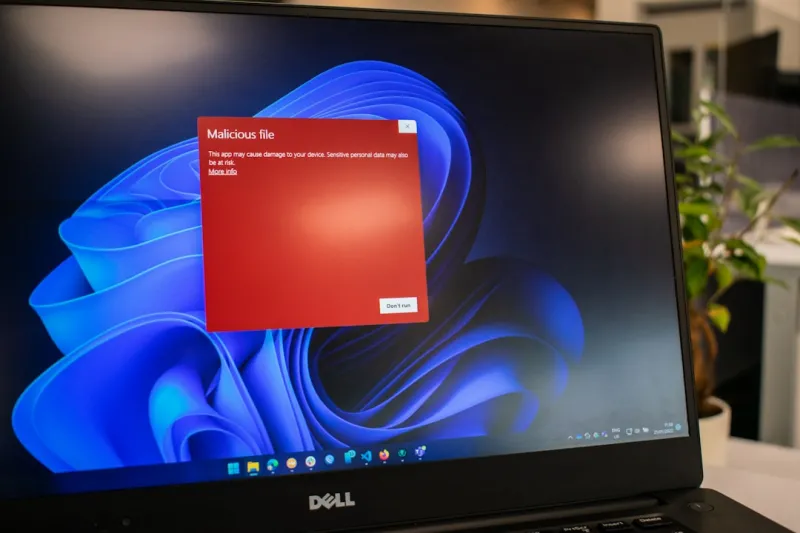
When I first powered on a Windows machine back in the early 2000s, the boot screen was a promise of endless possibility. Fast‑forward to 2026, and that promise is still alive, but the landscape has morphed into something far more intricate. Modern Windows editions blend cloud‑first services, AI‑driven performance tweaks, and a security model that assumes every user is a potential target. For power users, the stakes are higher: you’re not just tweaking visual themes—you’re orchestrating a symphony of hardware, drivers, and firmware that must harmonize without a single discord. This article is a deep dive into the mindset and the tools you need to stay ahead, from mastering update cycles to turning the infamous Blue Screen into a diagnostic ally. By the end, you’ll have a playbook that reflects the realities of a Windows ecosystem that’s simultaneously more user‑friendly and more unforgiving than ever before.
Why Windows Mastery Matters in 2026
Microsoft’s current flagship, Windows 12, builds upon the foundation laid by Windows 11 but pushes the envelope with native AI integration, adaptive power management, and a modular kernel that can offload workloads to dedicated security processors. These advancements mean that a power user can now delegate routine background tasks—like malware scanning or memory compression—to specialized cores, freeing up the main CPU for creative or computational heavy lifting. Yet, this convenience comes with a trade‑off: the OS now surfaces a richer set of telemetry and configuration options that can be overwhelming without a disciplined approach. Understanding how to read the new “Performance Insights” dashboard, for example, can reveal hidden bottlenecks that traditional Task Manager simply can’t expose. Moreover, the rise of “Dynamic Update Streams” lets Microsoft push feature updates on a bi‑weekly cadence, demanding that users adopt a proactive stance rather than a reactive one. Embracing this evolution is essential; the power‑user mindset isn’t just about speed—it’s about leveraging every OS nuance to keep your workflow fluid and secure.
Taming Updates and the Blue Screen
One of the most critical habits for any Windows aficionado is mastering the update pipeline. While casual users can click “Install now” and hope for the best, power users know that each cumulative patch can ripple through drivers, firmware, and even third‑party software layers. That’s why I always start with the critical updates guide, which outlines a staged rollout process: first test on a virtual machine, then a secondary workstation, and finally the production rig. By isolating potential conflicts early, you avoid the dreaded “update‑induced BSOD” that can bring a day’s work to a grinding halt. Speaking of the Blue Screen, it’s not the relic it once seemed. In 2026, the BSOD is a sophisticated diagnostic canvas that can pinpoint driver misbehaviors, memory corruption, or even firmware mismatches with unprecedented granularity. The key is to treat each crash as a data point rather than a failure—an approach I explore in depth in the article Why the Blue Screen Still Matters to Power Users in 2026. By capturing the crash dump, feeding it into Windows Debugger, and correlating the error codes with recent driver updates, you turn a nuisance into a powerful troubleshooting tool.
Hardware Foundations for a Rock‑Solid System
Even the smartest OS can’t compensate for a shaky hardware base. In 2026, the most compelling platform for power users is a motherboard that supports PCIe 5.0, DDR5‑5600 memory, and integrated hardware‑rooted security modules (HRSM). These features aren’t just marketing fluff; they enable lower latency storage lanes, faster memory bandwidth for AI‑assisted workloads, and a hardware vault that isolates cryptographic keys from the main OS. When selecting a board, prioritize native support for TPM 2.2 and a robust BIOS that offers granular control over voltage curves and power states. Remember, a well‑tuned BIOS can shave milliseconds off boot times and improve overall system stability—a critical advantage when you’re juggling multiple virtual machines or containers. While the motherboard sets the stage, RAM remains the unsung hero that can make or break performance, especially under heavy multitasking loads.
Speaking of memory, diagnosing RAM issues has become an art form in its own right. The classic “Windows Memory Diagnostic” tool still works, but it lacks the depth required for today’s high‑frequency modules. That’s why I recommend a three‑pronged approach: first, run a low‑level test with MemTest86+ to catch hardware faults; second, employ Windows Performance Analyzer to monitor real‑time latency spikes; and third, cross‑reference any anomalies with the detailed guide How to Diagnose and Fix RAM Issues Like a Power User. This workflow not only isolates faulty sticks but also reveals configuration mismatches—like running a dual‑channel kit in single‑channel mode—that can throttle performance without any obvious error messages. By mastering these diagnostics, you ensure that the memory subsystem never becomes a hidden bottleneck in your power‑user arsenal.
Security, Encryption, and the Power‑User Edge
Security is no longer an afterthought; it’s woven into every layer of the modern Windows stack. With ransomware attacks becoming more sophisticated, power users must adopt a “zero‑trust” posture even on personal machines. This begins with full‑disk encryption, but in 2026 the default BitLocker implementation is bolstered by hardware‑based key storage and seamless integration with Azure AD for enterprise‑level key recovery. Yet, encryption is only as strong as the policies that govern it. I advise configuring auto‑unlock for trusted devices while enforcing multi‑factor authentication for any remote access attempts. For those who crave granular control, the article Encrypt Like a Power User outlines how to script BitLocker deployment across multiple drives, set up recovery key escrow, and verify encryption health via PowerShell. Coupled with regular firmware updates and a disciplined patch cadence, this creates a defense‑in‑depth model that keeps your data safe without sacrificing performance.
Beyond encryption, the modern Windows environment offers a suite of automation tools—PowerShell, Windows Terminal, and the new Windows Subsystem for Linux (WSL) 2—that empower power users to streamline repetitive tasks. For instance, you can script a nightly snapshot of critical directories, spin up a disposable WSL container for testing potentially risky scripts, and automatically purge old logs to conserve disk space. These workflows not only boost productivity but also reduce the attack surface by limiting manual interaction with sensitive files. Remember, the best security strategy is one that blends technology with habit; make automated backups, scheduled scans, and regular system health checks a non‑negotiable part of your routine. In doing so, you transform your Windows machine from a passive tool into an active ally in your daily workflow.
The Road Ahead: Embracing the Power‑User Mindset
As we look toward the next wave of Windows innovations—quantum‑ready cryptography, deeper AI integration, and even tighter cloud‑native services—the core principles that define a power user remain unchanged: curiosity, discipline, and a relentless pursuit of optimization. Whether you’re fine‑tuning a BIOS knob, dissecting a crash dump, or automating a backup pipeline, each action reinforces a feedback loop that makes your system more resilient and performant. The ecosystem will continue to evolve, but the tools and strategies we’ve discussed today will serve as a timeless foundation. Keep experimenting, stay informed through community resources, and never hesitate to dive into the Windows internals that most users overlook. In the end, mastering Windows in 2026 isn’t just about keeping up; it’s about staying ahead of the curve, turning every challenge into an opportunity to refine your craft.




