
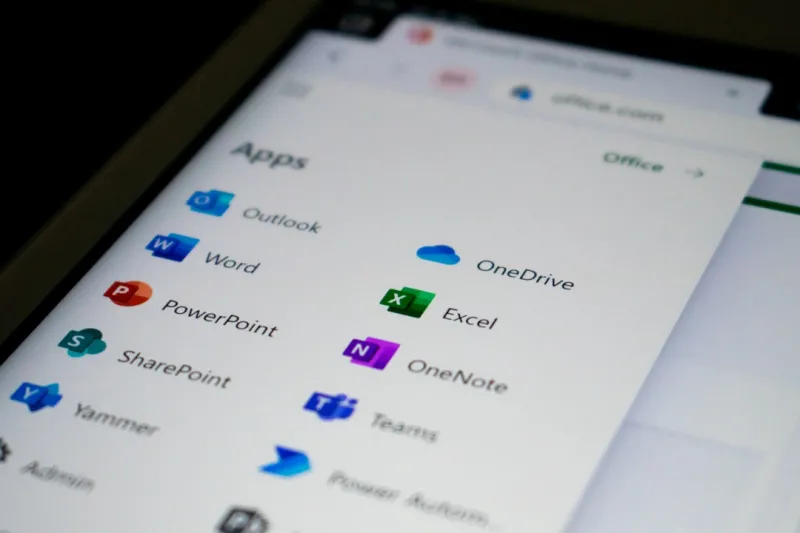
When I first opened Microsoft Office back in the early 2000s, the idea of “power‑user” was something reserved for spreadsheet gurus and macro‑loving developers. Fast forward to 2026, and that label has exploded into a whole ecosystem of AI‑enhanced tools, cloud‑first collaboration, and security layers that would have seemed sci‑fi a decade ago. As someone who lives at the intersection of hardware tinkering and software optimization, I’ve learned that the real magic isn’t just in the newest features—it’s in how we stitch them together into a seamless workflow that saves time, protects data, and lets creativity flow without interruption. In this post I’ll walk you through the most impactful Office strategies that I rely on daily, from AI‑driven Copilot tricks to hardened macro policies, all while keeping an eye on the bigger picture of system performance and security. If you’ve ever felt overwhelmed by the flood of updates, stick around; you’ll leave with a clear, actionable playbook.
AI‑Powered Copilot: Your New Office Sidekick
Microsoft’s AI‑powered Copilot is arguably the single biggest productivity booster Office has seen in years. Integrated across Word, Excel, PowerPoint, and even Outlook, Copilot can draft documents from bullet points, generate complex formulas, and suggest design layouts in seconds. What I love most is the “just‑ask” workflow: type a natural‑language prompt like “Create a quarterly sales summary with charts” and watch Excel spin up a polished report without you touching a cell. In practice, I’ve set up custom shortcuts that trigger Copilot directly from the ribbon, cutting down the time I’d spend hunting through menus. Remember to review AI‑generated content for accuracy—the model is powerful but not infallible. Pairing Copilot with a disciplined version‑control habit, such as saving incremental drafts in OneDrive, ensures you always have a fallback if the AI misinterprets your intent.
Turbocharging the Ribbon: Custom Tabs and Macros
Power users know that the default Office ribbon is a convenience layer, not a productivity engine. By creating custom tabs tailored to your daily tasks, you can surface the commands you use most—whether it’s a specific Power Query transformation or a set of VBA macros for data cleanup. I spend a weekend each year refining my ribbon layout, adding icons for the most frequent actions and removing clutter. To keep macros secure, I follow the hardened policies outlined in Encrypt Everything, signing each script with a trusted certificate and restricting macro execution to trusted locations only. This approach not only speeds up routine work but also shields you from malicious code that can sneak in via shared documents. The result is a streamlined, lock‑down environment where you can click once and let the automation do the heavy lifting.
Collaboration Without Chaos: Teams, SharePoint, and Real‑Time Co‑Authoring
Collaboration has shifted from email‑centric threads to real‑time, cloud‑driven workspaces. In 2026, Teams and SharePoint act as the backbone for Office co‑authoring, allowing multiple users to edit a Word doc or Excel workbook simultaneously without version conflicts. I rely on Teams’ “channel files” view to keep every project file in a single, searchable hub, then use the built‑in “@mentions” to draw attention to specific sections that need review. The magic truly happens when you combine this with Office’s real‑time co‑authoring feature: you can see collaborators’ cursors, comment threads, and suggested changes as they happen. To avoid the dreaded “conflict copy” scenario, I enforce a policy of “save‑and‑sync” every few minutes, which Teams enforces automatically, and I make a habit of renaming sections with timestamps—this tiny habit has saved countless hours of merge headaches.
Data Protection: Encryption, DLP, and Compliance
Security is no longer an afterthought; it’s woven into every Office interaction. Microsoft’s Information Protection (MIP) and Data Loss Prevention (DLP) policies let you tag documents with sensitivity labels that automatically encrypt files in transit and at rest. I configure my Office suite to enforce encryption on any document marked “Confidential,” ensuring it’s only accessible to users with the appropriate clearance. For those who love to dive deep into the security stack, the Encrypt Everything playbook offers step‑by‑step guidance on setting up end‑to‑end encryption for Outlook, OneDrive, and SharePoint. Pair these controls with multi‑factor authentication (MFA) on your Microsoft 365 account, and you’ve built a fortress that guards against both external threats and accidental data leaks.
Cloud vs. Local: Optimizing OneDrive and On‑Prem Storage
While the cloud offers unparalleled accessibility, there are still scenarios where local storage shines—especially when dealing with massive Excel models or high‑resolution media files. I use OneDrive’s Files On‑Demand feature to keep the bulk of my data in the cloud while presenting a familiar folder structure on my SSD, pulling files locally only when I open them. This hybrid approach balances performance with storage efficiency, reducing local disk bloat without sacrificing speed. For mission‑critical archives, I still maintain a mirrored copy on a high‑capacity external HDD, a practice highlighted in the “Hard Drives in 2026” discussion. By syncing critical folders across OneDrive and a secure local drive, I achieve redundancy that protects against both cloud outages and hardware failures.
Accessibility and Voice: The Next Frontier of Interaction
Microsoft has invested heavily in accessibility, and 2026 brings voice‑driven commands to the forefront. With the new “Speak to Office” feature, you can dictate entire PowerPoint presentations, ask Excel to “filter rows where sales exceed $10,000,” or have Outlook read and prioritize emails based on urgency. I’ve integrated voice shortcuts into my daily routine, especially when juggling multiple monitors—just say “Open a new Word document with my standard template” and the app launches, pre‑filled with my preferred styles. The feature also respects accessibility settings, offering high‑contrast themes and screen‑reader compatibility out of the box. Embracing these tools not only speeds up repetitive tasks but also makes the Office suite more inclusive for teammates with diverse needs.
Advanced Excel: Power Query, Power Pivot, and Seamless Power BI Integration
Excel remains the workhorse for data crunching, but its true power lies in the data‑modeling extensions that have matured over the past few years. Power Query lets you pull data from APIs, databases, and even web pages with a few clicks, while Power Pivot enables you to build sophisticated data models that rival dedicated BI tools. In my workflow, I set up a master Power Query script that refreshes daily, pulling sales data from our ERP system and cleaning it on the fly. Once the model is ready, I push the results directly into Power BI, where dashboards update automatically. This end‑to‑end pipeline eliminates manual copy‑pasting and ensures that stakeholders always see the latest numbers. For power users who crave deeper analytics, mastering DAX formulas in Power Pivot unlocks insights that were once only possible with specialized software.
Outlook Mastery: AI Triage, Rules, and Focused Inboxes
Inbox overload is a universal pain point, but Outlook’s AI‑driven triage tools have turned it into a manageable stream. The “Focused Inbox” now leverages machine learning to prioritize messages based on your interaction patterns, while the “Suggested Replies” feature drafts concise responses that you can send with a single click. I’ve taken it a step further by creating a hierarchy of rules that automatically categorize newsletters, project updates, and client inquiries into dedicated folders—each rule tagged with a color for visual clarity. Combined with the “Play My Voice” function, which reads out important emails while you’re on a call, these tools let me stay on top of communications without constantly switching screens. The net effect? A cleaner inbox, faster response times, and more mental bandwidth for deep work.
Future‑Proofing Your Office Suite: Continuous Learning and Adaptation
The only constant in tech is change, and Microsoft Office is no exception. To stay ahead, I schedule a quarterly “Office Refresh” where I explore new features, read the official release notes, and test beta builds in a sandbox environment. This habit aligns with the broader philosophy of Mastering Windows in 2026, where staying current with OS updates directly benefits Office performance and security. I also participate in the Microsoft Tech Community, where power users share tips, macro libraries, and automation scripts that can be imported into your own workflow. By treating Office as a living platform rather than a static suite, you turn each update into an opportunity to shave minutes off daily tasks, reinforce security, and unlock new creative possibilities. Embrace the evolution, and let the suite work for you—not the other way around.




