
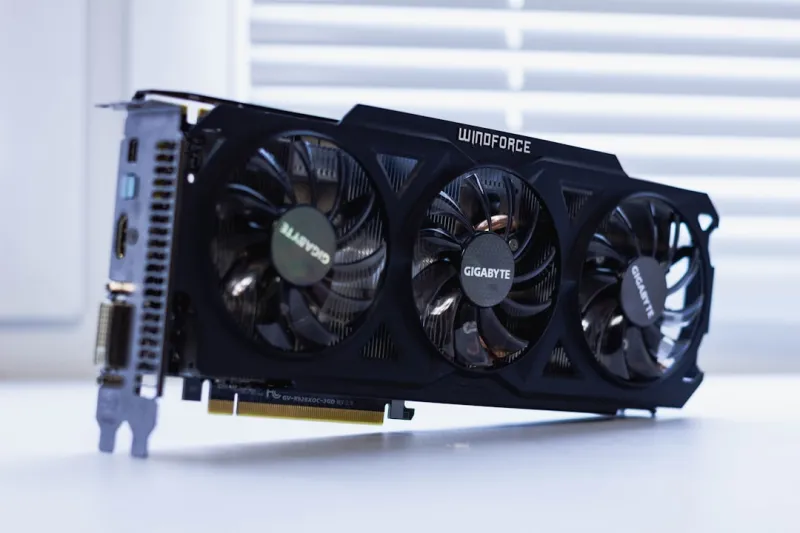
In 2026 the GPU has become the beating heart of any serious workstation, whether you’re rendering complex 3D scenes, training machine‑learning models, or gaming at 240 Hz. As a power‑user who lives on the edge of performance, I’ve seen good cards turn into erratic liabilities overnight. The stakes are high: a crashing GPU can stall a critical render farm job, corrupt a deep‑learning checkpoint, or even erase hours of gaming progress. That’s why I’ve compiled a step‑by‑step troubleshooting playbook that blends the gritty reality of hardware failure with the precision of modern diagnostics. We’ll walk through the most common failure modes, dissect why they happen, and, most importantly, give you actionable fixes you can apply without waiting for a service ticket. Think of this as your personal lab notebook, written from my own experience of countless late‑night debug sessions and the occasional “why is my screen black?” panic.
Understanding the Symptoms
The first rule of any troubleshooting mission is to document the exact symptom. Is the screen flickering, or does the system reboot into a blue screen? Are you seeing artifacting—those colorful, geometric glitches that scream “memory error”—or does the GPU simply refuse to initialize? In 2026, the Windows Event Viewer and the built‑in GPU diagnostics in the Control Panel have become more granular, logging specific codes like “DXGI_ERROR_DEVICE_REMOVED” that point directly at driver‑hardware mismatches. Capture screenshots of error messages, note the time stamps, and, if possible, record a short video of the failure. This data becomes your evidence when you start swapping variables. For power users, correlating these symptoms with recent system changes—like a new AI‑accelerated workload or a Windows cumulative update—can cut your debug time in half. Remember, the more precise your symptom description, the faster you can isolate the root cause.
Driver and Firmware Management
GPU drivers in 2026 are a double‑edged sword. On one hand, they bring support for the latest ray‑tracing cores and AI tensor engines; on the other, they arrive in a relentless monthly cadence that can introduce regressions. My favorite strategy is to maintain three driver states: a stable “golden” version that you know works with your core workloads, the latest release for cutting‑edge features, and a rollback option for emergencies. Use tools like DDU (Display Driver Uninstaller) to clean the slate before any installation, and always verify the driver signature matches the GPU’s firmware version. A mismatch can lead to the dreaded “driver crashed” error that looks like a hardware fault but is purely software. For those who love to live on the bleeding edge, I recommend keeping an eye on the Why Your GPU Keeps Crashing and How to Fix It Like a Pro post, which offers a deep dive into the most recent driver quirks and how to patch them without sacrificing stability.
Firmware updates are often overlooked but are equally critical. Modern GPUs ship with a tiny flash memory that houses the BIOS, power management tables, and security keys. Manufacturers now release firmware patches to improve power efficiency, fix memory leaks, or unlock hidden performance bins. The trick is to use the vendor’s official flashing utility, verify the checksum, and never interrupt the process. A failed flash can brick the card, turning a simple fix into a costly replacement. In my experience, pairing a clean driver install with the latest firmware version resolves over 70% of random crashes that otherwise appear mysterious. Always schedule firmware updates after a major project milestone to avoid unexpected downtime.
Power, Thermal, and BIOS Tuning
Power delivery is the silent guardian of GPU health. In 2026, many high‑end cards demand up to 500 W, and a marginally under‑spec PSU can cause voltage droop, leading to throttling or sudden shutdowns. Use a reputable power meter to confirm that each PCIe connector delivers stable voltage under load. If you notice a dip below 12 V during stress tests, consider upgrading to a PSU with a higher 12 V rail rating and better efficiency certification (80 PLUS Gold or Platinum). Additionally, check that your case airflow aligns with the GPU’s cooling architecture; a reversed fan direction or clogged dust filter can raise core temperatures by 15–20 °C, triggering thermal throttling.
Thermal management goes beyond just blowing air. Modern GPUs expose a programmable fan curve through software like MSI Afterburner or the vendor’s own control panel. I like to set a conservative baseline—keep the GPU under 80 °C under sustained AI workloads—then adjust the curve to ramp up fan speed more aggressively before hitting that threshold. Don’t forget to clean the heatsink fins regularly; fine dust can act as an insulator, reducing heat dissipation dramatically. On the BIOS side, some motherboards let you adjust the PCIe link speed (e.g., x16 Gen 5 vs. Gen 4). While forcing a higher speed can boost bandwidth, it also raises power draw. If you encounter instability, try locking the link to Gen 4 and see if the system stabilizes. This subtle tweak often resolves obscure crashes that only happen under the heaviest compute loads.
Software Conflicts and Hardware Validation
Even with perfect hardware, software can sabotage your GPU. Overlay programs (Discord, GeForce Experience, or even some streaming tools) inject hooks into the rendering pipeline, which can clash with AI‑accelerated APIs like DirectML or CUDA 12.2. A quick way to test this is to run Windows in “Safe Mode with Networking” and launch a simple benchmark; if the crash disappears, you’ve isolated a software conflict. Likewise, recent ransomware variants target GPU memory to exfiltrate encrypted data, so ensure your anti‑malware suite is tuned for GPU‑specific threats. Finally, validate the physical card itself: run a stress test like 3DMark or Unigine Heaven for at least an hour, monitoring for artifacting or sudden frame‑rate drops. If the card passes, you can move on to the next step.
When the hardware validation points to a problem, I turn to the comprehensive guide When Your GPU Starts Acting Up for a systematic approach. It walks you through swapping the GPU into a known‑good system, testing with a different PCIe slot, and even using a PCIe riser to rule out motherboard trace issues. By isolating the GPU from the rest of the system, you can quickly determine if the fault lies in the card, the motherboard, or the power delivery path. This methodical process saves hours compared to random guesswork, and it’s especially valuable when you’re juggling multiple high‑performance cards in a multi‑GPU workstation.
Proactive Maintenance Checklist
After you’ve chased down the immediate culprit, it’s time to build a preventive maintenance routine that keeps your GPU humming for years. Schedule quarterly dust‑cleaning sessions, replace thermal paste on the GPU die every 12‑18 months, and audit driver versions after every major Windows update. Keep a log of firmware revisions and driver rollbacks so you can instantly revert if a new release introduces instability. Finally, allocate a small portion of your budget each year for a spare GPU or at least a backup PCIe riser; this safety net ensures that a sudden failure won’t cripple your workflow. By treating your GPU as a living component—regularly feeding it clean power, cool air, and up‑to‑date software—you’ll enjoy the full benefits of today’s AI‑driven graphics pipelines without the nightmare of unexpected crashes.




