Why the Blue Screen Still Haunts Power Users
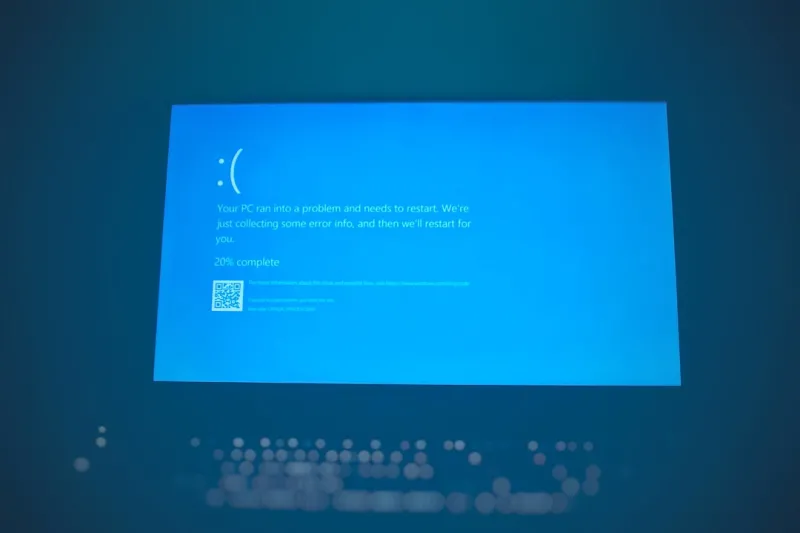
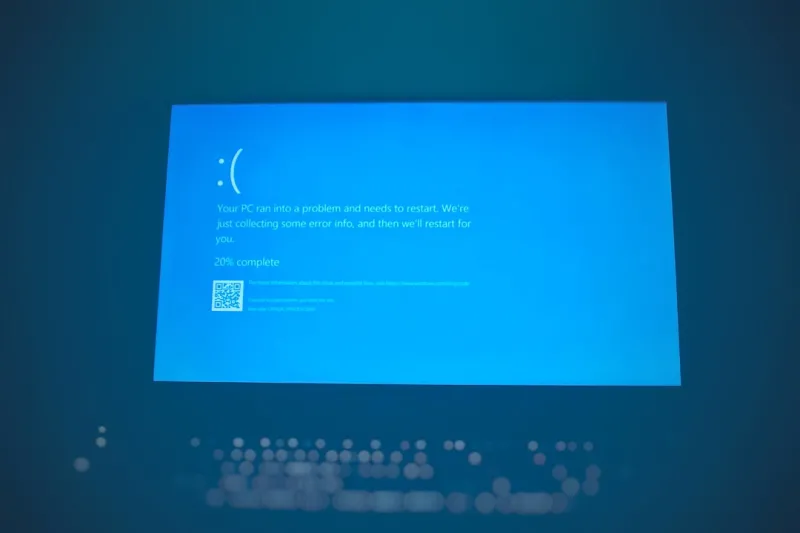
Even in 2026, when you’ve already tuned your rig to run AI‑enhanced workloads at warp speed, the dreaded blue screen can still slam the brakes on a productive session. I remember a late‑night debugging sprint when a simple driver update turned my perfectly stable workstation into a flickering tableau of white text and error codes. The shock is visceral—your heart rate spikes, coffee spills, and the mind races through every “what‑if” scenario. For power users, the BSOD isn’t just an annoyance; it’s a signal that something deep under the hood is misaligned. The key is to treat it like a system‑level alert rather than a random glitch. In this post, I’ll walk you through the most common culprits, the modern diagnostic tools at our disposal, and the preventive habits that keep the blue screen from crashing your flow. By the end, you’ll have a clear roadmap that turns each crash into a data point you can act on, preserving the high‑performance edge you work so hard to maintain.
Hardware‑Centric Triggers in the Modern Era
In 2026, the hardware landscape has exploded with PCIe 5.0 GPUs, DDR5‑6000 RAM, and NVMe‑M.2 drives that whisper terabytes per second. While this performance bounty is exhilarating, it also introduces new failure vectors that can trigger a blue screen. Power delivery inconsistencies, especially when overclocking the latest graphics cards, can cause voltage spikes that the motherboard’s firmware interprets as catastrophic errors. Likewise, mismatched RAM timings or a failing DIMM can corrupt memory pages the OS relies on for kernel operations. Even the humble power supply—if it lacks the latest 80 PLUS Platinum efficiency standards—can falter under sudden load spikes, prompting the kernel to halt to protect the system. Understanding these hardware nuances is essential; the blue screen is often the OS’s way of saying “I’ve lost trust in this component.” Regularly checking BIOS/UEFI firmware, confirming that power cables are seated, and monitoring temperature and voltage curves with tools like HWInfo can head off many of these issues before they erupt on screen.
Decoding the Error Code with Modern Tools
Back in the day, a cryptic STOP code left most users scratching their heads. Today, Windows 11 — and its 2026 updates—offers a built‑in “Blue Screen Analyzer” that pulls the error dump directly into a readable format. Open the Event Viewer, locate the Critical event, and click the link to launch the Analyzer. It will point you to the offending driver or subsystem, complete with a confidence rating. For deeper dives, WinDbg Preview remains the gold standard; you can load the .dmp file and run the !analyze -v command to get a verbose breakdown. The key is to correlate the STOP code with recent system changes: Was a new driver installed? Did a firmware flash occur? If the Analyzer flags a “DRIVER_POWER_STATE_FAILURE,” for instance, you likely have a power‑management mismatch. By making the error code the starting point of your investigation, you avoid wild guessing and focus on the precise root cause, saving hours of frustration.
Taming Troublesome RAM Before It Crashes Your System
Memory errors are a silent killer for any high‑performance setup. A single corrupted bit can cascade into a kernel panic that manifests as a blue screen. In 2026, DDR5 modules come with built‑in ECC on workstation‑grade kits, but most consumer boards still rely on parity‑free memory. To proactively catch issues, run the Windows Memory Diagnostic or, for a more granular view, MemTest86+ in UEFI mode. Pay attention to any “Pattern 1” failures; they often signal a failing DIMM or a timing mismatch. If you suspect a specific stick, reseat it or test it in isolation. For those who push their RAM beyond JEDEC specifications, keep an eye on the memory controller’s temperature—thermal throttling can corrupt data streams. My own rig once suffered a BSOD after a recent RAM overclock; a quick revert to the XMP profile and a firmware update to the motherboard resolved the issue. For a deep dive on diagnosing memory, check out Taming Troublesome RAM—it’s a lifesaver for anyone chasing the last ounce of performance.
Storage Subsystem Slip‑Ups and Firmware Finesse
NVMe drives have become the default storage backbone for power users, but they also bring a new class of firmware‑related blue screens. An outdated SSD firmware can miscommunicate with the storage driver, leading to “NVME_UNCORRECTABLE_READ” errors that the kernel interprets as fatal. The remedy is surprisingly simple: regularly check the manufacturer’s portal for firmware updates and apply them via the drive’s management utility. Additionally, make sure the Windows Storage Spaces driver is up‑to‑date; a mismatch can cause the system to lose access to the RAID array, prompting an immediate halt. When you’re planning a massive storage upgrade, consider the insights from Future‑Proof Your Rig. It outlines how to balance capacity, speed, and reliability while keeping the firmware ecosystem in sync, ensuring that the next blue screen stays a distant memory.
GPU Driver Wars: When Powerful Cards Turn Toxic
Modern GPUs are marvels of parallel processing, yet they are also frequent suspects in BSOD incidents. A new driver release that introduces a bug in the DirectX 12 runtime can cause the kernel to trip on an illegal memory access, resulting in a “VIDEO_TDR_FAILURE.” The best defense is a disciplined driver management routine: keep a stable driver version on hand, and avoid “latest‑always‑best” mentality unless you need a specific feature. If you’re running multiple GPUs for compute workloads, ensure that each card’s driver version matches, and verify that the PCIe lanes are properly configured in the BIOS. In the rare case of a hardware‑level fault—like a failing VRAM cell—the driver will repeatedly crash, and you’ll see a pattern of blue screens that reference the same GPU module. My own troubleshooting led me to swap a suspect graphics card, which resolved a series of “CRITICAL_PROCESS_DIED” stops. For deeper guidance on GPU health, the article Why Your GPU Might Be Crying and How to Fix It offers step‑by‑step diagnostics.
Malware’s Subtle Hand in System Crashes
While hardware and drivers dominate most blue screen narratives, modern malware has grown clever enough to masquerade as a system fault. In 2026, sophisticated rootkits inject code into kernel space, corrupting critical structures and forcing the OS to shut down to prevent data loss. This tactic can appear as a “KERNEL_SECURITY_CHECK_FAILURE,” leaving you to wonder whether you’ve simply hit a bad driver. The solution starts with a hardened security posture: enable Secure Boot, keep Windows Defender’s Controlled Folder Access active, and regularly audit startup entries with tools like Autoruns. For power users who juggle multiple environments, consider a dedicated anti‑malware baseline that scans for unsigned drivers—a common vector for malicious code. My own experience with a stealthy cryptominer that triggered random BSODs taught me the value of the article Why Modern Malware Is Turning Power Users Into Prime Targets—and How to Stay Ahead. Implementing its recommendations can dramatically reduce the chance that a malicious payload will ever get the chance to crash your system.
Proactive Hardening: Maintenance Routines That Prevent BSODs
Prevention beats reaction every time, especially when dealing with mission‑critical workstations. Adopt a weekly maintenance window: run sfc /scannow to verify system file integrity, clear the driver store of orphaned packages, and check that all firmware—BIOS, SSD, GPU—matches the latest vendor releases. Schedule regular restore point creation, and back up critical data to a separate, encrypted volume. Power users should also monitor the system’s health metrics in real time; tools like Windows Performance Recorder can flag rising temperatures or voltage dips before they cause a fatal exception. Hardening your PC’s security perimeter, as outlined in Hardening High‑Performance PCs, adds another layer of protection against both accidental and malicious blue screen triggers. By making these tasks habitual, you turn your rig into a resilient platform that can weather the inevitable software and hardware storms that arise in a fast‑moving tech environment.
Turning the Blue Screen Into a Growth Opportunity
At the end of the day, every blue screen is a learning moment for the power‑user mindset. Instead of seeing it as a catastrophic failure, view it as a diagnostic checkpoint that forces you to refine your system’s configuration. Embrace the habit of documenting each crash: note the STOP code, recent changes, and the troubleshooting steps taken. Over time, this personal knowledge base becomes as valuable as any forum thread or official Microsoft KB article. In 2026, with the relentless pace of hardware innovation and ever‑evolving threats, staying ahead means marrying curiosity with disciplined maintenance. If you adopt the proactive strategies discussed here, you’ll not only reduce downtime but also deepen your understanding of how every component—CPU, RAM, storage, GPU, and software—interacts in a high‑performance ecosystem. Keep pushing the envelope, stay vigilant, and let each blue screen be a stepping stone toward a more robust, future‑ready rig.