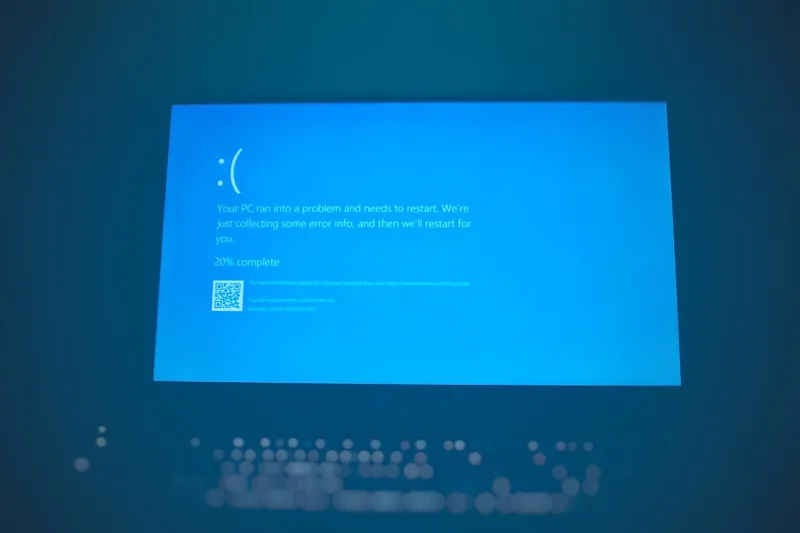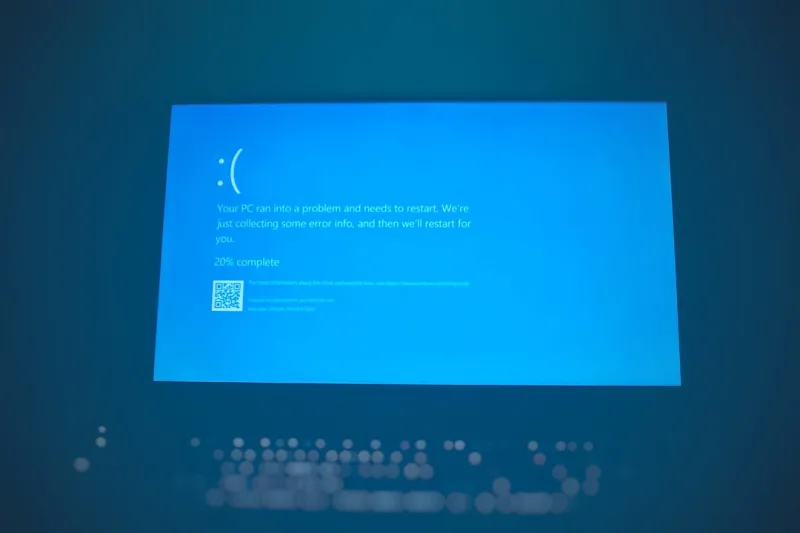
When my workstation erupted into that infamous cobalt‑blue veil last month, my first instinct wasn’t to panic—it was to savor the moment. As a power‑user who lives on the edge of bleeding‑edge software and custom rigs, the Blue Screen of Death (BSOD) feels like an old rival that shows up to remind you that even the most meticulously tuned machine has a breaking point. In 2026, the BSOD has evolved from a cryptic error dump into a nuanced diagnostic tool, but only if you know how to read its language. In this post I’m peeling back the layers, sharing the mental checklist I run through every time the screen goes dark, and showing you why a systematic approach beats frantic Googling. By the time you finish reading, you’ll not only tame the blue beast but also turn it into a proactive maintenance ally—something every serious enthusiast should have in their toolkit.
Hardware Roots: Motherboards, RAM, and the Unseen Culprits
The first place I look when a BSOD strikes is the hardware foundation. A misbehaving motherboard can whisper warnings through PCIe lanes, voltage regulators, or even BIOS firmware glitches. I’ve spent countless nights tweaking BIOS settings, and I can tell you that a solid, well‑matched motherboard still rules the power‑user build. It’s not just about raw specs; it’s about stability under sustained load, especially with modern DDR5 kits pushing the envelope. If you suspect your RAM, run a full MemTest86+ cycle—any single error can cascade into a system crash. And don’t forget the subtle interplay between the CPU’s power phases and the board’s VRM design; a marginal voltage dip during a heavy render can trigger a fatal stop. For a deeper dive into motherboard selection, check out Why the Right Motherboard Still Rules the Power‑User Build. Understanding these hardware nuances equips you to eliminate the most common physical triggers before they become a nightmare.
Driver Drama and Critical Updates
Even the most robust hardware can be sabotaged by outdated or buggy drivers. In 2026, the driver ecosystem has become a fast‑moving target, with GPU vendors releasing weekly patches that can either fix a performance regression or inadvertently introduce a new kernel panic. I keep a tight schedule for driver audits, aligning them with the release cadence of major OS updates. When a new Windows 11 build rolls out, I cross‑reference the driver changelogs from NVIDIA, AMD, and Intel before clicking “install.” Skipping this step has led me to a cascade of BSODs that were actually driver‑induced memory leaks. The good news? The community has rallied around a few reliable sources for vetted updates. If you haven’t already, bookmark Critical Updates Power Users Must Act On Now—it’s a concise guide that helps you prioritize patches that matter most and avoid the “just because it’s new” trap.
Operating System Shifts: The Modern OS Mindset
Windows 11’s evolution in 2026 brings a host of new security layers—hyper‑visor isolation, secure boot enhancements, and aggressive telemetry. While these features protect you from external threats, they also raise the bar for compatibility. A subtle change in the way the kernel handles driver signing can cause a perfectly fine driver to be rejected, resulting in the dreaded stop code. I’ve learned to treat the OS as a living organism: monitor the Event Viewer, enable Kernel Dump collection, and keep an eye on the Reliability Monitor dashboard. These built‑in tools give you a timeline of what happened right before the crash, often pointing to a specific module or service. When I saw a pattern of crashes tied to a third‑party antivirus, I isolated the culprit by booting into Safe Mode and disabling the service, confirming the root cause without a full reinstall. Embracing this proactive OS mindset is the difference between a reactive scramble and a measured fix.
Diagnostic Arsenal: From Sysinternals to Built‑In Utilities
Power users need a reliable diagnostic toolbox, and in 2026 the Microsoft Sysinternals suite remains indispensable. Tools like ProcDump and WinDbg let you capture crash dumps in real time, preserving the exact state of the kernel at the moment of failure. I run a small script that automatically uploads the dump to a private cloud bucket for later analysis—no more hunting through folders after a reboot. Additionally, the new “Memory Integrity” toggle in Windows Security can flag firmware incompatibilities that would otherwise slip under the radar. Pair these with a quick sfc /scannow and DISM /Online /Cleanup‑Image /RestoreHealth routine, and you’ve got a solid first‑line defense. The key is consistency: schedule a weekly health check, and you’ll spot warning signs—like rising driver load times—before they manifest as a full‑blown BSOD.
When Memory Fails: Spotting and Solving RAM Issues Fast
RAM failures are the silent assassins behind many blue screens. In my experience, the most deceptive crashes are those that happen only under heavy multitasking—say, when running a virtual machine while encoding video. The error codes often point to “PAGE_FAULT_IN_NONPAGED_AREA,” a classic indicator of memory corruption. To diagnose, I first run MemTest86+ for a full pass; any failure is a clear sign to replace the module. But there’s a subtler step: verify the BIOS memory timings. Over‑clocked kits can be stable at stock speeds but destabilize under thermal stress. Adjusting the XMP profile back to JEDEC timings has saved me from countless wasted hours. If you’re hunting for a more detailed guide, Why Your PC’s Memory Fails and How to Fix It Fast walks you through the exact steps to isolate faulty sticks without a full system teardown.
Storage Stumbles: Hard Drives Still Matter
While SSDs dominate the performance conversation, traditional hard drives still play a critical role in many power‑user setups—especially as secondary storage for large media libraries. A failing HDD can corrupt page files or virtual memory swaps, leading the OS to a hard stop. In 2026, SMART monitoring tools have become more granular, exposing early‑stage read‑error trends that would have gone unnoticed a few years ago. I regularly schedule a nightly SMART check and set alerts for any re‑allocated sector count spikes. When the numbers creep up, I clone the drive using a sector‑by‑sector copy and replace the hardware before the next crash. This preventative approach has saved me from data loss and the dreaded “INACCESSIBLE_BOOT_DEVICE” BSOD. For a deeper look at why storage still matters, see Why Hard Drives Still Matter for Power‑Users in 2026.
Preventative Maintenance: The Power‑User Routine
The best way to avoid a BSOD is to stay ahead of the curve with disciplined maintenance. I keep a bi‑weekly checklist: update drivers, run memory diagnostics, verify SMART health, and clean dust from heatsinks. Encryption also plays a part; a compromised boot volume can cause unexpected shutdowns as the OS struggles to validate certificates. My go‑to strategy is BitLocker with TPM 2.0, combined with a recovery key stored offline. This not only secures the data but also adds an extra layer of integrity checking at boot time. If you need a solid encryption roadmap, the post Encrypt Like a Power User: Practical Strategies for 2026 outlines the steps I follow. By treating your PC like a high‑performance vehicle—regular oil changes, tire rotations, and tune‑ups—you’ll see far fewer blue flashes and more productive uptime.
Turning BSODs Into a Learning Loop
Every blue screen is an invitation to refine your system. After each incident, I log the stop code, the running processes, and any recent changes in a personal knowledge base. This habit turns a disruptive event into a data point that sharpens future troubleshooting. Over time, patterns emerge: perhaps a specific GPU driver version consistently triggers a crash after a Windows cumulative update, or a particular memory module only fails under certain thermal conditions. Armed with that intel, I can pre‑emptively roll back drivers, adjust cooling profiles, or swap hardware before the next panic. If you’re still wrestling with frequent crashes, revisit the comprehensive guide Why Your PC Keeps Crashing to Blue for a step‑by‑step remediation plan. Embrace the BSOD as a diagnostic ally, and you’ll transform what once felt like a nightmare into a powerful feedback loop that keeps your rig humming at peak performance.