
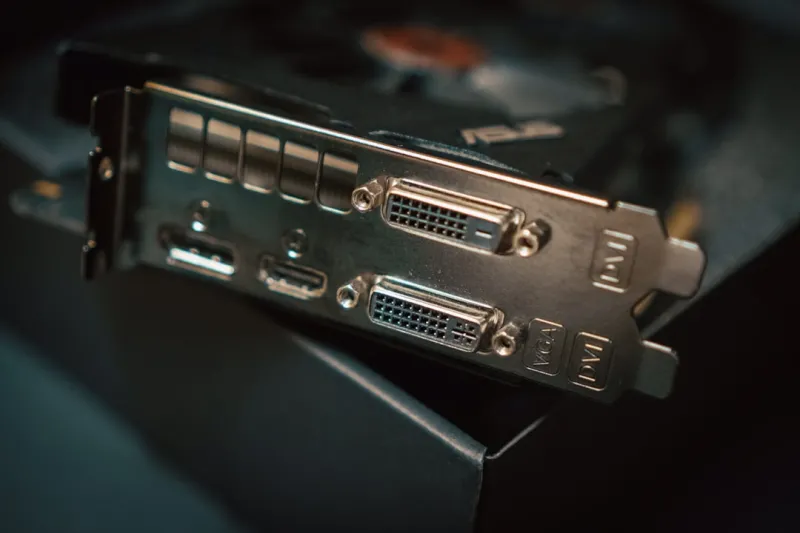
When I first laid hands on a 2026 RTX‑9000, I expected it to be a quiet powerhouse, but within weeks it started spewing green artifacts like a malfunctioning neon sign. In my years of tinkering, I’ve learned that modern video cards are no longer simple “plug‑and‑play” components; they’re sophisticated AI‑augmented machines that demand a fresh troubleshooting mindset. The first thing I do is isolate the symptom: is the artifacting happening under heavy loads, after a driver update, or during idle? This distinction guides whether we look at thermal throttling, firmware glitches, or power‑delivery issues. I also make sure the GPU’s firmware is the latest version because manufacturers now push micro‑code updates that fix AI‑driver misbehaviors that were invisible a year ago. If the problem persists, I pull the card, reseat it, and double‑check the PCIe lane configuration in the BIOS—many motherboards now auto‑configure lanes based on AI predictions, and a mis‑set lane can cripple bandwidth, leading to stutter and visual corruption.
Understanding the New Failure Modes of AI‑Enhanced GPUs
Unlike the static silicon of a decade ago, today’s GPUs integrate on‑board neural processors that dynamically allocate resources based on workload. This brilliance is a double‑edged sword: when the AI driver stack misinterprets a game’s rendering pipeline, it can overload specific shader units, causing crashes that look like driver bugs but are actually hardware‑level misallocations. I always start by disabling the AI‑boost features in the control panel to see if stability improves—a quick toggle that isolates whether the AI layer is the culprit. Another modern failure mode is the “silent throttling” where power limits are auto‑adjusted by the card’s onboard power‑management AI, resulting in frame‑rate drops without any fan speed change. Monitoring tools now expose these AI decisions, and I watch the power‑draw graphs closely; if the GPU dips below its rated TDP without a clear reason, I suspect a firmware bug. In such cases, a clean flash of the firmware—often found on the manufacturer’s support page—can reset the AI’s learning parameters and restore expected performance.
Diagnosing Driver and Software Interactions
Software has become the most volatile partner for GPUs. With AI‑driven drivers that continuously learn from telemetry, a single update can unintentionally introduce regressions. My go‑to method is a staged driver install: I keep a known‑good version on hand (usually the “legacy” branch) and compare its behavior against the latest “beta” release. If the beta triggers crashes, I roll back and file a detailed report—something the community appreciates more than ever as manufacturers rely on user telemetry to fine‑tune their AI models. Additionally, Windows 11’s AI‑enhanced scheduler can interfere with GPU task prioritization, especially when other AI‑heavy apps are running. I recommend checking the Task Manager’s “GPU Engine” tab to see which processes are hogging the compute units. If a background AI‑assistant is monopolizing the GPU, disabling its “hardware acceleration” often resolves the conflict. For deeper issues, I turn to the Why Modern Video Card Failures Require a New Kind of Troubleshooting guide, which outlines advanced log‑parsing techniques using the built‑in Event Viewer and vendor‑specific diagnostic tools.
Power Delivery and Thermal Management in 2026 Builds
Power delivery has become a critical, yet often overlooked, factor in GPU stability. Modern cards draw up to 500 W under AI‑boosted loads, and the power‑supply units (PSUs) now feature smart communication with the GPU’s power‑management controller. If the PSU firmware is out of date, the GPU may receive inconsistent voltage, leading to subtle corruption that only appears after a few hours of gameplay. I always verify the PSU’s firmware version and, when possible, flash it using the manufacturer’s utility. On the thermal side, the shift to liquid‑cooling hybrids means that a clogged radiator can cause the AI cooling algorithm to misjudge temperatures, triggering premature throttling. I schedule a quarterly cleaning of the cooling loop, and I use a thermal camera app on my phone to spot hot spots on the PCB that the software sensors might miss. Remember, a well‑ventilated case and proper cable management are still essential; airflow disruption can cause the AI’s predictive fan curves to behave erratically, especially in compact builds.
Testing Memory Integrity and Inter‑Component Compatibility
GPU memory errors are another sneaky source of artifacts. The GDDR7 stacks in 2026 cards now include on‑die error‑correction that works in tandem with the system’s RAM ECC. If your system RAM is unstable—a situation I’ve seen many creators face after upgrading to ultra‑fast DDR5—those errors can cascade into the GPU’s memory controller, manifesting as frame‑drops or pixel glitches. I run a quick memory stress test using tools like MemTest86 and, if anomalies appear, I reference the Why Your RAM Is Acting Up and How to Fix It in 2026 article to pinpoint the culprit. Compatibility between the GPU and motherboard’s PCIe 5.0 lanes also matters; some high‑end cards require a BIOS that supports “PCIe bifurcation” for multi‑GPU setups. Checking the motherboard’s release notes—often found in the “Why Motherboards Are the Unsung Heroes of 2026 PC Builds” post—helps ensure that the slots are running at full 32 GT/s instead of defaulting to 16 GT/s, which can bottleneck performance and trigger driver timeouts.
Leveraging Community Tools and Firmware Dumps
The community around GPU troubleshooting has grown into a sophisticated ecosystem of open‑source tools. Projects like GPU‑Watcher and AI‑Diag provide real‑time telemetry overlays that expose the AI’s decision‑making process, from shader allocation to power‑budget adjustments. I routinely overlay these dashboards while stress‑testing a new game to catch anomalies the driver’s built‑in monitor might hide. When a problem proves stubborn, I download the latest firmware dump from the manufacturer’s site and compare it to a known‑good version using a hex diff tool; any stray bytes could indicate a corrupted flash. If you’re comfortable, flashing a custom firmware that disables certain AI features can restore stability—a practice discussed in depth in the The Ultimate 2026 PC Upgrade Guide: What Every Gamer and Creator Must Upgrade Now. Always back up the original firmware before making changes, and keep a recovery USB handy in case the card refuses to boot.
When to Consider a Physical Replacement
After exhausting software and firmware avenues, the next logical step is assessing the physical health of the GPU. Visual inspection for bulging capacitors, discoloration, or blown VRM heatsinks can reveal manufacturing defects that AI diagnostics won’t catch. I also perform a “bench test” by swapping the suspect card into a known‑good system; if the artifacts persist, it’s almost certainly a hardware failure. In 2026, many manufacturers offer “AI‑repaired” warranty services where they replace the faulty silicon and recalibrate the AI model for the specific unit. It’s worth checking the warranty terms—some extended plans now cover AI‑related firmware issues, which were previously considered “software” and excluded. If your warranty has expired, consider purchasing a refurbished model from a reputable reseller; these units often come with refreshed firmware and a fresh AI calibration, giving you a cost‑effective second life.
Preparing for Future GPU Generations
Looking ahead, the trajectory of GPU development points toward even tighter integration of AI at the silicon level. Future cards will likely feature self‑healing circuits that auto‑repair minor defects, and AI‑driven predictive maintenance that alerts you before a failure occurs. To stay ahead, I recommend building a habit of regularly checking for firmware updates and subscribing to manufacturer newsletters that announce AI model tweaks. Maintaining a clean, well‑ventilated case and using high‑quality power delivery components will also future‑proof your system against the increasing power demands of upcoming GPUs. Finally, keep a log of any issues you encounter; a detailed history helps both you and the support teams to fine‑tune the AI algorithms that power tomorrow’s graphics experiences.
Wrapping Up: A Balanced Approach to Modern GPU Troubleshooting
The key takeaway from my experience is that troubleshooting a 2026 video card is a blend of traditional hardware checks and new AI‑centric diagnostics. By methodically isolating symptoms, staying current with firmware, and leveraging community tools, you can resolve most issues without resorting to costly replacements. Remember that the AI components, while powerful, add layers of complexity that require a proactive maintenance mindset. Keep your system’s software stack clean, your hardware well‑ventilated, and your firmware up to date, and you’ll enjoy the full potential of today’s AI‑enhanced graphics. As we move deeper into an era where GPUs are as much about learning as they are about rendering, the troubleshooting playbook must evolve—but the fundamentals of careful observation and systematic testing remain timeless.




