The Rising Tide of Video‑Card Headaches in 2024
When I first tore open my rig for a fresh install of the latest GPU, I expected the usual fan‑whirl and a quick driver dance. Instead, I was greeted by a cascade of cryptic error codes, sudden screen flickers, and a stubborn BIOS that refused to recognize the new hardware. Video‑card troubleshooting has never felt so urgent, and the reason is simple: modern GPUs are more powerful, more complex, and more intertwined with the operating system than ever before. In 2024, the integration of AI‑accelerated kernels, ray‑tracing cores, and high‑bandwidth memory means that a single misstep—whether it’s a mismatched driver version, an undervolted power rail, or a lingering firmware bug—can cripple an entire workstation. As someone who lives at the intersection of hardware tinkering and software optimization, I’ve learned to treat each symptom not as a random glitch but as a clue pointing to a deeper systemic issue. In the sections that follow, I’ll walk you through the diagnostic mindset that saved my build and countless others, while sprinkling in the hard‑won lessons from my own hands‑on experience.
Getting the Basics Right: Power, Seating, and BIOS
The first three minutes after installing a new card are the most critical. I always double‑check that the PCI‑e slot is fully seated; a card that’s even a millimeter shy can cause intermittent loss of signal. Next, verify that the power connectors are securely clipped—modern GPUs often draw 300 watts or more, and a loose 8‑pin can trigger random reboots. Once the hardware is physically secure, it’s time to dive into the BIOS. Many manufacturers release firmware updates that resolve compatibility quirks with the newest motherboards, especially those built around the latest DDR5 controllers. If you’re running a BIOS older than a year, flashing to the latest version can eliminate the dreaded “VGA not found” error that plagues many first‑time installers. I’ve seen a single BIOS update turn a non‑booting system into a smooth‑running beast, so never underestimate the power of that tiny chip on your motherboard.
Driver Labyrinth: Choosing the Right Version
Drivers are the software glue that binds the GPU’s hardware capabilities to the OS, and in 2024 that glue is more volatile than ever. NVIDIA’s Studio drivers, for instance, are tuned for creative workloads, whereas the Game Ready branch focuses on performance spikes for the latest titles. My rule of thumb is to align the driver branch with your primary use case, then stick with it for at least a month before considering an upgrade. Jumping on the latest release without testing can re‑introduce bugs that were patched in previous versions. When you do need to upgrade, use the clean‑install option in the driver installer; it wipes residual files that could otherwise cause conflicts. If you ever encounter a black screen after a driver update, boot into Safe Mode, roll back to the previous driver, and then run a utility like DDU (Display Driver Uninstaller) to ensure a pristine slate before trying again.
Windows 2024 Interplay: OS Tweaks That Matter
Windows itself has evolved, and its interaction with graphics hardware has become more nuanced. Features such as DirectStorage, Variable Refresh Rate (VRR), and the new GPU‑driven AI pipelines can be double‑edged swords—delivering stunning performance when configured correctly, but spawning obscure crashes when they clash with legacy software. One quick win is to disable “Hardware‑accelerated GPU scheduling” if you notice stuttering in older games; this setting, while beneficial for some titles, can cause instability on certain driver/firmware combos. Another tip is to keep the Windows Update catalog clean: avoid optional driver updates unless they’re specifically marked for your GPU model. For a deeper dive into Windows 2024’s impact on hardware, check out my Windows 2024 Unleashed guide, where I explore the OS’s hidden performance levers.
Monitoring Tools: The Real‑Time Detective
When a GPU misbehaves, the best way to catch it in the act is through telemetry. Tools like MSI Afterburner, GPU-Z, and the built‑in Windows Performance Monitor provide a live feed of clock speeds, voltage, temperature, and memory usage. I make a habit of logging these metrics during stress tests—run a benchmark such as 3DMark Time Spy while recording the data, then look for spikes or drops that correlate with visual artifacts. A sudden dip in GPU core clock, for example, often points to power throttling, which could be a PSU issue or an insufficient 12 V rail on the motherboard. Likewise, a steady climb toward 90 °C suggests a cooling bottleneck that may require re‑applying thermal paste or improving case airflow. The key is consistency: by establishing a baseline for a healthy system, you can quickly spot deviations the moment something goes wrong.
When Software Meets Hardware: Common Conflict Scenarios
In my years of troubleshooting, I’ve cataloged a handful of software‑hardware conflict patterns that recur like bad jokes at a tech conference. First, third‑party overlay programs (think Discord, GeForce Experience, or even some screen‑recording tools) can hijack the GPU’s rendering pipeline, leading to frame‑rate drops and occasional “GPU timeout” errors. Disabling these overlays during intensive tasks often restores stability. Second, the rise of AI‑enhanced applications means many programs now request exclusive access to Tensor cores; if another background process is already using those cores, the result can be a cryptic “driver power state” failure. A quick check in the Task Manager’s “Details” tab for processes like “ai‑service.exe” can reveal the culprit. Finally, mismatched DPI settings across multiple monitors can cause Windows to send conflicting resolution commands to the GPU, producing flickering or phantom displays. Aligning scaling settings across all screens usually resolves the issue without a hardware swap.
Physical Inspection: Dust, Thermal Paste, and PCB Health
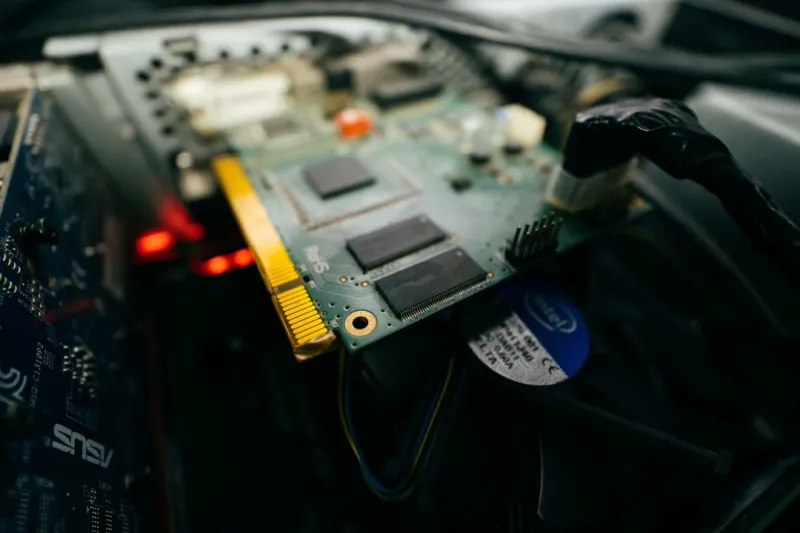
Even the most diligent software checks won’t save you if the GPU is physically compromised. Dust buildup is the silent assassin of modern rigs; a thin veil over the heatsink can reduce heat dissipation by up to 30 %, pushing temperatures into the thermal throttling zone. When you open the case, use a can of compressed air to clear the fins, and consider a soft brush for stubborn clumps. If temperatures remain high after cleaning, it may be time to reapply thermal paste. I recommend a high‑performance compound like Thermal Grizzly Kryonaut, applied in a pea‑sized dot at the center of the GPU die before reseating the cooler. While you’re there, inspect the PCB for any signs of discoloration, bulging capacitors, or cracked solder joints—symptoms often caused by prolonged over‑voltage or poor cooling. A visual inspection can catch a failing component before it triggers a catastrophic failure, saving you both time and money.
Leveraging Community Knowledge and Professional Support
No amount of solo tinkering can replace the collective wisdom of the tech community. Forums such as Reddit’s r/buildapc, the official NVIDIA and AMD support boards, and the Comp Doc internal knowledge base are gold mines for obscure error codes and edge‑case solutions. When you encounter a problem that defies your diagnostics, a well‑crafted post—including screenshots of error messages, driver versions, and system specs—can attract insights from users who have already walked that path. If the issue persists after exhausting community advice, don’t hesitate to invoke warranty support. Manufacturers often provide RMA services that include firmware re‑flashing, which can resolve deep‑seated firmware bugs that are otherwise inaccessible. For a step‑by‑step walkthrough of my own troubleshooting workflow, see the Troubleshooting Video Cards in 2024 guide, where I break down each phase from symptom identification to final resolution.
Future‑Proofing Your Build: What to Expect in the Next GPU Cycle
Looking ahead, the next generation of GPUs will push the envelope with even larger VRAM capacities, integrated AI accelerators, and tighter coupling with the operating system’s kernel. To safeguard your investment, prioritize modularity: choose a PSU with ample headroom, select a case with superior airflow, and keep your drivers and BIOS on a regular update schedule. Embrace the emerging practice of “driver profiles” that allow you to tailor settings per application, ensuring that a demanding AI workload won’t starve your favorite game of resources. Finally, keep an eye on the evolving Windows 2024 ecosystem—features like DirectX 13 are on the horizon, promising new performance gains but also new compatibility challenges. By staying proactive, you’ll not only troubleshoot faster but also enjoy a smoother, more reliable gaming and creation experience for years to come.