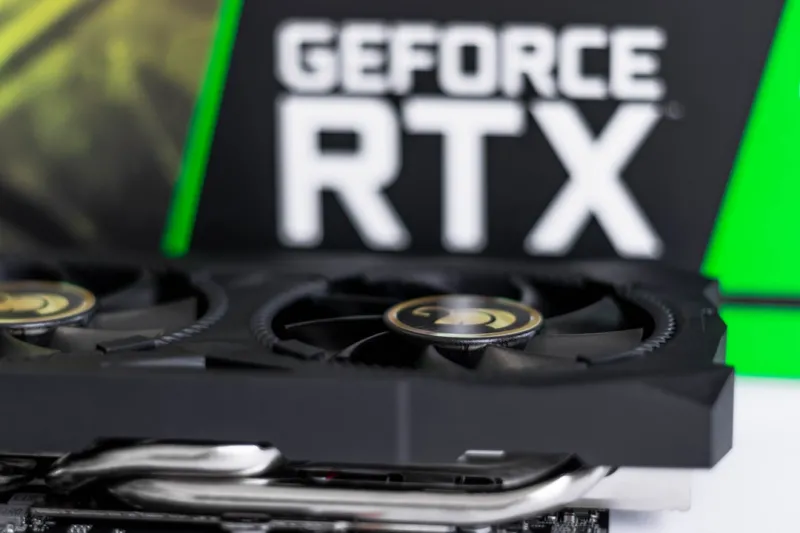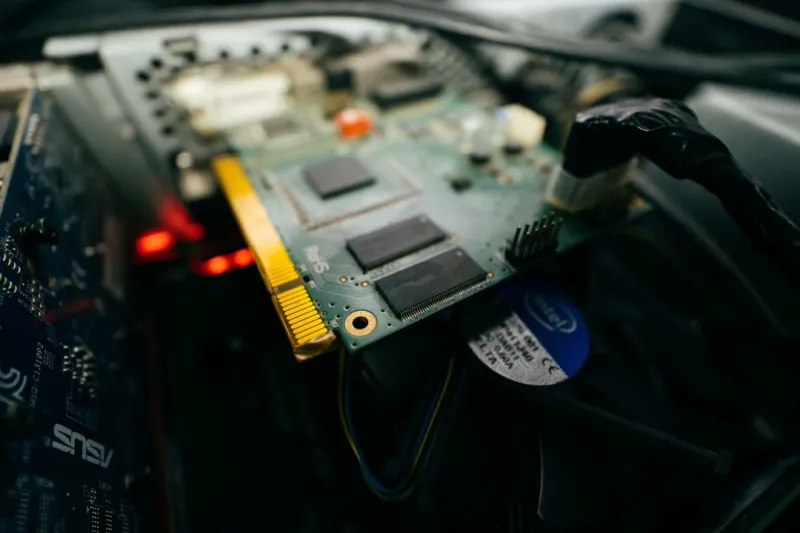
When I first tore apart a high‑end RTX 4090 for a deep‑clean in early 2024, the smell of burnt plastic was a wake‑up call that even the most cutting‑edge GPUs are not immune to the mundane sins of neglect. As someone who lives at the intersection of hardware tinkering and enterprise‑grade security, I’ve learned that video‑card failures follow a predictable pattern: a mix of software missteps, power delivery hiccups, and the inevitable dust‑induced heat buildup. In this guide I’ll walk you through the diagnostic ladder I climb every time a card misbehaves, from the moment the screen flickers to the point where you decide whether a firmware flash or a fresh RMA is the smarter move. Expect a hands‑on, no‑fluff approach that blends my field‑tested troubleshooting playbook with the latest trends that are reshaping PC components this year.
Reading the Symptoms: What Your GPU Is Trying to Tell You
The first step is to listen to the subtle clues your GPU throws your way. Screen tearing, random driver crashes, and visual artifacts are often the canary in the coal mine. If you notice a sudden surge of blue screens during gaming or a spike in latency while streaming, it’s usually not the OS but the graphics stack. I keep a log of timestamps, game titles, and temperature spikes because patterns emerge faster than any diagnostic software can predict. For example, an artifact‑laden frame in a dark scene could indicate VRAM corruption, while a full‑screen freeze that resolves after a reboot often points to a driver conflict. Understanding these nuances helps you prioritize which tests to run first and prevents you from chasing red herrings that waste precious time.
Physical Inspection: The Power, Seating, and Dust Factor
Before you launch any software tool, pull the side panel off and give the GPU a visual once‑over. A loose PCIe latch, sagging motherboard, or a power connector that’s only half‑plugged can manifest as intermittent crashes that are maddening to reproduce. Check that the 8‑pin and 12‑pin connectors are firmly seated; a marginal connection can cause voltage dips that trigger thermal throttling or even permanent damage. Next, assess the cooling solution: are the fans spinning at the correct RPM? Is there a thick layer of dust covering the heatsink fins? I recommend a weekly dust‑off using compressed air angled at a 45° angle to dislodge debris without forcing it deeper into the chassis. If you see thermal paste that looks dry or cracked, replace it with a high‑performance compound—this simple step often rescues a card that was flirting with thermal runaway.
Driver Strategy: Clean Installs and Windows 2024 Insights
Drivers are the software glue that keep the GPU and the OS talking, and a corrupted driver can masquerade as hardware failure. My go‑to method is the “clean‑install” approach: uninstall the existing driver with DDU (Display Driver Uninstaller) in safe mode, then reboot and install the latest WHQL‑signed driver from the manufacturer’s website. If you’re on Windows 2024, I often cross‑reference my Insider Guide to Speed, Security, and AI to ensure that you’re not tripping over the new driver signing policies that Microsoft introduced this year. Remember to disable any third‑party overlay software during the initial boot to prevent conflicts, and always verify the driver version in Device Manager after installation to confirm a clean slate.
Firmware and BIOS Updates: Staying Ahead of the Curve
Modern GPUs come with a firmware layer that can be updated independently of the driver. While manufacturers release these updates to address stability bugs and improve power efficiency, they’re often overlooked. I check the GPU’s firmware version via the vendor’s utility—AMD Radeon Software or NVIDIA Control Panel—then compare it against the latest release notes on the company’s support site. If a newer version mentions fixes for “unexpected shutdowns” or “improved VRAM handling,” it’s worth flashing, provided you follow the vendor’s safety checklist: a stable power source, a backup of the current firmware, and a brief period of idle monitoring after the flash. Pair this with a motherboard BIOS update—especially if you’re running the latest 2024 chipset—to ensure the PCIe negotiation is optimal. The synergy between firmware and BIOS can eliminate subtle incompatibilities that only surface under heavy load.
Stress Testing: Benchmark Tools and Real‑World Load
Once the physical and software layers are verified, it’s time to put the GPU under controlled stress. I rely on a combination of synthetic benchmarks like 3DMark Time Spy and real‑world gaming loops that push the card to its thermal and power limits. While the benchmark runs, keep an eye on the telemetry: GPU temperature, power draw, clock speeds, and memory usage. Sudden clock drops or power throttling at 90 °C often indicate inadequate cooling or a power‑delivery bottleneck. For a more granular look, tools like GPU-Z can log voltage fluctuations that might reveal a faulty VRM on the graphics card. If the stress test completes without artifacting or crashes, you’ve likely cleared the major suspects; otherwise, the logged data will guide your next deep‑dive, whether that’s reseating the power cables or adjusting the fan curve.
Common Error Codes and Their Remedies
During troubleshooting, you’ll inevitably encounter error codes that look like gibberish at first glance. For instance, “DPC Watchdog Violation” is often blamed on the GPU when in reality it may be a latency issue caused by a misbehaving driver or a BIOS setting that disables power‑state transitions. My habit is to cross‑reference the code with the Windows Event Viewer, then isolate the culprit by disabling non‑essential services one at a time. Another frequent offender is the “NVENC” error, which can surface when the encoder hardware is starved for memory due to an oversized VRAM allocation in the driver’s settings. Reducing the encoder’s bitrate or resetting the NVIDIA profile settings to default usually clears the blockage. Understanding these error patterns helps you avoid the endless cycle of swapping hardware when a simple configuration tweak would suffice.
When to RMA: Warranty, Timing, and Future‑Proof Considerations
If after exhaustive testing the GPU still exhibits instability, it’s time to consider an RMA. Most manufacturers offer a three‑year warranty, but the clock starts ticking from the date of purchase, not from when you first installed it. Keep your original receipt and a photo log of the serial number for a smoother claim. When you file the RMA, include the stress‑test logs and a brief description of the steps you’ve already taken—this speeds up the approval process. While waiting for a replacement, it’s wise to evaluate whether the card you originally bought still aligns with your performance goals in 2024. The trends shaping computer hardware in 2024 suggest that newer architectures are delivering better ray‑tracing performance per watt, so an upgrade might be a smarter long‑term investment than a direct swap.
Preventive Maintenance and the Road Ahead
In my experience, the best defense against video‑card headaches is a proactive maintenance schedule. I schedule quarterly clean‑outs, bi‑annual driver audits, and an annual firmware review to stay ahead of potential issues. Additionally, integrating a power‑conditioning unit (PCU) can smooth out voltage spikes that are often the silent killers of GPU longevity. Looking forward, the future‑proof your PC in 2024 guide outlines how to select a power supply and cooling solution that can accommodate the next generation of graphics cards without a complete system overhaul. By treating your GPU as a living component—one that needs regular check‑ups—you’ll enjoy smoother frame rates, fewer crashes, and a longer lifespan for the most expensive part of your rig.